





Background image

Connect and Collaborate with Wave Browser's Messaging

Access supported messaging services while you browse, work, or game without constantly switching between apps and browser windows.

By clicking the "Download Wave Browser" button, I agree to the Terms and Privacy Policy
Feature availability may vary by device

Send Instant Messages Right from Your Browser

Keep conversations going while you browse, game, or work, all in one place.

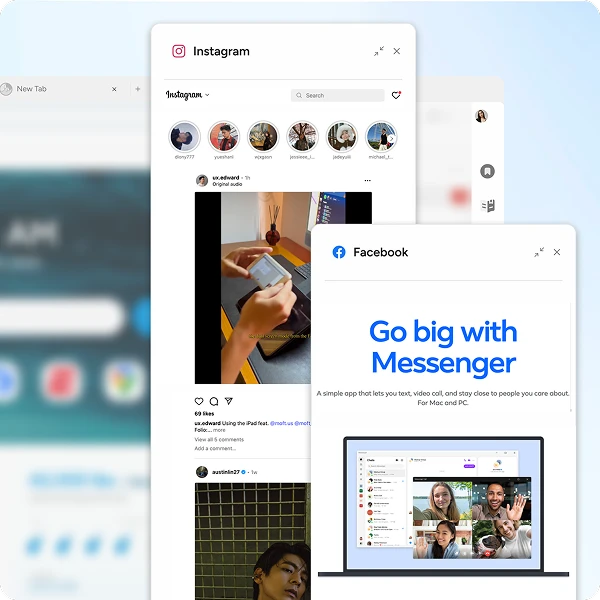
WhatsApp and social media messaging in browser

WhatsApp

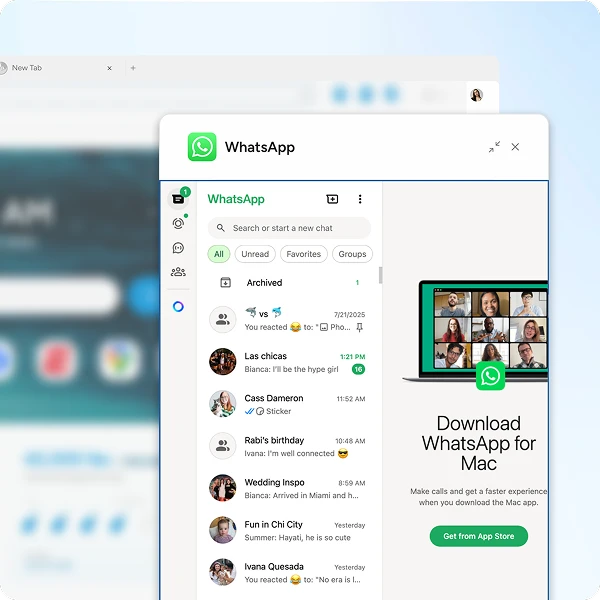
Access WhatsApp while using Wave Browser and keep conversations within easy reach while you browse. WhatsApp provides end-to-end encryption for supported personal messages and calls.

Facebook Messenger

Chat instantly without switching apps. Stay connected while you browse, work, or game.

Instagram

Browse your feed, check messages, and stay up to date, all without leaving your browser.

Elevate Your Productivity with Browser Messaging Apps

Message, collaborate, and share files, all without breaking your workflow.

Team collaboration and file sharing tools

Collaborate more efficiently

No more delays, no more missed messages. Access supported messaging services from Wave while working in other tabs, helping you keep conversations and browsing in one place.

Say goodbye to tab-switching

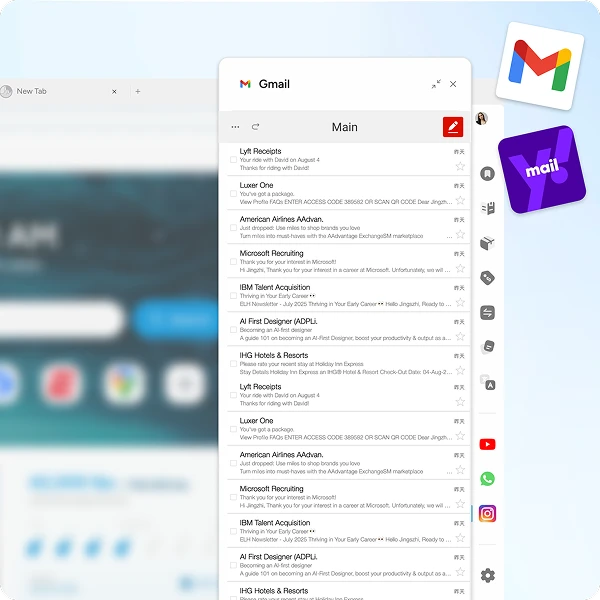
Seamlessly toggle between conversations while working on other tasks with Wave Browser's pop-out messenger app.

Share files effortlessly

Share videos, images, or documents instantly with Wave's efficient browser chat apps and file-sharing features.

Background pattern

Messaging Security and Privacy

Understand Your Messaging Privacy Controls

Understand Your Messaging Privacy Controls

Messaging services accessed through Wave maintain their own privacy and security features. For example, WhatsApp provides end-to-end encryption for supported personal messages and calls. Security, privacy, encryption, and account controls are provided by the individual messaging service and are subject to that service's policies.

Manage Unwanted Messages

Manage Unwanted Messages

Use the blocking, reporting, privacy, and spam-management tools provided by the messaging service you are using to prevent unwanted messages.

By clicking the "Download Wave Browser" button, I agree to the Terms and Privacy Policy

Maximize Your Productivity with Browser Web Messaging

Real-time notifications and message encryption

Never Miss a Message

Stay in the loop with real-time widget notifications. Wave's secure messaging apps keep you instantly updated, so you can reply the moment it matters.

Stay Connected, Stay Focused

Stay on top of conversations without missing a beat, whether you're handling work chats or staying in touch with friends. Discover Wave Browser's web messaging features for streamlined communication and maximum efficiency.

Sea turtle in ocean - join the movement
Join the Movement

Start Browsing with Purpose

Unleash speed, security, and seamless surfing. Plus, every session helps clean the ocean. Discover the power of Wave Browser, download now!

By clicking the "Download Wave Browser" button, I agree to the Terms and Privacy Policy

Explore More Features

Get to know the features that power your productivity and support a cleaner ocean.

Security

Security

Wave Browser's advanced security features help block threats and deliver a safe and secure browsing experience every time.

Privacy

Privacy

Discover privacy features and customization tools designed to give you more control over your browsing data while surfing the web.

Ad Block

Ad Block

Explore how Wave Ad Blocker helps eliminate distractions and create a cleaner, more focused browsing experience.

Gaming

Gaming

Learn how Wave supports smoother gameplay with quick access to messaging apps and built-in resource optimization features.

Explore More Features

Common Questions

How can I use WhatsApp while browsing with Wave?

  1. Open Wave Browser.
  2. Open WhatsApp from the Wave sidebar.
  3. Connect or sign into your WhatsApp account following WhatsApp's instructions.
  4. Keep WhatsApp accessible with split-view while browsing or working in other tabs.

WhatsApp messaging is available on Windows and Mac.

Supported messaging services and functionality may vary by platform, service, and device.

What is Web Messaging in Wave Browser?

Web Messaging in Wave Browser gives you convenient access to supported third-party messaging services from the browser sidebar, so you can stay connected while browsing without constantly switching between tabs or applications.

Is Web Messaging in Wave Browser secure?

The privacy and security protections available while messaging depend on the service you use. For example, WhatsApp provides end-to-end encryption for supported personal messages and calls. Wave provides access to these services through the browser but does not provide or modify their encryption technology.

For details about a messaging service's security and privacy features, refer to that provider's policies and settings.

Can I send multimedia files through Web Messaging in Wave Browser?

Supported messaging services may allow you to send photos, videos, documents, and other files directly from their interface in Wave Browser. Available file-sharing features and limits are determined by the messaging service you are using.

Do I need a special account to use Web Messaging in Wave Browser?

You do not need a separate Wave account specifically for Web Messaging. However, you will need to sign in to or connect an account for the messaging service you want to use, such as WhatsApp or another supported service.

Can I customize which messaging services appear in the Wave sidebar?

Yes. You can customize your Wave sidebar to show or hide supported tools and services based on your preferences. Open the sidebar settings to manage which available services appear.

Can I use messaging services while browsing other websites in Wave Browser?

Yes. Messaging services available through the Wave sidebar can remain accessible while you browse other webpages, allowing you to check conversations without continually switching between separate browser tabs or applications.

What messaging services are available in the Wave Browser sidebar?

Wave Browser's sidebar provides convenient access to supported services such as WhatsApp, Facebook Messenger, and Instagram. You can customize which available services appear through your sidebar settings.

Can I use messaging services in Wave Browser offline?

Messaging services generally require an internet connection to send, receive, and synchronize messages. Offline functionality, if available, depends on the individual messaging service.

How do I manage notifications from messaging services in Wave Browser?

You can manage messaging notifications in Wave Settings > Notifications. Use Chat Notifier to turn desktop notifications for unread messages on or off when you're logged into a supported messaging service, such as Facebook Messenger.

You can also select the settings icon next to Chat Notifier to adjust its available options.

Additionally, individual messaging services may offer additional notification controls within their own settings.

How do I add or remove messaging services from the Wave sidebar?

Open the Wave sidebar settings and customize the available tools and services shown in your sidebar. From there, you can add or remove supported messaging services based on your preferences.