The internet is part of almost everything we do, from work and learning to entertainment and connection. At the center of that experience is a web browser, the software application that makes it all possible. Every search query, every website visit, and every scroll through the World Wide Web happens inside a browser window.
Modern options are no longer just basic tools for loading a web page. They shape your entire browsing experience through speed, security features, privacy controls, and user-friendly design.
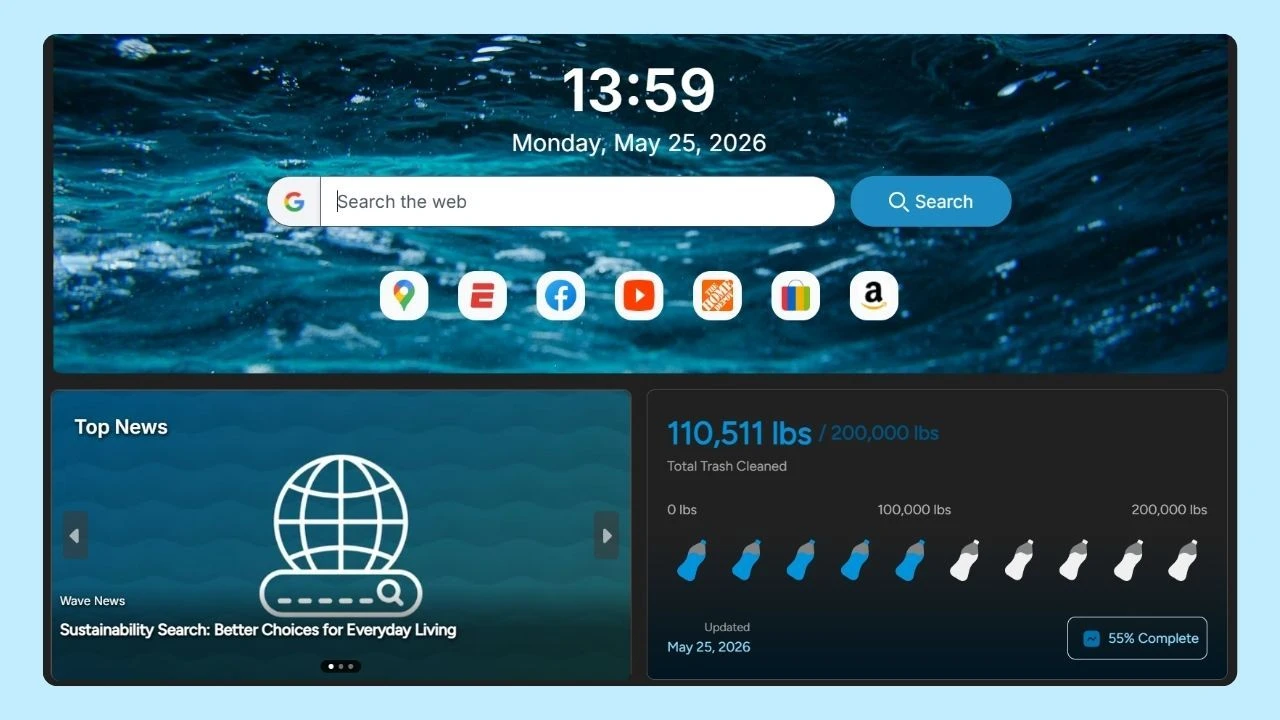
Eco-friendly options like Wave Browser even go a step further, combining performance, built-in protection, and verified ocean cleanup initiatives to show how technology can create real-world impact.
But what is a browser, and how does it work?
Let’s take a closer look.
What Is a Browser?
A web browser (also called an internet browser) is a software application that allows internet users to access and view content on the World Wide Web (sometimes referred to as the wide web).
For beginners, browsing the web typically involves using a browser to search for information, click on hyperlinks, view web pages, and move between different websites by entering web addresses or using search engines.
It does this using Hypertext Transfer Protocol (HTTP) to communicate with servers and interpret Hypertext Markup Language (HTML), which forms the structure of most web content.
When you type a web address into the address bar or search bar, the browser:
- Sends a request to a web server
- Downloads the necessary web page resources
- Uses a rendering engine to interpret the source code
- Displays the content in a browser window
Modern web browsers are built to follow web standards, ensuring websites load properly across different devices and operating systems.
Today’s popular options include:
- Wave Browser
- Google Chrome
- Mozilla Firefox
- Microsoft Edge
- Apple Safari
- Internet Explorer (legacy)
Each has its own unique features, user interface design, and security features, contributing to different user experiences.
Browser on the Computer
On desktops and laptops, users rely on apps such as Wave Browser, Chrome, Firefox, Microsoft Edge, or Apple Safari (on macOS and other Apple devices).
Desktop browsers typically offer:
- A customizable home page
- Advanced extensions
- Developer tools for web development
- Multiple browsing modes, including incognito mode or private browsing
- Detailed settings
These options often dominate global market share, with Chrome leading among major browsers. Over time, updates introduce new features, performance improvements, and enhanced privacy protections.
Browser on the Phone
On smartphones and tablets, mobile browsers are optimized for smaller screens and touch controls.
Examples include:
- Wave Browser
- Safari (default on Apple devices)
- Google Chrome
Mobile devices rely heavily on streamlined user interfaces and fast rendering engines to improve the browsing experience. Many users also set a default browser and a default search engine, such as Google Search.
Understanding what is a browser helps you make smarter decisions about your digital life.
What Is the Difference Between Google and a Browser?

A browser is the tool you use to access the internet and display a web page. Google, on the other hand, is primarily a search engine. When you enter a search term or search query, Google Search scans its index and provides results in a variety of ways.
Search engines have evolved significantly over time. Early platforms like Archie — often considered the first search engine — helped users locate files on the internet long before modern search tools existed.
In simple terms:
- A browser displays web pages.
- A search engine helps you find them.
You can use Google Search inside many different browsers, not just Google Chrome.
The First Browser in Internet History
The first web browser was created in 1990 by Tim Berners-Lee. It was originally called WorldWideWeb and was later renamed Nexus. At the time, the internet was largely text-based, and early browsers were simple tools designed to display and navigate basic documents written in Hypertext Markup Language (HTML).
In the mid-1990s, Netscape Navigator quickly became one of the most popular browsers, helping bring the web into homes and businesses around the world. It introduced a more user-friendly interface and played a major role in expanding internet access to everyday users.
Soon after, Internet Explorer entered the scene and gained significant market share by being bundled with the Windows operating system, shaping what became known as the “browser wars.”
The Evolution of Web Browsers
As the internet evolved, so did browsers. The rise of broadband connections, interactive websites, and complex web applications pushed developers to improve rendering engines, support modern web standards, and enhance security features. This led to the emergence of faster, more stable, and more secure modern browsers.
In the late 2000s and beyond, browsers began focusing heavily on speed, minimal design, and extensions that allowed users to customize their experience. Features like incognito mode, private browsing, automatic browser updates, and stronger protection against malicious websites became standard.
Mobile browsing also surged with the growth of smartphones, leading to optimized mobile browsers designed for smaller screens and touch navigation.
How Do I Find My Browser?

To identify your browser, start by finding the internet icon you use to go online whether you’re on a phone, tablet, or computer. The app or program you tap or click to open sites is your browser.
Once it’s open:
- Tap or click the menu icon (usually three dots, three lines, or a gear symbol).
- Select “About” to view the browser name and current version.
Most devices come with a default browser pre-installed as part of the operating system, but you can usually change it anytime in your settings.
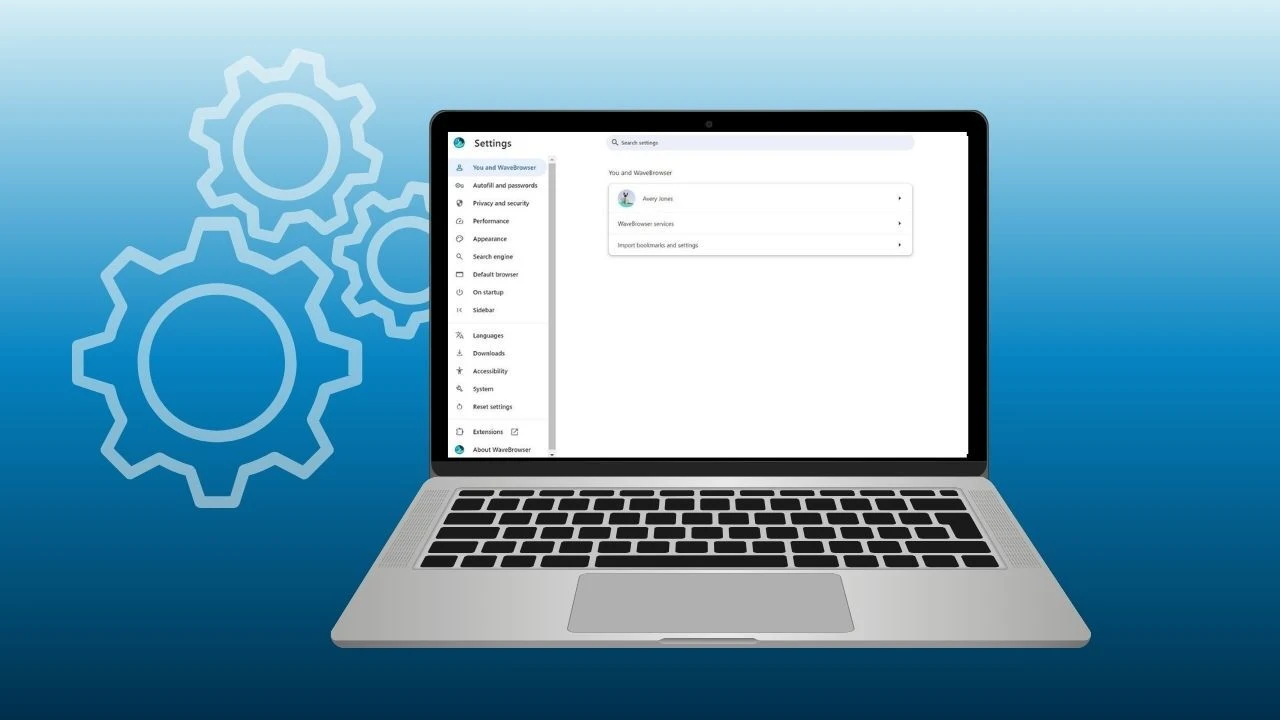
Where Do I Find My Browser Settings?
You can access browser settings by:
- Opening your browser window
- Clicking the menu icon (three dots, lines, or a gear symbol)
- Selecting “Settings”
Here, you can manage:
- Browsing history
- Default search engine
- Privacy features
- Security features
- Browser extensions
- Browsing mode options
Following best practices helps protect your online activity.
By incorporating advanced security features such as phishing protection, malware blocking, and secure connections, browsers help protect users from online threats. Privacy controls empower users to manage cookies, block trackers, and limit data collection, enhancing internet security and privacy while browsing.
How Do I Reset My Browser?
Resetting your browser can fix common issues like slow performance, unwanted pop-ups, altered home pages, or problems caused by malicious websites and unwanted browser extensions.
When you reset your browser, it typically:
- Restores the default search engine
- Resets the home page and new tab settings
- Disables browser extensions
- Clears temporary files and cached web page resources
- Resets privacy and security settings
- Removes custom startup configurations
Your browsing history, saved passwords, and bookmarks are usually preserved, but it’s always good practice to back up important information first.
The exact process to reset your browser may vary depending on the browser you are using and your operating system, but the steps are generally similar.
- Open your browser window.
- Click the menu icon (usually three dots or lines).
- Go to Settings.
- Look for options like Reset Settings, Restore Settings, or Advanced Settings.
- Confirm that you want to reset.
After the reset, restart your browser to apply the changes.
What Does It Mean When It Says to Update Your Browser?
When a website suggests updating your browser, it means your current version may not support the latest web standards or security protocols.
Regular updates:
- Improve performance
- Add new features
- Strengthen privacy features
- Protect against malicious websites
- Fix vulnerabilities that could expose sensitive information
If you’ve been wondering what is a browser, you now know it’s the gateway to everything you do online. But not all browsing experiences are the same.
What Is a Browser Example?
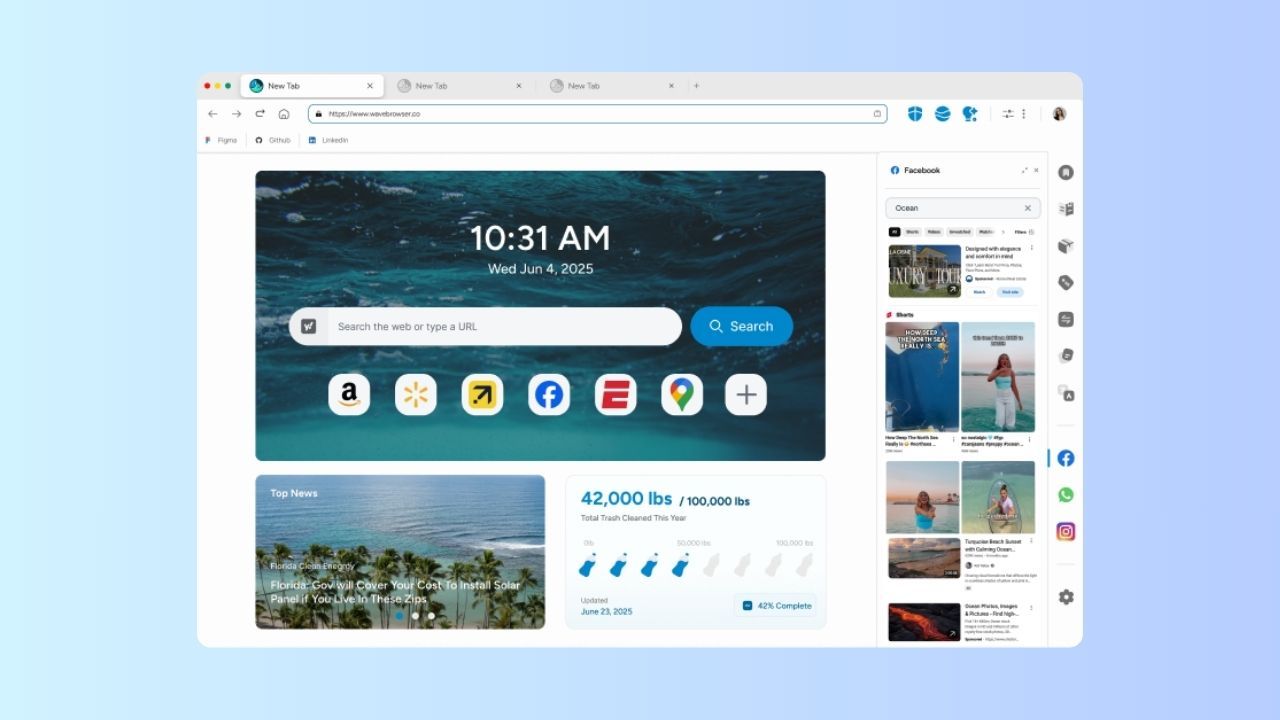
If you’re looking for a clear example of a browser, Wave Browser is one.
It lets you:
- Visit websites
- Set a default search engine
- Manage browser settings
- Review browsing history
- Use private browsing or incognito mode
- Get easy access to social media and messaging tools from the sidebar
- Save content to your reading list for later
- Create notes and reminders directly from the sidebar
- Work, study, stream, or game using split view
- Shop smarter with built-in price and package tracking tools
- And much more!
All designed to make everyday browsing faster, cleaner, and more secure.
So, when someone asks for an example of a browser, Wave Browser is a simple and practical answer.
Modern Browsing, Real-World Impact
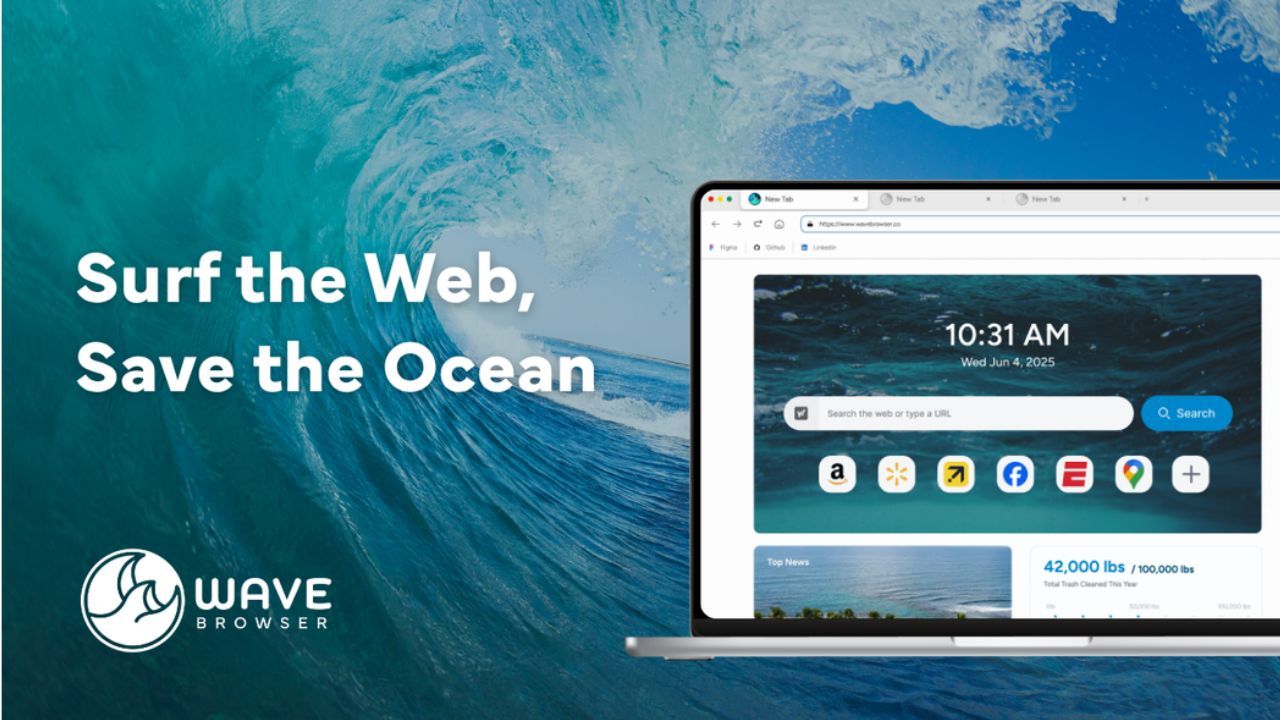
By now, you understand what is a browser and how essential it is to your daily online activity. The next step is choosing one that delivers more than just basic functionality.
Wave Browser is built with these expectations in mind, offering built-in ad and tracker blocking, efficient performance, productivity tools, customizable search options, and tools designed to keep browsing simple and distraction-free.
Beyond powerful browser features, Wave Browser connects technology with purpose. Through a verified ocean cleanup partnership, it supports meaningful environmental action showing that everyday digital habits can contribute to something bigger.
Choosing the right browser isn’t just about functionality anymore.
It’s about aligning performance, privacy, and responsibility in one seamless browsing experience. Wave Browser brings those elements together, helping users browse smarter while making a positive impact beyond the screen.