
In today's digital age, location services enhance online experiences by providing relevant search results, accurate maps, and personalized recommendations. Understanding how location permissions work in different types of web browsers is crucial for making informed decisions about sharing your location data.
Understanding Browser Location Permissions in Your Default Browser
When visiting a website that requests your location, your private search browser will ask for permission to access it. Review the site's privacy policy before granting access to understand how your location data is handled.
Importance of Location Permissions
Enabling location services enhances your browsing experience. E-commerce sites show nearby stores, restaurants give delivery estimates, and maps offer navigation. Google Location Services uses GPS, Wi-Fi, and mobile networks for precise location estimation. Enjoy personalized content based on your location, like targeted ads and local news updates in your browser window. Remember to weigh the benefits and risks before enabling location services.
How Do You Enable Location Permission in Your Browser Safely?
Location services offer benefits, but privacy and security on Mac and Windows are crucial. Some sites store location data long-term, raising privacy concerns. Before enabling location services, review the site’s privacy policy, check how your data will be used and shared, and choose sites with clear privacy policies.
How to Enable Location Permission in Browser
Enabling location permissions in your private browser online is simple. Here's a guide for popular browsers. Refer to your browser's help for specifics as steps may vary based on versions and OS, but principles remain consistent.
Wave Browser, Google Chrome, Microsoft Edge, Mozilla Firefox, and iOS/Mac Safari
To enable location services permissions:
- Navigate to the site you wish to grant location access.
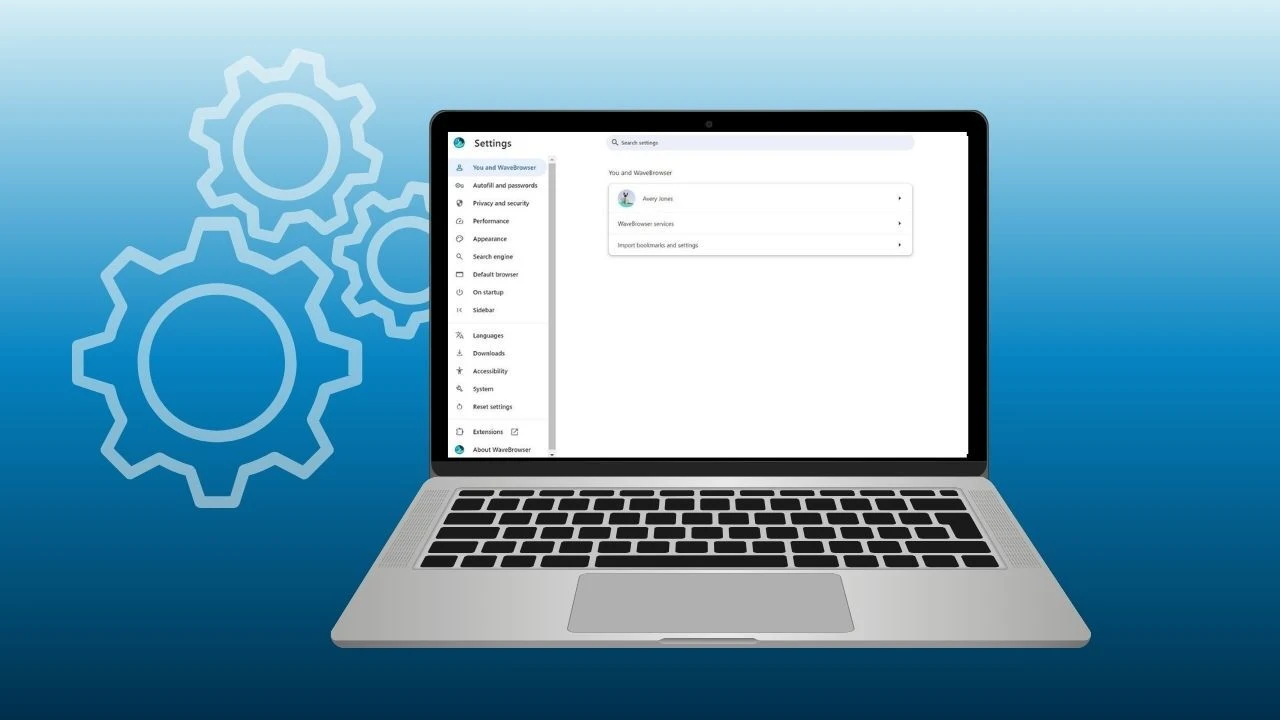
- Look for the padlock icon on the address bar for Chrome or the dropdown menu for Wave Browser.
- Click on it and find the Site Settings, Site Permissions, or Page Info option.
- Locate the Permissions section and enable location services access by checking the relevant box.
If this does not work, try restarting your browser. Remember to review the site’s privacy policy regarding location data usage. This ensures accurate location information is available for your browsing needs.
iPhone and Android Browser Apps
To enable location permissions on your iPhone or Android device:
- Go to your settings and look for the Privacy section.
- Within Privacy, locate Location Services.
- Toggle the switch to allow the browser or specific apps to access your location.
It's advisable to review app permissions periodically to safeguard your privacy and data security.
Why Wave Browser?

As concerns about online privacy continue to grow, many users are looking for browsers that offer greater control without disrupting everyday browsing. Wave Browser provides a privacy-focused browsing experience designed to help users manage how their data is handled online.
Private Browsing (Incognito Mode)
Wave includes a private browsing mode that prevents browsing history, cookies, and site data from being saved on the device once the session ends. This is useful for shared devices or situations where users want added discretion while browsing.
Ad, Tracker, and Cookie Controls
Wave Browser offers built-in ad blocking along with cookie and tracker controls that help reduce unwanted tracking across websites. These features allow users to limit how much data is collected during normal browsing sessions and create a cleaner, less distracting experience.
Rather than positioning itself as an all-in-one privacy solution, Wave focuses on practical tools that support safer browsing habits while remaining easy to use and familiar.