
When you shop online, every click shapes your personalized experience.
On platforms like Amazon, your browsing history, recent searches, and individual items viewed all influence what appears on your homepage and in recommendations. Shopping on desktop, in the mobile app, or through browsers all generates browsing data.
Understanding how Amazon browsing history works can improve your shopping experience and support better online privacy management.
If you're using a productivity-focused browser like Wave Browser, tools such as the built-in price tracker in the sidebar can also enhance how you compare new items while keeping your browsing organized.
Let’s break down everything you need to know.
What Is Amazon Browsing History?

Amazon browsing history is a record of the individual items you’ve viewed while logged into your Amazon account. This history helps the website:
- Recommend products that may best suit your interests
- Display related products in search results
- Improve your overall user experience
- Customize ads and suggestions
Amazon Search History vs. Browsing History
Many shoppers confuse search history with browser history, but they’re different.
- Amazon search history records the keywords you type into the search bar when using Amazon search.
- Browsing history tracks the individual items you click on and view while logged into your Amazon account.
- Browser history, including activity from an Amazon web browser session, is stored by your browser and records the websites you visit, including Amazon itself.
If you want to delete your entire search history, you’ll need to manage it separately from your browsing history, since they are controlled in different places.
How Amazon and Your Browser’s Data Shape Personalization
Your activity—including recent searches, viewed products, and even your IP address—helps shape a personalized experience.
This includes:
- Recommended products
- Suggested categories
- Sponsored listings
- Frequently bought together suggestions
This kind of personalization improves convenience but raises questions about online privacy, especially if multiple family members share the same account.
For privacy reasons, some users choose to periodically clear their browsing and search data.
Where to Find Your Amazon Browsing History Page
On Desktop
- Go to the Amazon homepage
- Hover over your profile icon
- Click “Browsing History”
- You’ll be redirected to the browsing history page
Here you can:
- Remove individual products
- Clear your entire browsing history
- Turn browsing history on or off
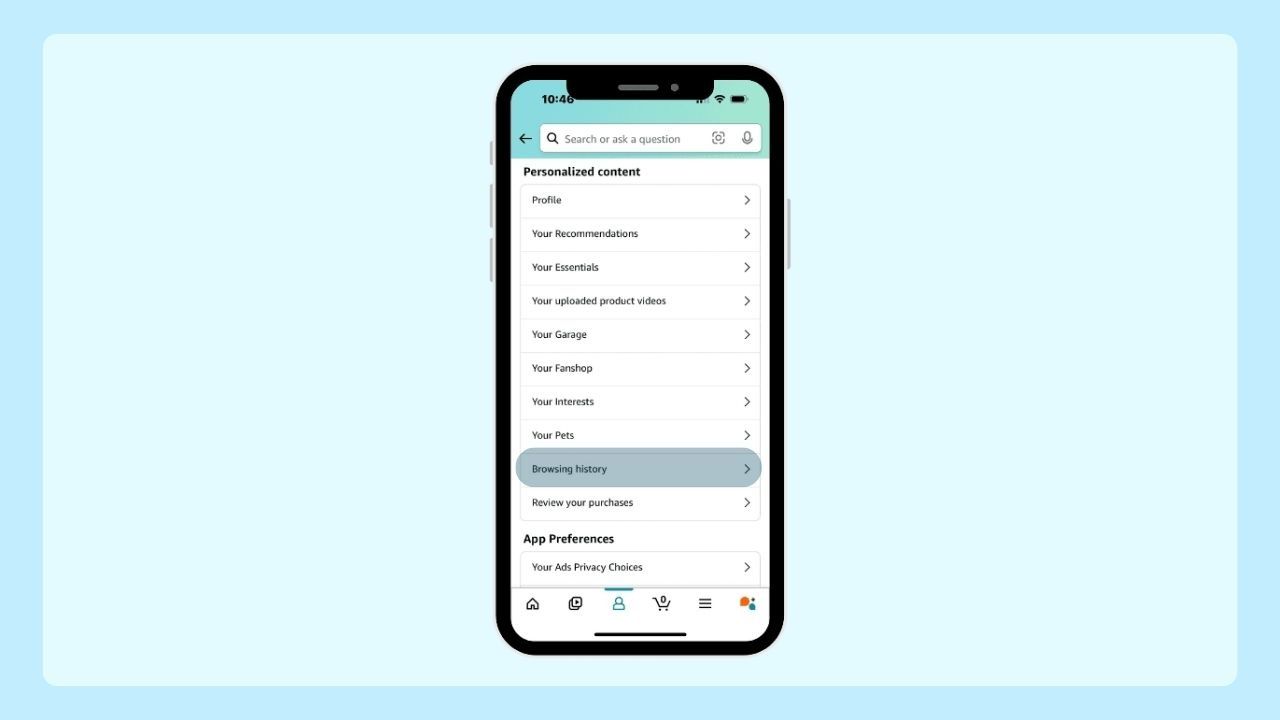
On the Amazon App (iPhone & Android)
If you're using the Amazon app on iPhone or Android:
- Open the mobile app
- Tap the profile icon
- Go to “Your Account”
- Select Browsing History
The interface may vary slightly across mobile devices, but the functionality remains similar.
How to Clear Amazon Browsing History

If you’d like to remove items from your Amazon browsing history, you have a couple of options.
On the Amazon browsing history page, click “Remove from view” beneath any specific product to delete it individually. Or, if you prefer a clean slate, use the toggle or select the clear option to delete your entire browsing history at once.
Clearing your browsing history can be helpful if:
- You searched for gifts and don’t want recommendations to reveal them
- Multiple family members share the same account
- You want to reset your personalized recommendations
Managing your browsing history regularly can help keep your shopping experience more relevant and private.
Managing Privacy on Mobile and Desktop
Whether you're shopping on mobile devices or desktop, here are additional privacy considerations:
- Clear Amazon search history separately
- Log out when sharing devices
- Use a VPN if you want to mask your IP address
- Check your browser’s privacy settings
Should You Turn Off Amazon Browsing History?
Turning off browsing history may:
- Reduce personalized recommendations
- Limit certain suggestions
- Create a more neutral shopping environment
However, it may also impact the tailored experience Amazon builds based on your activity. The right choice depends on what best suits your preferences — convenience or increased privacy.
Improving Your Amazon Shopping Experience
Your Amazon browsing history plays a major role in shaping your online shopping journey. From influencing recommendations to refining your search results within Amazon, your activity helps create a customized experience.
While personalization helps surface relevant items, many shoppers prefer extra tools to make smarter buying decisions.
For example, when using a browser like Wave Browser, you can access a built-in price tracker directly from the sidebar. This allows you to monitor price changes on Amazon products without juggling multiple tabs or external extensions.
Combined with managing your Amazon browsing history, tools like this help create a more organized and efficient browsing experience.
Because better browsing leads to better buying decisions.