
A powerful graphics card and processor matter, but hardware is only one part of PC optimization for gaming. The operating system, graphics drivers, temperature, internet connection, and browser can all affect gaming performance.
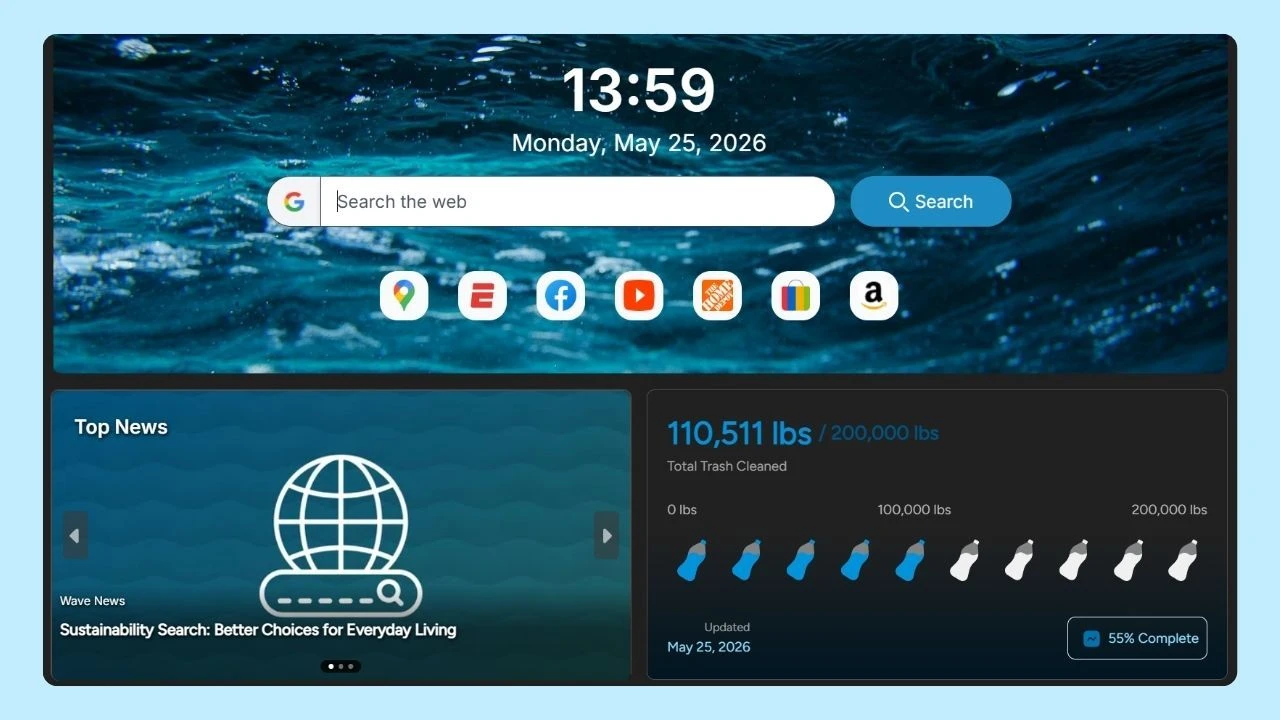
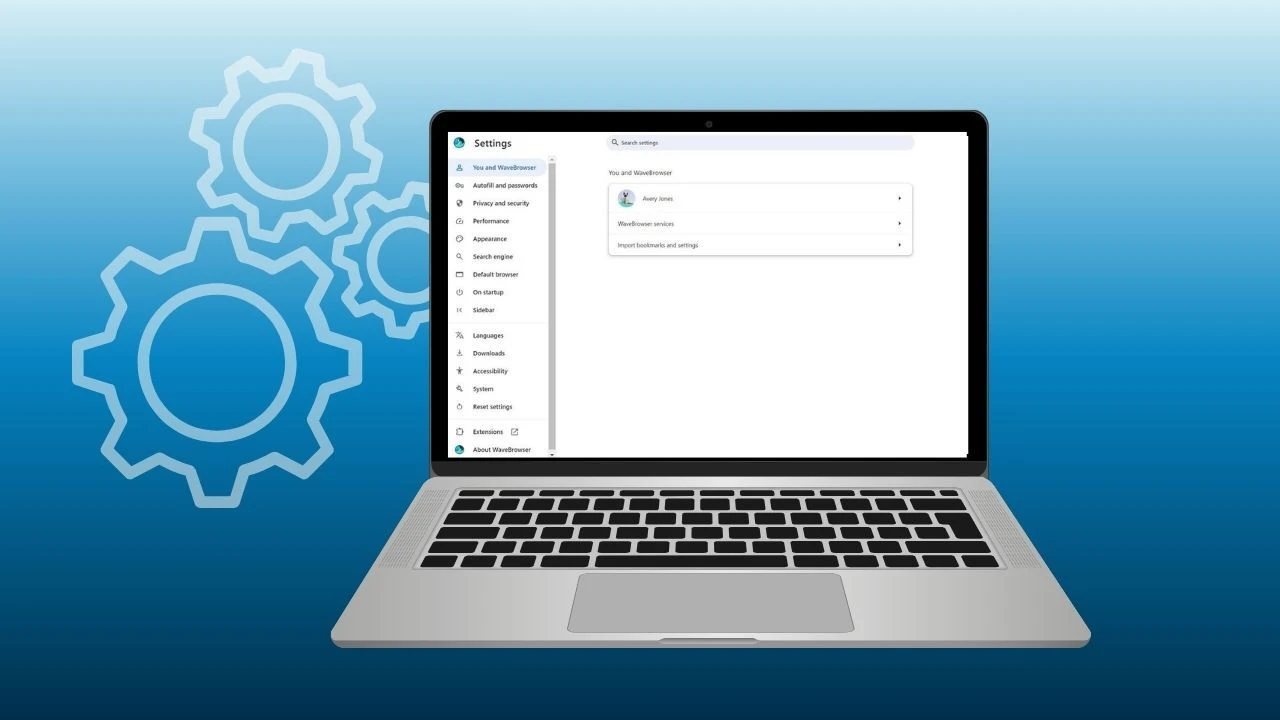
The browser becomes especially important when you play online games or keep guides, streams, and voice chat open beside a downloaded title. Wave Browser supports this routine with tab management, a desktop Side Bar, Memory Saver and Energy Saver, which reduces resource use from inactive tabs and limits background activity and visual effects. These tools do not guarantee higher frame rates, but they can help organize browser activity while you play.
The aim of optimization is not to activate every high performance option. It is to identify what is limiting your gaming experience and make one measured change at a time.
What is PC Optimization for Gaming?
PC optimization for gaming is the process of preparing and maintaining a computer so games can use its available resources effectively. This may include updating software, closing unnecessary background apps, freeing storage space, managing heat, reviewing power settings, and adjusting a game’s visual options.
For online or browser based games, it can also involve using an updated browser, closing inactive tabs, and checking the internet connection. The goal is to reduce avoidable interruptions and create a smoother, more reliable gaming experience.
10 PC Gaming Optimizations to Try
Work through these steps in order, testing the gaming experience after each change. This makes it easier to identify which adjustment affects your PC rather than changing several system settings at once.
Start with low risk software optimization before considering hardware changes. A gaming PC may contain powerful components but still feel inconsistent when graphics settings, startup activity, heat, or network conditions are not aligned. Record a baseline before working through the checklist so you can separate measurable gains from changes that only feel different.
1. Update Your Operating System and the Game
- TL;DR: Install available operating system and game updates, then restart when required.
Updates can include compatibility changes, security improvements, performance improvements, and bug fixes for the latest titles. A game patch may also correct poor performance caused by the software itself rather than the gaming rig.
Check that your version of Windows, MacOS or Linux still receives support and review the game’s release notes before changing advanced settings. If a problem started after an update, look for a known issue or official workaround instead of applying unrelated optimization tools.
2. Install the Right Graphics and GPU Drivers
- TL;DR: Download the latest drivers recommended for your graphics card and PC model.
Keep your operating system and the software responsible for displaying game graphics up to date. These updates can fix crashes, visual problems, and compatibility issues with modern games.
As part of PC optimization for gaming, use the built in update tools for your operating system, whether you use Windows, macOS, or Linux. You can also check the official support page provided by your computer manufacturer.
Restart your computer after installing an update and test the game again. If a problem appears, follow the manufacturer’s official instructions to return to the previous version.
3. Use Game Mode and Reduce Startup Activity
- TL;DR: Turn on Game Mode, review running processes, and disable unnecessary startup apps.
Most operating systems offer tools that can give games more attention, although the settings differ:
- Windows: Turn on Game Mode under Settings > Gaming. You can also open Task Manager to close apps you do not need and manage unnecessary startup programs.
- macOS: On supported Macs, Game Mode works with compatible games in full screen. Use Activity Monitor to find unneeded apps and review Login Items to control what opens automatically.
- Linux: Available options depend on the distribution. Check its system monitor and startup settings to manage background applications.
Test the same game after making each change to see whether it improves your experience. Close or disable only programs you recognize so you do not interrupt services required by the operating system, game, or hardware.
4. Choose Power Settings That Match the Device
- TL;DR: Select a power mode that balances performance, temperature, and energy use.
Power management determines how your computer balances energy use and performance. The available options depend on the operating system:
- Windows: Open Settings > System > Power & battery > Power mode. Choose Balanced or Best performance.
- macOS: Open System Settings > Battery, or Energy on a desktop Mac. Most Macs use Automatic mode by default, while some models also offer High Power mode.
- Linux: Open the power settings provided by your distribution. Depending on the system, you may see options such as Power Saver, Balanced, or Performance.
Balanced or Automatic mode is usually the best place to start. If a game is struggling and the computer is connected to power, try a higher performance setting and compare the results. For additional guidance, see Wave’s articles about browser settings for online gaming.
Higher modes can consume more energy and increase heat or fan noise, particularly on gaming laptops, so switch back if you notice no meaningful improvement.
5. Balance Game, Graphics, and Monitor Settings
- TL;DR: Find the sweet spot between visual quality, frame rates, and responsiveness.
A practical approach to PC optimization for gaming starts with the settings inside each game. If gameplay feels uneven, lower one visual option at a time, such as resolution, shadows, reflections, or ray tracing. Replay the same section after each change to find a comfortable balance between smooth gameplay and visual quality.
Your computer may also include an app with recommended game settings. Begin with those suggestions and avoid applying one setting to every title, since each game has different requirements.
Finally, check that your monitor is using its recommended refresh rate, which controls how often the image updates on screen. Wave’s gaming setup tips offer additional ideas for creating a comfortable and organized setup.
6. Monitor Heat and PC Health
- TL;DR: Check temperatures and airflow during a repeatable gaming session.
Keeping your computer cool is an important part of PC optimization for gaming. When too much heat builds up, games may start smoothly and become less responsive after several minutes. Keep air vents clear, remove dust carefully, and leave enough space around the fans.
Gaming laptops should be placed on a firm, flat surface instead of a bed, sofa, or other material that can block airflow to avoid high temperatures.
Avoid changing advanced hardware settings unless you understand how they work. Windows users can find practical guidance in Wave’s article about managing CPU temperature range on Windows.
7. Keep Storage Available and Remove Temporary Files
- TL;DR: Leave room for updates, shader caches, and temporary game data.
Freeing storage space is another simple step in PC optimization for gaming. A nearly full computer can take longer to open games, install updates, and load files.
Use your operating system’s storage settings to remove temporary files, empty the recycle bin or trash, and uninstall apps you no longer use. Avoid deleting folders you do not recognize. More available space may improve loading times, but it will not necessarily increase frame rates or make gameplay smoother.
8. Stabilize the Internet Connection
- TL;DR: Test the network separately and use a wired connection when practical.
Online gaming depends on low latency and stability as well as download speed. Wi-Fi interference, an overloaded router, background downloads, cloud backups, or a distant server can delay multiplayer games even when the plan advertises a high speed.
Pause large transfers and check whether another device is consuming most of the available capacity. If one title is affected, review its server status before changing system settings. If every online service is unstable, restart the network equipment and test the internet connection outside the game. Players looking for something less demanding can also explore multiplayer browser games.
9. Optimize the Browser Used for Gaming
- TL;DR: Review open tabs, extensions, streams, downloads, and browser performance settings.
The browser matters when a game runs on a web page or when guides, video, voice chat, and community services remain open beside a downloaded title. Interactive pages and background tabs can use CPU time, memory, and network capacity. The evolution of browser games also shows how online titles have become more technically capable and demanding.
Before playing, close duplicate pages and remove extensions you no longer use. Wave Browser’s Memory Saver can pause inactive tabs and reduce the resources assigned to them until you return.
Wave’s desktop Side Bar can also keep Discord, Twitch, and YouTube accessible while the main window remains available for the game or a guide. A GamesRadar overview of Wave Browser discusses Memory Saver, the Side Bar, and video tools for gaming and multitasking.
For more guidance, read the article about how to play games with Wave.
10. Measure Every Change
- TL;DR: Compare the same scene, level, or built in benchmark before and after each adjustment.
Make one change at a time and play the same section again. Notice whether the game loads more easily, responds better, or feels smoother. Keep the change only if it improves the part of the gaming experience that matters to you.
Most players do not need to adjust every available setting. Closing unnecessary background processes can free system resources, while a few careful changes are easier to evaluate than many changes made at once. The goal is to find the setup that provides the best experience on your own computer.
Build a Balanced PC Optimization Routine

Effective PC optimization for gaming begins with regular maintenance. Keep software and graphics drivers updated, limit unnecessary startup apps, monitor heat, and leave enough storage space for faster load times.
Review the available power options through your device settings or control panel, remembering that maximum performance is not always the best choice for every computer. Together, these steps can help your system work toward its full potential and support smoother gameplay before you adjust individual game settings.
For browser based games and the online tools surrounding a session, Wave Browser can help organize tabs and reduce resources assigned to inactive pages through Memory Saver. These controls support the wider setup, while frame rates, game logic, hardware limits, and server conditions remain outside the browser’s control.
The best routine produces a stable gaming experience on your own PC. Test changes individually, keep settings that provide better performance without unnecessary heat or visual loss, and visit Wave’s gaming hub or the gaming browser features for more ways to organize online play.