If you're using a Mac, understanding how to manage website data in Safari and other private search browsers is essential for a smooth and private browsing experience. Clearing your entire cache regularly can help prevent performance issues, protect your personal information, and ensure websites load correctly.
This tutorial provides a comprehensive guide to clearing your browsing history, cache, and cookies on various browsers used on Mac with the simple click of a button.
Safari: How to Clear Browser Cache and Cookies on Mac
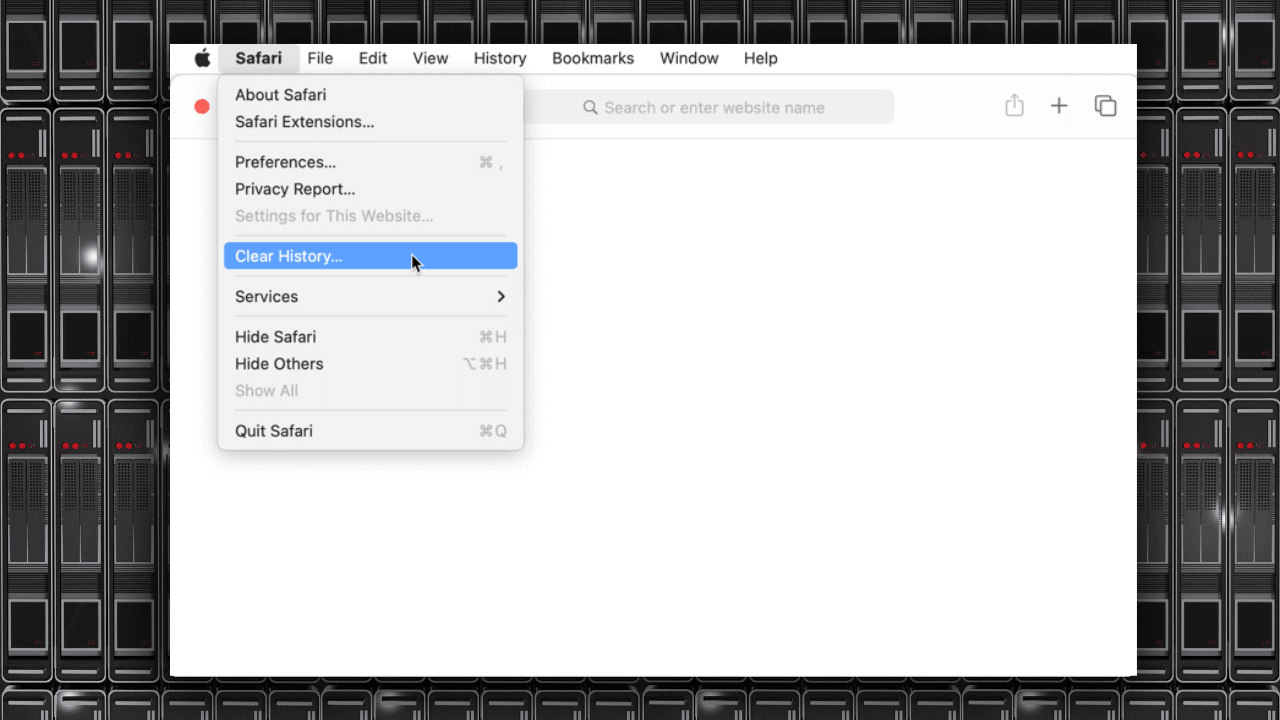
There is a simple way to clear your cache and cookies in Mac's default web browser.
- Open Safari from your Dock or Applications folder.
- Click "History."
- Select "Clear History."
- Confirm your selection.
Chrome: How to Clear Browser Cache on Mac Chrome
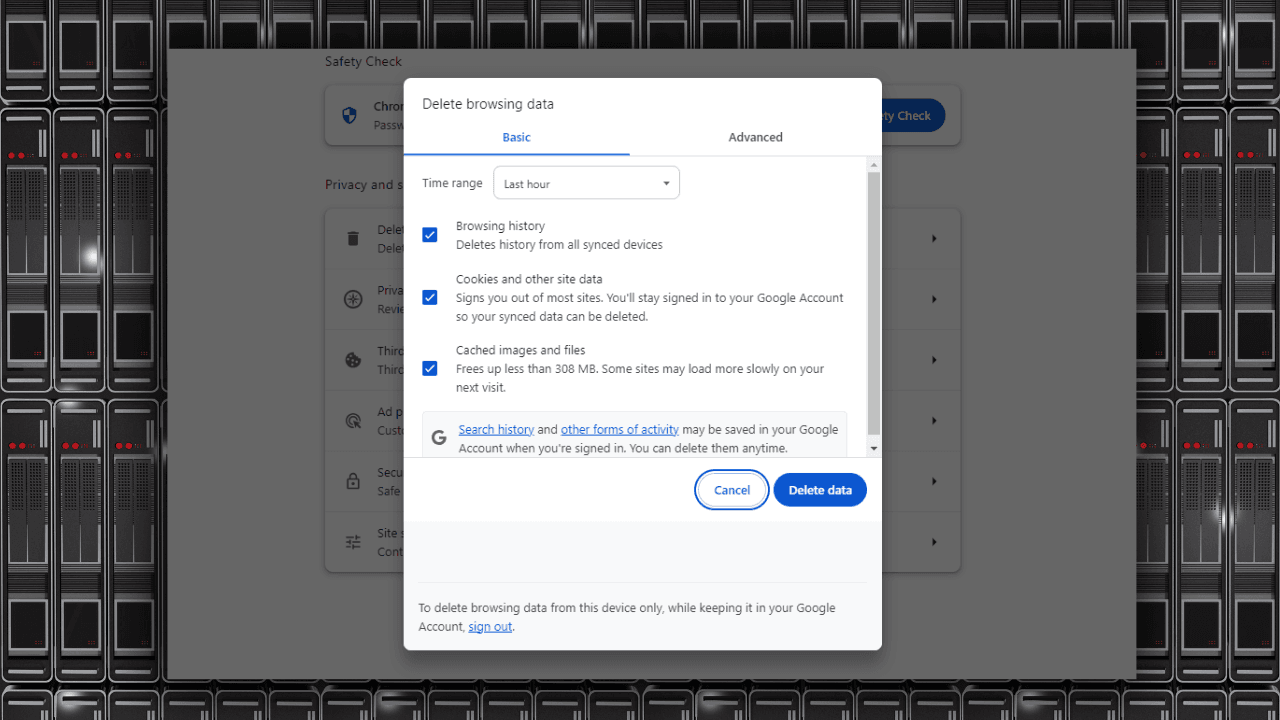
Google Chrome, a popular browser on Mac, offers an easy way to clear your browser cache.
- Click the three vertical dots in the upper right corner to access the Chrome menu bar.
- Hover over "More tools" and select "Clear browsing data."
- Select a time range and data types like browsing history, cookies, and cached images to clear.
- Confirm your selections by clicking "Delete data."
Alternative Browsers

Safari and Chrome are the top Mac browsers, but other options cater to different needs. Most browsers follow a similar process to clear cache and cookies: access settings, find privacy/history, and clear browsing data.
Browsers like Firefox, Opera, and Brave focus on user privacy and offer detailed control to clear data. By understanding your browser's settings, like learning how to reset browser settings, you can maintain a smooth browsing experience.
Firefox: How to Clear Browser Cookies and Cache on Mac

Firefox, known for privacy features, lets users clear cache effectively on Mac.
- Open Firefox and select the Firefox menu.
- Select "History."
- Click "Clear Recent History."
- Choose a time range and the type of data you wish to clear.
- Confirm your selections by selecting "Clear."
Wave: How to Clear Your Browser Cache and Cookies on Mac
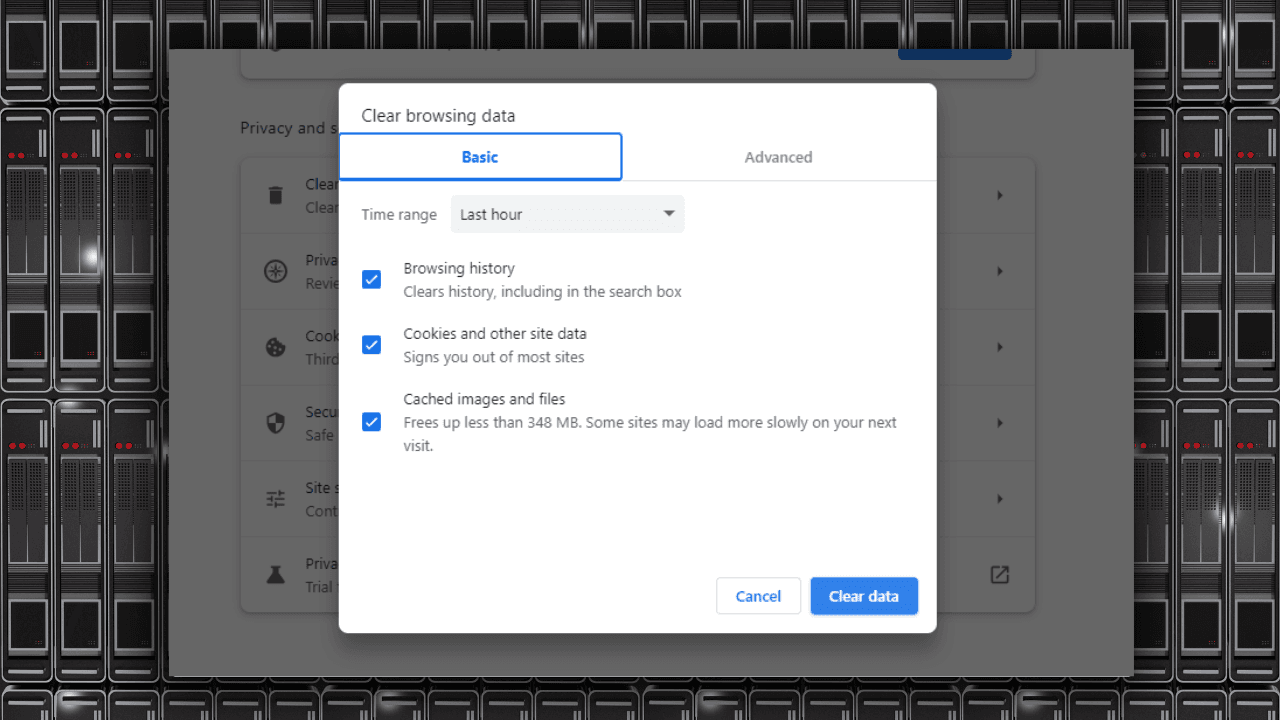
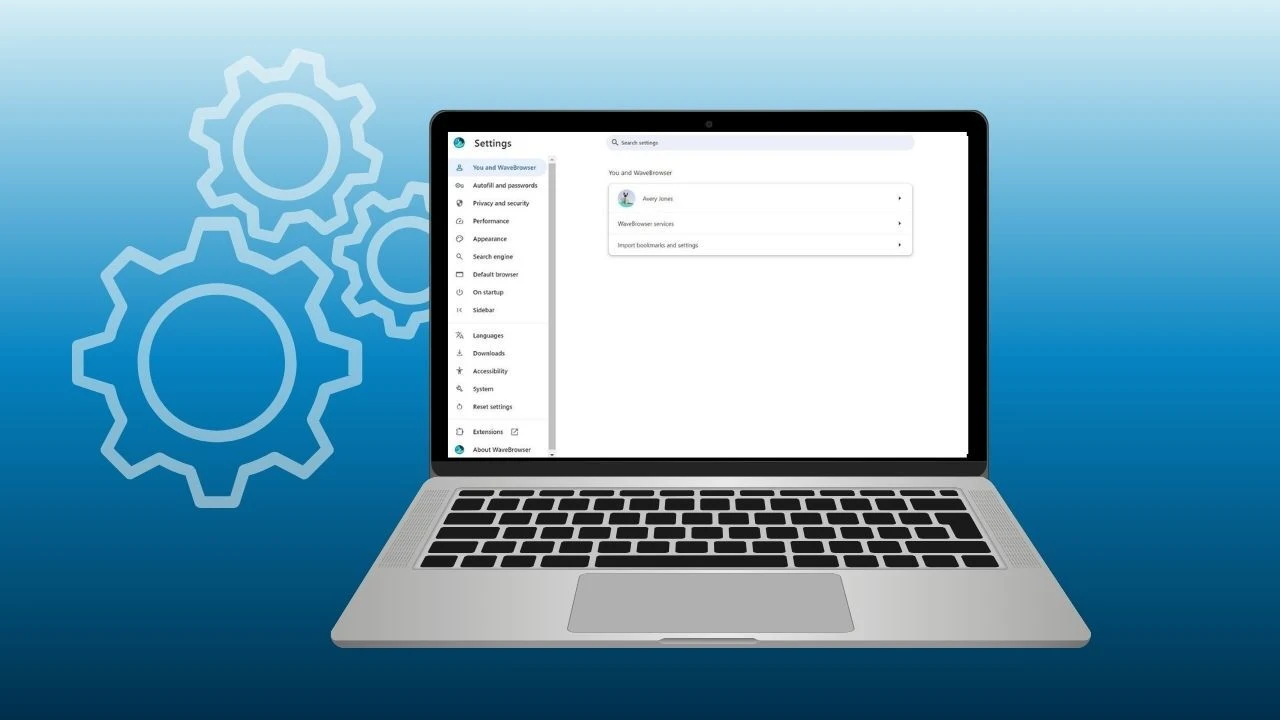
For Wave Browser users, clearing the cache is similar to other browsers. You can use keyboard shortcuts for a more efficient approach.
- Open Wave Browser.
- Press "Command + Shift + Delete" to open the "Clear Browsing Data" window.
- Choose the time range and type of data, including search history, cookies, and cached files that you would like to clear.
- Confirm your selections by clicking "Clear data."
Why Wave?

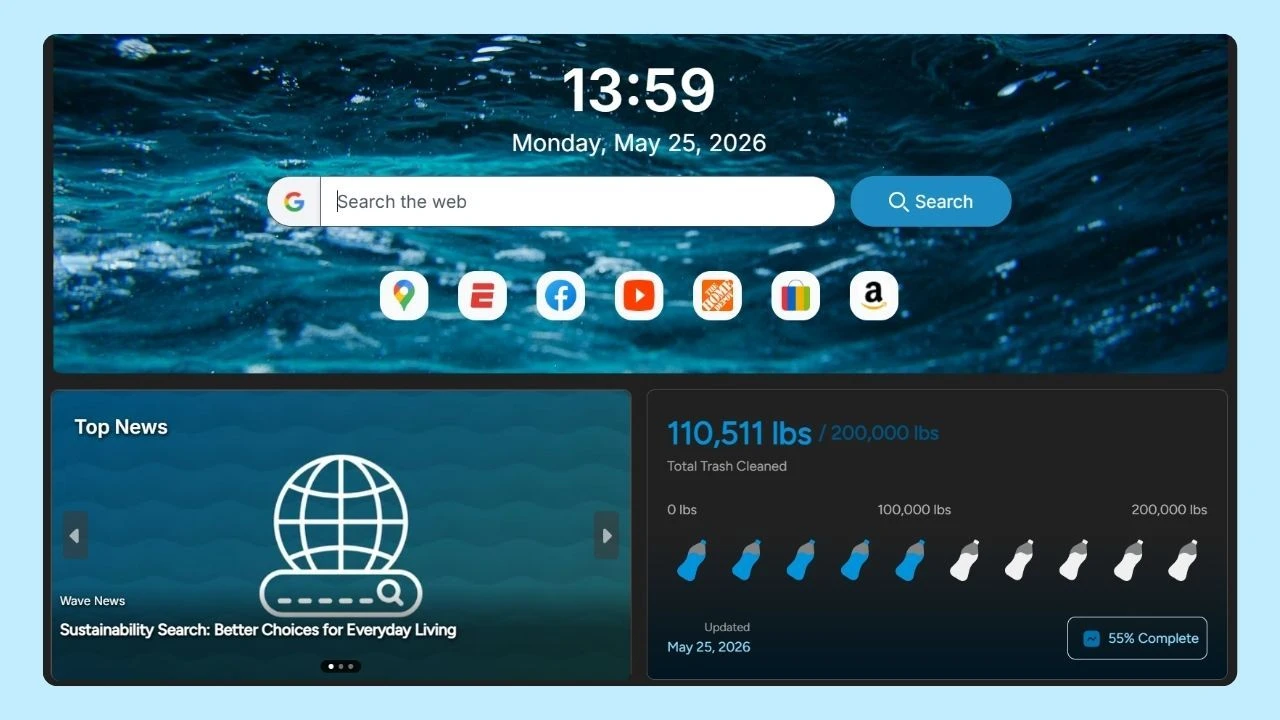
Mac users expect their tools to be fast, intuitive, and thoughtfully designed. Wave Browser fits naturally into that experience while adding something most browsers don’t: real-world impact.
Wave is built to feel familiar from the start. You get a clean interface, smooth navigation, and the core tools you rely on every day without needing extra setup or extensions. Features like built-in ad and tracker blocking help reduce clutter, while tools like bookmarks, reading lists, and split-screen support keep your workflow organized and efficient.
Performance also matters on Mac. Wave is designed to handle multiple tabs without slowing you down, using memory-saving features to keep things running smoothly—even during heavy browsing sessions. Whether you're working, researching, or streaming, the experience stays consistent and responsive.
But what sets Wave apart isn’t just how it works. It’s what it supports.
Wave Browser connects everyday browsing to verified ocean cleanup through its partnership with 4ocean. As you go about your normal activity—opening tabs, reading articles, watching content—you’re helping fund the removal of plastic and trash from our ocean, rivers, and coastlines.
It’s a different way to think about a browser. Not something you have to change your habits for, but something that adds value to what you already do.
On Mac, that means you’re not choosing between performance and purpose. You’re getting both in one place.
Wave is for users who want their tools to work well—and stand for something meaningful.
FAQs

How to clear my browser cache on Mac PC while saving passwords?
To clear your browser cache on a Mac while saving passwords, you can follow these steps:
- Open your preferred browser from your dock, desktop, or Finder (e.g., Mac Safari, Chrome).
- Go to the browser's settings and find the option for clearing browsing data.
- Select the time range and specific data you want to clear, but make sure to uncheck the option for clearing saved passwords.
- Confirm your selections and proceed with clearing the cache while retaining your saved passwords.
By following these steps, you can ensure that your browsing performance is optimized by clearing unnecessary site data while still keeping your important passwords intact.
How to clear cache on iPhone, iOS tablets, and Android?
To clear browser cache on iPhone, iOS tablets, and Android devices, you can follow these steps:
For iPhone and iPad:
- Open the Settings app.
- Scroll down and select Safari.
- Tap on "Clear History and Website Data" to clear browser cache.
For Android devices:
- Open the Chrome app.
- Tap on the three dots in the top-right corner.
- Go to Settings > Privacy.
- Select "Clear browsing data" to clear cache on your Android device.
Does clearing cache affect browsing?
Clearing cache and cookies can have a significant impact on your browsing experience. By clearing cache, you are essentially removing stored temporary cache files that websites use to load faster. Empty caches can help free up storage space and improve your browser's performance.
Clearing cookies, on the other hand, removes tracking data that websites store on your device, which can enhance your privacy and security while browsing online. Access Wave and start surfing the web safely. You can learn more about safe browsing features like "https" on our other blogs. Overall, regularly clearing cache and cookies can help maintain a smoother and more secure browsing experience.
Does clearing cache delete Macbook Wallet information?
Clearing cache on your Macbook does not delete your Apple Wallet information. The cache primarily stores website data to help them load faster, while your personal information like Apple Wallet data is stored separately and securely.