Have you ever opened a webpage and found missing images, a broken layout, or information that should have been updated already? The website may be working correctly, but your browser could still be showing an older saved copy.
A hard refresh tells your web browser to ignore certain saved files and request the latest files from the server. It is a quick troubleshooting step that can fix many common display and loading problems without deleting all your browsing data.
In Wave Browser, you can perform a hard refresh with an easy keyboard shortcut on Windows or macOS. This guide explains when to use it, how it differs from a normal reload, and what to try if the page still does not update.
What Does a Hard Refresh Do?
When you visit a webpage, the browser may save parts of it in a local cache. This can include images, design files, and other content that does not need to be downloaded again every time you return.
The browser cache normally helps pages load more efficiently. However, it can occasionally cause the browser to display old content instead of a recent update. A hard refresh bypasses the cached version of a page and requests fresh files from the website’s server.
This can help when:
- A page displays outdated information
- A recent update does not appear
- Images or design elements look incorrect
- Buttons, forms, or menus are not working as expected
- A web app continues showing an outdated response
- The page works differently from what other users see
A hard refresh usually affects the current page. It does not automatically clear every saved file, remove browsing history, or delete login information.
When Should You Hard Refresh a Browser?
A hard refresh is most useful when there is a clear difference between the page you expect and the page being displayed.
Common situations include:
- A website was recently updated: A business may change a price, publish an article, update an image, or redesign part of its website. If you still see the previous version, the cache may be supplying old content.
- A webpage looks incomplete: Missing images, unusual fonts, overlapping sections, or misplaced buttons may indicate that some page files did not load correctly.
- A web app is not responding correctly: Web apps can change frequently. A hard reload may help when an update has been released but the browser continues using an older saved file.
- A form or menu does not work: Interactive elements sometimes depend on recently updated page files. Reloading fresh resources may resolve a conflict with an older file.
- You are reviewing your own website: Writers, editors, designers, and website owners may publish a change and continue seeing the cached version. A hard refresh can help confirm whether recent updates are visible.
Normal Refresh vs. Hard Refresh
A normal refresh and a hard refresh both reload the current page, but they do not handle cached files in the same way.
| Action | What it does | When to use it |
| Normal refresh | Reloads the page and may reuse files from the browser cache | When you want to check for a simple content update |
| Hard refresh | Reloads the page while bypassing certain cached files | When the page shows old content or does not display correctly |
| Clear cache | Removes saved website files for a selected time range | When problems continue across one or more websites |
| Clear cookies and site data | Removes stored sign in sessions and website preferences | When account, permission, or site data problems continue |
| Clear recent history | Removes the record of websites visited during a selected period | When you want to remove recently visited pages from your browsing history |
Start with a normal refresh by selecting the refresh icon or reload button in the toolbar. If that does not work, try a hard reload before removing broader browsing data.
How to Hard Refresh Browser Pages

The easiest method is to use a keyboard shortcut. The correct key combination depends on your operating system.
Hard Refresh on Windows
Open the webpage you want to update, and then use one of these commands:
- Press Ctrl + Shift + R
- Press Ctrl + F5
The easiest method is to use a keyboard shortcut. The correct key combination depends on your operating system.
Hard Refresh on macOS
On a Mac, open the affected page and press:
- Cmd + Shift + R
This is different from Cmd + R, which performs a normal reload and may continue using saved files.
Hard Refresh on Linux
On Linux, use either of these shortcuts:
- Press Ctrl + Shift + R
- Press Ctrl + F5
These easy key combinations provide a quick way to refresh the current page without opening the settings menu.
How To Use The Reload Button For a Hard Refresh

The developer tools provide additional reload options. This method is more advanced, but it can be useful when a keyboard shortcut does not produce the expected result.
- Open the webpage you want to reload.
- Open Developer Tools with F12 or Ctrl + Shift + I on Windows and Linux.
- On macOS, press Cmd + Option + I.
- With Developer Tools open, click and hold the reload button near the address bar.
- Choose Hard Reload from the dropdown menu.
You may also see Empty Cache and Hard Reload. This option empties cached files before reloading the page, making it more thorough than a standard hard reload.
You do not need to use the developer console, show a Develop menu, or enable a separate develop mode for ordinary refresh problems. The keyboard shortcuts are usually the simpler first step.
What Does “Empty Cache and Hard Reload” Mean?
The Empty Cache and Hard Reload option combines two actions:
- It empties cached website files.
- It immediately reloads the current page.
This can be helpful when a normal hard refresh still shows an older version. It gives the page a cleaner restart by making the browser download its resources again.
The option is generally available only while Developer Tools are open. Because it is a stronger action, try the standard shortcut first.
Refresh Pages Easily With Wave Browser
A hard refresh is a simple way to deal with outdated information, missing images, broken layouts, and recent updates that have not appeared. It asks the page to load fresh files rather than continuing to rely on an older cached version.
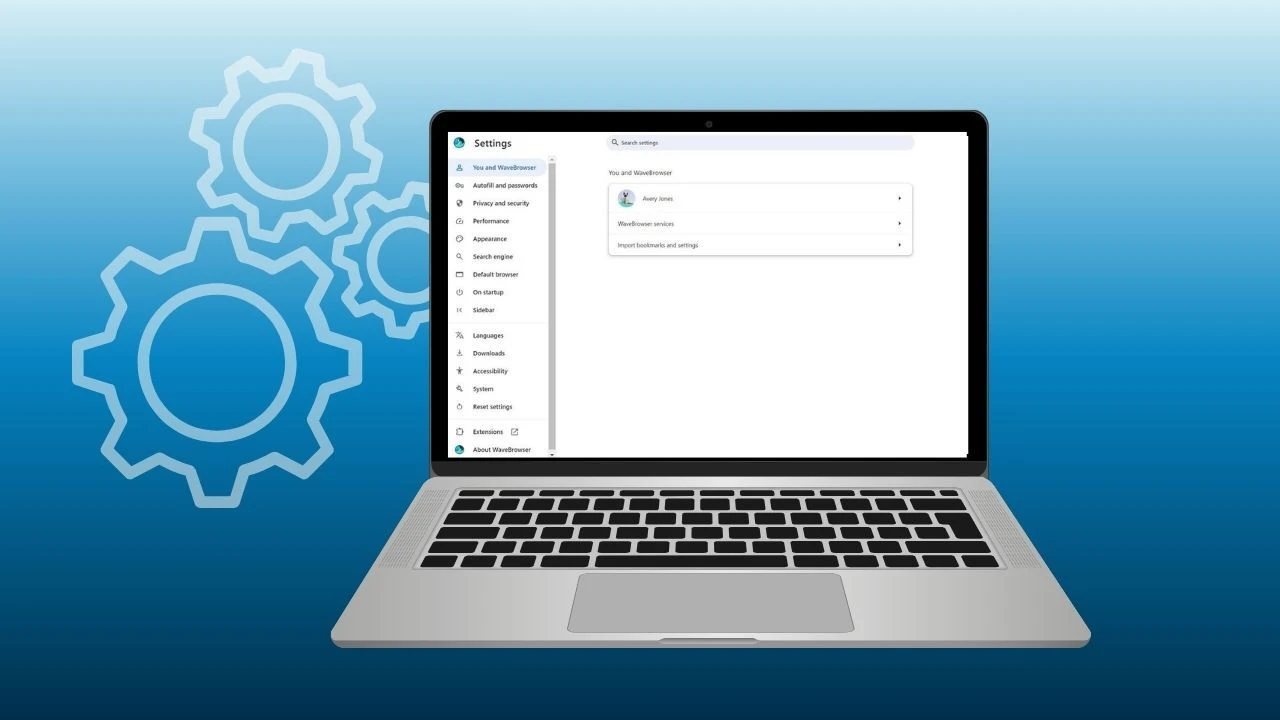
With Wave Browser, Windows users can press Ctrl + Shift + R or Ctrl + F5, while Mac users can press Cmd + Shift + R. If the issue continues, the browser settings also provide options to clear the cache, manage cookies, and review site data.
Start with the least disruptive step: use the reload button, try the hard refresh shortcut, and clear broader browsing data only when necessary. This makes it easier to solve common webpage problems without removing more saved information than needed.