Change Your Password Day is a timely reminder to review your login security and make sure you can always access your Mac safely.
Whether you’re using a MacBook, MacBook Air, MacBook Pro, or Mac mini—and browsing with tools like Wave Browser—knowing how to reset a password is essential, especially if login attempts fail or your Mac won’t accept your credentials.
This guide walks through how to reset a password on Mac, including common password recovery options, what to do if you forgot your login, and how tools like macOS Recovery, Apple ID, and admin accounts can help you regain access while protecting your personal information.
Before You Reset Your Mac Login Password

If your Mac won’t accept your password, check a few basics first:
- Make sure Caps Lock isn’t enabled (look for the indicator at the login window)
- Check the input menu in the menu bar to confirm the correct keyboard language
- Look for the question mark icon in the password field to see a hint, if one was set
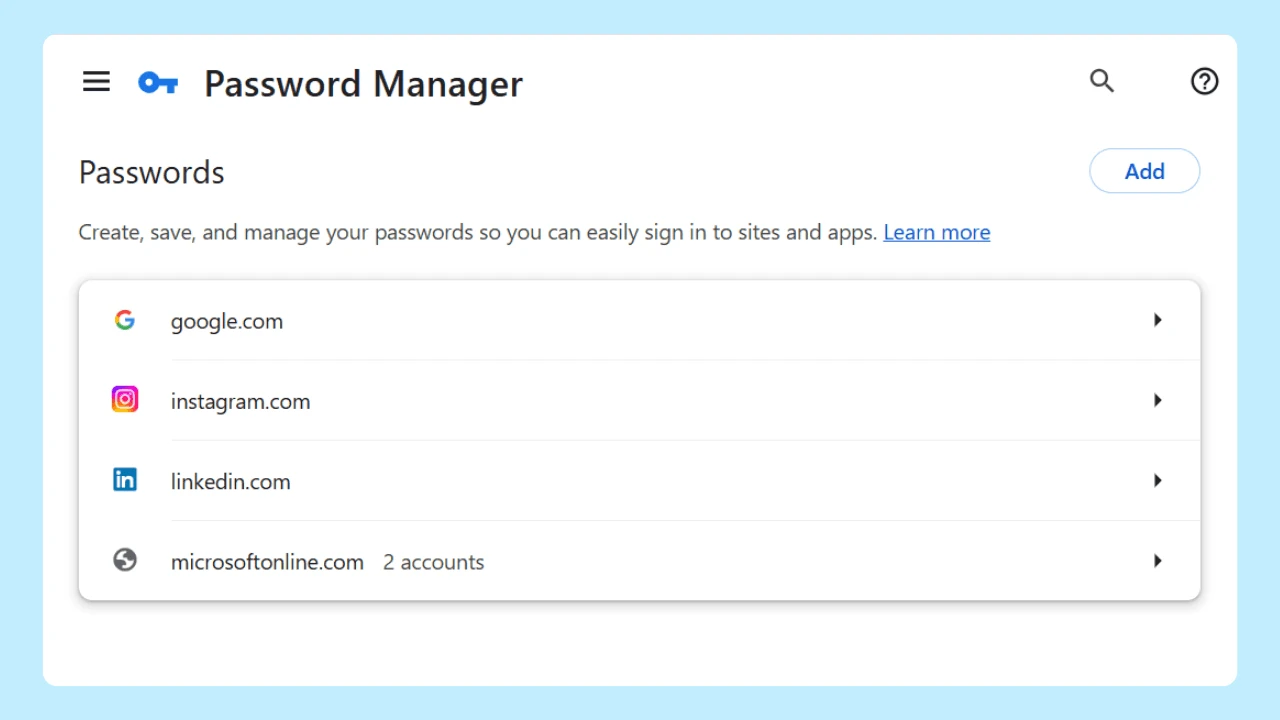
If login still fails after multiple login attempts, you’ll need to use recovery options or check your password manager to confirm your saved credentials.
How to Reset Password on Mac

Below, we’ll walk through four ways to learn how to reset password on Mac, including options using your Apple ID, an admin account, and macOS Recovery.
These methods help you regain access whether you forgot your login or your computer won’t accept it.
1. Reset a Mac Password Using Apple ID
If your user account is linked to your Apple ID (Apple account) or email, macOS may prompt you to reset your password after several failed attempts.
- At the login screen, select Reset using Apple ID
- Enter your Apple ID login
- Create a new password and confirm it
- Restart and log in with the new credentials
This method works on many newer macOS versions, including macOS Tahoe, and is one of the easiest ways to recover a user password.
2. Reset Password Using an Admin Account
If another admin user exists on the Mac—such as a trusted admin account for family members—you can reset the password through system settings:
- Log in using the admin account
- Open System Preferences (or System Settings)
- Select Users & Groups
- Choose the affected user account
- Select Reset Password and create a new one
This approach does not require recovery mode and works well if you share a device.
While this resets your login password, having it synced in another web browser can help you quickly regain access to websites and apps after signing back in.
3. Reset Password Using macOS Recovery
If you can’t log in normally, you can reset your password using macOS Recovery.
Enter Recovery Mode
- Shut down your Mac.
- Press and hold the power button until startup options appear.
- Select Options, then choose Continue.
For older Intel-based Macs, restart your machine and hold the Command (⌘) + R keys until recovery options appear.
Use Reset Password Assistant
- From the menu bar, select Utilities from the Apple menu, then Terminal.
- Type
resetpasswordand press Return. - When Reset Password Assistant opens, select your hard drive and user account.
- Create a new login and confirm it.
A progress bar may appear while the changes are applied. Once complete, restart your machine and sign in with your new credentials.
Knowing how to reset your password is an essential part of managing your device securely.
4. FileVault and Recovery Key Options
If FileVault is enabled, you may need a FileVault recovery key to reset the password. This recovery key was provided when FileVault was activated during setup.
If you don’t have the recovery key, Apple ID recovery or Apple Support may be required.
Resetting a Macbook Without a Password

People often ask: How do you reset a Mac without a password?
If no admin account, Apple ID, or recovery key is available, options include:
- Restoring from a Time Machine backup
- Erasing the Mac and setting it up again
- Contacting Apple Support for identity verification
This process may erase data, so backups are critical.
How Often Should You Change Your Mac Password for Security?
It's recommended to change your Mac password every 3 to 6 months for optimal security. Regular updates help protect your personal information from unauthorized access. Additionally, using a strong password and enabling two-factor authentication further enhances your Mac's security against potential threats. Stay safe by being proactive!
Restart With Confidence
Learning how to reset password on Mac doesn’t have to be stressful. Whether you used your Apple ID, an admin account, or macOS Recovery, knowing the right steps helps you regain access while keeping your personal information protected.
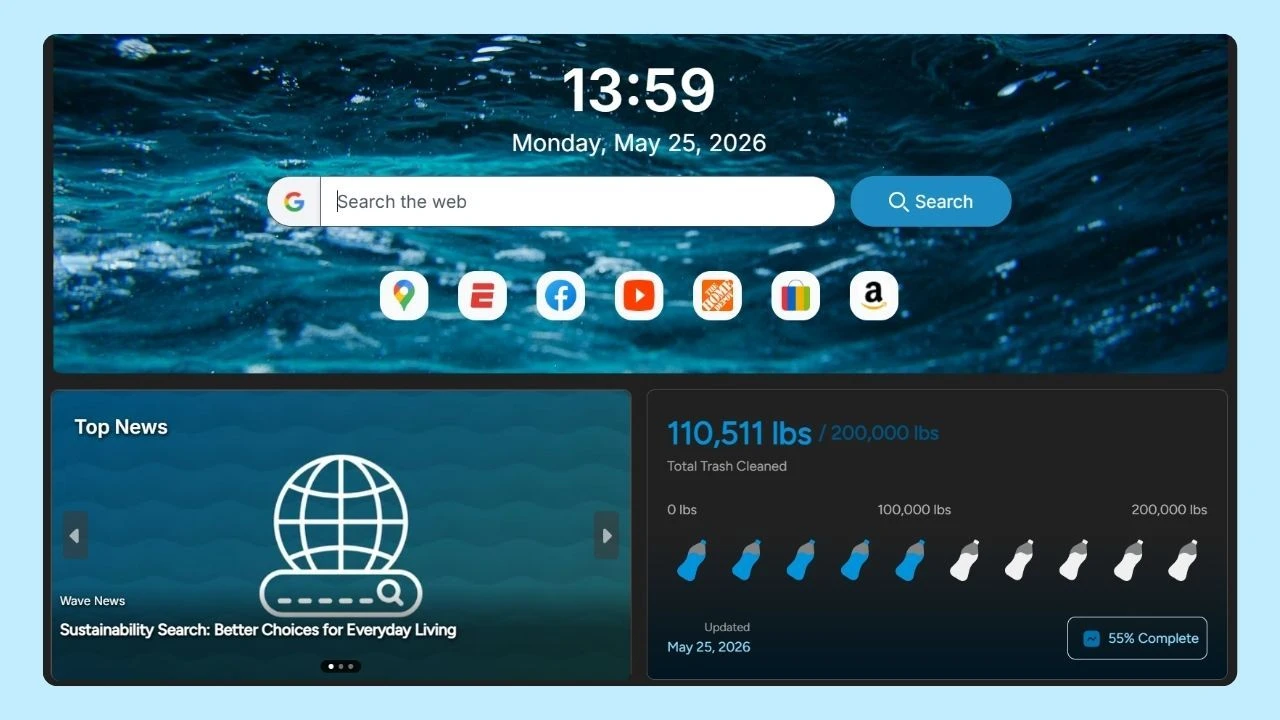
Once you’re back in, it’s a good time to review your overall digital security, including how you browse. Tools like Wave Browser for Mac offer built-in password saving and security features that support safer everyday browsing.
After a restart, updating passwords and reviewing saved credentials can help you move forward with confidence, not just on Change Your Password Day, but every time you log in.