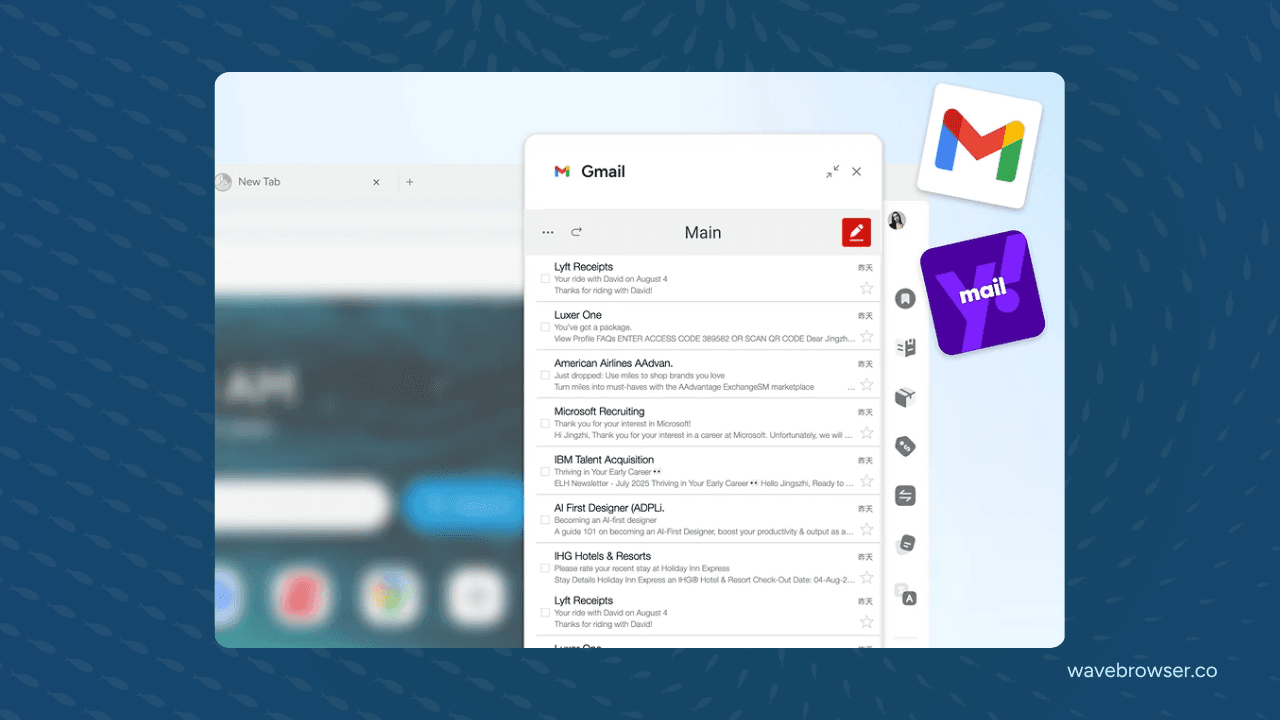
Wave Browser's Side Bar is a desktop feature for keeping a site or tool beside the page you are reading. On Windows and macOS, you can pin a reference page, a conversation, or a built-in utility in the Side Bar and keep it visible while the main page carries the task in front of you.
The result is a practical “pin and view” workflow that keeps the supporting item close in the same workspace.
Quick answers:
- What is Wave Browser Side Bar? It lets you pin a site or feature and open it beside the page you are browsing.
- Where is Side Bar available? On Windows and macOS.
- What can you use it for? Reference pages, messaging integrations, Notes, the Converter Tool, Package Tracking, Stock Tracker, Price Tracking, and Translate are among the desktop uses described here.
- Is Side Bar the same as Picture-in-Picture? Side Bar keeps a site or tool beside the current page; Picture-in-Picture keeps a supported video in a floating window while you work elsewhere.
- Does the mobile app include Side Bar? The Side Bar is a desktop feature. Android and iOS have a different feature set built around mobile browsing, saved pages, passwords, privacy controls, and the Live Impact Tracker.
The Feature is About Keeping the Second Thing in View
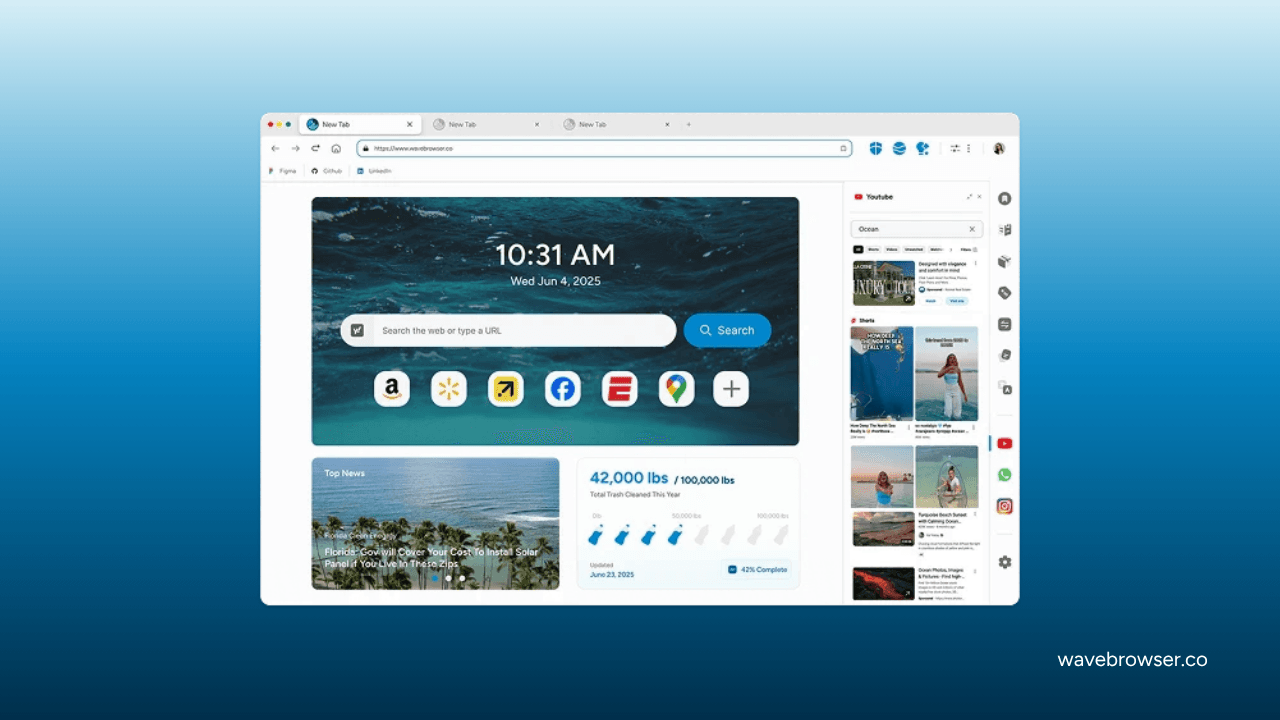
Most browser multitasking advice starts by opening another window or another collection of tabs. That works, but it makes you repeatedly switch away from the page where the decision is happening. Side Bar gives the second item a defined place beside that page.
The mechanism is simple. Choose a website or a built-in feature, pin it in the Side Bar, and open it beside the current page. The page you are reading remains the main workspace. The pinned item becomes the reference, utility, or conversation you need to consult without losing the main context.
Think of Side Bar as the formal pin-and-view workspace: one task in the main page and one supporting resource beside it. The arrangement keeps the reference, utility, or conversation available while you work through the main task.
One Task From Start to Finish: Comparing Two Apartments
A concrete task makes the difference easier to see. Imagine that you are comparing two apartment listings. You open the first listing in the main page and pin it in the Side Bar. Now you can open the second listing or a neighborhood review in the main window while the first apartment's rent, layout, and photos remain available at the side.
As you read, you record the differences that matter to your decision. The first building may have a shorter commute. The second may include in-unit laundry. With Side Bar, the pinned page stays visible while you write a note beside the page in front of you, so the detail and the decision remain together.
If one listing uses a measurement you do not normally use, the Converter Tool in the Side Bar handles that mechanical step without sending you to a new search. You still decide what the measurement means and how it affects your choice; the tool keeps the conversion close to the page where the number appears.
The task can end with Package Tracking or Price Tracking if the apartment search becomes a broader move. The supporting tool is available when the task calls for it, while the main page remains the place where you make the decision.
The Desktop Tools You Can Keep Beside the Page
The Side Bar hosts a group of tools with different jobs. They are easier to remember when you connect each one to a real browsing situation.
| Side Bar tool or use | What it supports | Example of the supporting role |
| Pinned website | Reference material or a second page | Keep a product specification beside a shopping page |
| Messaging integrations | A conversation that needs to stay visible | Read a project brief while keeping a message thread nearby |
| Notes | Recording decisions, facts, or reminders | Capture the differences between two pages as you read |
| Converter Tool | A mechanical unit or conversion step | Convert a measurement without leaving the source page |
| Package Tracking | Delivery information alongside another task | Follow an order while you read or plan something else |
| Stock Tracker | Watch the symbols you follow | Keep a market list visible beside a report or news page |
| Price Tracking | Monitor prices while shopping online | Compare a product page while keeping the price task close |
| Translate | Language assistance while browsing | Read a page in another language without opening a separate workflow |
The table describes the tools' jobs. Website content and version-specific behavior follow the current product context on the Wave Browser features page and the individual Messaging, Package Tracking, and Price Tracking pages.
Side Bar and Picture-in-Picture Solve Different Problems
Side Bar is for a site or feature you want beside the main page. Picture-in-Picture is for supported video you want to keep visible in a floating window while you browse or work elsewhere. A research session might use both: a reference page pinned in the Side Bar and a recorded lecture in a PiP window while you write notes in the main page.
The distinction keeps the browser behavior understandable. Side Bar is a companion surface attached to the current page. PiP is a floating view for supported video. Choose the feature that matches the supporting item you need to keep visible, with the page or video determining the available behavior.
How the Side Bar fits a Research Workflow
Research is another useful example because it shows why the arrangement matters. Save a source in Reading Lists or Bookmarks first. Open the source in the main page, then pin Notes in the Side Bar. As you read, record the figure, definition, quotation, or question that deserves a final check.
If a source uses unfamiliar units, use the Converter Tool beside the page. If the source is a supported video, use Picture-in-Picture for the video and keep the notes visible in the Side Bar. On Windows and macOS, AI Assistant can help with answers, summaries, and content generation, but its output is a draft aid. Verify a date, number, or quotation against the source before you use it in a presentation or article.
This flow is stronger than a list of isolated tools because every tool answers the next question in the same task. Where is the source? Reading Lists or Bookmarks. Where do I write what matters? Notes in the Side Bar. How do I handle the mechanical conversion? Converter Tool. How do I keep a supported lecture visible? PiP. How do I think through a difficult explanation? AI Assistant, followed by a check against the original.
Use the Side Bar For Shopping and Language Tasks
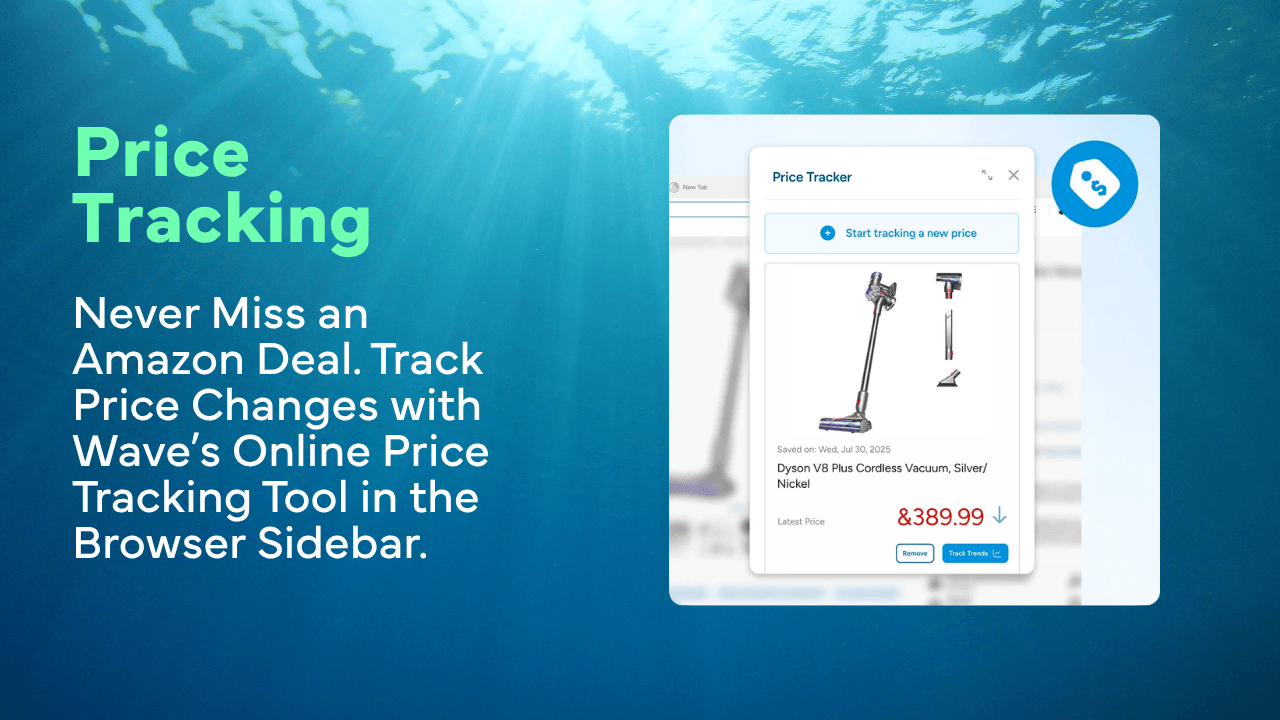
The Side Bar also supports shorter tasks. While shopping, you can keep a product page in view and use Price Tracking to monitor the price-related work. You can compare the details you care about without opening a second full browser window. While reading a page in another language, Translate provides language assistance in the same desktop workspace.
Those features support the decisions you make. Price Tracking helps you monitor prices while you choose the product that fits you. Translate provides language assistance while you review specialized terms and cultural references. The benefit is that the support tool is close to the page where you are making sense of the information.
Platform Scope Matters
The Side Bar and its desktop tools are available on Windows and macOS. Wave Browser is also available on Android and iOS, where the mobile feature set includes Incognito Mode, customizable cookie and privacy controls, Password Manager, Reading Lists and Bookmarks, and Live Impact Tracker. Content Notifier is also listed for iOS.
This platform distinction is useful when you choose a device. If your work depends on a pinned reference page beside a draft or a desktop utility beside a shopping page, start with Windows or macOS. If your priority is reading, saved pages, passwords, notifications, and privacy controls on a phone, review the Android or iPhone feature guides instead. Feature names should always be read together with their platform scope.
Frequently Asked Questions

Is Side Bar the same as split-screen browsing?
The official feature is called Side Bar. It lets you pin a site or feature and open it beside the page you are browsing. The practical description is pin-and-view: the supporting item stays visible beside the main page.
Can I pin any website?
Side Bar is designed to pin a site or feature beside the current page. The exact behavior of a particular website depends on the product and the page, so use the current browser flow to see what can be pinned in your version.
Is Side Bar available on Android or iPhone?
The Side Bar is a Windows and macOS desktop feature. The mobile apps present their own feature set, while this guide focuses on the desktop pin-and-view arrangement.
Does Side Bar automatically share information between two pages?
Side Bar keeps the supporting site or tool visible beside the main page. You decide what to compare, copy, record, or act on, with both parts of the task in view.
How is Side Bar different from PiP?
Side Bar holds a pinned site or feature beside the page. PiP keeps supported video in a floating window while you work elsewhere. They can support the same session, but they solve different layout problems.
The Side Bar earns its place when a task has a main page and a supporting page or tool. Pin the second thing, keep the decision in front of you, and let the browser reduce the switching that makes simple work feel scattered.
Surf the Web, Save the Ocean. Download Wave Browser.