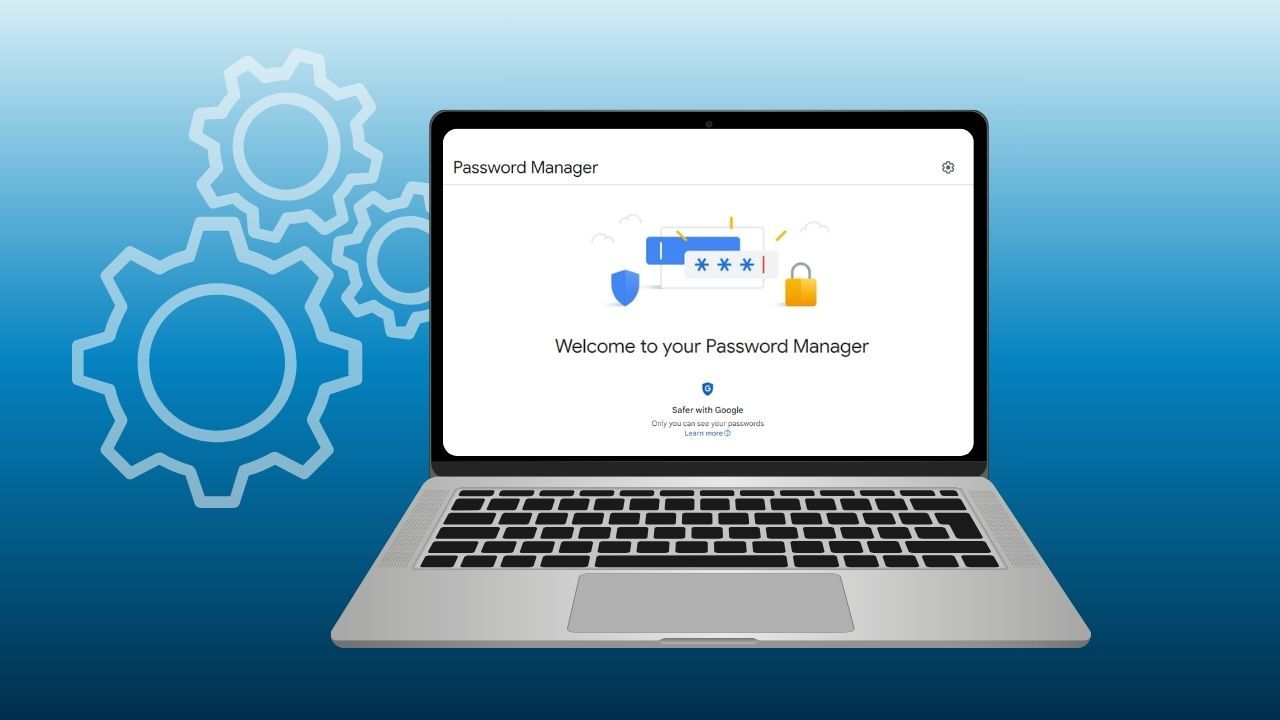
Built into Google Chrome and connected to your Google Account, Google Password Manager allows users to create, save, and manage passwords that sync across devices.
When Chrome sync is enabled, Google saved passwords can be used to sign in to sites and supported apps on desktop, laptop, Android devices, tablets, and even iPhone—keeping access consistent wherever you browse.
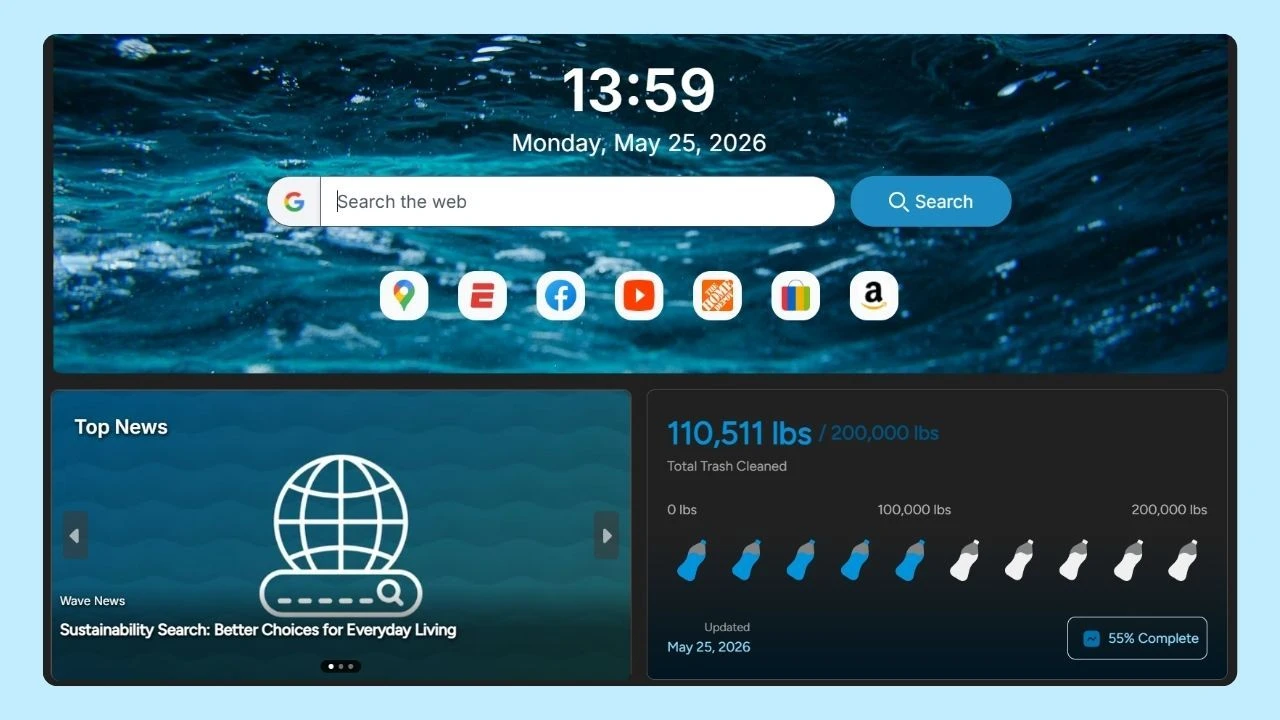
Browsers like Wave Browser also support saving passwords, giving users convenient ways to manage login details while moving across the web.
Occasional reminders like Change Your Password Day are a good opportunity to review saved passwords and replace weak or reused ones, but password syncing and management are tools many users rely on every day.
What Is Google Password Manager?
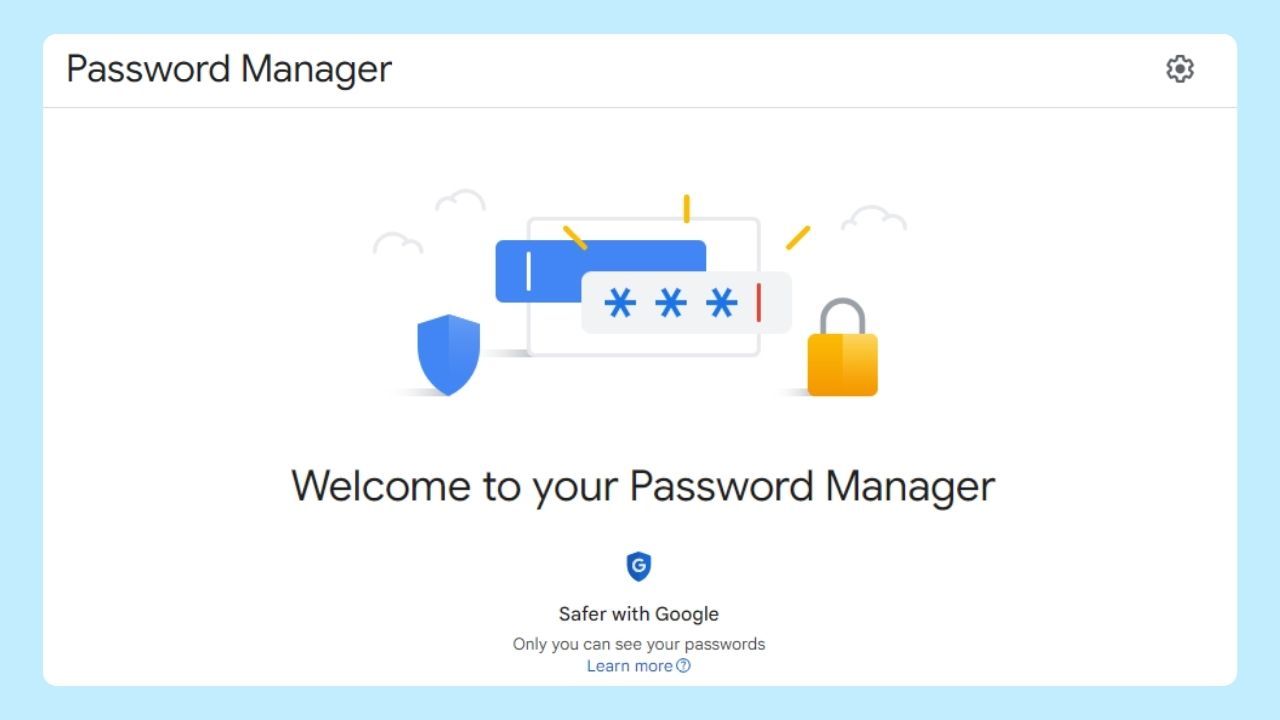
Google Password Manager is Google’s built-in password manager designed to store and manage passwords for online accounts. It works inside the Chrome web browser and across supported apps, syncing data through your Google Account.
When you save a password, Google stores your username, email, and login details so the next time you visit a site, autofill can automatically enter your credentials. This makes signing in faster while reducing the need to remember multiple passwords.
Hackers, Notifications, and Password Alerts
Google saved passwords are actively monitored for signs of exposure. If a data breach or data leak affects a site you use, you may receive notifications or an alert that a password has been compromised.
These alerts help users:
- Identify a compromised password
- Update it quickly
- Reduce the risk of hackers accessing other online accounts
Monitoring this data is a key part of its security protection and safe browsing online.
Why Unique Passwords Matter
As more accounts move online, using unique passwords plays an important role in reducing security risks. Reusing the same username combination across different sites increases risk if one account is exposed—making unique passwords one of the most important safe browsing tips to follow.
Reviewing Google saved passwords periodically can help prevent a single breach from affecting multiple accounts tied to email or personal information.
How Can I View Google Saved Passwords in Chrome?
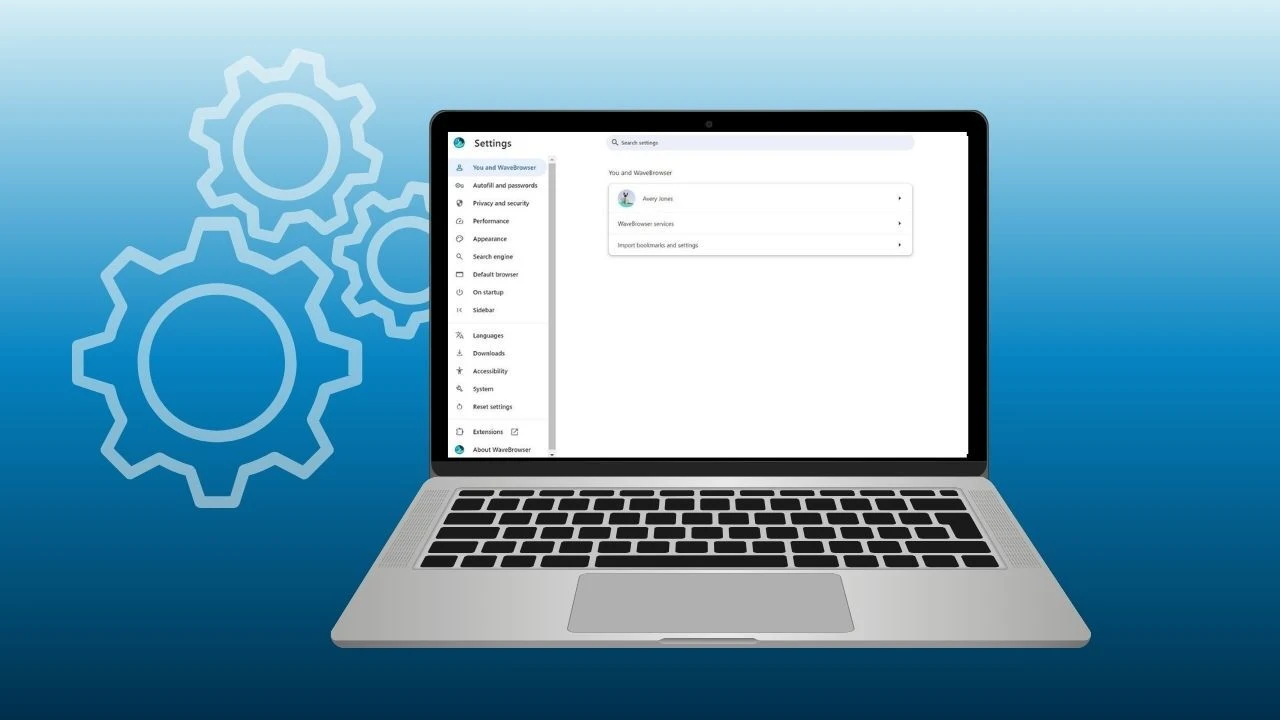
To view saved passwords in Google Chrome, click on the three-dot menu in the top right corner. Navigate to "Settings," then select "Autofill" and choose "Passwords." Here, you’ll find a list of saved passwords; click the eye icon next to a password to reveal it.
Saved password data lives inside your Google Account.
You can also access it from the password manager screen by:
- Opening Chrome settings on desktop or laptop
- Using the Google Password Manager app on Android
- Visiting passwords.google.com while signed in
This information includes saved passwords, usernames, email addresses, and login credentials for different sites. Payment info is handled separately and protected with additional verification.
Autofill Across Apps on iPhone and Android
Google Password Manager also works as an autofill provider, allowing login details to be filled automatically across apps and browsers. Once enabled:
- Passwords sync between Chrome, apps, and devices
- Login credentials are available on desktop, smartphone, tablet, and laptop
- Autofill speeds up sign-ins across the internet
On Android, biometric options like fingerprint authentication can be required before passwords are filled. On desktop devices, Google may prompt for a system password to protect sensitive info.
Exporting and Managing Password Info
Google allows users to export saved passwords as a CSV file, which can be useful when switching browsers or reviewing stored login credentials. Because this file contains sensitive info, it should be stored securely and deleted when no longer needed.
Regular reviews are a key part of responsible password management.
Passkeys and Modern Sign-Ins
Google is gradually introducing passkeys, which reduce reliance on traditional passwords. Passkeys use device-based authentication—such as fingerprint or facial recognition—to verify identity.
While passkeys are becoming more common, passwords remain a key part of online security, making password managers and autofill tools important for managing access.
Staying In Control of Your Passwords
Whether you browse using Chrome on a desktop, sign in through apps on Android, or manage accounts across multiple devices—including browsers like Wave Browser—Google Saved Passwords provide a convenient way to store, access, and manage login credentials from one central place.
Syncing passwords across devices helps reduce friction while keeping important account information accessible whenever you need it.
Taking time to review saved passwords, respond promptly to security notifications, and replace weak or reused ones plays an important role in protecting your accounts. These small habits strengthen your overall security posture, not just on reminders like Change Your Password Day, but every time you sign in online.