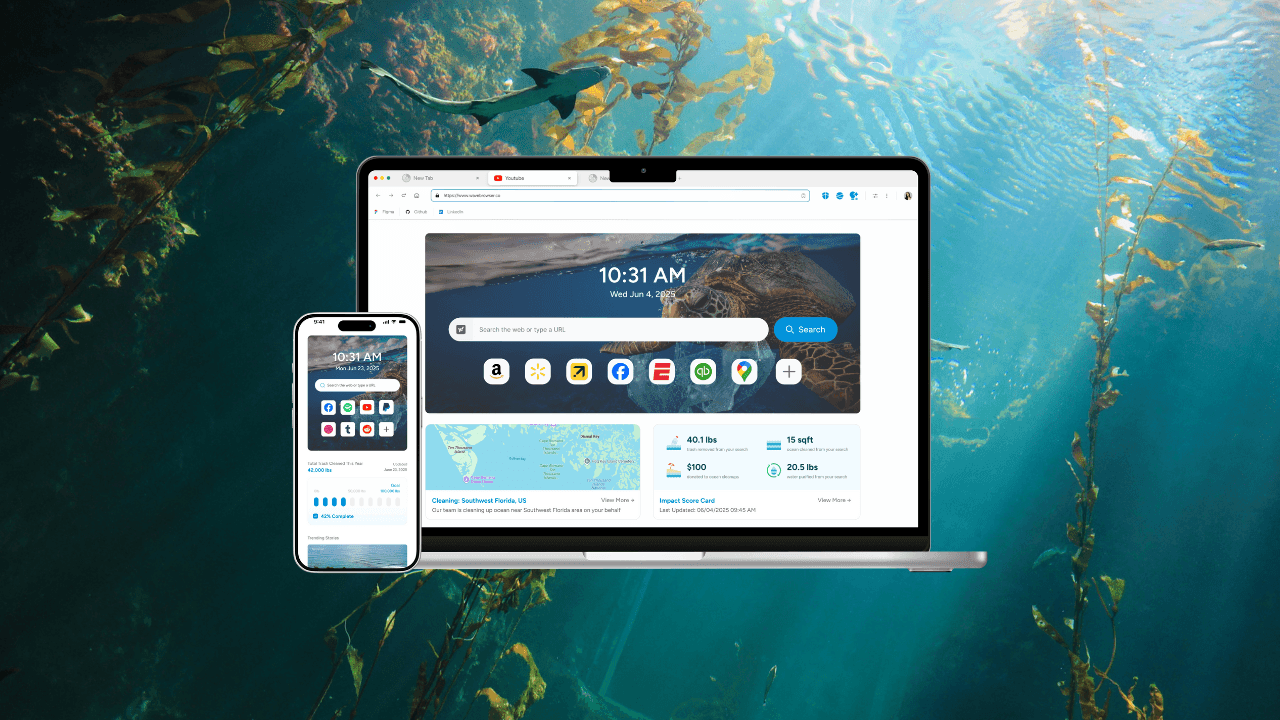
Wave Browser is a Chromium-based web browser developed by Eightpoint Technologies Ltd. SEZC. We built it around the work a browser handles every day: reading, saving, comparing, watching, messaging, signing in, and choosing how your browsing preferences are managed.
Wave Browser is available on Windows, macOS, Android, and iOS. It is free to download and use, and a portion of our revenue helps fund 4ocean's removal of plastic and trash from our ocean, rivers, and coastlines worldwide.
This guide follows everyday use cases and shows which tools fit the task in front of you, where the platform scope changes, and what each feature actually promises.
Quick answers:
- What is Wave Browser for? Familiar browsing with platform-specific productivity and multitasking tools, named privacy controls, and an environmental mission connected to 4ocean.
- Which features work across all four platforms? Incognito Mode, customizable cookie and privacy controls, Password Manager, Reading Lists and Bookmarks, and Live Impact Tracker are listed across Windows, macOS, Android, and iOS.
- Which tools are desktop features? Side Bar, AI Assistant, Picture-in-Picture, Memory Saver, Energy Saver, Price Tracking, Translate, compatible extensions, and desktop ad and tracker blocking are available on Windows and macOS within their stated scope.
- Is the browser free? Yes. Wave Browser is free to download and use. Free Wave PRO features can be activated by setting Wave Browser as your default browser through the default-browser setting.
- What is the environmental connection? A portion of our revenue helps fund 4ocean cleanup. The Live Impact Tracker shows the partnership's cleanup progress and milestones.
Start With The Browsing You Already Know
A browser earns its place by making ordinary pages easy to open and return to. Wave Browser's Chromium-based product foundation is intended to feel familiar: tabs, bookmarks, search, and the websites you already use. The product description stays at the product level, while this guide follows the feature scope specific to each platform.
Reading Lists and Bookmarks are listed on Windows, macOS, Android, and iOS. Use them to give a useful page a deliberate place to return to. A long article can go into a Reading List, while a site you visit regularly can stay in Bookmarks. Password Manager is also listed across the four platforms, so managing logins can remain part of the browser workflow and make regular access easier.
On Windows and macOS, compatible browser extensions can support the desktop setup you already rely on. “Compatible” is the important word: check the extension you plan to use against the Wave Browser setup on your device.
Keep The Second Thing Beside The First
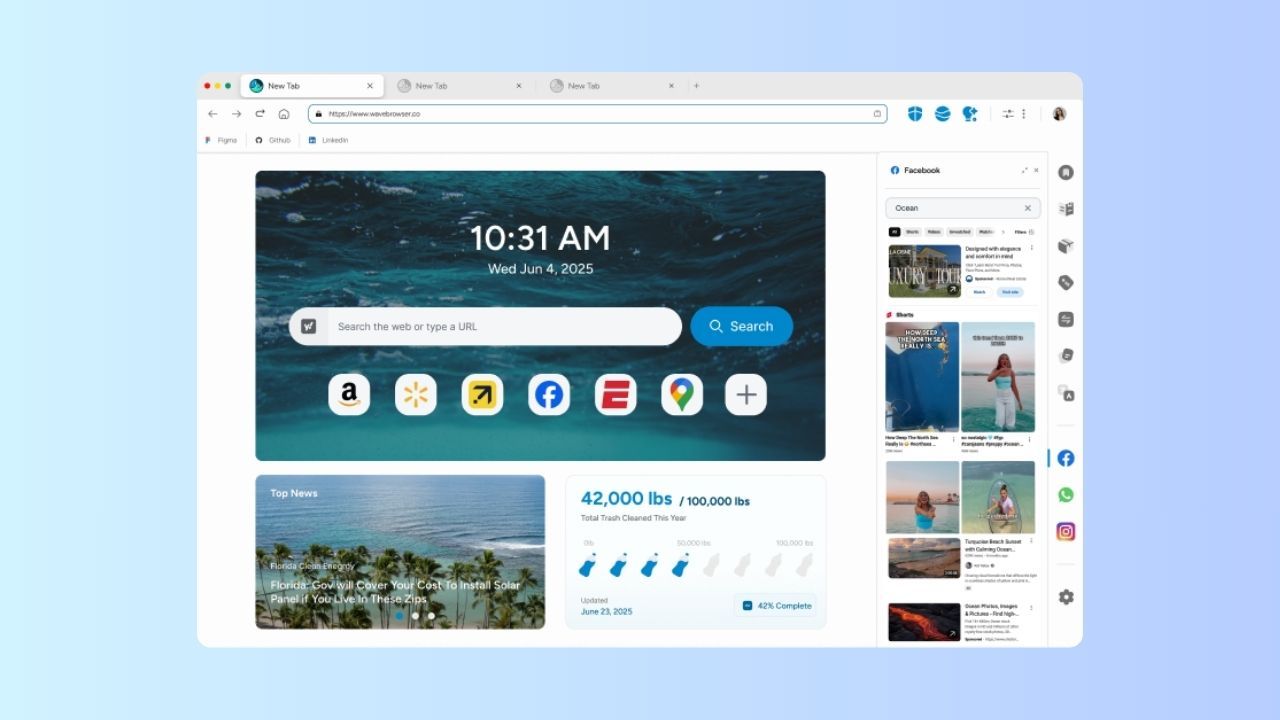
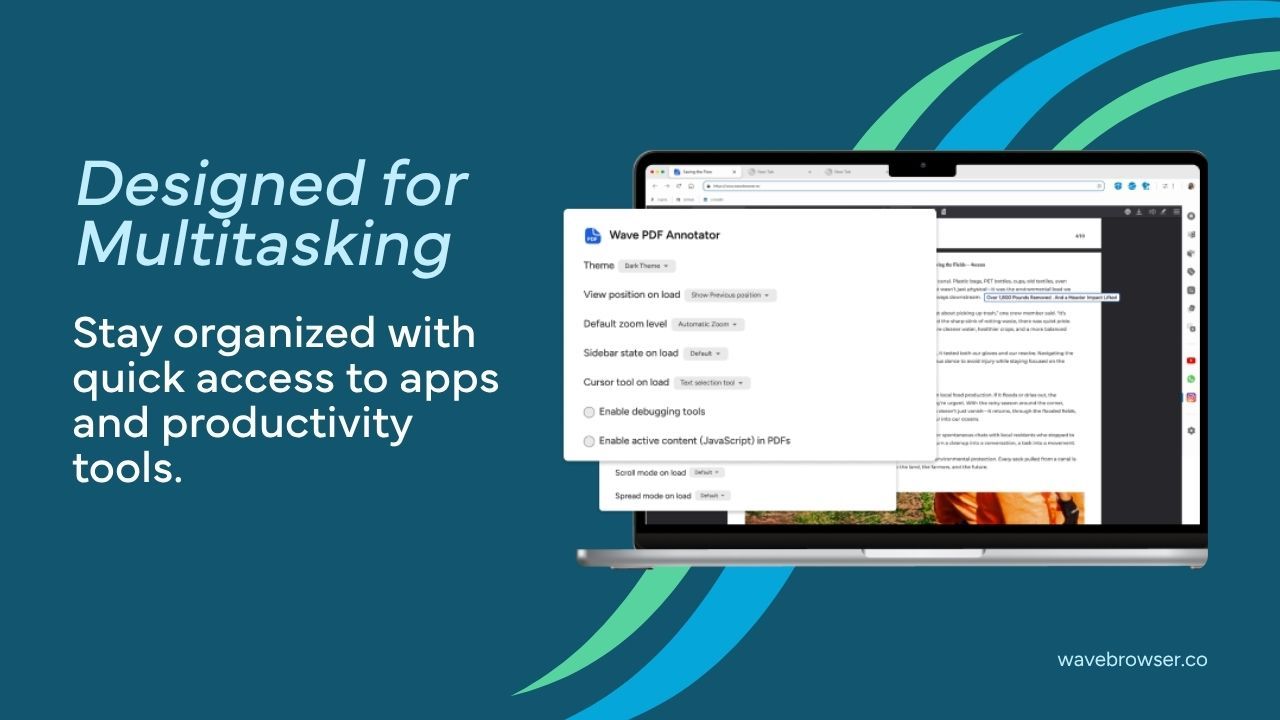
Desktop browsing often involves a main page and a supporting page. You might read a source while drafting a summary, compare two products, keep a message thread visible during a project, or follow a delivery while handling another task. On Windows and macOS, our Side Bar lets you pin a site or feature and open it beside the page you are browsing.
The Side Bar also hosts desktop utilities such as messaging integrations, Notes, the Converter Tool, Package Tracking, and Stock Tracker. Price Tracking and Translate work through the desktop Side Bar as well. Each utility has a defined place when the task needs it, while the main page stays focused on the work in front of you.
Imagine comparing two products. Pin the first product page, keep the second in the main window, and use Notes to record the difference that matters to your decision. If a specification uses unfamiliar units, the Converter Tool handles the mechanical conversion next to the source. Price Tracking can support the price-related part of the task without requiring a separate full window.
The Wave Browser features page and Price Tracking page provide the current desktop context. Side Bar is available on Windows and macOS; the Android and iPhone pages use their own mobile feature sets.
Get Help With Information While Keeping The Source in View
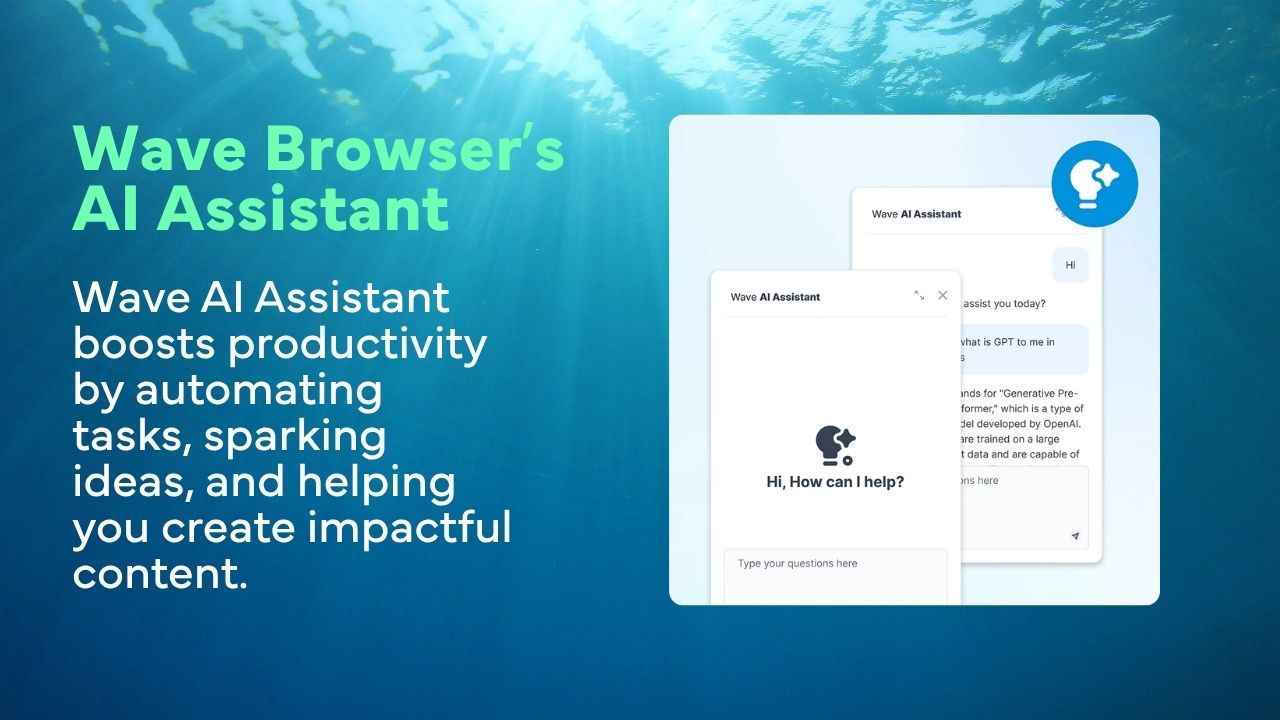
On Windows and macOS, AI Assistant provides answers, summaries, and content generation inside the browser. That can help when a page is long, a concept needs a plain-language explanation, or you want a first outline before you write.
The most reliable way to use the assistant is to keep the original source in view. Treat an answer or summary as working material. If the result includes a number, date, quotation, or product claim, return to the original page before you cite it or make a decision. Use the original source as the evidence for the citation or decision; the assistant helps you begin and organize the work.
Picture-in-Picture handles a different everyday need. On Windows and macOS, PiP keeps supported video visible in a floating window while you browse or work elsewhere. You can watch a tutorial while following the written instructions, listen to a recorded briefing while organizing notes, or keep a supported video in view while a main page carries the task. PiP works with supported videos, with availability determined by the page or video.
Let Long Sessions Stay Manageable
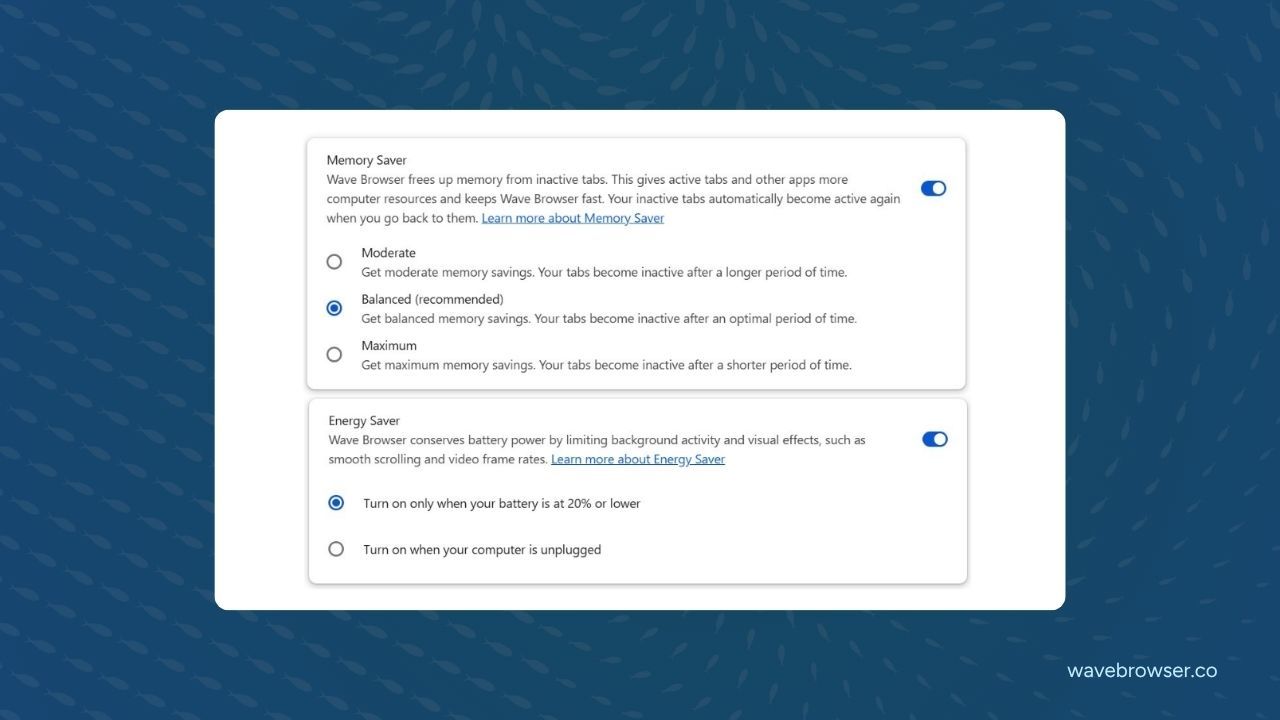
The day rarely ends with the tab count you planned. Memory Saver helps reduce resource use from inactive tabs on Windows and macOS. Energy Saver helps manage browser activity by limiting background activity and visual effects. These tools are quiet supports for a long session. Their effect varies with your pages, the work running in them, and the computer you use, so they are best understood as practical session support.
A useful habit is to separate active work from saved work. Keep the pages you need now open. Save pages you want later in Reading Lists or Bookmarks. Put important facts in your own notes. This makes it easier to close a tab without losing the reason you opened it, while the browser's resource tools handle part of the background work.
Choose Privacy Controls By The Record You Want To Manage
Privacy in Wave Browser is a set of named controls with different jobs. Incognito Mode is available on Windows, macOS, Android, and iOS for sessions you do not want added to the local browsing history on the device. Customizable cookie and privacy controls are also listed on all four platforms and let you decide how sites may store and use data in your browsing preferences.
On Windows and macOS, ad and tracker blocking blocks supported ads and trackers while you browse. It concerns what supported content loads in the page; Incognito Mode manages local history, while a VPN is a separate network-routing service. Wave Browser's named controls make those roles clear.
The distinction is practical. If the concern is the next person who opens your laptop, Incognito Mode addresses local history. If the concern is how a site handles data, review cookie and privacy controls. If the concern is recognized ads and trackers loading on a desktop page, review blocking. Websites, networks, and account providers govern their own records, so use each Wave control for its named role.
Read the Privacy features page for the named controls and the Wave Browser features page for the wider product context.
Follow The Mission While You Browse

The practical tools are only one part of Wave Browser. Through our partnership with 4ocean, a portion of our revenue helps fund the removal of plastic and trash from our ocean, rivers, and coastlines worldwide. 4ocean's crews carry out the cleanup work; our role is to help provide funding through the business.
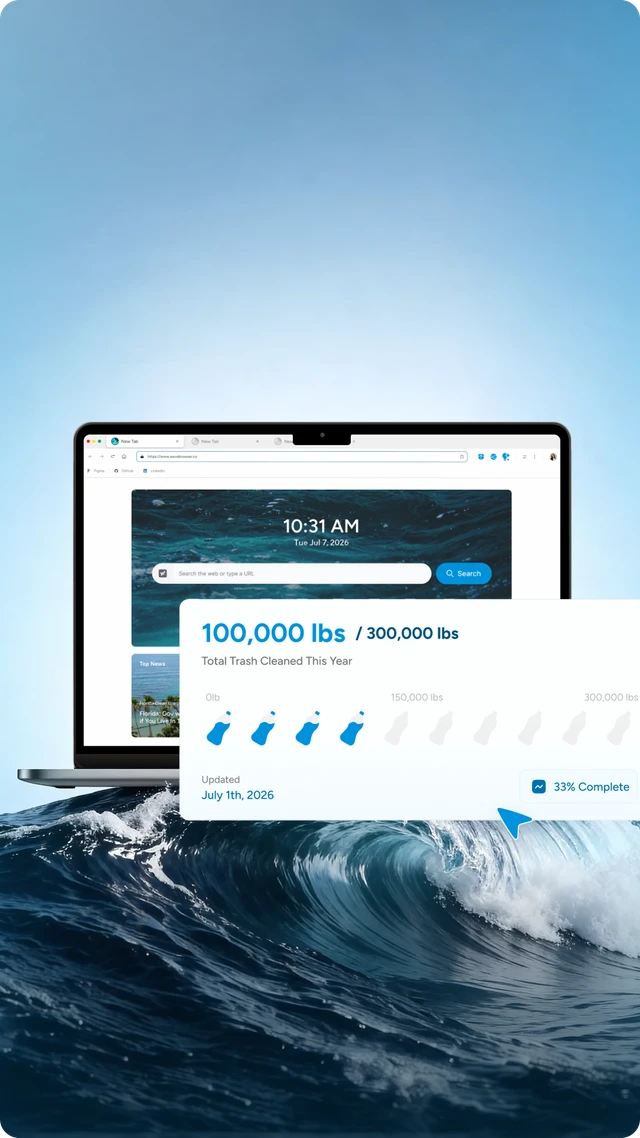
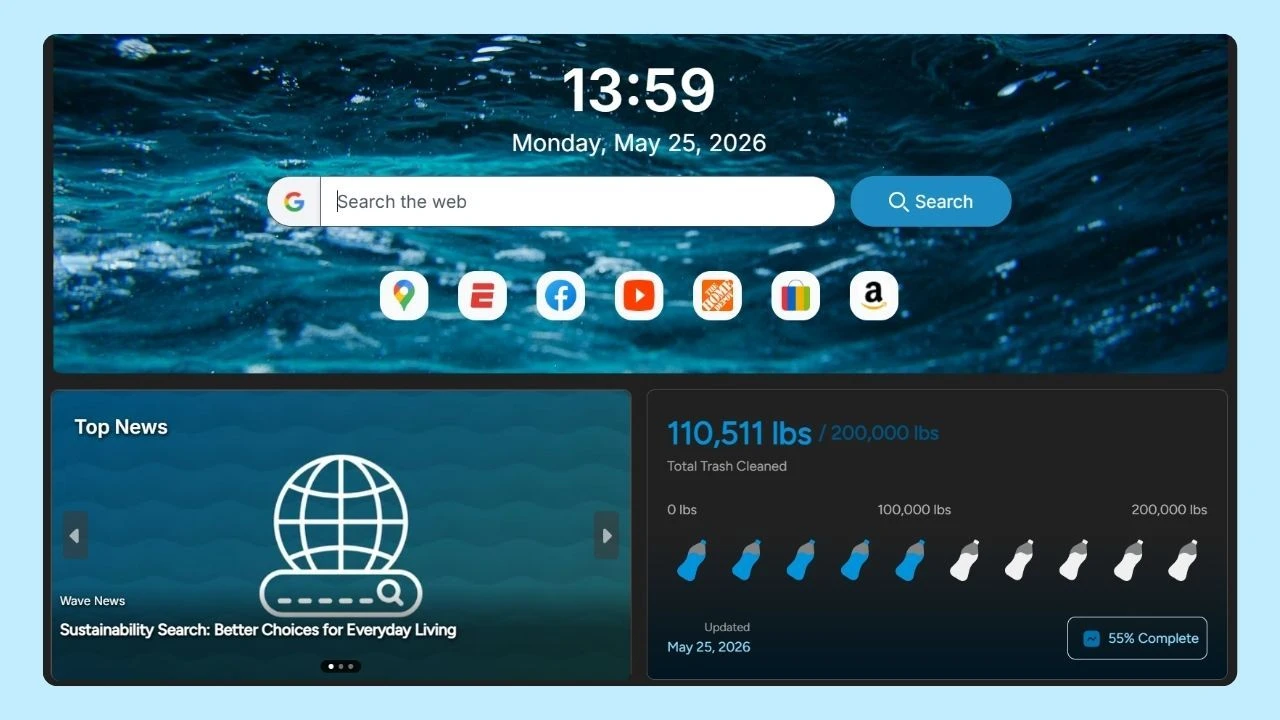
The Live Impact Tracker shows cleanup progress and environmental milestones on Windows, macOS, Android, and iOS. It gives the partnership a visible place in the browser and helps you follow the reported progress of the work.
As of April 15, 2026, Wave Browser had helped remove over 100,000 lbs of plastic and trash from our ocean, rivers, and coastlines worldwide. We have also committed to support the removal of 300,000 lbs by 2028. The first is a dated achieved milestone; the second is a future commitment. The Wave Browser x 4ocean partnership page and the dated impact announcement explain the supporting context.
What The Default-Browser Choice Adds
Wave Browser is free to download and use. You can activate our free Wave PRO features by setting Wave Browser as your default browser. The default-browser setting determines which application opens web links from other apps, documents, or messages. It is a real device choice, so make it because Wave Browser is the browser you want to use for those links.
If you want PRO, use the current in-product activation flow and platform description for the market, platform, duration, account, or device details shown on your device.
A Feature Map For Choosing a Platform
| If your everyday task is… | Look first at… | Platform scope |
| Save pages, manage logins, and choose local-history or site-data preferences | Reading Lists, Bookmarks, Password Manager, Incognito Mode, cookie and privacy controls | Windows, macOS, Android, and iOS, according to the feature matrix |
| Keep a reference page or utility beside your main work | Side Bar and desktop tools | Windows and macOS |
| Get an in-browser answer or summary | AI assistant | Windows and macOS |
| Keep supported video visible | Picture-in-Picture | Windows and macOS |
| Reduce resource use from inactive tabs or background activity | Memory Saver and Energy Saver | Windows and macOS |
| Block supported ads and trackers | Desktop ad and tracker blocking | Windows and macOS |
| Follow cleanup progress and milestones | Live Impact Tracker | Windows, macOS, Android, and iOS |
The table is a starting map. Check the current page for the feature that matters most to you and the platform where you plan to use it.
Frequently Asked Questions

Is Wave Browser free?
Yes. Wave Browser is free to download and use. Free Wave PRO features can be activated by setting Wave Browser as your default browser through the default-browser setting.
Does every Wave Browser platform have the same features?
Wave Browser is available on Windows, macOS, Android, and iOS, with features organized by platform. Side Bar, AI Assistant, PiP, Memory Saver, Energy Saver, Price Tracking, Translate, compatible extensions, and desktop blocking are described for Windows and macOS, while several browsing and privacy controls are listed across all four platforms.
Is Wave Browser a VPN or an anonymous browser?
Wave Browser's privacy controls have distinct jobs: Incognito Mode manages local browser history, cookie and privacy controls shape site-data preferences, and desktop blocking handles supported page content. Network routing is a separate service category.
Does the Live Impact Tracker calculate my individual environmental impact?
It shows cleanup progress and environmental milestones connected to the 4ocean partnership. A portion of our revenue helps fund cleanup, and the tracker gives you a clear view of the partnership's reported progress.
Where should I start if I want to try Wave Browser?
Use the official Wave Browser website and choose the platform that matches the task you need to complete. Review the current feature page before assuming that a desktop tool belongs in the mobile app.
Everyday browsing is where a browser proves its value: a familiar page opens, the supporting page stays close, an answer helps you get started, a privacy control matches the question you actually have, and the mission remains visible through reported progress. Choose the platform that fits your routine and let the tools earn their place one task at a time.
Surf the Web, Save the Ocean. Download Wave Browser.