Research becomes easier when useful sources, checked facts, notes, and the work of explaining an idea stay connected.
On Windows and macOS, Wave Browser brings several desktop tools into one research workflow: Reading Lists and Bookmarks help you keep sources findable, Side Bar tools keep notes and a converter beside the page, AI Assistant helps with answers, summaries, and content generation, and Picture-in-Picture keeps supported video visible while you work. Memory Saver and Energy Saver help manage a long session with practical resource support.
This guide follows one realistic project from the first source to the final outline. The example is hypothetical; the workflow is the point.
Quick answers:
- Which Wave Browser features help with research? Reading Lists and Bookmarks, the desktop Side Bar and its Notes and Converter tools, AI Assistant, Picture-in-Picture, Memory Saver, and Energy Saver each support a different stage of a research task.
- Where are these desktop tools available? The Side Bar, AI Assistant, Picture-in-Picture, Memory Saver, Energy Saver, and compatible-extension support are available on Windows and macOS.
- How should I use AI Assistant with a source? Use its answers, summaries, and content generation as working help, then verify dates, figures, and claims against the original source before you cite them.
- What should you save first? Save the original page in Reading Lists or Bookmarks before you start extracting notes. That gives the source a deliberate place to return to.
- How does Picture-in-Picture work? It keeps supported videos visible in a floating window while you work; availability follows the page or video.
| Research stage | Wave Browser tool | What it contributes | Platform scope |
| Find and keep sources | Reading Lists and Bookmarks | Gives a source a deliberate place to return to | Windows, macOS, Android, and iOS |
| Understand a difficult page | AI Assistant | Provides answers, summaries, and content generation as working help | Windows and macOS |
| Record checked material | Side Bar Notes and Converter Tool | Keeps notes or a conversion beside the source | Windows and macOS |
| Keep a recording visible | Picture-in-Picture | Shows supported video in a floating window while you work | Windows and macOS |
| Manage a long session | Memory Saver and Energy Saver | Helps manage inactive tabs and background activity | Windows and macOS |
A Research Task Has Four Stages
A useful research setup has four separate jobs. First, you collect sources that may be relevant. Second, you understand what those sources actually say. Third, you record the facts, quotations, and questions that matter. Fourth, you return to the material while you build the article, presentation, or decision that the research supports.
Those stages can happen in one browser without becoming one undifferentiated pile of tabs. The key is to give each tool a defined role. Saving a page is different from trusting a summary. A note is different from a source. A video playing in the corner is different from a second page you need to compare. When those distinctions stay visible, the workflow becomes easier to check later.
Stage One: Collect Sources Before The Tab Count Takes Over
Imagine that you are preparing a short presentation about plastic in the ocean. You want a public report, a news explainer, and an update from an organization involved in cleanup work. You find them at different times, perhaps from a phone and later from a desktop. The first useful action is to save each source in Reading Lists or Bookmarks, so the open tab and the saved record work together.
Reading Lists and Bookmarks are available on Windows, macOS, Android, and iOS. That cross-platform availability makes them useful as organizing tools even when the deeper research work happens on a desktop. Save the page, give yourself a clear way to find it again, and then decide whether it deserves close reading. You are no longer asking memory to hold the location of every promising source.
A simple source note can begin with three fields: the page title, the organization or author, and the question the page might answer. Those fields are a research habit rather than a special Wave feature, but the browser gives the habit a reliable place to start. The Wave Browser features page describes the broader toolset and the Privacy features page explains the named privacy controls that sit around your browsing work.
Stage Two: Understand The Source With Assistance And Evidence in View
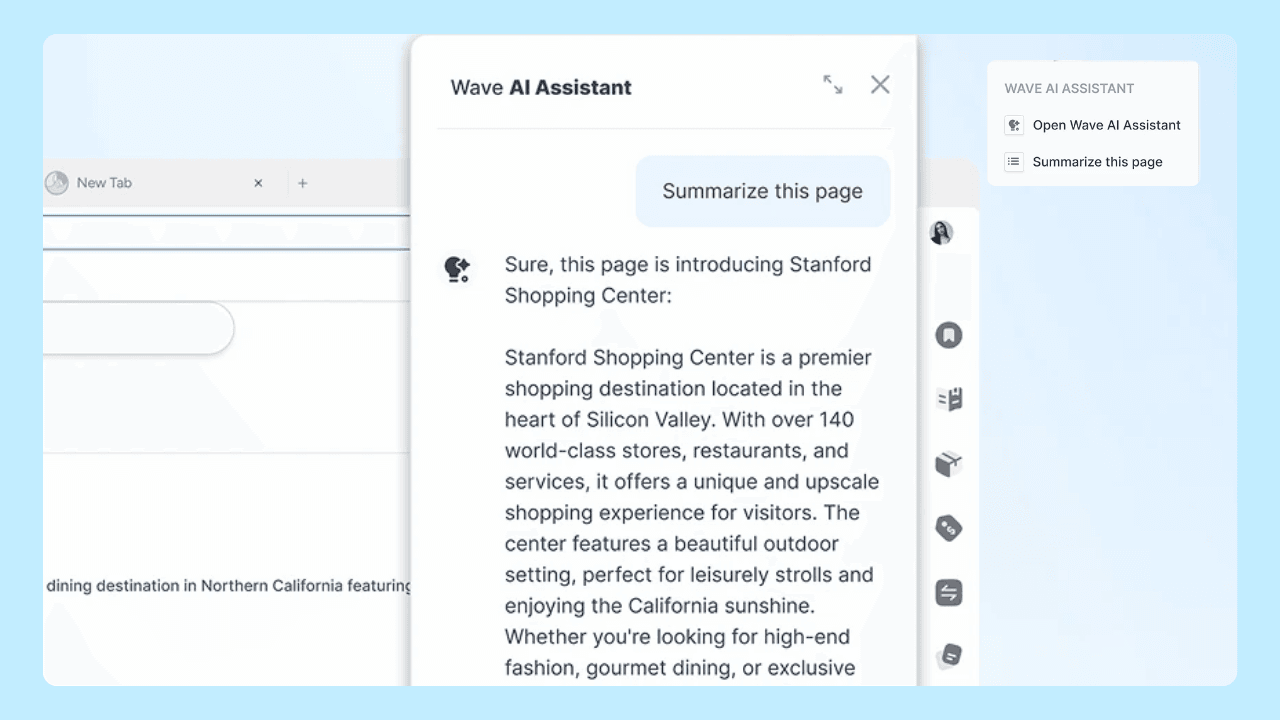
The next problem is reading. A government report may use a term you need to define. A technical article may summarize a measurement without explaining the method. A recorded talk may mention a number that you want to trace back to its source. On Windows and macOS, our AI Assistant provides answers, summaries, and content generation inside the browser.
That makes the assistant useful at the point where you are trying to understand a source. You might ask for a plain-language explanation of a term, a short summary of text you provide, or a possible outline for the questions your presentation should answer. The assistant helps you move through a dense page and identify what deserves a slower read.
The most reliable workflow keeps the original source as the citation and uses AI output as working material. If a summary contains a date, figure, quotation, or claim that will appear in your presentation, return to the original page and verify it. Check whether the number describes a total, a rate, a forecast, a particular location, or a specific time period. Check whether a quotation is exact. Check whether the article's conclusion is broader than its evidence. This verification step protects the quality of the research while leaving the assistant free to handle the blank-page and first-explanation work.
Stage Three: Keep Notes Beside The Page They Describe
After you understand a source, you need to record what you will use. On Windows and macOS, Wave Browser's Side Bar lets you pin a site or feature and open it beside the page you are browsing. For research, the Notes tool is a natural companion: keep a note visible next to the source and record the figure, the page reference, the definition, and the question that remains open.
The physical arrangement matters because it keeps the source and the note in view together. You can read one section, write the point in your own words, and then check the page before moving on. If you copy a quotation, add the page title and the location where you found it. If you paraphrase, label it as a paraphrase in your own working notes. If you are unsure whether a statement is evidence or interpretation, mark that distinction while it is still fresh.
The Converter Tool in the Side Bar can help when a source uses unfamiliar units. Converting a measurement next to the source keeps the scale visible in your notes. The tool handles the mechanical part of the task so you can spend attention on the evidence and its context.
By the end of this stage, your saved sources and your notes have different jobs. The Reading List or Bookmark points back to the original. The note captures the material you might use. The page remains available for a final check before publication or presentation.
Stage Four: Keep a Video Visible While The Research Continues
Some research includes a recorded lecture, interview, product demonstration, or documentary clip. Picture-in-Picture (PiP) on Windows and macOS keeps supported videos in a floating window while you browse or work elsewhere. That is different from the Side Bar. The Side Bar keeps a site or tool beside the current page; PiP keeps a supported video visible while another page becomes the main workspace.
Use PiP when the video is something you need to hear or watch while making notes. Keep the source page in the main window when you need to read closely. This separation reduces the temptation to open several duplicate windows just to keep a reference visible. It also makes the task easier to pause: when you hear a useful point, record it in Notes with the time or context you need to verify later.
PiP keeps supported videos visible, with availability determined by the page or video.
Manage a Long Session With Practical Resource Tools
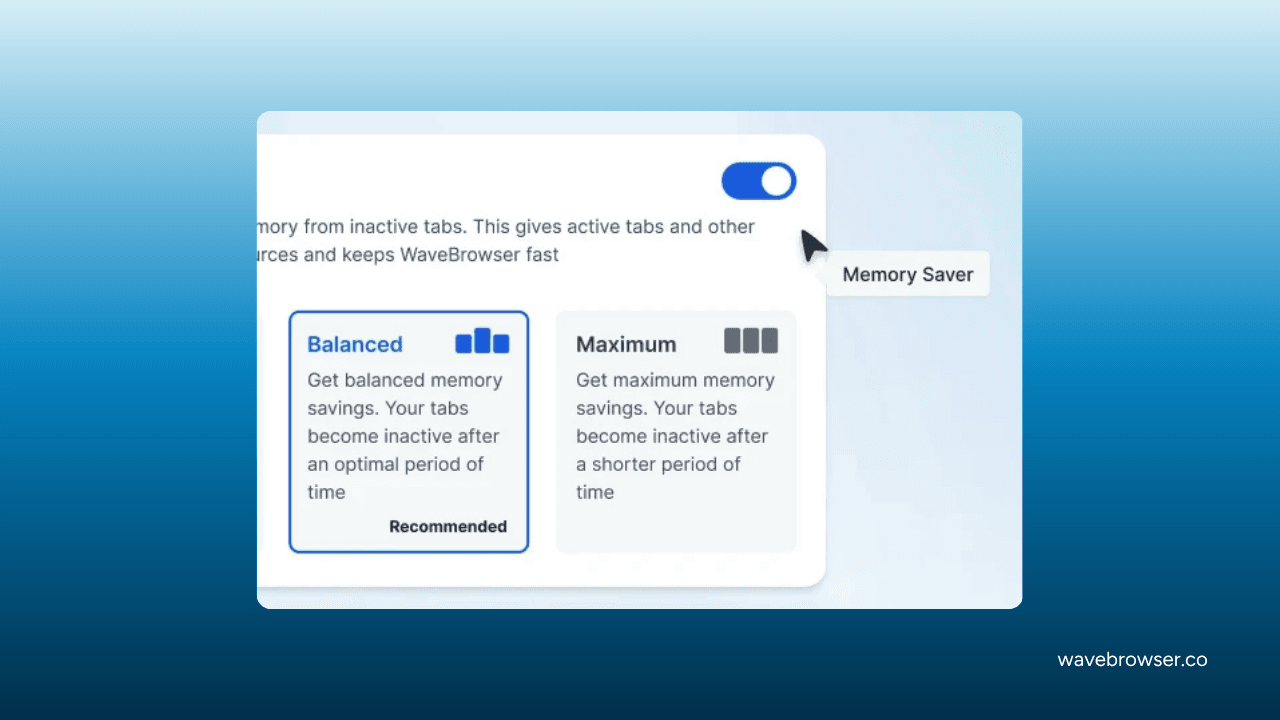
Research can leave dozens of tabs open. On Windows and macOS, Memory Saver helps reduce resource use from inactive tabs, while Energy Saver helps manage browser activity by limiting background activity and visual effects. These tools support a long session. Their effect depends on the pages open, the activity running in them, and the computer you use, so use them as practical resource support for the work in front of you.
A better research habit is to let the browser manage the background while you manage the evidence. Close or save pages that have served their purpose. Keep the sources you still need in Reading Lists or Bookmarks. Put the facts you have checked into Notes. That way, the research remains easy to revisit without keeping every tab active forever.
Turn Verified Notes Into a Draft Outline
When the research is complete, AI Assistant can help turn your checked notes into a draft outline or a first pass at content. The material you provide should already distinguish fact from interpretation and should point back to the original sources. Ask for structure, a sequence of questions, or a clear explanation of a concept. Then read the result as an editorial draft: restore the exact dates and qualifiers, remove any statement that the source does not support, and keep the original page available for the final check.
This is where a browser workflow becomes more than a feature list. Reading Lists and Bookmarks hold the source trail. The Side Bar keeps the note-taking surface beside the page. The Converter handles a mechanical step. PiP keeps a supported recording visible. AI Assistant helps with explanation and structure. Memory Saver and Energy Saver support the session while you do the work of judging the evidence.
Frequently Asked Questions

Is Wave Browser's AI Assistant a research source?
It provides answers, summaries, and content generation on Windows and macOS. Use that output to understand or organize material, then verify any fact or quotation against the original source before you cite it.
Can I use the Side Bar on Android or iPhone for this workflow?
The Side Bar is a Windows and macOS feature. Reading Lists and Bookmarks are available on all four platforms, but the desktop research arrangement described here uses the desktop Side Bar, AI Assistant, PiP, Memory Saver, and Energy Saver.
Does Wave Browser save my research across every device automatically?
Reading Lists, Bookmarks, and Password Manager are available on all four platforms. If you need a cross-device synchronization workflow, check the current product flow for the platform and version you use.
Can I cite the AI Assistant's summary instead of the original article?
You should cite the original article or report. The assistant's answer is a draft aid. Returning to the source is what lets you confirm the wording, date, scope, and context of the claim you plan to publish.
Research works best when the browser keeps the tasks distinct: find the source, understand it, record what matters, and return when you are ready to write. Download Wave Browser and build the workflow around the kind of research you actually do.
Surf the Web, Save the Ocean.