Wave Browser is free to download and use. You can activate our free Wave PRO features by setting Wave Browser as your default browser. That is the key access detail, and this guide explains how the activation choice works, how it fits into the browser you already use, and which details belong to the current product flow.
Quick answers:
- What does Wave PRO cost? Wave PRO is free. Wave Browser itself is free to download and use.
- How do I activate the free PRO features? Set Wave Browser as your default browser on the device where you want to use the activation path.
- What does “default browser” mean? When another app opens a web link, the operating system uses Wave Browser as the browser that opens it.
- Is every PRO feature available on every platform? Platform and feature availability differ. The current features page and the activation flow are the right places to check the tools available on your device.
- What access details should I check for PRO? The default-browser setting activates free PRO features. The current product flow shows the platform, market, duration, account, and previous-subscription details relevant to your setup.
| Decision point | What Wave Browser states | What you should check in the current flow |
| Cost | Wave Browser and Wave PRO are free under the stated access model | The current product page and activation screen for your platform |
| Activation | Set Wave Browser as your default browser | The device setting path and the in-product confirmation |
| Feature Scope | Tools differ between desktop and mobile platforms | The feature page for the device you plan to use |
| Duration and account treatment | Access details follow the current product flow | Whether the current flow shows a continued-default or account/device condition |
What the Free Access Statement Means
“Free” has two parts in the Wave Browser experience. First, Wave Browser is free to download and use as a browser. Second, you can activate the free Wave PRO features by setting Wave Browser as your default browser. The activation path is a device setting in your browser preferences.
That gives you a practical starting point: you can download Wave Browser from the official website and decide whether the browser fits your routine. If you want the free PRO features, the relevant action is to choose Wave Browser as the default browser in the device's browser-setting flow.
The free activation statement points you to the current activation experience for platform, market, duration, account or device, and earlier-subscription details. The live flow is the right source for the conditions shown on your device.
How the Default-Browser Choice Works
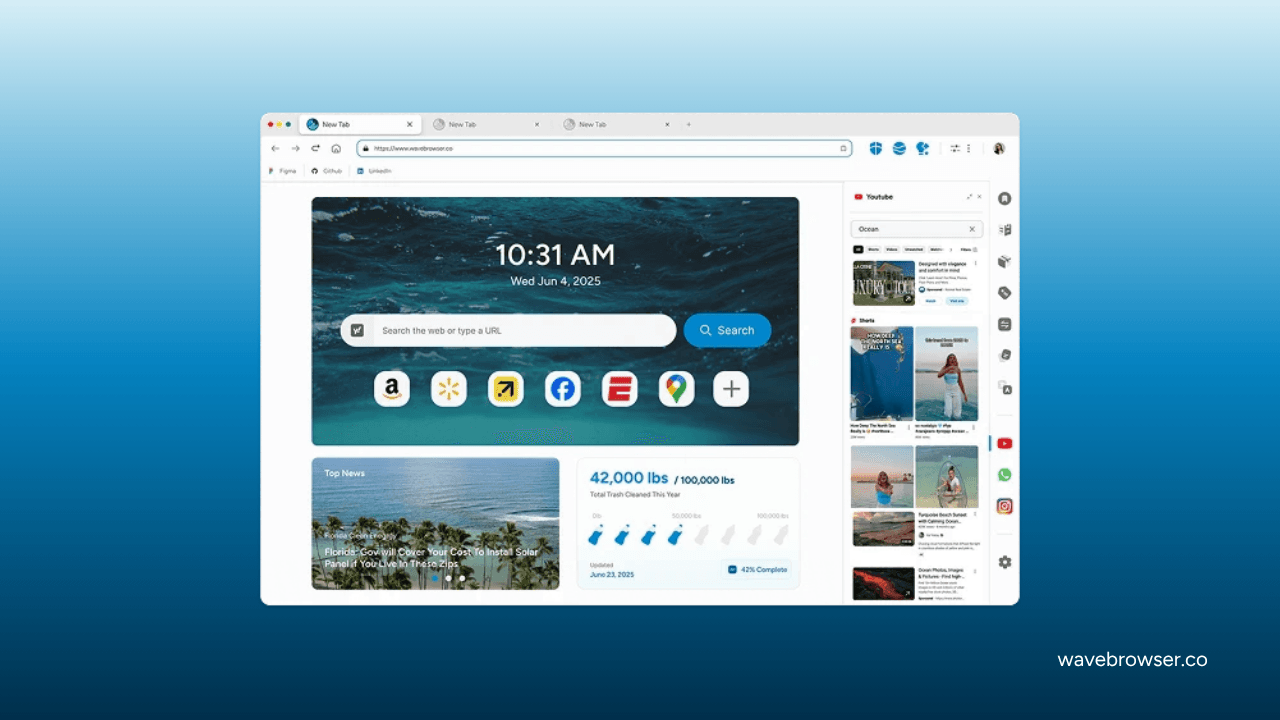
Your default browser is the application your operating system uses when another application asks to open a web link. A link in an email, document, message, or calendar entry can open in the browser you selected as the default. Choosing Wave Browser changes that handoff so Wave becomes the browser used for those links.
The same choice is the documented route to activate free Wave PRO features. It is easy to understand because the setting has a visible purpose: it determines where your ordinary links open. It is also a meaningful choice, so make it when Wave Browser fits the way you want to browse and handle links.
The exact menu name and path depend on the operating system and its current settings. Use the device's browser settings and the in-browser activation flow for the steps shown on your version; the live instructions follow the platform you use.
What you already have before thinking about PRO
Wave Browser's everyday foundation is a Chromium-based web browser with familiar browsing, organization tools, privacy controls, and platform-specific productivity features. Reading Lists and Bookmarks, Password Manager, Incognito Mode, and customizable cookie and privacy controls are named across the four-platform feature matrix. Wave Browser is available on Windows, macOS, Android, and iOS, with each platform organized around its own feature set.
That distinction matters when you compare a browser on a phone with one on a desktop. On Windows and macOS, the desktop set includes Side Bar, AI Assistant, Picture-in-Picture, Memory Saver, Energy Saver, Price Tracking, Translate, and compatible-extension support. On Android and iOS, the mobile feature set is organized around browsing, saved pages, passwords, privacy preferences, and the Live Impact Tracker, with Content Notifier also listed for iOS. Use the current platform listing to see which tools are included in each installation.
For a current feature decision, use the Wave Browser features page and read the platform scope next to the tool you care about: a Side Bar question is a desktop question, while a Reading List question can be relevant across all four platforms.
What PRO adds to the decision
The free PRO activation path is useful when you have already decided that Wave Browser should be your primary place for links. Setting a default browser can change the small handoffs that happen throughout the day: a link from a message opens in Wave, a document link opens in Wave, and the browser becomes the consistent home for those tasks. The PRO features sit within that broader choice.
On desktop, that may mean using the Side Bar to keep a reference site or tool beside the page you are reading, asking AI Assistant for an answer or summary, keeping supported video visible with Picture-in-Picture, or using Memory Saver and Energy Saver to manage a long browsing session. On mobile, it may mean using Incognito Mode for a local-history task, saving pages in Reading Lists and Bookmarks, managing logins with Password Manager, and following environmental progress through Live Impact Tracker. These examples explain how the browser's tools fit into work; the current activation flow provides the device-level PRO feature details.
The product pages and activation flow should be treated as the current description of what your device can use. If the feature you need is central to your choice, open that feature's page before you set a default. For example, the AI Assistant page, Ad Block page, and Privacy features page describe distinct desktop or cross-platform controls. Read each page with its platform scope, then use the activation flow for the device-level availability.
A clear way to decide whether to activate
A simple decision sequence keeps the choice grounded:
- Check the browser itself. Make sure the browsing, saved-page, password, and privacy tools match the way you work.
- Check the feature that matters most. Confirm its platform listing for the device you plan to use.
- Install from an official source. Use wavebrowser.co or the authorized app-store listing for your platform.
- Try the normal browsing workflow. Open the pages, links, and tasks that make up your day.
- Choose the default setting if Wave is the browser you want for links. That is the documented route to activate the free PRO features.
- Use the current in-product description for details. If the activation screen explains an eligibility condition or feature scope, follow that live information.
This sequence keeps “free” from becoming an empty slogan. You can see the browser's everyday value first, understand the setting you are changing, and then use the documented activation route with a clear expectation.
Wave's wider mission
Wave Browser also connects everyday browsing with our environmental mission. Through our partnership with 4ocean, a portion of our revenue helps fund the removal of plastic and trash from our ocean, rivers, and coastlines worldwide. 4ocean's crews perform the cleanup work; Wave helps provide funding through the business.
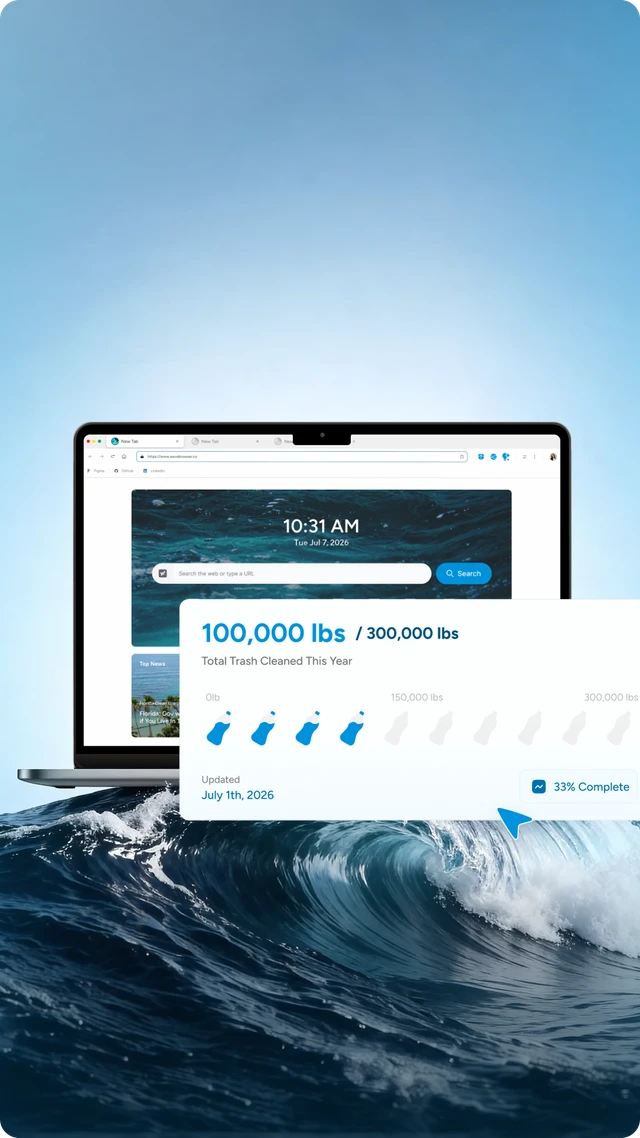
As of April 15, 2026, Wave Browser had helped remove over 100,000 lbs of plastic and trash from our ocean, rivers, and coastlines worldwide. We have committed to support the removal of 300,000 lbs by 2028. The first is a dated achieved milestone, and the second is a future commitment. Together they give the partnership a clear record of progress and its next commitment.
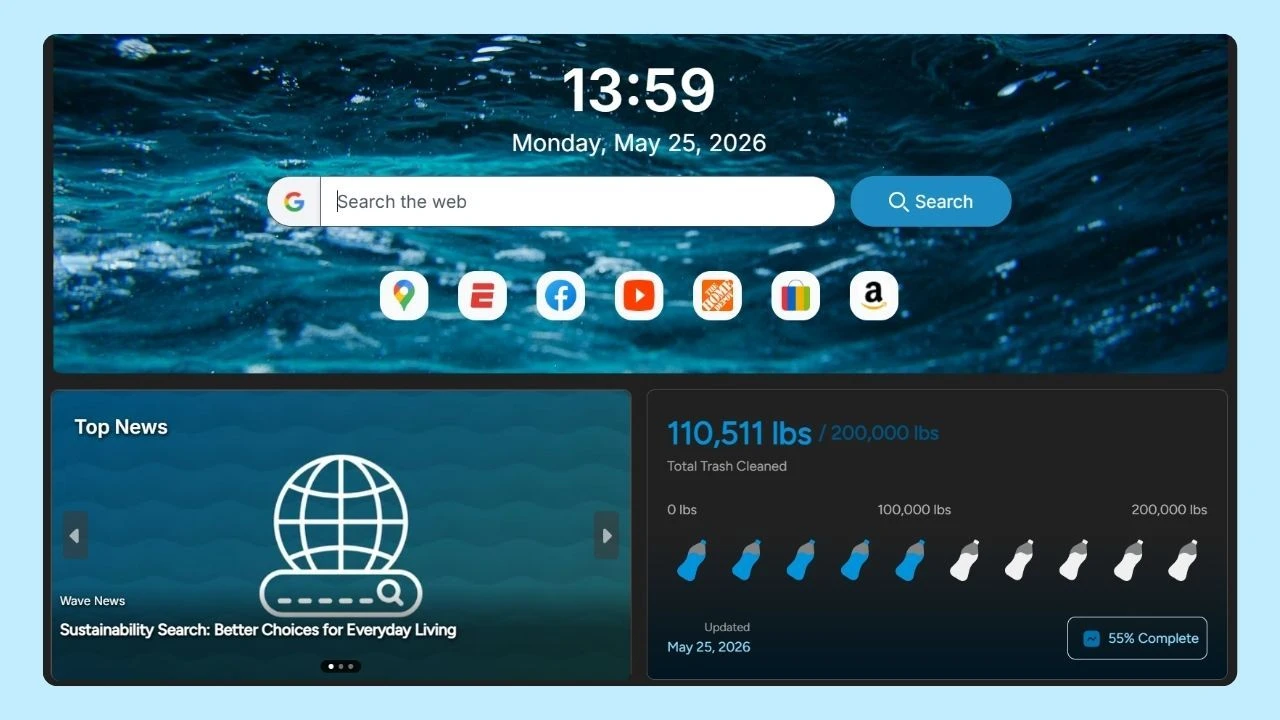
The Live Impact Tracker shows cleanup progress and environmental milestones on Windows, macOS, Android, and iOS. You can read the Wave Browser x 4ocean partnership for the partnership context. The mission is part of the brand's business model, and the tracker presents the partnership's progress and milestones alongside the product experience.
Frequently Asked Questions

Is Wave PRO a paid subscription?
Wave PRO is free. Wave Browser is free to download and use, and you can activate the free PRO features by setting Wave Browser as your default browser. For present access details, follow the current activation flow.
Do I have to keep Wave Browser as my default forever?
The default-browser setting is the activation route. Whether it must remain in place continuously and how changing it affects access later are details shown by the current product flow.
Is PRO available on every device and in every market?
Platform and market availability are shown in the current platform-specific description. Check that page before making a device-level choice.
Does PRO include every Wave Browser feature?
Feature availability follows the platform, so use the current features page and activation flow to see the tools described for your device.
Where can I get the official browser?
Start at wavebrowser.co or use the authorized Google Play and Apple App Store listings linked from the official site.
Wave PRO is easiest to understand as a free activation path attached to a real browser choice. Try Wave Browser, check the features that matter to you, and set it as your default when it is the browser you want opening your links.
Surf the Web, Save the Ocean. Download Wave Browser.