A browser is no longer just a place to enter a URL. It is where people research, write, shop, communicate, study, manage projects, and move between dozens of web apps. An AI browser assistant can make those activities easier by bringing helpful artificial intelligence closer to the page you are already viewing.
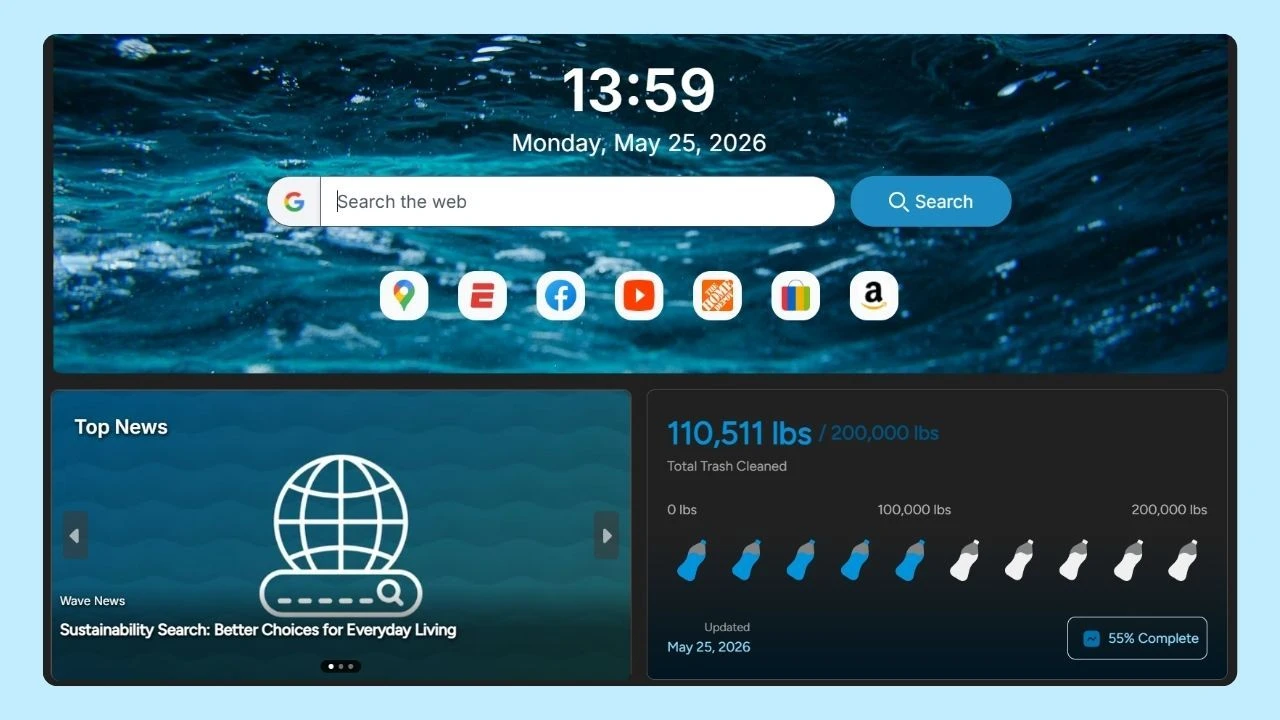
On supported Windows and Mac desktop versions, the Wave AI Assistant is built into the browser sidebar. You can open it without installing a separate extension, ask questions, request a summary, explore ideas, or get help with routine work while staying in the same browsing experience. Instead of leaving the current page to find another service, assistance remains close to your active workflow.
This integrated approach also reflects a broader change in how people use web browsers.
This guide explains how an AI browser assistant works, where they can help, what they cannot safely do without review, and how to choose the right setup for daily browsing.
What is an AI Browser Assistant?

An AI Browser Assistant is a conversational tool that works inside or alongside a browser. It accepts instructions in natural language and produces responses based on an AI model. Depending on the product and its permissions, it may answer questions, summarize web content, explain unfamiliar terms, help draft text, or suggest a next step.
The simplest version behaves like an AI chatbot. You type a request, receive instant answers, and continue working. More advanced systems may connect to browsing tools, read permitted page context, or coordinate several steps.
How Browser Based AI Works?
Most AI browser assistants combine a user interface with one or more language models. When you enter a prompt, a large language model analyzes the words, intent, context, and likely response format.
- Machine learning allows the system to recognize patterns across large amounts of training material
- Generative AI produces a new answer rather than retrieving one fixed sentence.
If the assistant can use page context, it may receive selected text, a page summary, or other permitted information from the browser. Some tools can process search results, identify key facts, compare passages, or turn a long article into a shorter explanation. The quality of the response depends on the prompt, the underlying model, the available context, and the reliability of the source material.
Real time does not always mean perfectly current. An assistant may respond quickly yet still lack recent information or misinterpret a source. When a date, price, policy, or technical detail matters, open the original web pages and verify the claim directly.
Privacy and Safety Questions to Ask
AI support becomes more useful when its boundaries are clear. Before using it for work, financial research, customer communication, or account-related tasks, ask a few practical questions.
- What information can the tool read from the current page?
- Does it access only selected text, or broader browsing data?
- Does it store prompts?
- Can users delete their history?
- Are conversations used for model improvement?
- What happens when the assistant encounters a login form or password manager?
- Does it ask before taking an external action?
Avoid submitting passwords, payment information, health records, private contracts, customer lists, or unpublished business documents without explicit approval and suitable safeguards. Even when a system sounds confident, verify important output against primary sources.
Everyday Uses for an AI Assistant in Your Browser

The best use cases are specific enough to guide the response and simple enough to review. Start with one task, provide relevant context, and define the format you want.
Research and Summaries
When several open tabs cover the same topic, ask for a list of questions that will help you compare the sources. You can also paste a difficult passage and request a plain-language explanation, a timeline, or a short list of key facts.
For example: “Summarize this section in five bullets and separate confirmed facts from the writer’s opinion.” Another prompt could be: “What evidence should I look for before accepting this claim?” These requests make the assistant a thinking aid rather than a replacement for source review.
Writing and Communication
A browser assistant can help outline an email, simplify a paragraph, adjust tone, or turn rough notes into a clearer first draft. Business owners might use it to create product-description ideas, organize customer questions, or prepare social media variations from an approved message.
Try: “Rewrite this response so it is direct, friendly, and under 100 words.” For a more careful review, ask: “Identify any statement that sounds like a guarantee and suggest a more precise alternative.” Never paste personal information or confidential material unless the service and your organization permit it.
Shopping and Comparison
An assistant can create a checklist for comparing products, explain specifications, or organize information you have collected. Imagine that you need an office chair.
Ask: “Create a comparison checklist covering dimensions, weight capacity, materials, warranty, return policy, and total cost.” Then confirm each answer on the retailer’s page.
The same method works when searching for the best gaming deals. Collect the current price, included content, platform, seller, and refund terms, then ask the tool to arrange the information in a table. It may help identify the apparent best deal, but price, availability, and conditions should be verified before purchase.
Learning and Explanation
Use the assistant to define a concept at different difficulty levels, generate practice questions, or explain the relationship between two ideas.
A useful prompt is: “Explain this paragraph to a beginner, then give me three questions that test understanding.” You can also ask it to turn notes into flashcards or create examples based on real situations.
For language study, paste a short passage and ask for a vocabulary list, tone explanation, or comparison between literal and natural phrasing. Review important translations with a reliable reference or qualified speaker.
Travel and Planning
AI can help structure a plan from information you provide. An Airbnb host, for example, might draft a clear welcome message, a checkout checklist, or a set of frequently asked questions. In an Airbnb example involving local recommendations, the host could ask the assistant to group approved places by distance, opening hours, and accessibility, then verify every detail before sharing it with guests.
Planning support is different from making bookings. An autonomous workflow may involve account access, payments, or personal details, so confirm permissions and review each action before anything is submitted.
How to Use Wave AI Assistant
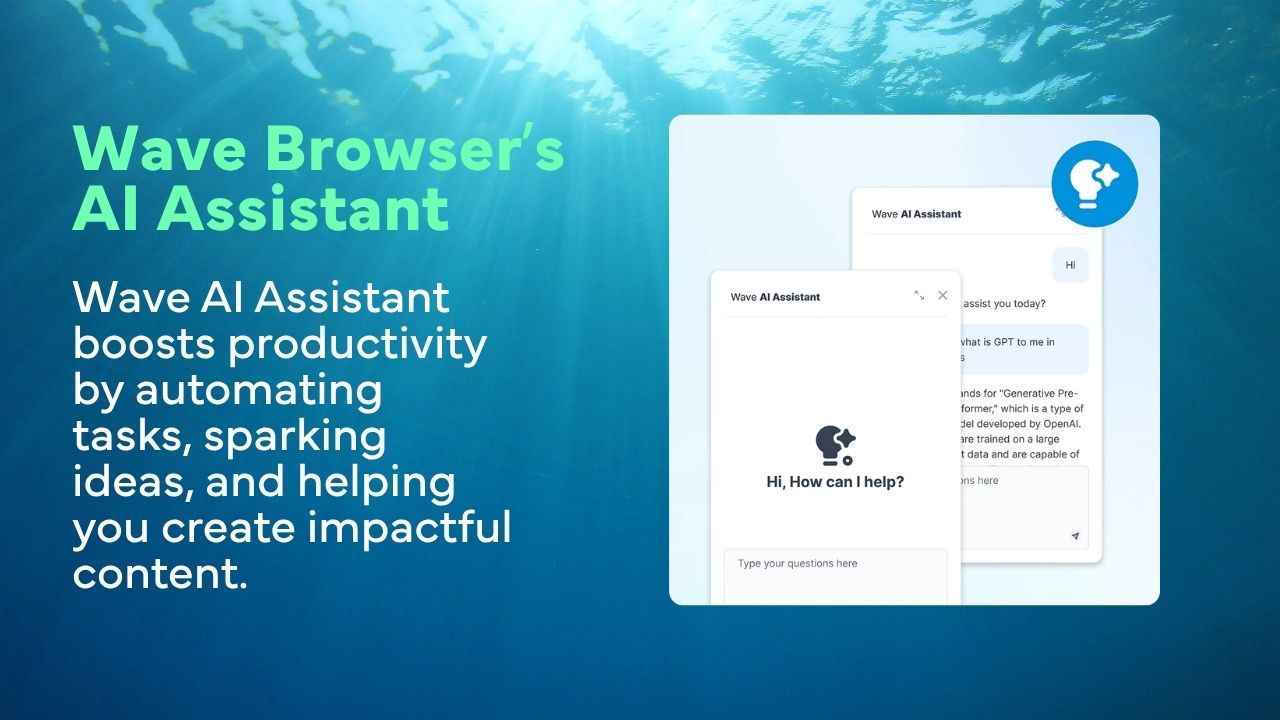
Wave places its AI assistant in the desktop browser sidebar, keeping help close to the content and tasks already open. You can use it for questions, summaries, personalized suggestions, idea generation, and general task assistance. Users can open the assistant and chat without creating a separate account for the feature.
A simple workflow starts with the goal. Decide whether you need a summary, explanation, draft, checklist, or comparison. Open Wave AI Assistant from the sidebar, provide the necessary context, and state the output format. Review the response against the source before using it.
Useful prompts include:
- “Summarize the main argument of this article in five points.”
- “Turn these notes into a professional email.”
- “Create a checklist for comparing the products in my open tabs.”
- “Explain this technical term with a practical example.”
- “Give me three headline ideas without changing the factual claim.”
- “List the details I should verify before publishing this summary.”
The built-in placement matters because it reduces switching.
Slashdot notes that Wave’s assistant can support questions and article summaries without requiring another download. Dataconomy similarly highlights Wave’s sidebar and built-in utilities as part of an efficiency-focused workflow that may reduce reliance on multiple extensions or external apps.
Built In Assistant or AI Extension
An integrated assistant and a browser add-on can solve similar problems, but the setup is different. A built-in tool is already connected to the interface. A browser extension or another add-on is installed separately, usually from a web store, and may place an icon in a toolbar.
When assessing an extension, review its publisher, update history, permissions, privacy terms, and removal process.
| Built In Assistant | AI Extension | |
| Setup | Available within the browser interface | Installed from a marketplace |
| Access | Often opened from a sidebar or browser control | Often opened from a toolbar icon |
| Updates | Managed with the browser experience | May have a separate update cycle |
| Permissions | Review the browser feature and privacy terms | Review requested site and data access |
| Best use | Low-friction help during browsing | Specialized functions when carefully selected |
What to Look For When Choosing an AI Browser Assistant?
>There is no universal best AI browser for every person. The perfect match depends on the specific task, the information involved, and how much control you want the system to have.
- Useful scope: Confirm whether the assistant can summarize, draft, explain, compare, or work with the current page. Do not assume that chatbot capabilities include navigation or automation.
- Clear access: A browser sidebar can keep support visible without covering the main content. Consider whether the interface works well with many open tabs and whether it helps you remain focused.
- Source awareness: Ask whether responses link to or distinguish source material. For time-sensitive claims, the assistant should make verification easy rather than encourage blind trust.
- Privacy controls: Review what content is sent to the service, how long it is stored, and whether it may be used to improve a model. Sensitive data, account credentials, and personal information deserve particular care.
- Permission boundaries: If the system offers web automation, check whether it asks before visiting sites, entering details, downloading files, or submitting forms. Keep a person in control of consequential actions.
- Performance: Added AI workloads can use memory, processing capacity, and network resources. Compare the experience during your actual workload rather than judging from a simple demonstration or AI playground.
- Account requirements: Some products require a login or subscription for particular functions. Review current eligibility and plan information directly from the provider because access can change.
Frequently Asked Questions

Can an AI browser assistant answer questions about any webpage?
It can help with text or context made available to it, but access varies. Confirm whether the assistant can use the current page and verify important responses against the original source.
Is an AI browser assistant the same as a regular browser?
No. The phrase describes an AI capability integrated into or used alongside browsing. A regular or traditional browser can function without an assistant.
Can it complete complex tasks automatically?
Some products support agent mode, browser automation, data extraction, or form filling. These are not universal features and should be used with clear permission and human review.
Does voice input mean the assistant can follow voice commands?
Not necessarily. A product may convert speech to text without being authorized to act on websites. Check the documented behavior.
How is it different from an AI chatbot?
A chatbot may work on a standalone site. A browser-based assistant is positioned within the browsing workflow and may support page-related tasks, depending on its permissions.
Should it access a password manager?
An assistant should never receive credentials unless the product explicitly supports a secure, approved process. Do not paste passwords or other secrets into a chat.
Using an AI Browser Assistant Without Losing Focus
The goal is not to ask AI about everything. Constant prompting can become another interruption.
Use the assistant where it removes a clear obstacle: understanding a dense section, organizing options, drafting a routine message, or creating a review checklist. Use the assistant to generate possibilities, then return to the source, confirm the facts, and choose the final wording or action. This pattern supports efficiency without handing over judgment.
An AI Browser Assistant can make online work easier by placing explanations, summaries, drafting support, and comparison help closer to the page. The most valuable setup is not necessarily the one with the most automation. It is the one that fits the task, keeps its permissions understandable, and leaves important decisions with the user.
The Wave AI Assistant brings this support into the desktop browser sidebar on supported Windows and Mac versions. It can help users answer questions, summarize material, develop ideas, and manage everyday tasks without installing an additional AI extension. Together with Wave’s other built-in productivity features, it supports a more organized workflow across research, writing, shopping, and daily browsing.
Start with a clear request, review the response, confirm key facts on the original page, and protect sensitive information. That simple process turns AI from a distraction into a practical browsing tool.