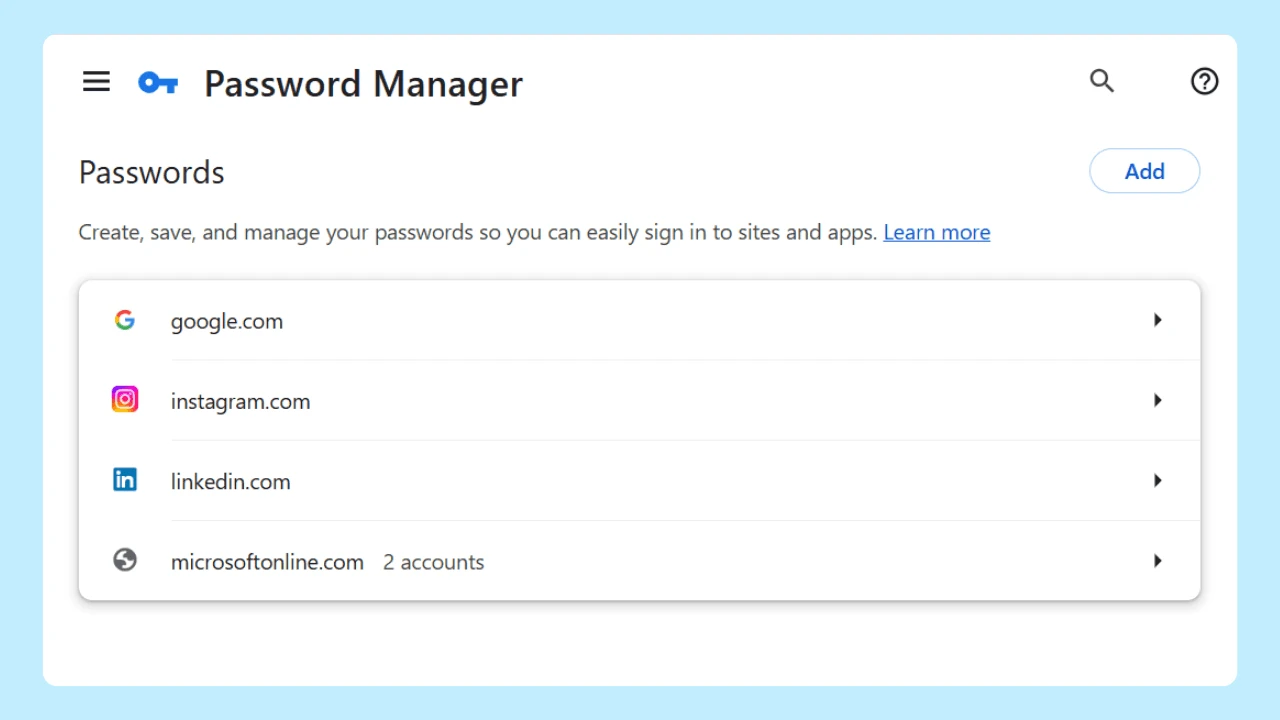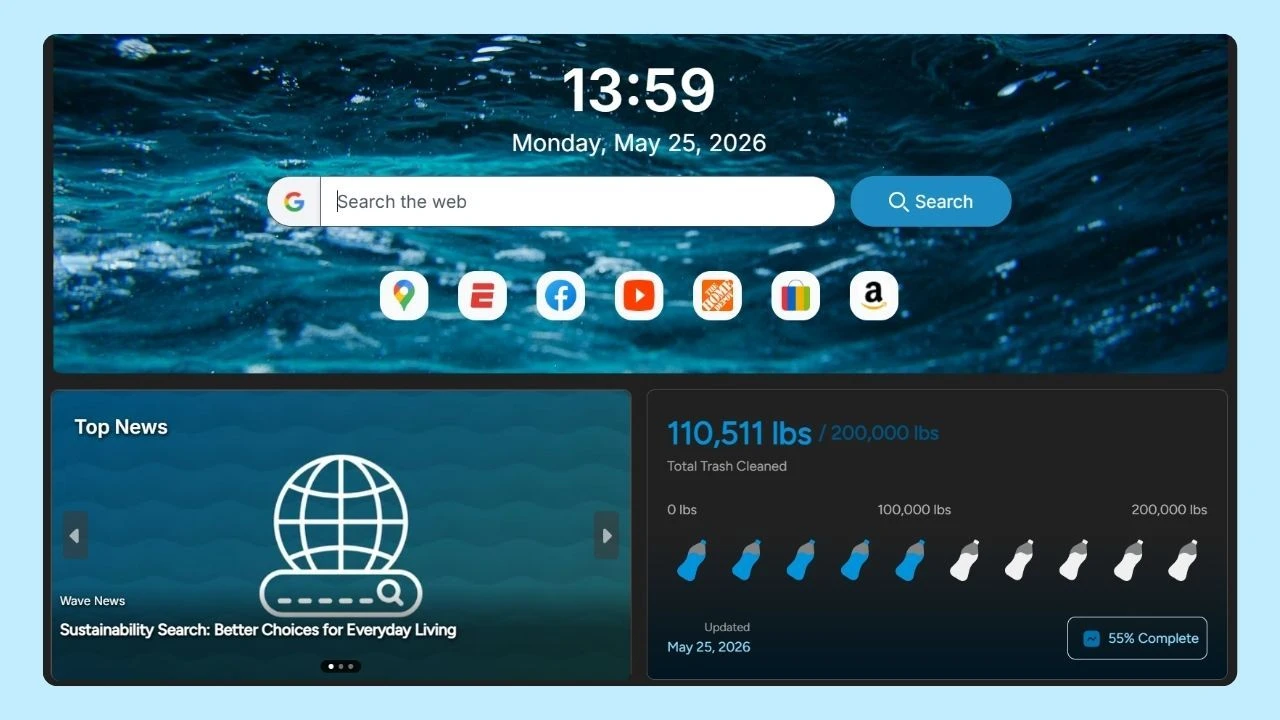
An Android TV web browser lets you open websites directly on a television running the Android TV OS. Instead of limiting your smart TV to streaming services and other native apps, a browser gives you access to web pages, search engines, social media, web applications, news, videos, and other online content from the big screen.
The experience is different from using a mobile browser on smartphones. For example, Wave Browser is available for Android mobile devices through Play Store, while browsing on a television requires a browser specifically compatible with Android TV.
Android TV users normally browse with a remote control rather than a touchscreen, so navigation, text entry, readability, and video playback all become important considerations. Understanding these differences can help you make an informed decision when choosing the best web browser for your television.
What Is an Android TV Web Browser?
An Android TV web browser is an app designed to load and display websites on Android TV devices. Like a browser on a computer or phone, it usually includes an address field, a search bar, bookmarks, browsing history, and controls for moving between pages.
The main difference is how it works on the screen. Android TV apps are designed to be viewed from a distance and controlled with directional buttons.
Android TV documentation explains that television apps should use layouts that remain readable from around ten feet away and can be navigated with a directional pad and select button. This makes remote control navigation a central part of the browsing experience.
A TV browser can be installed on an Android TV box, with availability depending on the device, OS version, region, and app developer.
How to Install a Browser on Android TV
Browser availability depends on the television, region, and version of Android TV. The safest starting point is to search for a TV-compatible browser through Play Store on the device.
To find an app:
- Open the Apps section on your Android TV
- Open the device’s app marketplace
- Search for a browser compatible with Android TV
- Open the app listing and review its permissions, ratings, and compatibility
- Select Install
How to Improve Your TV Browsing Experience
A few adjustments can make browsing more comfortable:
- Connect a wireless keyboard when you expect to enter a lot of text
- Use an air mouse if standard remote navigation feels too limited
- Enable dark mode when browsing in a dim room
- Save frequently visited pages as bookmarks for quick access
- Use voice input to reduce on-screen typing
- Close unused tabs to free device resources
- Check the search bar carefully before entering private information
- Review browser permissions in the device settings
- Avoid downloading unknown files or installing apps from unfamiliar sources
- Scan a QR code to quickly open websites, sign in to accounts, or connect your mobile device to the TV
Performance can also change in real time as websites load advertisements, videos, scripts, or interactive elements. If a page feels slow, closing other apps or restarting the browser may help.
Why Use a Web Browser on Android TV?

Most people use native apps to watch movies, sports, and series. These apps are usually optimized for the television screen and offer straightforward remote navigation. However, not every service, website, or piece of content has a dedicated Android TV app.
A web browser gives users another way to access online content.
You might use one to:
- Visit a web page that does not have a dedicated TV app
- Read news, guides, or long-form articles on a large screen
- Search for information without reaching for another device
- Access web applications that work inside a browser
- View online presentations, documents, or educational resources
- Check social media or community pages
- Watch browser-based video when a native app is unavailable
- Download files when the browser and TV device support downloads
An smart TV with web browser can also be useful for sharing information with other people in the room. Instead of passing around a phone, you can display a website on the big screen where everyone can see it.
Native Apps or a TV Browser: Which Should You Use?
Native apps are often the best option for frequent use, offering better remote navigation and consistent video quality. An Android browser is useful when there’s no dedicated app or you need quick access to websites and online information.
| Option | Best For | Key Advantage | Limitation |
| Native Android TV Apps | Regular streaming and frequently used services | Better remote navigation and consistent video quality | Limited to services with dedicated TV apps |
| Android Browser | Websites, searches, reading, and services without a TV app | More flexibility and access to broader web content |
In short, native apps work well for regular streaming, while a TV browser offers more flexibility for searches, reading, and other web content.
For easier control, you can use the Universal Remote TV app to turn your smartphone into a remote control for navigating apps, adjusting volume, switching inputs, and controlling supported browser functions.
How Is TV Browsing Different From Mobile Browsing?

A mobile browser is designed around touch gestures, a virtual keyboard, and a screen held close to the user. For example, Wave Browser for Android is designed for browsing on mobile devices, where users interact directly with the touchscreen to search the web, navigate pages, watch videos, and access online content while on the go.
An Android TV web browser, by comparison, must work across a room and respond to a remote control.
Android TV navigation guidance notes that television devices generally use a directional pad with up, down, left, and right buttons, along with select, home, and back controls. Some remotes also include a microphone button for Google Assistant or voice input.
These differences affect several parts of the browsing experience.
Features to Consider in an Android TV Web Browser
The best browsers for television are not necessarily the ones with the longest feature lists. Start with the functions that make browsing practical from a couch.
1. Easy Remote Navigation
A great browser for televisions should respond consistently to directional controls. You should be able to move between links, buttons, menus, and form fields without losing track of the selected item. It should also support the back button in a predictable way.
2. Voice Search Support
Voice search support can reduce the time spent typing with an on-screen keyboard. Look for an option that lets you use voice input in the search bar or address field when the television and remote support it.
3. Video Playback
Many users turn to a TV browser to watch web-based videos. Look for a compatible video player, full-screen controls, and stable playback. Video quality also depends on the website, internet connection, hardware, available memory, and supported formats.
4. Private Browsing Mode
A private browsing mode can prevent a browsing session from remaining in the browser’s local history after the session closes. This can be useful on a shared smart TV.
Private browsing does not make users anonymous or prevent every form of data collection. Always review the privacy policy, permissions, and available controls before deciding whether it meets your needs.
5. Bookmarks and Quick Access
Bookmarks provide quick access to frequently visited websites without requiring users to type the address each time. This can make a major difference on television devices, where text entry takes more effort. A useful starting point may include shortcuts to news, weather, educational sites, or other pages you visit regularly.
6. File-download Controls
Some people want to download files through their television browser. Before doing so, check whether the Android TV device has enough storage and whether it provides clear download management. Files from unfamiliar websites can carry risks. Only download files from sources you trust, and remember that not every file type can be opened on Android TV OS.
Choosing the Best Android TV Web Browser
An Android TV web browser expands what you can do on a smart TV by providing access to websites, online videos, news, social media, and web applications that may not have native television applications. It is especially useful when you want to view information on a big screen, open a specific web page, or access content that is unavailable through a dedicated app.
The best browsers for television are not necessarily the ones with the longest feature lists. Start with the functions that make browsing practical from a couch.