Changing browsers—whether you are making Wave Browser your everyday default on Windows or macOS, or switching back to another browser after removing one—involves two separate layers of settings.
Your operating system controls which browser opens links from email, documents, and other apps, while your active browser controls your startup page, search engine, extensions, bookmarks, and saved logins. Understanding how those two layers work keeps your browsing setup predictable whenever you make a change.
Quick answer
- Confirm your operating system’s default browser setting so links from email, messages, and documents open where you expect.
- On desktop, setting Wave Browser as your default browser can activate our free Wave PRO features.
- Review your startup page, default search engine, extensions, and saved profile items (bookmarks, reading lists, and passwords) inside the browser you use every day.
- If you decide to remove Wave Browser later, use your operating system’s standard application-removal process and then select your next default browser in your OS settings.
- If you have questions about your setup or settings, contact support@wavebrowser.co.
Start with the operating-system default browser choice
Your default browser is an operating-system preference on Windows and macOS. You can keep multiple browsers installed side by side—for example, one for work research and another for personal browsing—while only one browser is assigned to open external links automatically.
When you install Wave Browser and set it as your default browser, you can also activate our free Wave PRO features as described in our current product information. Conversely, if you ever remove a browser from your computer, the operating system does not automatically guess which installed browser you want to use next—you simply open your Windows or macOS default-app settings and select the browser you prefer.
Review your startup page, search engine, and profile data
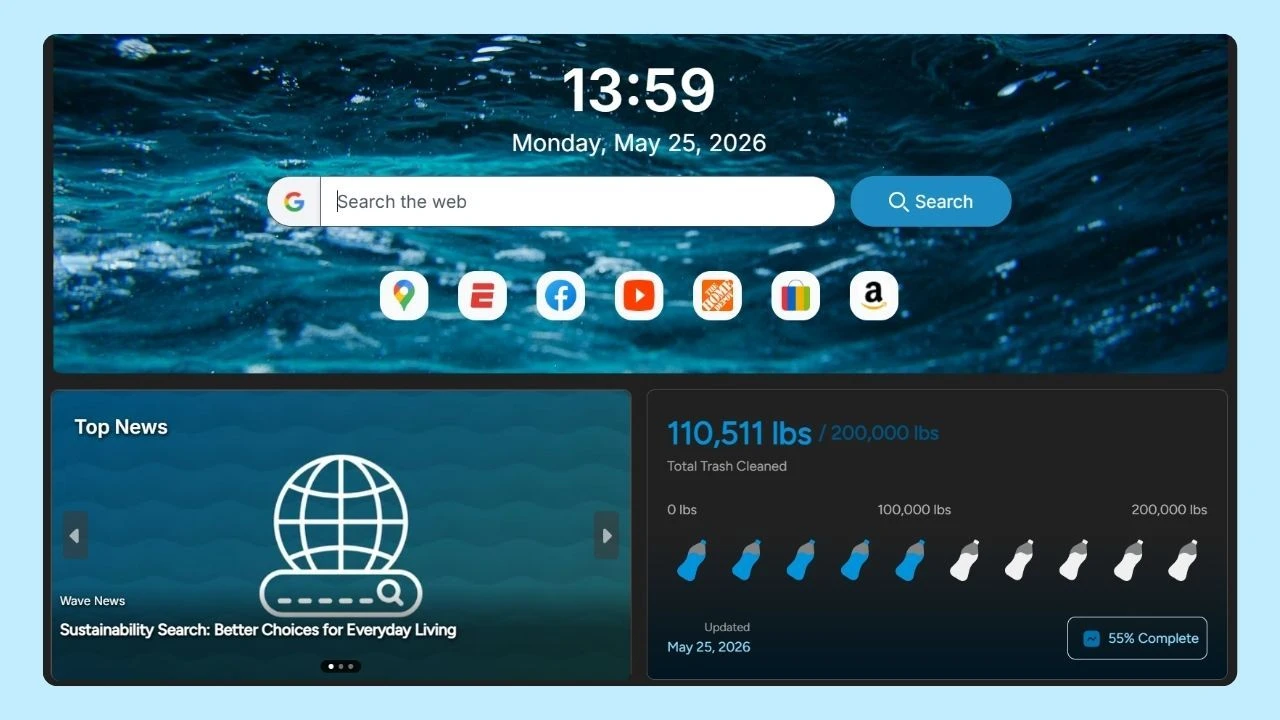
Your homepage or startup tab, default search engine, and compatible extensions live inside the browser you are actively using. Whenever you switch browsers—or after you remove an application you no longer use—open your active browser’s settings menu to confirm that your startup page, preferred search engine, and enabled extensions match what you want for your next session.
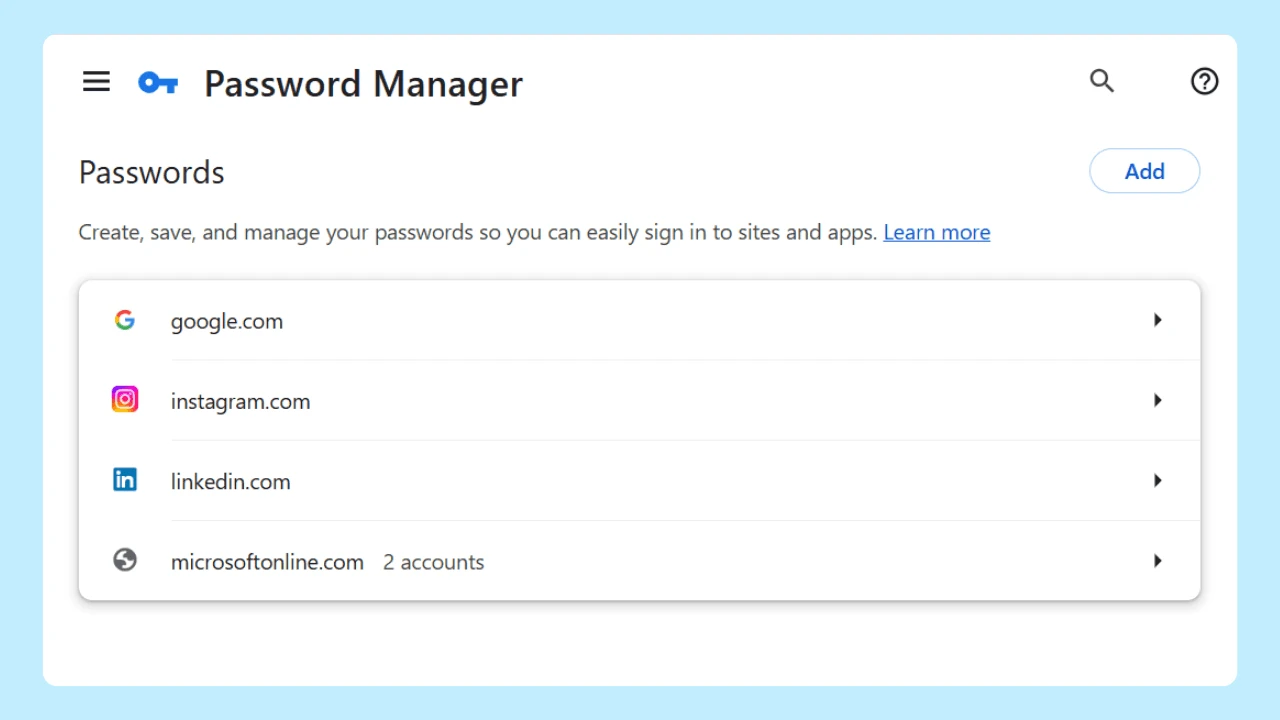
Profile items such as Bookmarks, Reading Lists, and saved logins in Password Manager also deserve a quick check when you transition between browsers. If you are moving to a new browser or planning to uninstall an old one, export or transfer the bookmarks and saved credentials you rely on while both browsers are still installed on your device.
How standard browser removal works if you switch back
We design Wave Browser so that you remain in control of your installation and settings from start to finish. Our Windows and macOS releases go through AppEsteem certification before shipping, which includes requirements for clear installation disclosures and access to standard operating-system uninstall controls.
If you ever decide Wave Browser is not the right fit for your workflow, you can remove it at any time using the standard application-removal controls in Windows (Settings > Apps > Installed apps) or macOS (Applications > Move to Trash), or follow our step-by-step official uninstall guidance. No third-party removal utilities are required. Once the application is removed, simply confirm your preferred default browser and search settings in the browser you keep.
If a setting behaves unexpectedly after an update, installation, or removal, note your operating system, browser version, and the setting involved, and reach out to support@wavebrowser.co so our team can help.
Frequently Asked Questions

Does setting Wave Browser as the default browser activate Wave PRO?
Yes. Wave Browser is free to download and use, and you can activate our free Wave PRO features by setting Wave Browser as your default browser.
Does uninstalling Wave Browser automatically change the default browser setting?
Uninstalling an application removes the program itself, while the default browser remains an operating-system setting. After removing any browser, open your Windows or macOS default-app settings (or the settings bar inside the browser you keep) to choose which browser opens external links next.
Do bookmarks and saved passwords stay intact when switching browsers?
Bookmarks, Reading Lists, and saved passwords are stored within each browser’s profile and depend on your platform and settings. Always transfer or back up important bookmarks and login details while both browsers are still available on your device.
Keep your default choice and browser settings aligned
Whether you are setting up Wave Browser as your new daily browser or switching back after testing it, checking your operating-system default first and your in-browser startup, search, and profile settings second ensures your setup works the way you expect.