Over time, every Android device collects cache, temporary files, and browsing data from apps and websites. This temporary data is meant to help apps load faster the next time you open them, but too much of it can take up valuable storage space and lead to performance issues.
Knowing how to clear cache on Android is a quick way to free up space, resolve common app issues, and improve your overall browsing experience across phones and tablets.
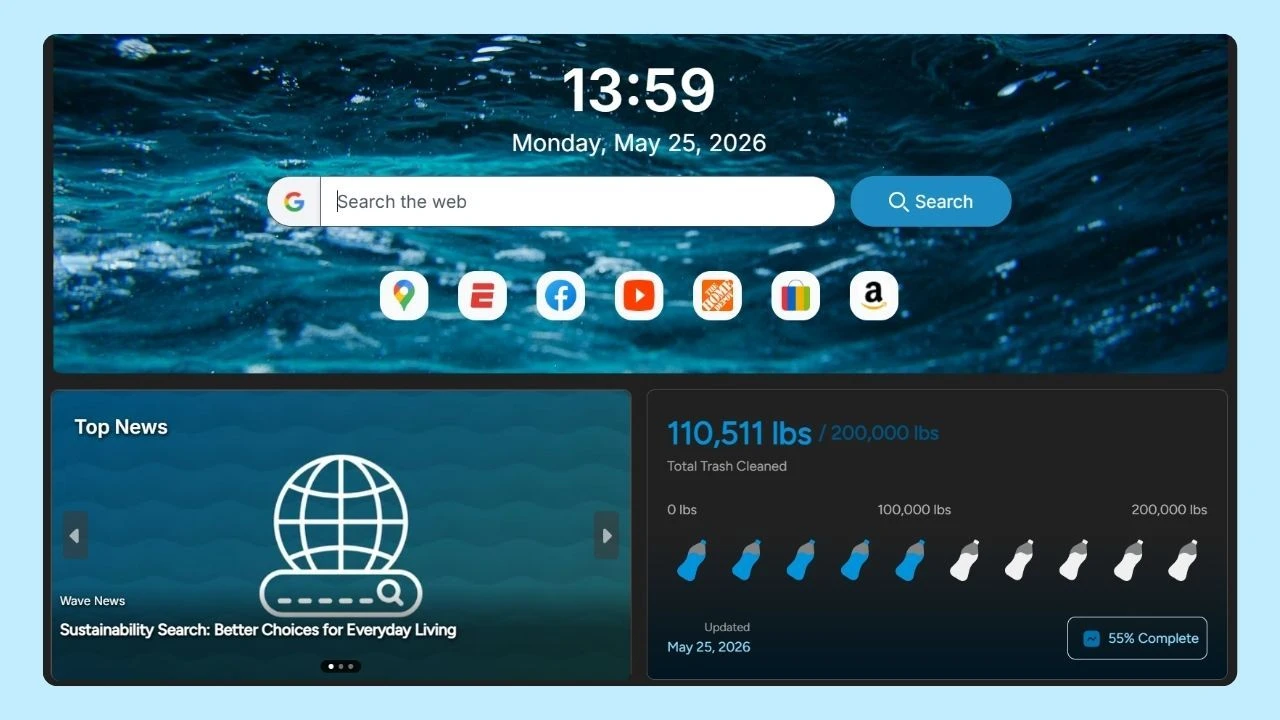
Pairing these cleanup habits with a browser built to manage data efficiently, like Wave Browser, recognized as one of the best Android browsers for organized and streamlined browsing, also means supporting real-world impact.
As you browse, Wave helps fund verified cleanup efforts through its partnership with 4ocean, turning everyday online activity into support for verified ocean cleanup efforts, while keeping your experience smooth and efficient.
Do Android Devices Need Cache Clearing?
Yes. While cache helps speed things up initially, too much of it can build up over time and cause:
- Slower app loading
- App crashes or glitches
- Reduced storage space
- Outdated files affecting performance
Regularly clearing cache helps your phone run more smoothly without removing important login credentials, login information, or saved personal information.
How to Clear App Cache on Android?

Removing cached files can help improve performance quickly. Follow these steps:
- Open the Settings app
- Tap Apps or Android apps
- Select the app you want
- Tap Storage
- Choose Clear cache
This removes temporary files and outdated files without deleting app data. It’s especially useful for social media, gaming, and media-heavy apps.
Selecting Clear data instead of Clear cache will remove app settings and may require you to log in again.
How to Clear Cache on Android
Clear Cache in Wave Browser, Firefox, and Google Chrome
If Wave Browser, Firefox, or Google Chrome are your default browser, clearing the browser cache can significantly improve your online experience.
Steps:
- Open the browser app
- Tap the top right corner (three dots)
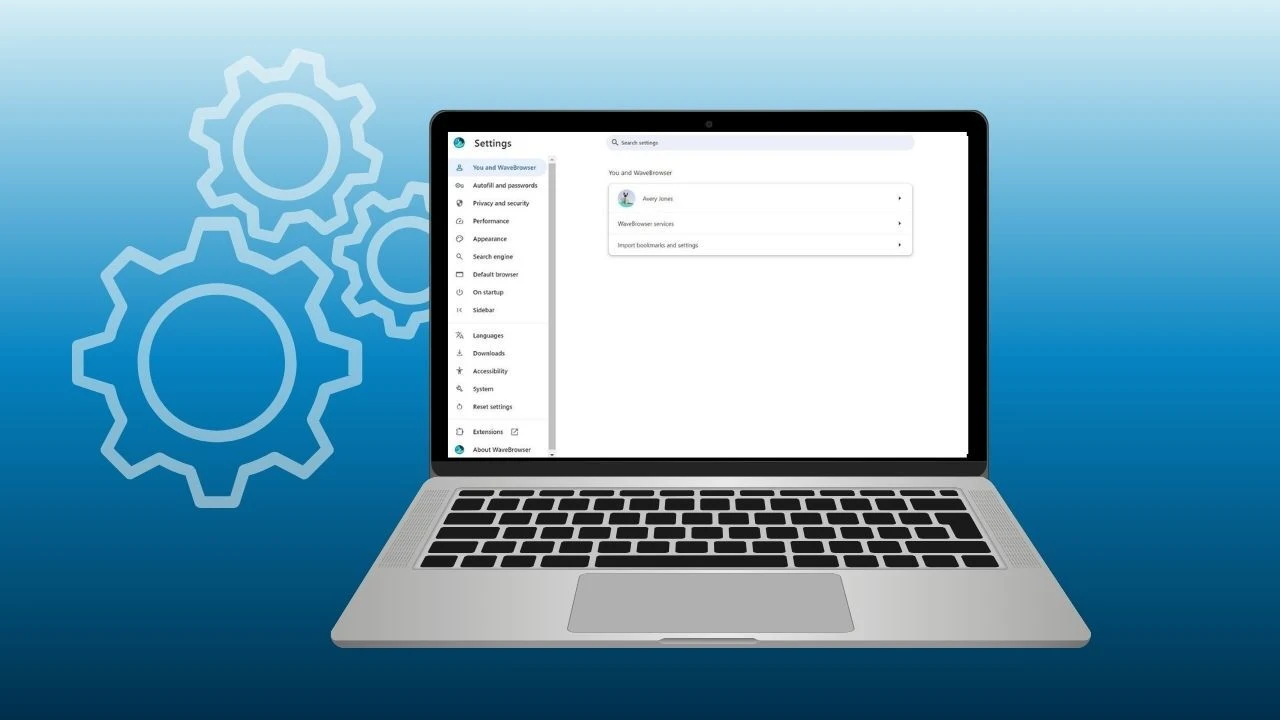
- Open the settings menu
- Tap Privacy and security
- Select Clear browsing data
- Choose a time range or specific period
- Select browsing history, site data, types of cookies, and cached images
- Tap Clear data
This process removes cache while keeping saved passwords unless you choose otherwise.
Clear Cache in Other Browsers, Including Samsung Internet
Browsers like Samsung Internet and other Android browsers follow a similar process. These options are typically found in the browser’s dropdown menu under privacy, security, or data settings.
This applies whether you’re browsing on a phone, tablet, or across synced devices.
How to Clear Cache on Android Tablets to Reduce Lag
Android tablets can experience lag over time as cache, temporary files, and outdated app data accumulate. This buildup can slow down performance, affect responsiveness, and reduce available storage space.
To clear cache on a tablet:
- Open the Settings app
- Tap Apps or Apps & notifications
- Select the app you want to manage
- Tap Storage
- Choose Clear cache
This removes temporary files without deleting app data or login information, helping apps run more smoothly and reducing lag during everyday use. Regular cache clearing is a simple way to improve performance and maintain a smoother browsing and app experience on tablets.
Wipe Cache Partition (Advanced Users)
For deeper system cleanup, some phone models allow you to wipe the cache partition.
This option is available through android system recovery menu options and is useful if you’re experiencing persistent system-wide issues.
General steps (may vary by device):
- Power off your Android device
- Press and hold the Power + Volume buttons
- Open android system recovery menu options
- Select wipe cache partition
- Reboot the device
This does not delete personal files, sensitive data, or login information.
Which Apps Help Clear Cache on Android?
Popular choices include CCleaner, Cache Cleaner, and SD Maid.
These applications efficiently remove unnecessary files, optimize storage, and enhance device performance, making it easier to manage your smartphone's space effectively. Always choose reputable options for safety.
Clear Cache, Browse Smarter on Android
Clearing cache on Android is a simple habit that helps free storage space, fix app issues, and improve performance. Whether you’re managing chrome, clearing cache, or taking a closer look at system files, regular cleanup keeps your device running smoothly.
When it comes to browsing, choosing a browser designed to manage cache, reduce clutter, and support an efficient browsing experience makes a difference. Wave Browser for Android helps keep browsing organized and intentional, supporting a smoother experience as you move through the web.
A cleaner Android means better performance.
Smarter browsing means better days online.