Web browsers save small amounts of information as you move between websites. Some of this data helps web pages load more quickly, remembers your preferences, or keeps you signed in. Over time, however, older files can sometimes cause website loading problems, display outdated content, or take up storage space.
Knowing how to clear cache and cookies can help when a page looks incorrect, a website does not remember a recent change, or you want more control over stored browsing data.
Like other Chromium-based browsers, Wave Browser includes settings for clearing browsing history, cookies, cached images and files, and other site data. This guide explains what each type of information does, what happens when it is removed, and how to choose the right time range without deleting more than necessary.
What Are Cache And Cookies?
Cache and cookies both store information on your device, but they serve different purposes.
What is a Browser Cache?
A browser cache is a temporary storage area for files from websites you visit. These temporary internet files may include:
- Images
- Fonts
- Page layouts
- Stylesheets
- Scripts
- Parts of HTML pages
The purpose of a cache is to reduce the amount of information that must be downloaded again during subsequent visits. When you return to a familiar website, the browser can reuse some saved files rather than retrieving everything from the beginning.
You may sometimes hear that the “cache stores copies of all data,” but that is not completely accurate. It stores selected resources that can help display a page, not every piece of information from your online activity.
A web cache shares the same basic purpose wherever it is used: keeping temporary copies close by so content can be retrieved in a short amount of time.
What Are Cookies?
Cookies are small files that websites save to remember information about a visit. Depending on the website, cookies may store data such as:
- Login status
- Language choices
- Shopping cart items
- Location preferences
- Display settings
- Consent choices
Cookies can make the online experience more convenient because you do not need to repeat the same selections during every visit.
However, the security of cookies and their effect on privacy depend on how a website creates and uses them. Some cookies are necessary for basic functions, while others may be used for analytics, advertising, or tracking. Browser settings can give you more control of your cookies and site permissions.
What Happens When You Clear Cache and Cookies?
Clearing cached files makes the browser download fresh copies the next time you visit a page. Clearing cookies removes selected information that websites previously stored on your device.
The results depend on the categories you choose.
| Data type | What it contains | What may happen after it is cleared |
| Cached images and files | Temporary copies of website resources | Pages may take slightly longer to load on the next visit |
| Cookies and other site data | Login sessions, preferences, and other stored website data | You may be signed out or asked to confirm preferences again |
| Browsing history | A list of previously visited pages | Earlier pages may no longer appear in history or address bar suggestions |
| Download history | A record of downloaded files | The record is removed, but the downloaded files remain on your device |
| Saved passwords | Login details saved through password management | Stored credentials may be removed if you select this category |
| Autofill data | Saved form details | Forms may no longer fill automatically |
Review every selected box before you choose Clear data. You do not need to delete browsing data that is unrelated to the problem you are trying to solve.
When Should You Clear Cache and Cookies?
You do not need to clear temporary data after every browsing session. It is usually more helpful when there is a specific reason.
Consider clearing it when:
- A webpage displays outdated information
- New web pages or recently updated content do not appear correctly
- Images, fonts, or page layouts have formatting issues
- A website repeatedly shows an old version
- A web app is not responding as expected
- A login session or preference appears stuck
- A particular website has stored information you no longer want
- Cached files are using storage space on your device
- You are troubleshooting specific web pages
- You want to remove selected records of your online activity
Clearing cache and cookies is not a guaranteed way to improve internet speed. Your connection speed depends on your service, network, signal, and other factors. In fact, pages may initially load more slowly after the cache is cleared because the latest files need to be downloaded again.
The main reason to clear this data is to fix stored information that may be outdated, unwanted, or causing a problem.
How To Clear Cache And Cookies in Wave Browser on Desktop
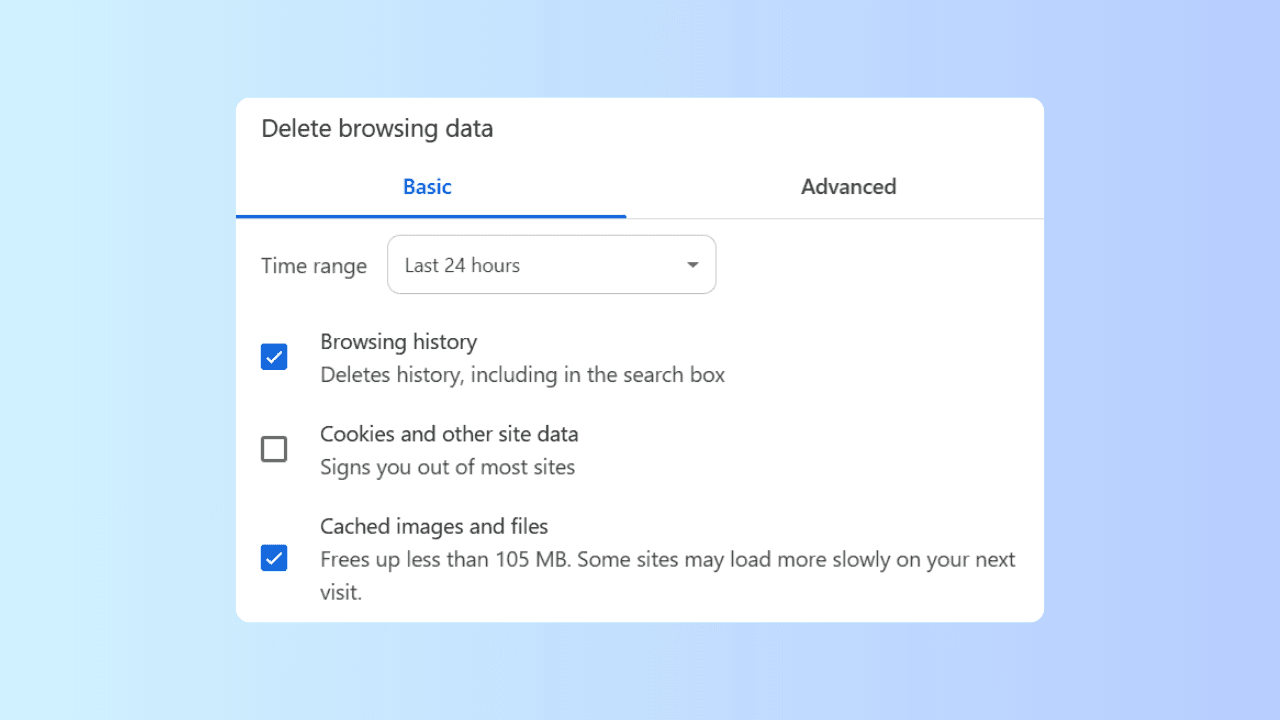
Wave Browser uses Chromium’s browsing data controls, accessible through Settings → Privacy and security.
Follow these steps to clear cache and cookies:
- Open Wave Browser
- Select the three vertical dots in the top right corner
- Choose Settings from the menu
- Select Privacy and security
- Choose Clear browsing data
- Select the time range you want to use
- Check Cookies and other site data
- Check Cached images and files
- Review any other selected categories
- Select Clear data
You can also select browsing history if you want to clear history at the same time. Leave it unchecked if you want to keep the list of previous web pages you visited. Menu names may change slightly with browser updates, but the controls should remain within the privacy and security area.
How To Clear Cache And Cookies on Android
On Android, open Wave Browser and go to Settings → Privacy and security → Clear browsing data. There, choose to clear browsing data, making sure cache and cookies are selected before you confirm. This process helps remove stored resources and cookies related to your online activity.
How To Choose a Time Range
The time range determines how much stored information will be removed.
Common options include:
- Last hour
- Last 24 hours
- Last seven days
- Last four weeks
- All time
If a problem started recently, begin with a shorter period. For example, select the last hour or 24 hours if a page only began behaving incorrectly today.
Choose All time when you want a broader cleanup or when you do not know when the problem began. Remember that selecting a longer period can sign you out of more websites and remove additional user preferences.
Should You Clear Browsing History Too?
Browsing history records the pages you previously visited. It supports browser history functions such as:
- Returning to a page you opened earlier
- Viewing your recent online activity
- Showing suggestions in the address bar
- Finding a page when you no longer remember its full address
You can clear history together with cache and cookies, but the actions are separate.
Delete browsing history when you no longer want those visited pages listed. Leave it unchecked when you only need to fix cached content or cookie related problems.
Removing browser history does not delete the website itself, close online accounts, or erase information held by the website.
| Type of data | Main purpose | Common reason to remove it |
| Cache | Stores temporary copies of page resources | Fix outdated pages, missing images, or formatting issues |
| Cookies | Remember sessions and user preferences | Reset login, consent, or site preference problems |
| Browsing history | Records previously visited pages | Remove the local list of earlier browsing activity |
| Site permissions | Control access to features such as location or notifications | Review or revoke access for a specific website |
| Saved passwords | Store login credentials | Remove credentials you no longer want saved |
Does Clearing Cookies Improve Privacy and Performance?
Cookies store data that helps websites remember details such as login sessions, preferences, shopping carts, and consent choices. Clearing them removes this locally stored information, including some advertising or analytics identifiers, which can address certain privacy concerns and give you more control over your browsing experience.
However, clearing cookies does not erase every record of your online activity. Websites, account providers, networks, and internet services may keep information within their own systems. It can also affect the user experience by signing you out or removing saved preferences, so review what you are deleting before continuing.
For more control:
- Review your cookie and privacy settings
- Limit unnecessary site permissions
- Remove data from websites you no longer use
- Avoid entering personal information on suspicious websites
- Keep Wave Browser and your operating system updated
- Use Incognito Mode when you do not want local browsing history retained after the session ends
- Use reputable antivirus software as part of broader device protection
No single setting or antivirus product can guarantee protection from every online threat. Safe browsing depends on updated software, careful decisions, and several security features working together.
Learning how to clear cache and cookies can help address website loading problems, outdated content, formatting issues, and unwanted stored data. It may also recover some space on your device when temporary files have accumulated, although pages may initially take longer to load as the cache is rebuilt.
These standard Chromium controls let you select a time range and choose which browsing data to remove in Wave Browser. You can clear cache and cookies while keeping unrelated data, such as browsing history or saved passwords, by leaving those categories unchecked.