Switching to a new computer (or a new PC) is exciting... until you realize all your favorite websites are still stuck in your browser.
With Google Chrome currently the most widely used browser worldwide, many users find themselves wondering how to move their bookmarks without losing anything important.
The good news: you can export bookmarks from the Chrome Browser in a few minutes, save them as an HTML file, and then import bookmarks into a different browser like Wave Browser, Microsoft Edge, Firefox, or Safari—on Mac or PC.
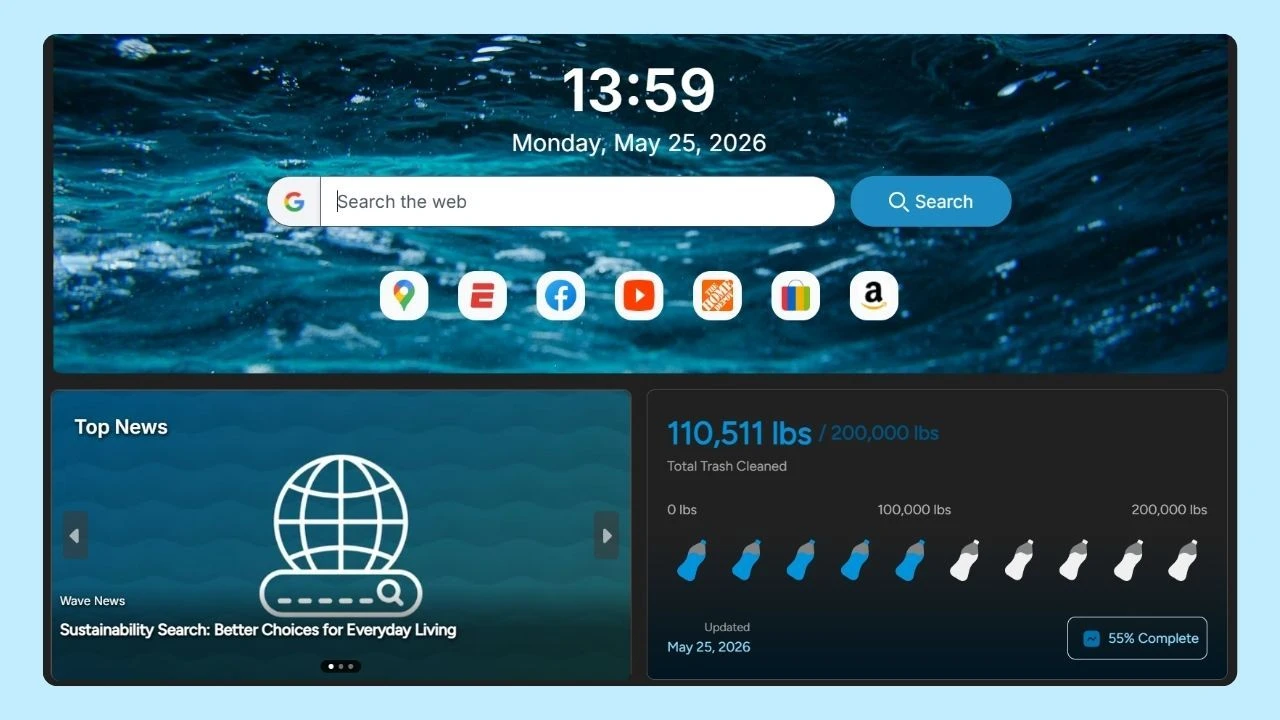
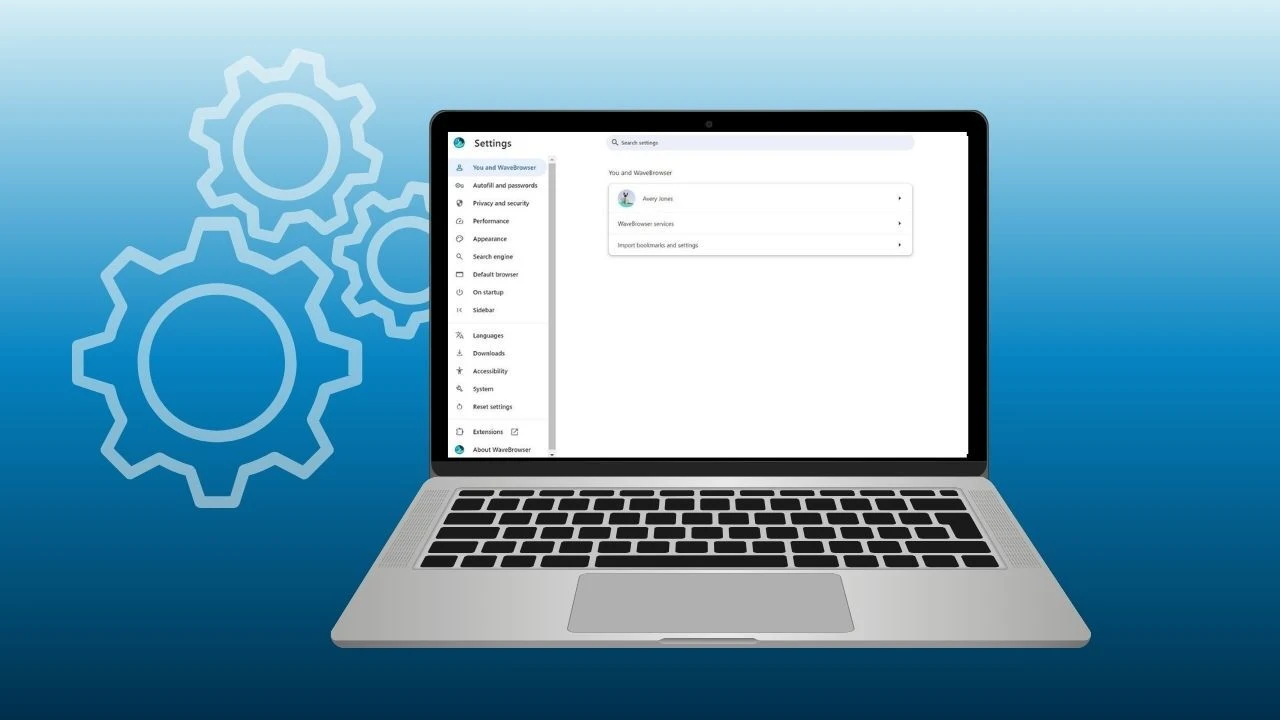
In this article, we’ll show you how to export Chrome bookmarks step by step. And if you’re using Wave Browser as your default browser, you can export all your Chrome bookmarks in just one click, so your workflow stays intact while you make waves online.
What Exporting Chrome Bookmarks Actually Creates
When you export your bookmarks, Chrome creates a bookmarks HTML file that stores all your saved bookmark links and folders in one place. Think of it as a portable list of every web page you’ve saved, neatly organized by folder and easy to move, store, or import into another browser.
You can save this HTML file directly to your hard drive, copy it to a USB drive, or even email it to yourself for quick access on another device.
Google Chrome Sync vs. Exporting a File
If you’re signed into a Google account, Chrome may already be syncing your bookmarks across devices. That’s convenient, but exporting your bookmarks is still a smart “just in case” step.
Here’s why both matter:
- Sync lets you access your bookmarks when you sign in on another device.
- Exporting creates a backup you fully control—a single file you can store on your hard drive, USB drive, or move to a different browser at any time.
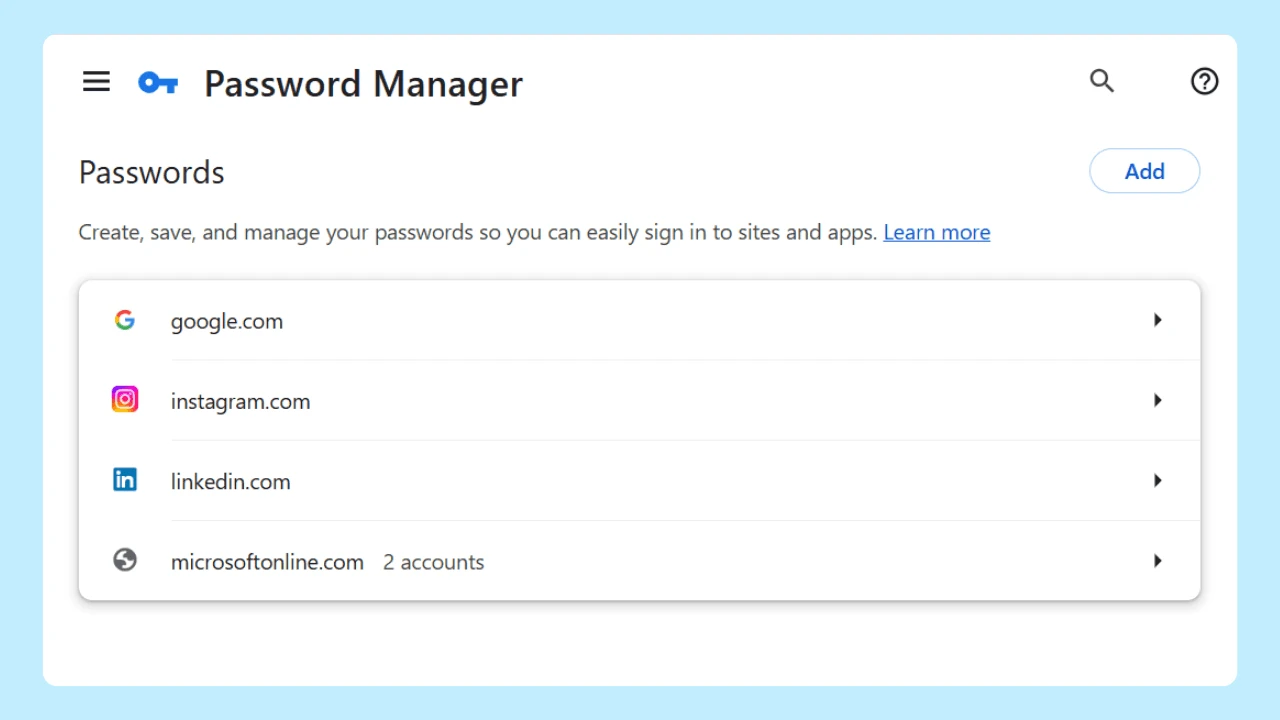
One important thing to note: the exported HTML file is for bookmarks only. It typically does not include saved passwords. Passwords are managed separately through Chrome and Google’s password tools, so don’t expect them to appear in your bookmarks export.
How to Export Chrome Bookmarks?

1) Open Chrome
First, open Chrome on the computer that currently has the bookmarks you want.
2) Go to Bookmark Manager
You’ll use Chrome’s bookmark manager to export.
Option A (menu):
- Click the menu icon (the three dots in the top-right).
- Go to Bookmarks.
- Select Bookmark manager.
Option B (shortcut):
- On Windows:
Ctrl + Shift + O - On Mac:
Cmd + Option + B
3) Export bookmarks
Inside bookmark manager:
- Click the menu icon (three dots) in the Bookmark Manager view.
- Click Export bookmarks.
Chrome will prompt you to save an HTML file.
4) Save the bookmarks HTML file somewhere you’ll remember
Choose a location you can easily find later, like:
- Desktop
- Documents
- A dedicated “Backup” folder
- Your hard drive (or an external drive)
Chrome will save it as a bookmarks HTML file (an HTML document). That’s your portable backup.
How to Import Bookmarks Into Another Browser

Now that you know how to export Chrome bookmarks, it’s time to import them into your next browser.
Import into Microsoft Edge
- Open Microsoft Edge.
- Go to Settings → Profiles → Import browser data (wording may vary slightly).
- Choose Import from file.
- Select your bookmarks HTML file.
Import into Firefox
- Open Firefox.
- Open the bookmarks library (often
Ctrl/Cmd + Shift + O). - Look for “Import and Backup.”
- Choose “Import Bookmarks from HTML…”
- Select the file.
Import into Safari (Mac)
- Open Safari.
- In the menu bar, choose File → Import From → Bookmarks HTML File.
- Select your exported file.
After import, you may see a new folder like “Imported” or “From HTML”—that’s normal. You can reorganize from there.
Troubleshooting: Common Bookmark Export Issues on PC
If something doesn’t look right after exporting or importing your bookmarks, here are a few common issues and how to fix them:
- “Export bookmarks” is missing: Make sure you’re inside Bookmark Manager, not just the bookmarks menu in Chrome.
- The HTML file won’t import: Double-check that the file ends in .HTML and wasn’t renamed or modified incorrectly.
- Folders look messy after import: Some browsers place imported bookmarks inside a new folder by default. You can easily drag and reorganize them to match your preferred layout.
- You expected passwords too: Bookmark export is separate from saved passwords. If you use Chrome’s password sync, review your Google account password settings separately.
Make Your New Setup Feel Like Home
After you import, take 2 minutes to:
- Check your main bookmarks bar folders
- Confirm a few important links open correctly
- Set your preferred search engines and make your new browser the default if you want a more consistent routine
Reviewing, cleaning up, and reorganizing your bookmarks after the export is also a great thing to do—especially during National Clean Up Your Computer Month, when it’s the perfect time to remove outdated links and simplify your setup.
Taking a few minutes to export, import, and organize your bookmarks ensures nothing gets left behind when you switch browsers or devices. Whether you’re setting up a new computer or refreshing your daily routine, keeping your bookmarks tidy helps you stay focused and efficient online.
And if you’re using Wave Browser as your default browser, moving your Chrome bookmarks is even easier! So you can pick up right where you left off and keep browsing with purpose.