Favorites—also known as bookmarks—are one of the simplest ways to stay organized online. Whether you’re saving a webpage for later, creating a shortcuts list for daily tools, or keeping important sites within quick access, favorites help turn your browser into a more efficient workspace.
Most modern browsers, including Wave Browser, Google Chrome, Microsoft Edge, and others, offer similar ways to save and manage favorites across desktop and mobile. Here’s how to use them effectively on your browser, iPhone, and Android.
What Are 'My Favorites' (Bookmarks)?
A bookmark is a saved webpage URL that lets you return to a site instantly without typing the address again. Your saved sites are usually stored in a favorites list or bookmark bar, making them easy to access from any browser window or tab.
Favorites are especially useful for:
- Getting quicker access to frequently visited sites
- Organizing webpages into folders
- Reducing time spent searching on Google
- Creating shortcuts for work, study, or personal use
How to Use Favorites on Desktop and Mobile
In this section, we’ll explain how to use favorites on both desktop and mobile, so you can save, organize, and access your most important websites wherever you browse.
On a Desktop Browser (Google Chrome, Microsoft Edge & More)
Using favorites on a desktop browser helps you move faster across the internet and keep frequently visited webpages one click away.
How to add a favorite:
- Open the webpage you want to save
- Click inside the address bar
- Select the star icon next to the URL
- Choose where to save it (bookmark bar or a folder)
- Click Done
Helpful tips:
- Use Ctrl + D for quicker access when saving a page
- Turn on the bookmarks bar to keep favorites visible in every browser window
- Organize favorites into folders using the bookmark manager
Favorites saved on desktop act as shortcuts, making it easier to open important sites in a new tab without searching again.
On iPhone
Favorites on iPhone make it easy to access saved webpages while switching between apps or browsing on the go.
How to add a favorite on iPhone:
- Open your browser app
- Go to the webpage you want to save
- Tap the share icon
- Select Add Bookmark or Add to Favorites
- Choose a location and save
Saved favorites appear in your favorites list, giving you quick access to commonly used websites without re-entering the address.
On Android
On Android, favorites help you keep important sites available across your browser and apps.
How to add a favorite on Android:
- Open your browser app
- Visit the webpage
- Tap the three-dot menu
- Select Bookmark
- Access it later from your bookmarks or favorites section
Favorites on Android work as reliable shortcuts, allowing you to open saved webpages quickly while browsing the internet.
Is There a Shortcut for My Favorites?
Yes. On desktop, you can use Ctrl + D to quickly add the current page to your favorites.To access your saved favorites, you can also:
- Use the favorites/bookmarks bar for one-click access
- Open the browser menu and select Bookmarks to view your full favorites list
If you want, I can also explain mobile shortcuts or how to pin favorites for faster access.
How to Use Favorites in Wave Browser
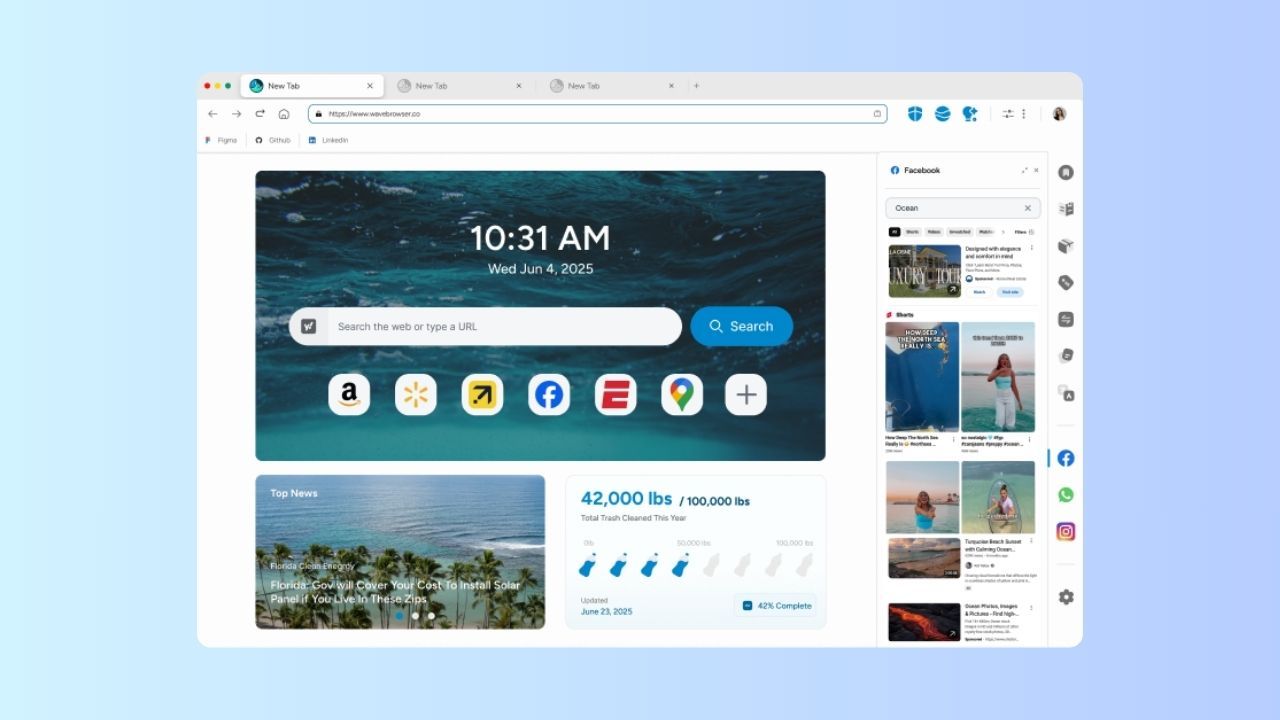
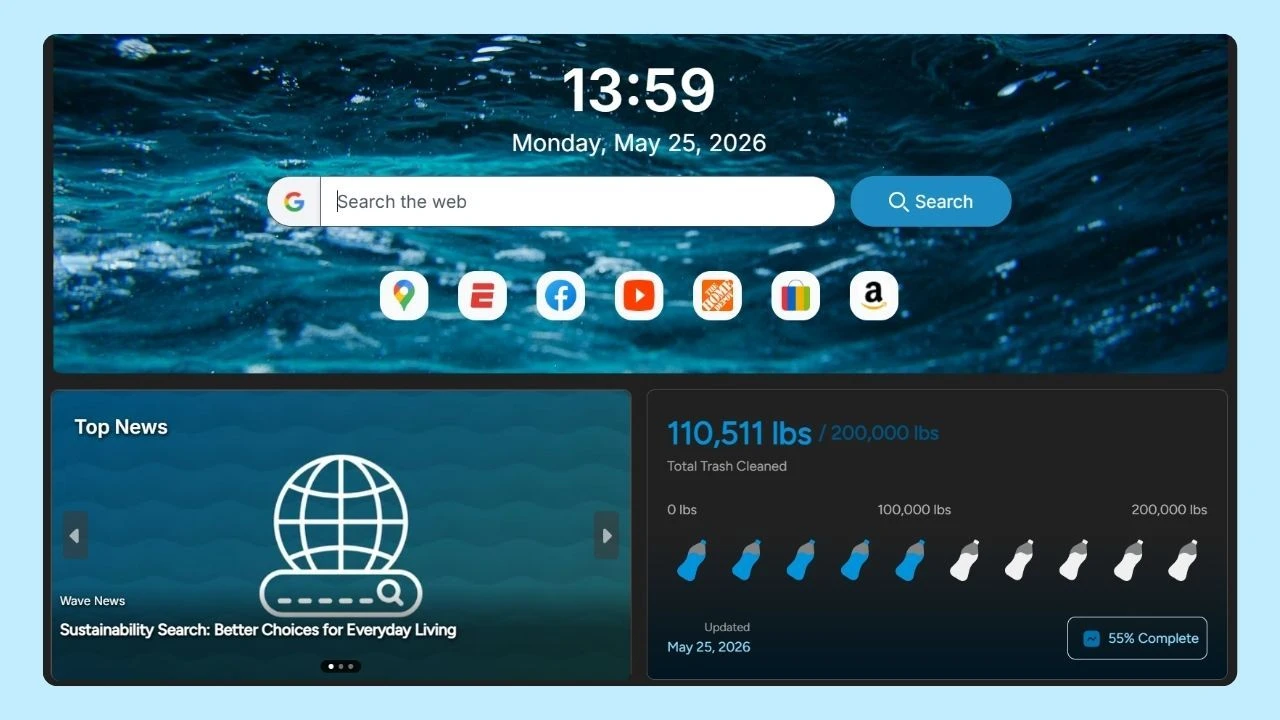
In Wave Browser, favorites help you keep important pages organized and within easy reach on both desktop and mobile.
- Open the website you want to save
- Click inside the address bar at the top of the browser
- Select the star icon next to the URL
- Choose where to save the page (favorites bar or a folder)
- Click Done
You can easily export your bookmarks from Chrome and import them into Wave Browser, so you don’t lose access to your saved websites when switching.
Using favorites consistently is a simple way to browse faster and stay organized online. By saving the websites you use most and keeping them neatly arranged, you reduce unnecessary searching, cut down on clutter, and make your browsing experience more intentional.
Moments like National Clean Up Your Computer Day are a good reminder to review your favorites, remove outdated links, and reorganize what matters most. Small cleanups like this can have a noticeable impact on performance, focus, and overall efficiency.
Over time, these small actions help shape healthier digital habits—from spending less time jumping between tabs to creating a more streamlined way to access information. With favorites used thoughtfully, your browser becomes a tool that works with you, not against you, making everyday browsing faster, smarter, and easier to manage.