Closing the wrong tab happens to everyone, especially when you’re juggling a lot of tabs during a busy browsing session. One click too many, a browser crash, or an accidental restart, and suddenly an important tab is gone.
At Wave Browser, we believe browsing should feel lighter and more intentional. That’s why Wave’s sidebar helps prevent users from opening dozens of tabs in the first place, so your browser window stays organized and focused. But when a closed tab does slip away, knowing how to bring it back can save time and frustration.
Here’s how to reopen closed tabs in Wave Browser, Google Chrome, Firefox, and more.
How to Reopen Closed Tabs Faster
If you just closed a tab by accident, this is the fastest way to learn how to reopen closed tabs.
Use a Keyboard Shortcut
For most Chrome users on PC:
- Ctrl + Shift + T
On Mac:
- Cmd + Shift + T
This keyboard shortcut instantly reopens the last closed tab. You can repeat it to reopen multiple recently closed tabs in the order they were closed.
Reopen Tabs at Startup Automatically
If you always want your tabs back when you start your computer:
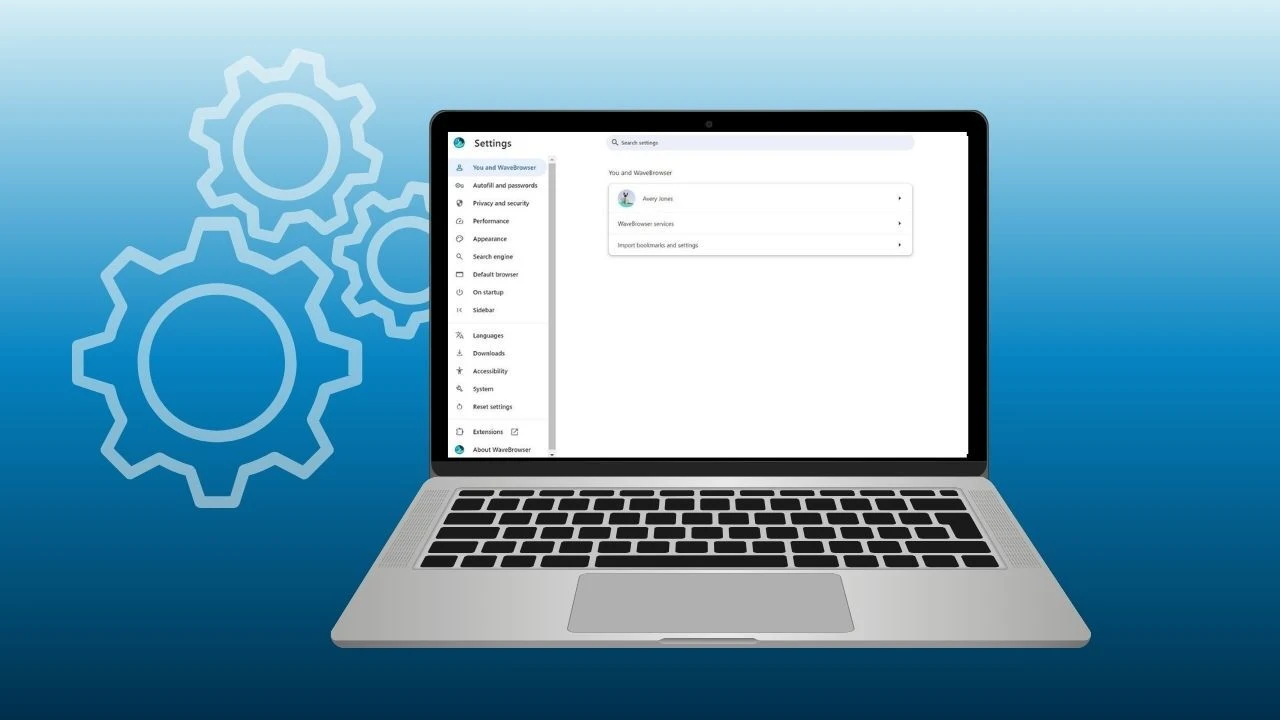
- Open browser settings
- Go to On startup
- Select Continue where you left off
This ensures your previous session loads every time you start the browser, making it great for users who rely on consistent workflows.
Using Sync to Recover Tabs Across Devices
If sync is enabled in Chrome, your tabs may still be accessible on another device.
- Make sure you’re signed into your Google account
- Open Chrome → History → Tabs from other devices
This is especially helpful if you closed a tab on one app or device and want to reopen it elsewhere.
Reopen Recently Closed Tabs From the Browser Menu
If it’s been a while—or you’ve already opened new tabs—you can use the Recent tabs option to bring back recently closed tabs. This step-by-step works in Google Chrome and in Wave Browser, too.
- Open Chrome or Wave Browser
- Click the three-dot menu in the top-right
- Go to History
- Under Recently closed, select the closed tab or tab group you want to restore
This is especially helpful if you’re trying to recover important tabs from earlier in your browsing session.
Find Closed Tabs Using Browser History
If the tab was closed hours (or days) ago, browser history is your best option.
How to access:
- Click the menu → History
- Or type
chrome://historyinto the address bar
From there, you can search your browsing history by website name or keyword and reopen any tab with a single click. This method works even if the tab wasn’t part of your last browsing session.
Restore Tabs After a Crash or Restart
If your browser crashes or your computer shuts down unexpectedly, crash recovery usually kicks in automatically.
You may see:
- “Restore” when Chrome reopens
- A prompt to reopen your previous session
If not, you can manually restore it:
- Open your default browser
- Go to History
- Click Restore previous session
This brings back all open tabs from your last session, making it especially useful if you were deep into research or multitasking.
When Too Many Tabs Become the Problem
If you regularly lose tabs, it may not be a recovery issue, it may be a tab management issue.
For example, Chrome offers tab groups and tools like the task manager to manage memory, but many users still end up overwhelmed.
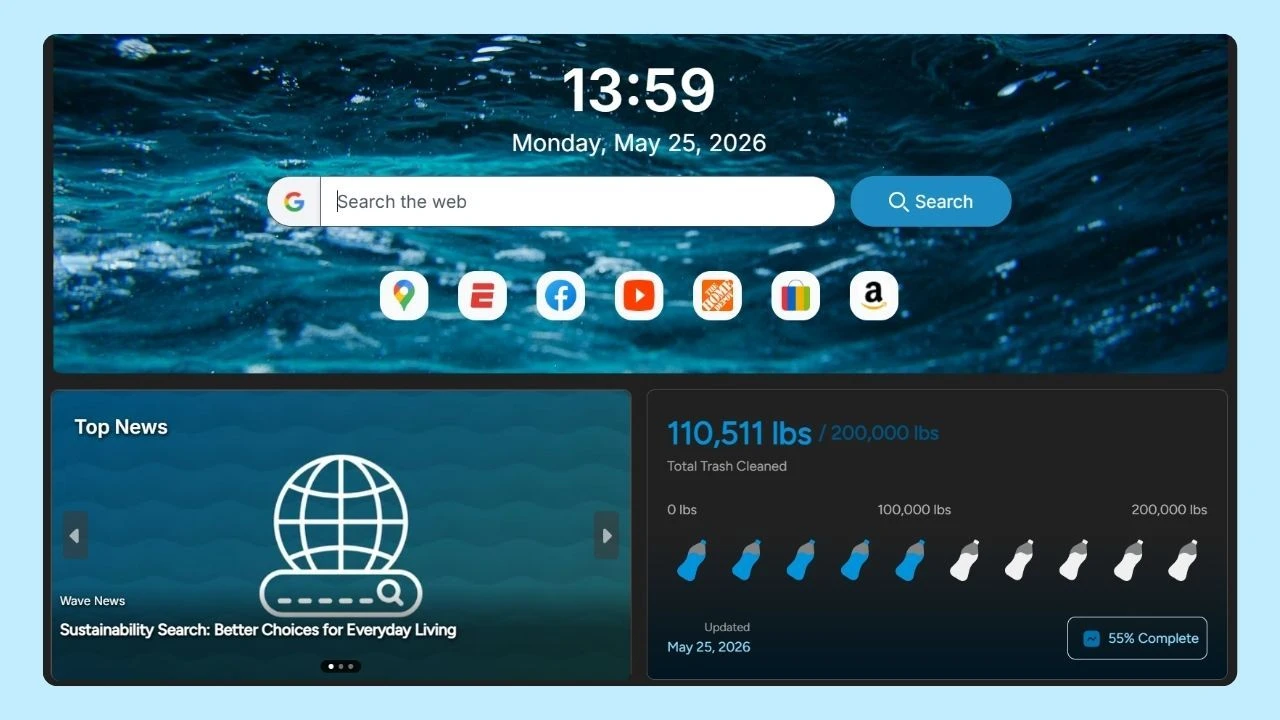
Wave Browser takes a different approach. With a sidebar layout, built-in features, and integrated extensions, Wave helps users avoid opening dozens of tabs at once, making it easier to stay focused, reduce clutter, and keep important tabs accessible without relying on constant tab recovery.
Don’t Forget: Backups and Habits Matter
While Chrome and Wave Browser make it easy to reopen tabs, good habits still help:
- Bookmark key pages
- Use reading lists
- Keep your browser organized
- Periodically clean up unused tabs
A lighter browsing setup means fewer accidents, and less reliance on recovery tools.
Whether you’re using a quick Ctrl or Cmd shortcut, digging into browser history, or restoring a full previous session, there are multiple ways to reopen a closed tab and stay productive.
And if you want a calmer way to browse—without managing a lot of tabs—Wave’s sidebar-first experience helps you stay organized from the start, so fewer tabs ever get lost in the first place.