Knowing how to uninstall apps on Mac helps you remove software you no longer use, keep your Applications folder organized, and recover disk space. In many cases, app removal takes only a few clicks. Other programs install support files, login items, or background components that require a more careful approach.
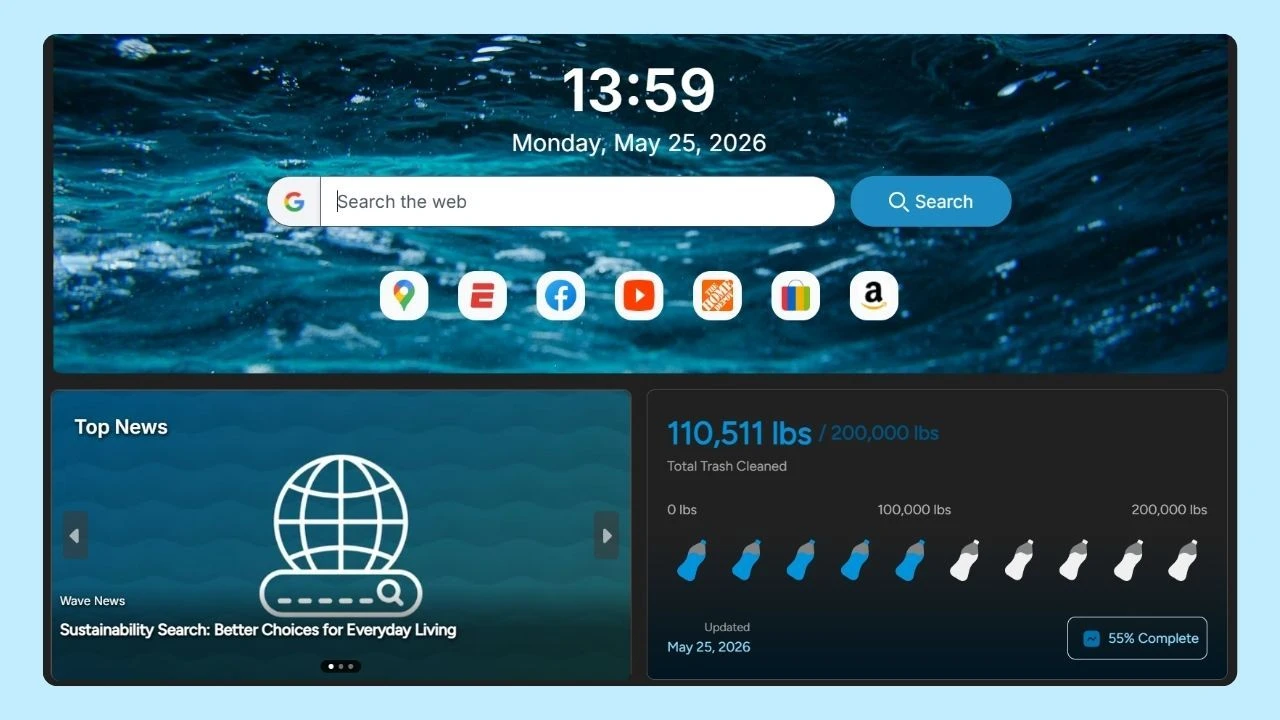
Keeping your Mac organized often includes removing apps you no longer use. Whether you use Wave Browser for Mac for everyday browsing or rely on other apps for work and entertainment, knowing how to uninstall unwanted software can help you recover disk space and maintain a cleaner Applications folder.
Before You Uninstall an App on Mac
Take a minute to protect anything you may need later:
- Save or export documents created with the app: Removing the app does not normally delete your documents, but you may need compatible software to open them later.
- Check whether the app stores information only on your Mac or also in an online account: Confirm that important data has synced or been backed up.
- Cancel a subscription or free trial separately: Deleting an app does not automatically stop billing managed through the App Store, or the developer’s official website.
- Quit the app completely: Look for its icon in the Dock or menu bar, then choose Quit before beginning.
Before learning how to uninstall apps on Mac, it is helpful to understand how to review related files safely. Manual cleanup may free a little more space, but it is not always worth the risk.
Check your Mac’s Storage settings first to see how much space the app and its data use. Organizing your files and regularly reviewing large items may recover more storage than deleting small preference files.
How to Uninstall Apps on Mac Using Finder

For most standard apps, Finder provides the fastest method. These steps apply to MacBook Pro and other Macs running a supported version of macOS:
- Open Finder by clicking its icon in the Dock.
- Choose Applications in the Finder sidebar, or select Go > Applications from the menu bar.
- Find the app name. Make sure you select the main app, not a document, installer, alias, or unrelated file with a similar name.
- Drag the app to the Trash, or Control-click it and choose Move to Trash. You can also select it and choose File > Move to Trash.
- If prompted, enter the administrator name and password for the Mac.
- When you are confident you no longer need the app, choose Finder > Empty Trash. You can also Control-click the trash icon in the Dock and choose Empty Trash.
According to Apple’s current uninstall instructions, emptying Trash permanently deletes the app and makes its storage available for other items. If you are not ready to remove it permanently, leave it in Trash until you have confirmed that your files and workflow are unaffected.
When to Use the App’s Own Uninstaller
Some apps install more than a single application bundle. Security tools, device utilities, audio software, business software, and apps with background services may include launch agents, extensions, privileged helpers, or other components. If the developer provides an uninstall feature, Apple recommends using it because it may remove login items and data stored in additional locations.
Look in the app’s folder, settings, or Help menu for an Uninstall, Remove, or Reset option. You can also check the developer’s official website for current instructions. A dedicated app uninstaller supplied by the developer is generally preferable to manually guessing which system files belong to the software.
Follow any special rules shown by the uninstaller, restart if requested, and keep the Mac connected to power during a complex removal. If an app includes its own uninstaller, use that tool before considering a third-party Mac uninstaller or app cleaner.
What Happens to Leftover Files?
Dragging an app to Trash removes the main app, but some related files can remain. These app leftovers may include preferences, caches, saved application state, logs, support files, or folders created under Application Support. They are often small and harmless. Removing them is optional unless the developer says otherwise or you are troubleshooting a reinstall.
Common locations can include the user Library folder and its support folders.
The Library folder also contains important macOS and application data, including hidden files. Do not delete unfamiliar items simply because their names look like junk files. Removing the wrong file can affect another app, your account, or macOS itself.
Should You Use a Mac Uninstaller or App Cleaner?

A third-party app cleaner can scan your Mac for files associated with an installed app, but you should review the results carefully before deleting anything. Marketing terms such as good uninstaller, best uninstaller, hit list, or range of scans do not guarantee that a utility will identify every related file accurately.
Some automation tools include features such as Hazel’s App Sweep, which can detect when an app is moved to Trash and locate associated files. Although these tools may offer convenience and ease of use, automated cleanup still requires careful judgment. A broad scan could mark caches or shared support files for deletion even when other applications continue to use them.
Before installing a removal utility, review its publisher, permissions, privacy policy, update history, and macOS compatibility. It is also a good idea to back up your Mac and test the utility with an app that does not contain important local data.
When learning how to uninstall apps on Mac, keep in mind that the best way to remove complex software and its related components is usually to use the developer’s own uninstaller when one is available.
How to Remove Login Items After Uninstalling an App
When learning how to uninstall apps on Mac, remember that an app may continue to appear in the list of items that open automatically, especially if it was removed without using its dedicated app uninstaller.
- Open System Settings
- Choose General
- Select Login Items & Extensions
Under Open at Login, select an unwanted item and click the remove button. Also review permitted background activity and extensions associated with the app.
What to Do If an App Will Not Delete
If macOS shows an error message or says the app is in use, try these steps in order:
- Quit the app from its menu and check the menu bar for a background icon.
- Open Activity Monitor, search for the app name or a clearly identified process, select it, and quit it. Avoid stopping unfamiliar system processes.
- Restart the Mac, then try moving the app to Trash again before reopening it.
If the problem continues, start the Mac in Safe Mode and try again. It can prevent some third-party software from loading automatically.
Frequently Asked Questions

Does deleting an app cancel a free trial?
No. Uninstalling the app and canceling a subscription are separate actions. Review subscriptions in your Apple Account or follow the developer’s cancellation instructions.
Can I reinstall an app later?
Usually, yes. An eligible Mac App Store purchase can generally be downloaded again from the same account, while other software should be downloaded from the developer’s official website. Confirm licensing and compatibility before reinstalling.
Will uninstalling an app delete my documents?
Normally, deleting an app does not delete documents you created with it. However, locally stored libraries, projects, or databases may be kept in Application Support folders, so back up important work before removing the app.
You can save documents to a trusted cloud storage service and use browser bookmarks to keep links to those online files easy to access. Remember that a bookmark saves only the link, not the document itself.
Do I need to remove every leftover file?
No. Most Mac users can remove a simple app through Finder and stop there. Review leftovers only when you need a clean reinstall, the developer recommends additional steps, or the remaining data uses meaningful storage.
Does Uninstalling Apps Free Up Disk Space?
Yes. Removing unwanted apps and emptying Trash can make storage available again. The amount depends on the app’s size and the related files it created. A small utility may not use much space, while games, creative tools, and downloaded media can use considerably more.
If storage remains low after app removal, review large documents, downloads, media, device backups, and other user files. Avoid deleting support folders or hidden files at random. Storage pressure is better addressed with a measured review than an aggressive search for every possible app leftover.
Keep Your Mac Organized
Learning how to uninstall apps on Mac helps you remove unwanted software, recover disk space, and keep your Applications folder organized. Before deleting an app, remember to save important files, cancel any active subscriptions separately, and use the developer’s uninstaller when one is available.
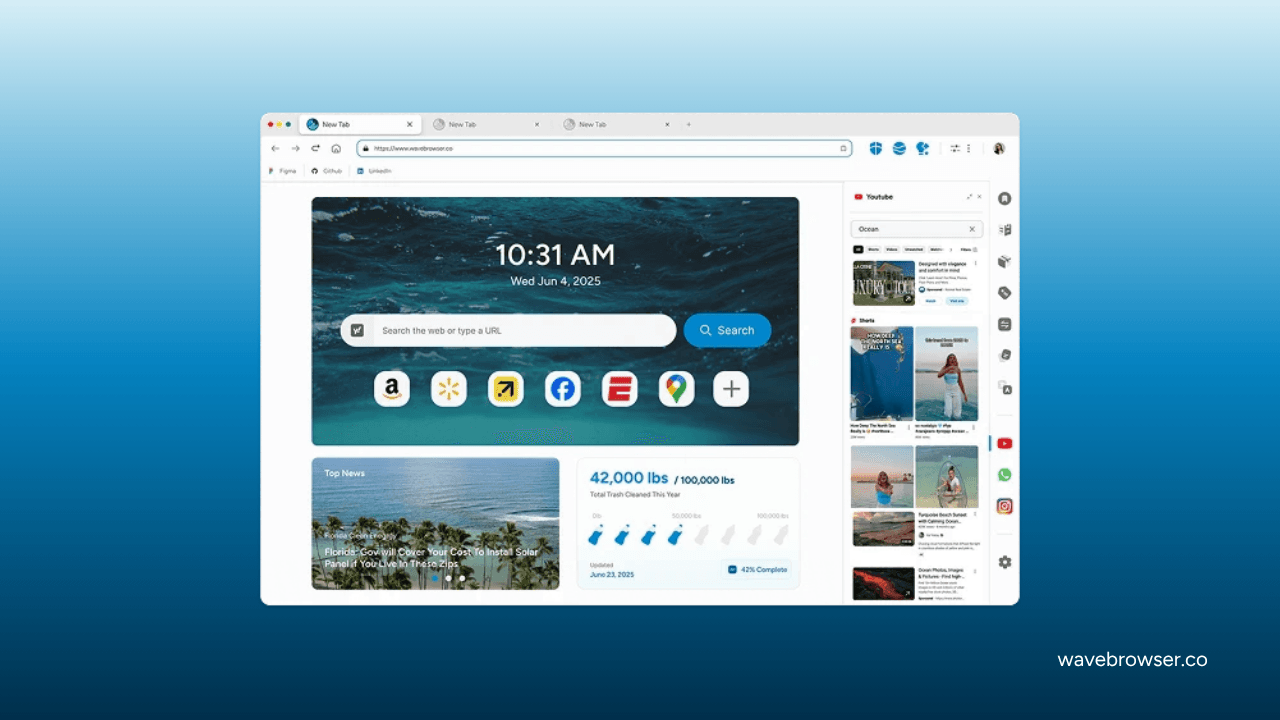
Once your Mac is organized, choose apps that add value to your daily routine. Wave Browser for Mac offers a familiar browsing experience with built-in tools designed to support organization and productivity, helping you get more done from one convenient web browser.