Two desktop sessions can feel heavy for different reasons. You may be holding more inactive pages open than your current task needs, or the browser may continue background activity and visual effects while you are away from the screen or working on battery power.
Built on a Chromium foundation, Wave Browser includes Chromium’s built-in Memory Saver and Energy Saver controls on Windows and macOS, with each capability aimed at a different part of that desktop browsing experience.
Quick Answer
- Through its Chromium foundation, Wave Browser carries built-in Memory Saver and Energy Saver capabilities on Windows and macOS.
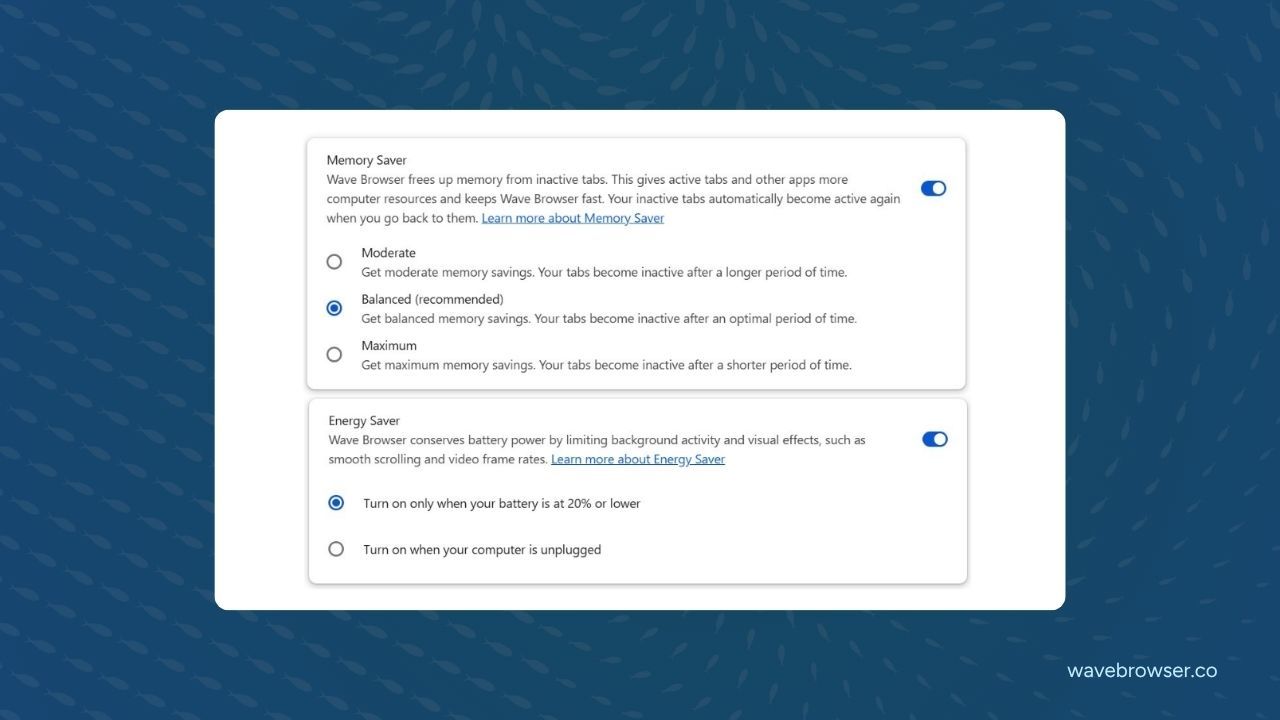
- Memory Saver helps reduce resource use from inactive tabs that you are keeping open for later.
- Energy Saver helps manage browser activity by limiting background activity and visual effects.
- Both controls are desktop features listed for Windows and macOS; check the platform matrix for mobile features.
- Match the control to what you noticed in your session, then decide which tabs or active tasks you want to keep running.
Start with the Problem You Noticed
A long desktop session might include reference pages you are actively reading, tabs you plan to revisit later, and a video or web app running in the background. Ask whether the main issue is the number of inactive tabs you are holding open or background activity continuing while you are focused elsewhere.
Memory Saver addresses inactive tabs, while Energy Saver addresses background activity and visual effects. Wave Browser provides both Chromium-based controls so you can tailor resource and power management to your workflow while keeping the pages you still need.
Memory Saver is For Inactive Tabs
In Wave Browser on Windows and macOS, Chromium’s Memory Saver helps reduce resource use from inactive tabs. An inactive tab is a page that remains open in your window but is not being viewed at that moment—such as a reference article you plan to quote later or a shopping comparison tab waiting for review.
By allowing inactive tabs to free up system resources while staying visible in your tab bar, Memory Saver helps keep active browsing responsive. Because actual resource savings vary with the websites open and your computer’s hardware, pairing Memory Saver with Reading Lists or Bookmarks is a practical way to set aside pages you do not need today.
Energy Saver is For Background Activity and Visual Effects
Chromium’s Energy Saver helps manage browser activity by limiting background activity and visual effects—such as smooth scrolling, animations, or video frame rates—when you want to conserve power during a desktop session.
Because Energy Saver limits background work and visual rendering, consider what your current session requires before enabling it. If a file download, real-time call, or continuous background web app needs to run without interruption, keep that task in mind when choosing your settings.
Check the Current Platform List
Memory Saver and Energy Saver are Chromium-based desktop capabilities available in Wave Browser for Windows and macOS. Wave Browser is also available on Android and iOS with platform-specific feature sets. Visit our features page and our Windows or macOS guides for current desktop details.
If a setting on your build does not match what you expect, contact support@wavebrowser.co with your operating system and browser version.
Frequently Asked Questions

Are Memory Saver and Energy Saver unique to Wave Browser?
Wave Browser inherits Memory Saver and Energy Saver through its Chromium foundation, giving Windows and macOS users the same built-in tab-memory and power optimizations found in modern Chromium-based desktop browsers.
What is the difference between Memory Saver and Energy Saver?
Memory Saver helps reduce resource use from inactive tabs that are sitting open in the background. Energy Saver helps manage overall browser activity by limiting background processes and visual effects.
Are Memory Saver and Energy Saver available on mobile?
Our current feature matrix lists Memory Saver and Energy Saver as desktop controls for Windows and macOS. Check our features page for tools available on Android and iOS.
Choose the Control That Fits Your Desktop Workflow
If you keep dozens of reference tabs open for later, start with Memory Saver to reduce resource use from inactive pages. If you are working unplugged or want to quiet down background activity and animations, turn to Energy Saver. And when a project has more tabs than you need for today, save them to your Reading List or Bookmarks for a clean start.