Printing from a browser is still part of everyday work, whether it’s contracts, receipts, travel documents, school assignments, or research. While much of our workflow is digital, moving from screen to paper (or PDF) remains essential.
Wave Browser includes built-in printing features designed to make that process more clear, predictable, and easy to manage.
Instead of treating printing as an afterthought, Wave Browser’s Print offers a familiar preview with essential layout options and straightforward settings for printing web content.
How Browser Printing Works Today
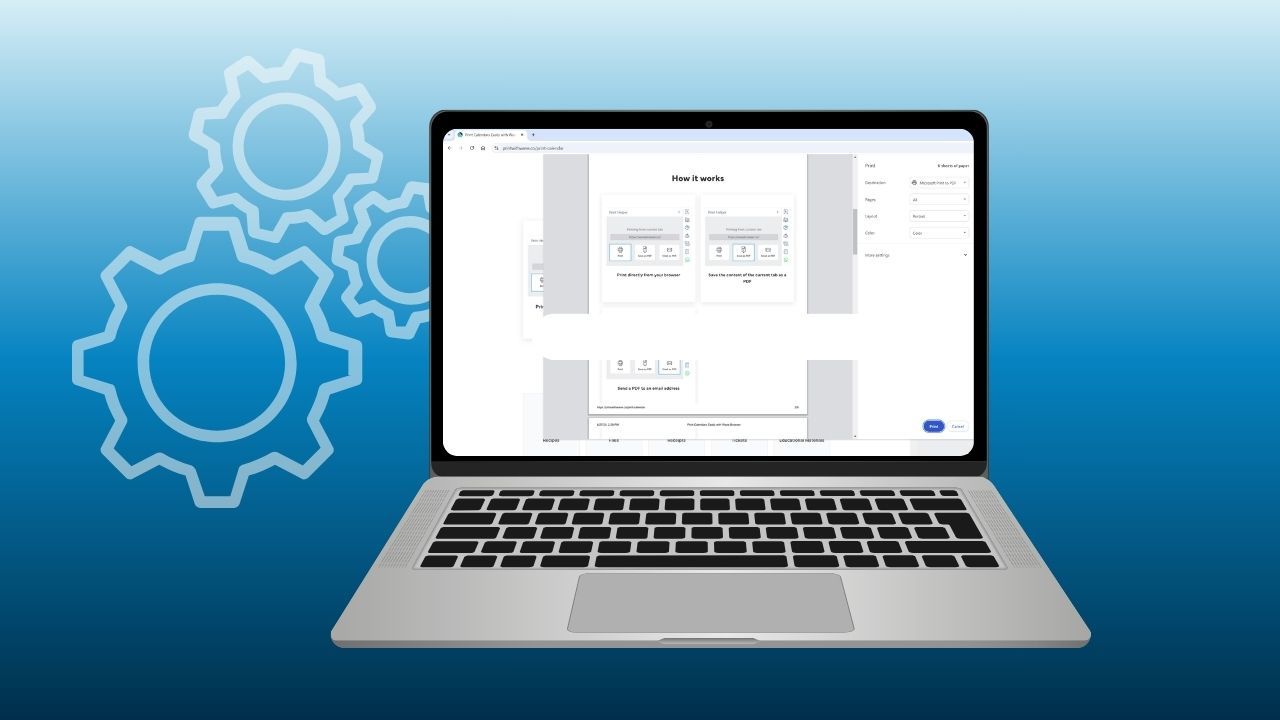
Like most modern browsers, Wave Browser includes a built-in print preview system. When you choose to print a webpage, the browser generates a preview of how the content will appear on paper or as a PDF.
From there, you can adjust key settings before confirming the final output. Common print options include:
- Page orientation (portrait or landscape)
- Paper size
- Margins
- Scaling
- Page range (all pages or specific pages)
- Print destination (connected printer or Save as PDF)
These tools allow you to tailor the output depending on whether you’re printing a single receipt or a multi-page document.
This supports both physical printing and paperless workflows.
How Printing in Wave Browser Is Designed
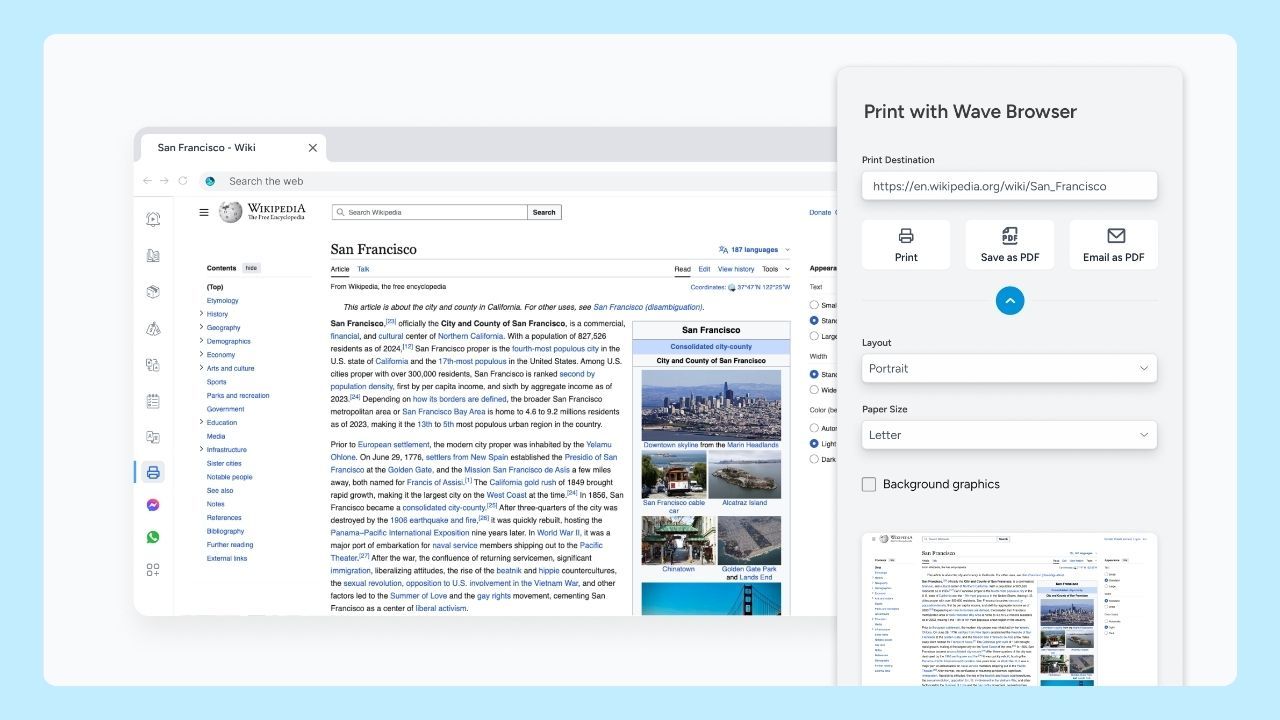
Wave Browser’s built-in Print feature makes standard browser printing easy to access within your workflow.
It provides access to the core print options most users rely on in a clear and straightforward layout.
When managing online documents, users may want to print to paper or save content digitally. Wave Browser makes it easy to export content as a PDF or send it directly to a connected printer, supporting both physical and digital workflows.
Key Printing Controls Explained
Wave Browser’s Print feature emphasizes clarity and usability, helping users prepare webpages, research, receipts, and other online content for printing without disrupting their workflow. This is particularly useful when multitasking across documents, web apps, and multiple tabs.
As iTechPost explains, modern browsers have become workspaces for communication, research, document management, and other daily activities. Wave supports these workflows with practical features designed to improve organization, productivity, and multitasking—including straightforward printing controls for turning digital information into a clear, usable document.
Here’s what each setting does:
1. Layout
Choose between:
- Portrait (vertical orientation)
- Landscape (horizontal orientation)
Useful for spreadsheets, wide tables, or presentation-style content.
2. Pages
Select:
- All pages
- A custom range (for example, pages 2–4)
Helpful when printing only a section of a long article or document.
3. Scale
Adjust how large or small content appears on the page. Reducing scale can help prevent content from being cut off.
4. Margins
Choose default margins or adjust them to fit more content onto a page.
5. Destination
Select:
- A connected printer
- Save as PDF
How to Print in Wave Browser
Web pages aren’t always formatted with printing in mind. Print preview allows you to review the page that will be formatted for printing, so you can confirm what content will be included before you print or save as a PDF
Wave Browser’s Print feature supports common everyday scenarios such as:
- Printing online order confirmations
- Saving articles for offline reading
- Preparing school assignments
- Creating hard copies of web-based forms
- Printing boarding passes or travel details
Steps to Print a Webpage
- Open the page you want to print.
- Click the three-dot menu in the top-right corner of Wave Browser.
- Select Print, or use the keyboard shortcut:
- Ctrl + P (Windows)
- Command + P (Mac)
- The print preview window will appear.
- Adjust settings as needed (destination, layout, margins, scale, or page range).
- Click Print or Save (to create a PDF).
Saving a Page as a PDF
If you prefer a digital copy instead of a paper printout:
- Open the Print menu (Ctrl + P / Command + P).
- Under Destination, choose Save as PDF.
- Adjust layout and page settings if needed.
- Click Save and choose where to store the file.
Saving as a PDF is especially useful for:
- Keeping receipts or invoices
- Archiving research
- Sharing documents digitally
- Storing travel confirmations
A Practical Tool in the Wave Ecosystem
Wave Browser includes a range of built-in features designed to support everyday web use.
The Print feature is integrated directly into the browser and requires no additional extensions or setup.
Printing may not be the most visible part of browsing, but it remains an important one. Built-in printer and PDF options with straightforward controls make printing simple and accessible.
To learn more about Wave Browser and other productivity features, visit wavebrowser.co.