
The PS4 web browser is an integrated browser built directly into the PlayStation console. Unlike some gaming systems that require downloads or workarounds, Sony included an internet browser as part of the system software.
If you want to perform a Google search, open web pages, or access website data directly from your TV, the PS4 web browser provides basic browsing functionality without additional apps.
Below is a clear guide covering setup, features, and limitations.
Is There a Web Browser for PS4?
Yes. The PS4 includes a fully integrated web browser and it does not need installation and is available directly from the main menu. Unlike the PS5 web browser, which is hidden, the PS4 browser is visible and accessible at any time.
While designed primarily for gaming, the PS4 browser allows users to:
- Search walkthroughs while playing
- Watch embedded videos
- Access gaming forums
- Check updates
However, multitasking is limited compared to a desktop or laptop because the browser pauses gameplay when active. For streaming, YouTube or similar applications offer better performance than browsing directly through the browser.
Additionally, the PS4 web browser supports many modern web standards like HTML5, allowing for smooth browsing of most sites and compatibility with updated web features.
PSN Access Through the PS4 Web Browser
The PS4 web browser integrates directly with PSN (PlayStation Network), allowing users to manage their accounts and access PlayStation services without leaving the console. So you can log into your PSN account, check account details, review transaction history, and access support pages.
Users can also visit the PlayStation Store via web links, view service updates, and check PlayStation Network status.
For quick tasks like checking PSN updates, reviewing website data, or managing login settings, the built-in browser provides simple functionality without requiring a separate device such as a desktop, laptop, or smartphone.
How to Install an Internet Browser on PS4?

You do not need to install one. The browser is included with system updates.
If you do not see it:
- Check for the latest version of system software.
- Install pending system updates.
- Restart the console.
After updating, the icon should appear in the content area, within the row of icons on the home screen.
Can I Get Google on PlayStation?
You can perform a Google search directly from the search box inside the PS4 browser.
To do this, follow these simple steps:
- Open Internet Browser.
- Select the search box.
- Type “google.com” or your desired keywords.
- Press Enter.
If the PS4 browser isn’t working properly, try troubleshooting by clearing the browser cache, restarting your PS4, ensuring your internet connection is stable, checking for system updates, or closing any unnecessary applications running in the background.
These steps can often resolve common issues and help restore normal browser function.
PS4 Browser Bookmarks
The PS4 web browser includes a built-in bookmark feature that allows users to save frequently visited web pages for quick access. This makes it easier to return to gaming guides, Google search pages, forums, or account management sites without typing the URL each time.
To add a bookmark:
- Open the Internet Browser from the main menu.
- Visit the page you want to save.
- Press the Options button on your controller.
- Select Add Bookmark.
While the PS4 browser does not offer advanced bookmark folders like a desktop browser, the feature works well for organizing essential pages directly on your PlayStation console.
PS4 Web Browser vs. Desktop Browser

The PS4 web browser is designed for light browsing, not full desktop-level functionality.
Navigation is primarily handled using the DualShock controller, which works well for simple tasks but can feel slower when typing long URLs or search queries. Connecting a USB or wireless keyboard improves typing speed and overall usability.
Key differences compared to a desktop browser include:
- No support for external plugins or extensions
- Limited download capabilities
- Basic tab and new window management
- Slower page rendering compared to modern desktop browsers
While the integrated browser is suitable for quick searches and viewing pages, a desktop or laptop offers more advanced functionality and efficiency for extended internet use.
The Best Way to Balance Gaming and Web Browsing
For players who switch between gaming and browsing, using a dedicated desktop browser alongside your console offers a smoother experience.
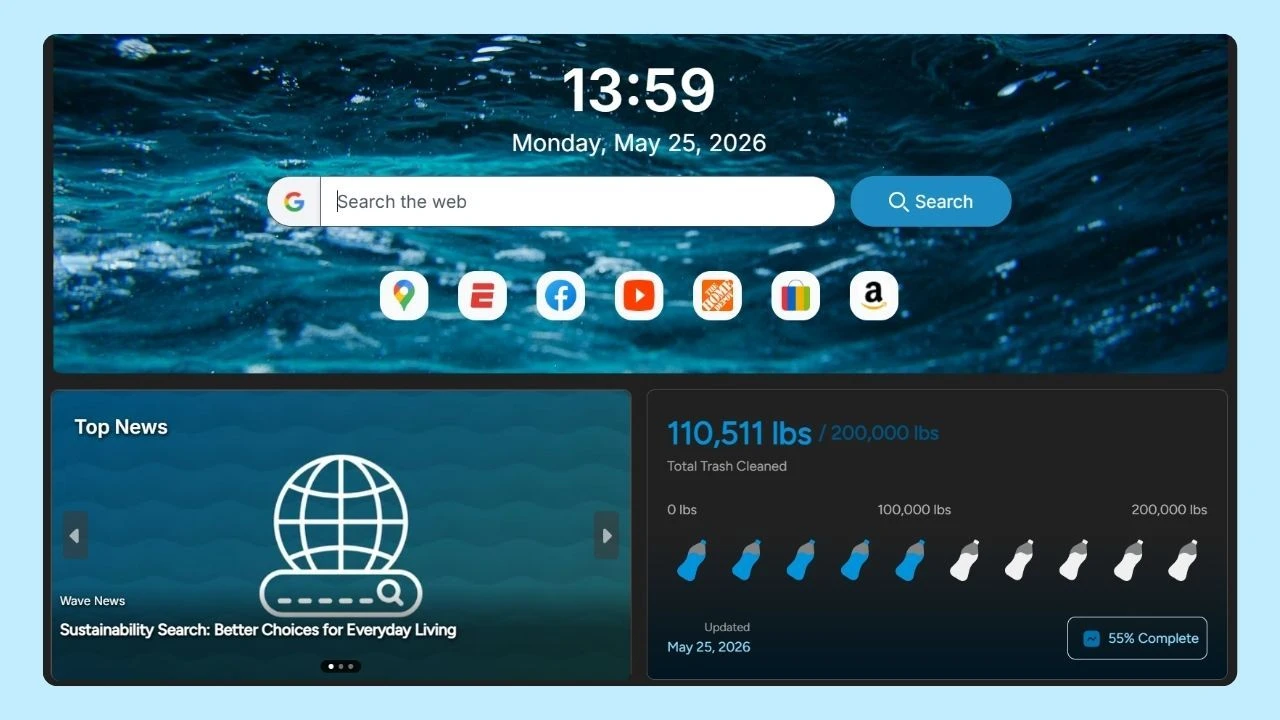
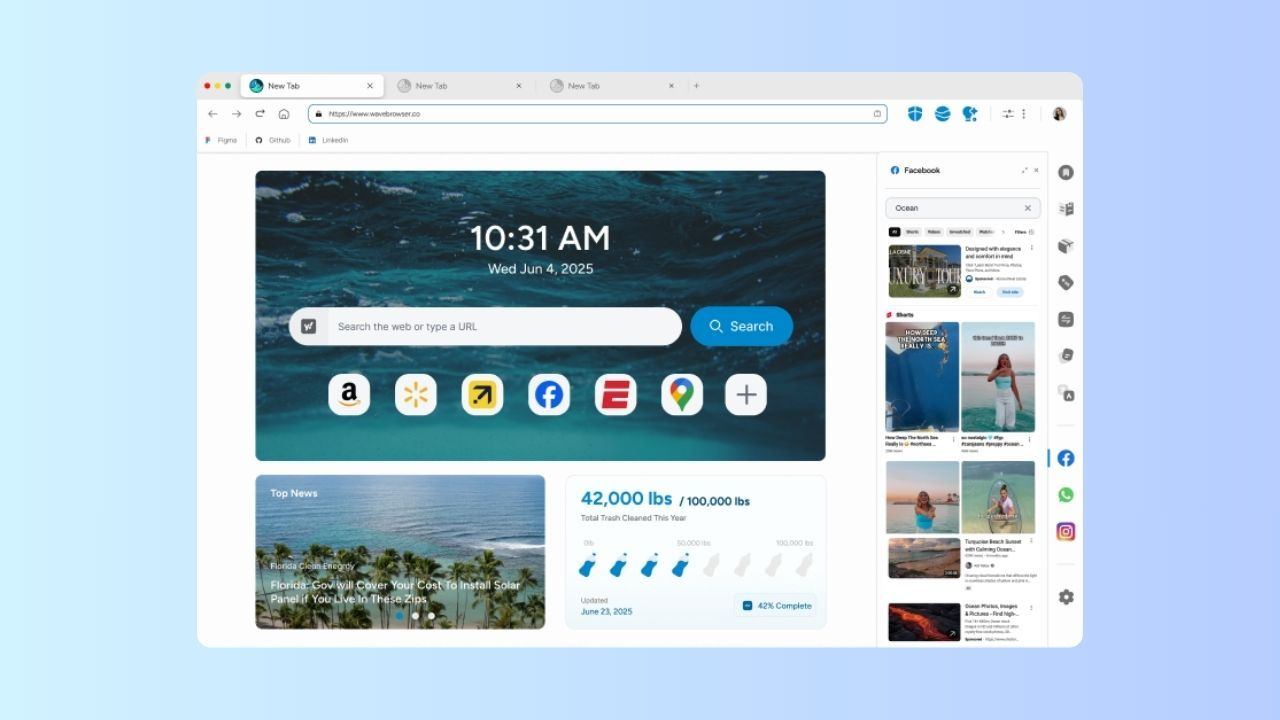
While the PS4 web browser is useful for quick searches, a full-featured browser on a laptop or desktop provides greater speed, multitasking, and flexibility. Wave Browser is a strong option for gamers who want an organized and distraction-free browsing experience.
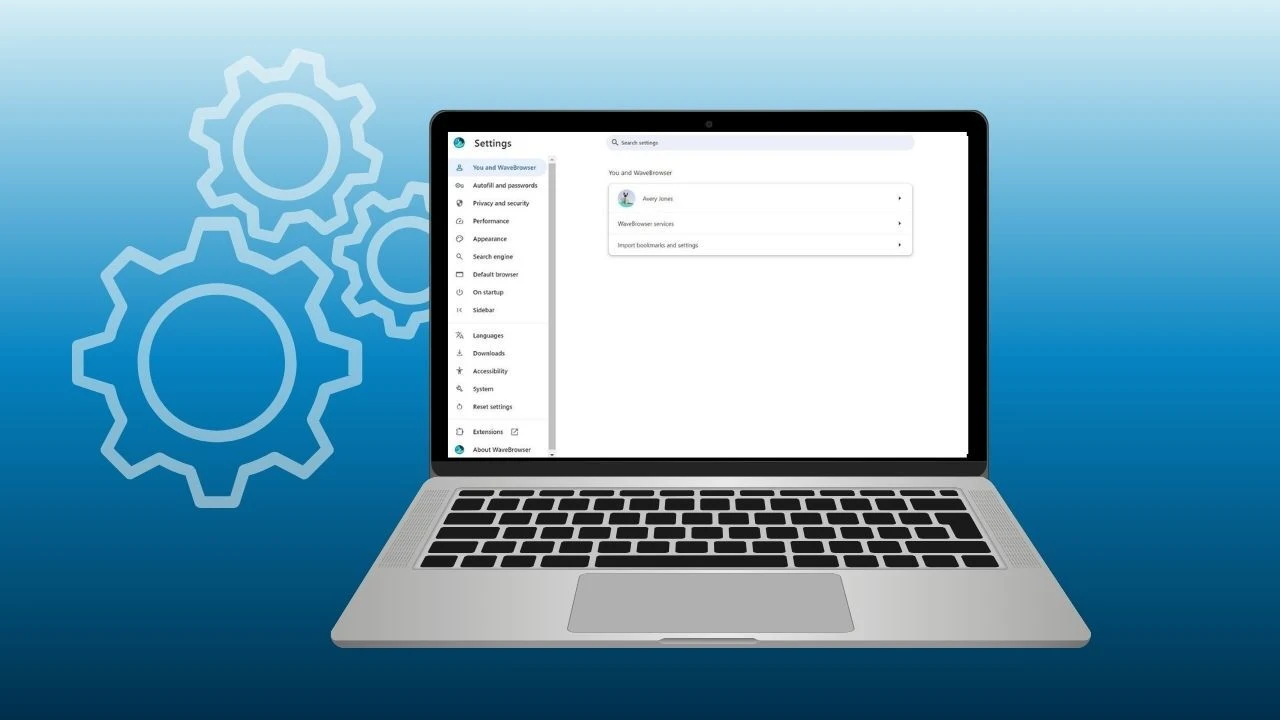
Features like split view allow you to keep a walkthrough, patch notes, or streaming content open side by side while researching builds or strategies. The built-in sidebar gives quick access to frequently used tools, bookmarks, and messaging apps without constantly opening new tabs.
For gaming setups connected to a TV via HDMI, combining your console with a capable desktop browser helps streamline updates, community browsing, and content discovery, keeping your gameplay and web navigation equally efficient.