Over time, your iPhone collects cache data, temporary files, and browsing data from applications, websites, and background processes. While this data is designed to speed things up the next time you open an app or website, too much of it can lead to slow performance, reduced storage space, and unnecessary digital clutter.
Knowing when and how to clear cache on iPhone helps protect your personal information, improve phone performance, and better manage storage space across iOS devices.
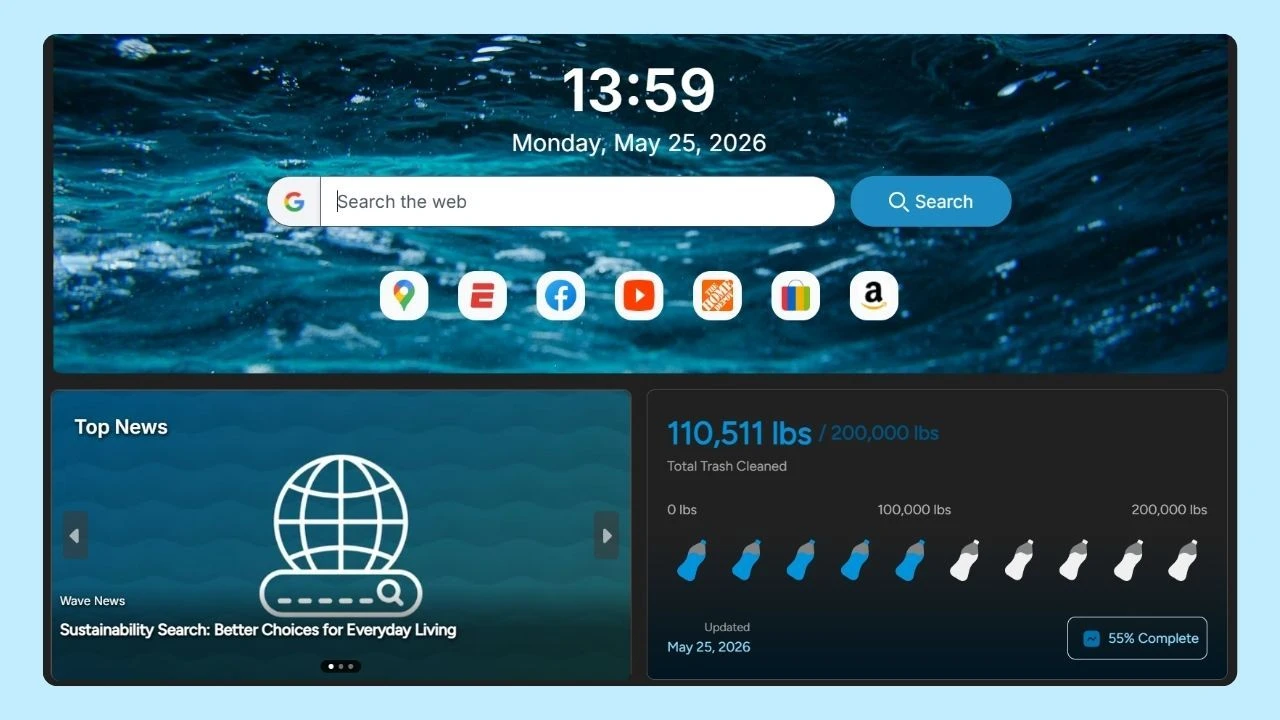
Pairing good cleanup habits with a browser designed to reduce clutter, like Wave Browser, can also help keep your everyday browsing more organized and efficient.
Do iPhones Need to Clear the Cache?
Yes, clearing your iPhone cache can be helpful, especially if you’re experiencing slow performance, running low on storage, or noticing apps misbehaving.
Your phone stores several types of cache, including:
- Browser cache from Safari, Chrome, Firefox, Wave, and other browsers
- Mobile cache from social media platforms like Facebook, Instagram, Snapchat, and LinkedIn
- Temporary data and cache files created during browsing, gaming, and streaming
While cache improves speed short term, excess caches can turn into digital junk. Periodic cache clearing helps optimize storage usage, without deleting important things like passwords, bookmarks, or saved tabs.
How Do I Check My iPhone Cache?
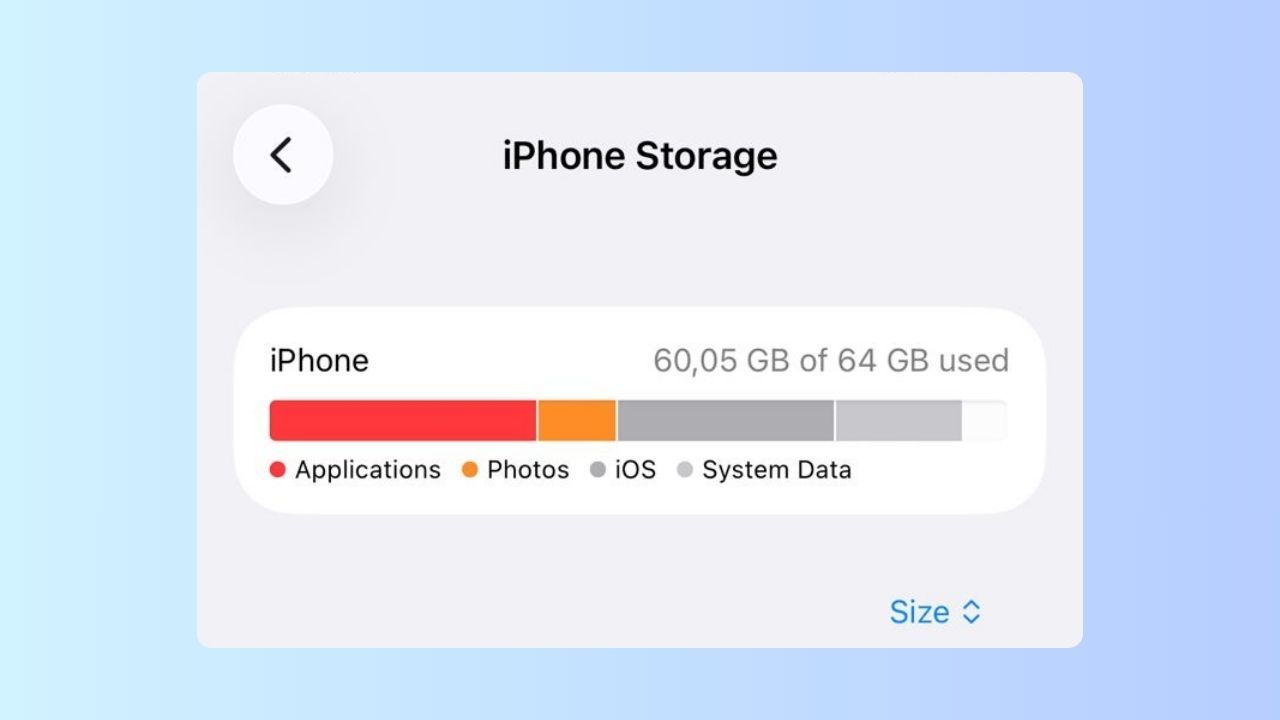
Apple doesn’t show a single “cache” number, but you can easily see which apps are using the most storage space.
To check cache-related storage usage:
- Open Settings
- Tap General
- Select iPhone Storage
Here, you’ll see a breakdown of apps, their data, and how much space they use. Apps with heavy cache often include social media, browsers, gaming apps, and streaming platforms.
You may also see options like Offload App, which removes the app from the phone but keeps its documents and data, freeing space without full deletion.
Using Offload App to Manage iPhone Storage
Using the Offload App feature on iPhone allows you to free up storage space without losing important data. When you offload an app, iOS removes the app itself but keeps its documents and data stored on your device. This makes it easy to reinstall the app later from the App Store and pick up right where you left off.
Offloading unused apps is a smart way to manage storage, reduce clutter, and improve overall performance without permanently deleting content you may still need.
How to Clear Cache on iPhone
Clearing cache on iPhone involves a different process depending on what you want to clean.
Clear Safari Cache and Browsing Data
If Safari is your default browser, follow these steps to free up space:
- Open Settings
- Scroll down and tap Safari
- Select Clear History and Website Data
- Choose a time range
- Confirm clear history, clear cookies, and site data
This removes browsing history, and Safari browser cache without deleting saved passwords or bookmarks.
Clear Cache for Wave, Google Chrome, Firefox, and Other Browsers
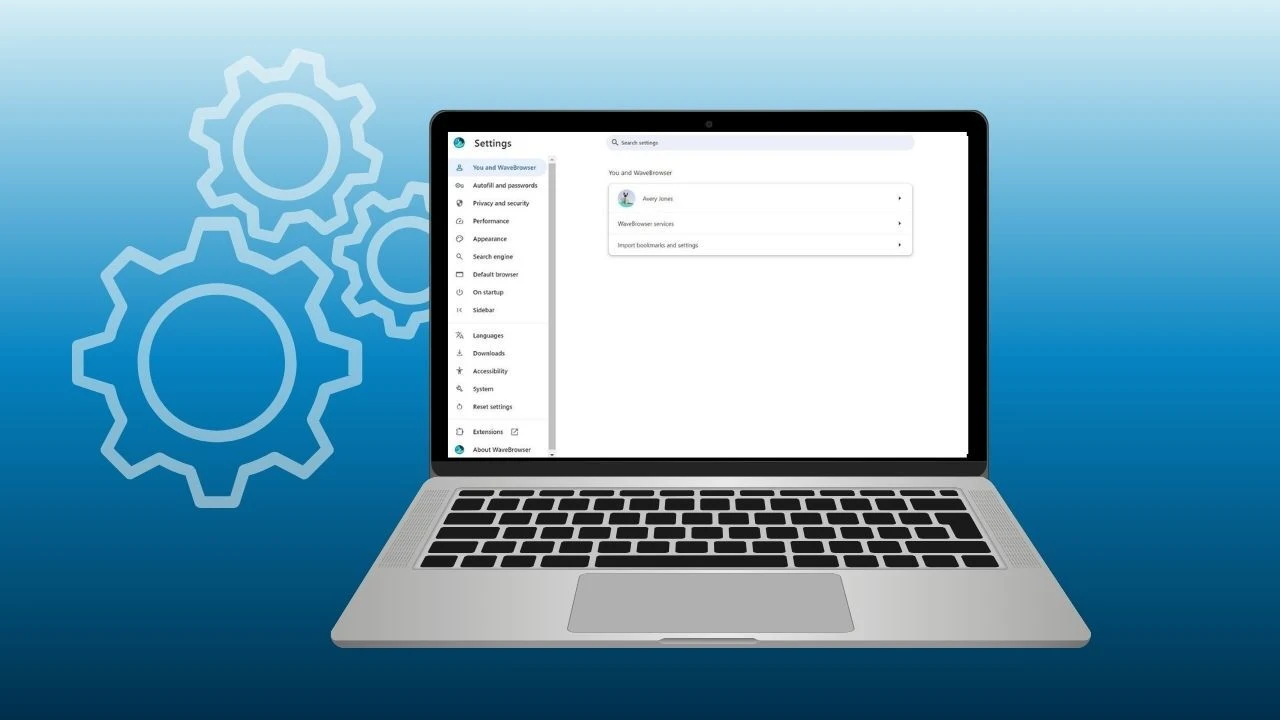
Browsers like Wave Browser, Google Chrome, and Firefox manage cache inside the app itself.
Open the browser app and look for options such as:
- Clear browsing data
- Clear cache and cookies
- Browser cache settings, including how to clear browser cache on Mac
This applies whether you’re browsing on iPhone, iPad, Mac, Android, or across synced devices.
Clear App Cache and Free Storage Space
iOS doesn’t allow clearing cache for every application directly, but you can:
- Offload app to preserve documents
- Tap Delete App, then reinstall from the App Store for a full reset
This works well for applications that store large temporary files, including social media, games, and media-heavy platforms.
Which is The Best App to Delete Cache from iPhone?
The best app to delete cache from an iPhone is "PhoneClean," which efficiently clears unnecessary files, temporary data, and cache. Additionally, it optimizes your device's performance while keeping your data safe. Remember to always back up your data before using any cleaning app to prevent accidental loss.
Another option is Clean Phone Storage Now, an app designed to help you quickly identify unnecessary files, manage storage usage, and remove digital clutter from your iPhone. Tools like this can make it easier to free up space, especially if your device is holding onto junk files, duplicate media, or unused data that’s hard to track manually.
Clear Cache, Browse Smarter
Knowing how to clear cache on iPhone is a simple habit that helps keep your device running smoothly. It improves performance, frees up storage space, and makes your phone feel faster and more responsive.
When it comes to browsing, choosing a browser built to reduce clutter and manage data efficiently can make a real difference. Wave Browser for iOS, one of the best iPhone browsers for users who value organization and efficiency, is designed to keep your browsing experience clear, intentional, and easy to manage as you move through the web.
A cleaner phone means better performance.
A cleaner browser means better days online.