
Whether you're a teacher sparking classroom energy or a student ready to jump into the action, Gimkit makes learning feel like play. With just a few clicks, you can host your own game or join one instantly, turning any topic into an engaging, fast-paced quiz experience.
This quick guide will show you how to get started—because with Gimkit, the fun (and learning) begins the moment you hit “play.”
Joining a Gimkit Game with Gimkit Join Code
To join a Gimkit game:
- Head to the Gimkit website in your gaming browser, find the "Join Game" or "Enter Code" section, or access the Gimkit/join section of the site, and enter the game code provided by your instructor or host accurately to join the session smoothly.
- Once done, click "Join" or "Enter."
- Explore different game modes for an exciting quiz gameplay experience!
How to Gimkit Join Host Game?
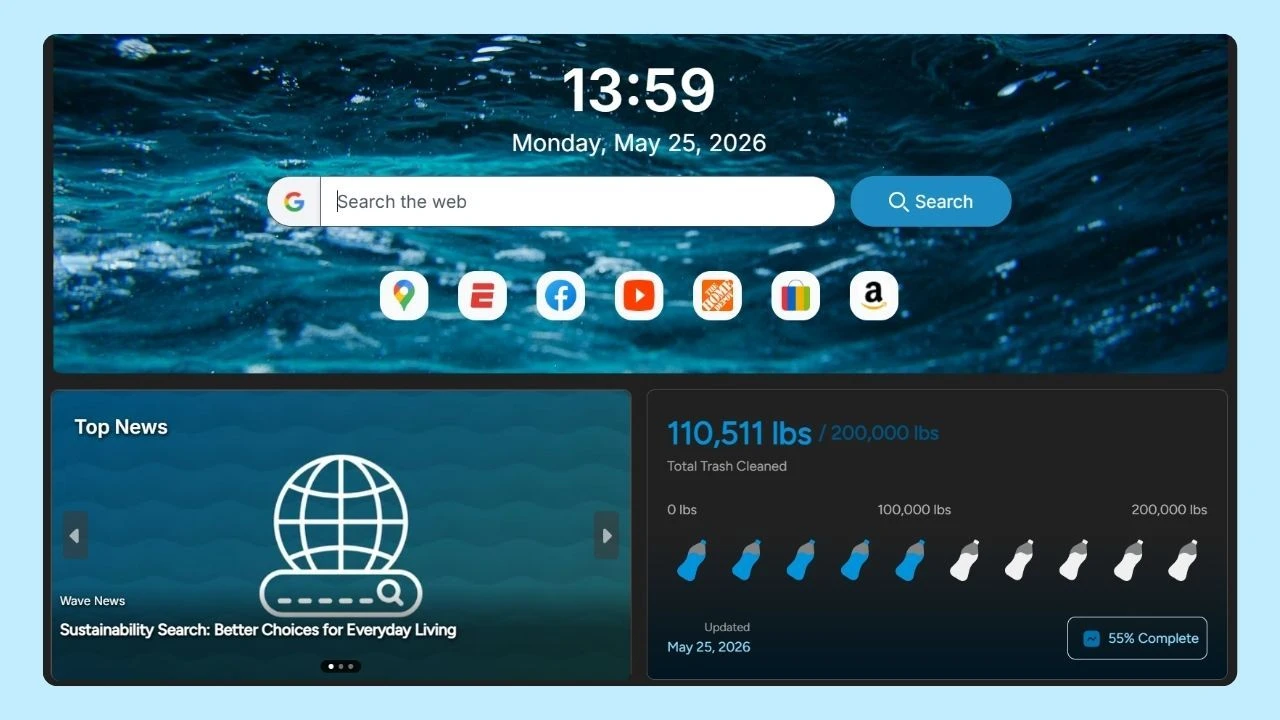
Using Wave Browser can make your Gimkit sessions smoother, faster, and more efficient. Its built-in ad blocker, memory saver, and multitasking tools help reduce lag and keep your gameplay stable, even during intense rounds or when switching between tabs for notes and strategies. Wave also supports a cleaner, distraction-free interface, which is ideal for staying focused in competitive game modes.
Wave’s performance and eco-friendly mission were recently highlighted in HackerNoon, showcasing how the browser blends smart design with real environmental impact. It’s a great option if you want both a better gaming setup and a browser that supports meaningful causes.
To join a Gimkit game using Wave Browser, follow these steps:
- Head to the Gimkit website on Wave Browser and locate the “Join Game” or “Enter Code” section.
- You can also go directly to gimkit.com/join.
- Enter the unique game code provided by your host.
- Click “Join” to enter the game lobby and begin playing.
Wave helps make the process quick, smooth, and optimized, so you can focus on gameplay instead of browser issues.
How to Host a Gimkit Game for Free
To host a game on Gimkit for free, follow these simple steps:
- Log in to your Gimkit dashboard using your preferred gaming-friendly internet browser.
- Select the kit or topic you want to use for your session.
- Choose a game mode that matches your learning goals—whether you want teamwork, competition, or practice.
- Explore engagement options like timers, power-ups, and class settings to tailor the game to your audience.
Hosting a Gimkit game can transform learning with highly interactive, strategy-driven gameplay that keeps students engaged and excited.
Finding the “Enter Code” Dashboard as a Host
Once you’re logged in to your Gimkit account, go to the “Host Game” section. From there, Gimkit will automatically generate a unique game code that players can enter on their devices to join your session instantly.
If you’re looking to boost your hosting experience, don’t forget to check out our other blog posts for Gimkit hacks, tips, and strategies!
You can also check out our other blogs for awesome Gimkit hacks!