Many online tasks require you to switch between different windows and tabs. You might be responding to an email, researching information in a browser, comparing different sites, taking notes, and managing projects at the same time.
Constantly switching between apps and tabs can interrupt your workflow and make even simple tasks take longer than necessary. That's why multitasking with split view and split screen functionality have become increasingly popular.
Wave Browser lets you view two screens side by side on supported desktop platforms by opening a website or tool in the Side Bar beside your current page. This makes it easier to compare information, conduct research, follow instructions, or manage related tasks without constantly switching between tabs.
What Is Split View?
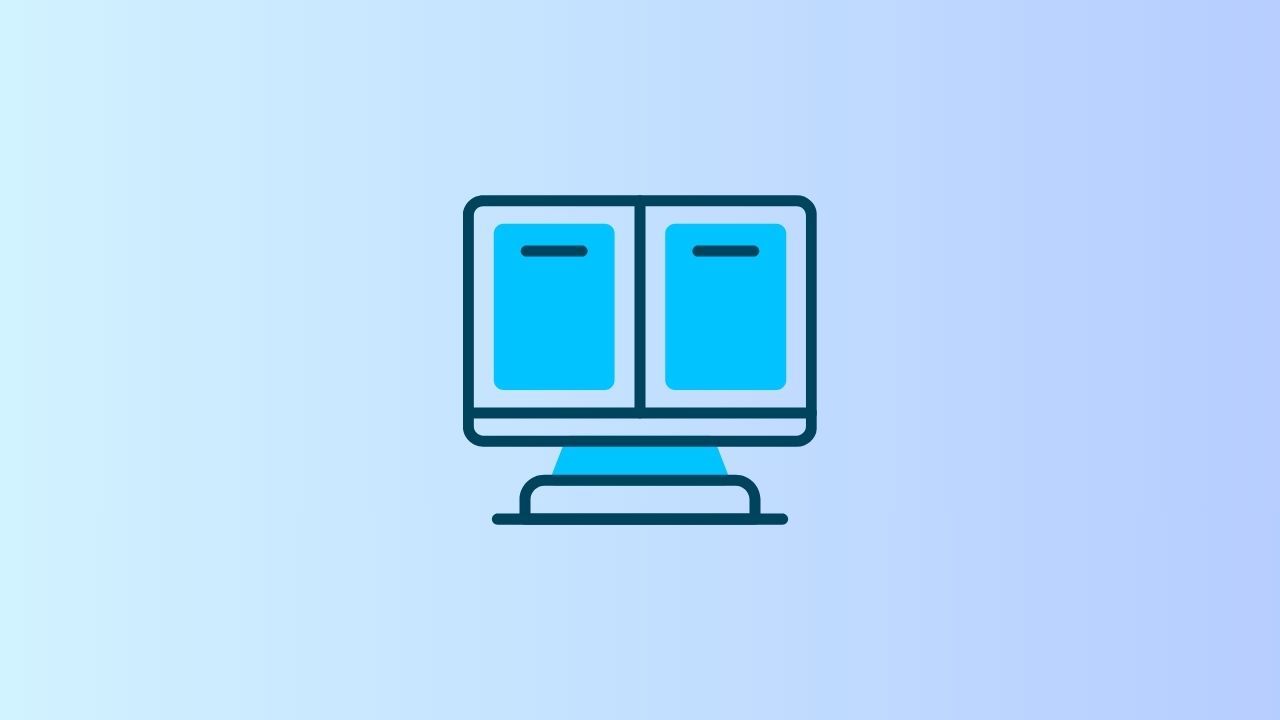
Split View is a multitasking feature that allows users to display two apps, windows, or pieces of content side by side on the same screen. Instead of moving back and forth between tabs or windows, you can keep both visible and use them simultaneously.
For example, you might keep a research article on one side of the screen while taking notes on the other, compare different websites side by side, or monitor email while working on a project. By keeping multiple sources visible, Split View helps reduce interruptions and makes it easier to stay focused on the task at hand.
This functionality is available across many platforms, including Safari on iPad devices running iPadOS, Windows and macOS computers, and certain Android devices. Many modern browsers also support split-screen workflows through built-in features or operating system window management tools.
How Multitasking with Split View Improves Productivity
One of the biggest productivity challenges is context switching. Every time you leave your current app, search for another browser window, and return to your work, you lose valuable focus.
Using a browser that supports Split View helps reduce these interruptions by keeping multiple sources visible at the same time.
For example:
- Researching information while writing a report
- Comparing pricing across different sites
- Reading source material while taking notes
- Following instructions while completing a task
- Monitoring email while working on another project
Instead of repeatedly opening a new window, second app or moving between tabs, both resources remain visible throughout the task.
Research and Writing
Students, professionals, and content creators often need information from multiple sources.
With split view mode, you can keep research materials on one side while writing in another tab. This eliminates the need to constantly switch back and forth between pages, helping you maintain focus and reduce interruptions.
Comparing Different Sites
Whether you're shopping online, analyzing competitors, or comparing software solutions, split screen functionality makes it easier to review different sites simultaneously.
You can place one website on the left side of the screen and another on the right side to quickly compare features, pricing, reviews, or specifications. Instead of switching between tabs and trying to remember details, you can evaluate information side by side and make faster, more informed decisions.
Managing Email While Working
Many people keep their email open throughout the day. Using split view, you can monitor incoming messages while continuing to work on documents, spreadsheets, presentations, or web-based tools without losing focus. This can be especially useful for professionals who need to stay responsive while working on deadlines.
Rather than interrupting your workflow every time a new email arrives, you can keep your inbox visible and decide when immediate action is necessary.
Learning and Training
Online learning often requires users to follow instructions while completing exercises.
Instead of memorizing steps or constantly switching tabs, learners can keep tutorials visible on one side of the screen while working through assignments on the other.
How to Do Split Screen With a Keyboard
Using a keyboard is one of the fastest ways to start multitasking with Split View. Instead of dragging windows manually, you can use keyboard shortcuts to position apps or browser windows on either side of the screen in seconds.
- On Windows, select the window you want to move and press Windows Key + Left Arrow to snap it to the left side of the screen, or Windows Key + Right Arrow to move it to the right side.
- On Mac, hover over the green window button at the top of the app window and select Tile Window to Left of Screen or Tile Window to Right of Screen.
Using split screen keyboard shortcuts can help you work more efficiently when researching, comparing different sites, managing email, or working with multiple documents at the same time. By reducing the need to switch between windows, you can maintain focus and keep your workflow moving.
Split View vs. Full Screen Mode
Both split view mode and full screen mode have advantages depending on the task you're working on.
- Full screen mode is a good option when you need maximum focus on a single project. By selecting the full screen button, the open app, browser, or main window expands to the center of the screen and fills the entire display, minimizing distractions and allowing you to concentrate on one task at a time.
- Split view mode, on the other hand, is ideal for multitasking with Split View. It allows you to keep multiple sources visible at once, making it easier to research information while writing, compare different websites, monitor email while working, or follow instructions without constantly switching tabs and windows.
Choosing the right setup for each task can help you stay productive throughout the day.
Tips for Better Multitasking
While multitasking can improve efficiency, it's most effective when used intentionally. The goal is to stay organized and reduce unnecessary interruptions, not divide your attention across too many tasks.
Consider these best practices:
- Use Split View when working with related tasks or sources
- Avoid opening too many tabs or windows at once
- Keep frequently used tools and resources easy to access from your home screen
- Use keyboard shortcuts to navigate more efficiently
- Organize tabs by project, task, or priority
- Reserve full screen mode for tasks that require deep concentration
A good example of multitasking with Split View is reviewing research on one side of the screen while writing on the other, or keeping email visible while working on an important project. Small adjustments like these can help create a smoother workflow and make it easier to stay focused throughout the day.
Multitasking Starts with the Right Browser
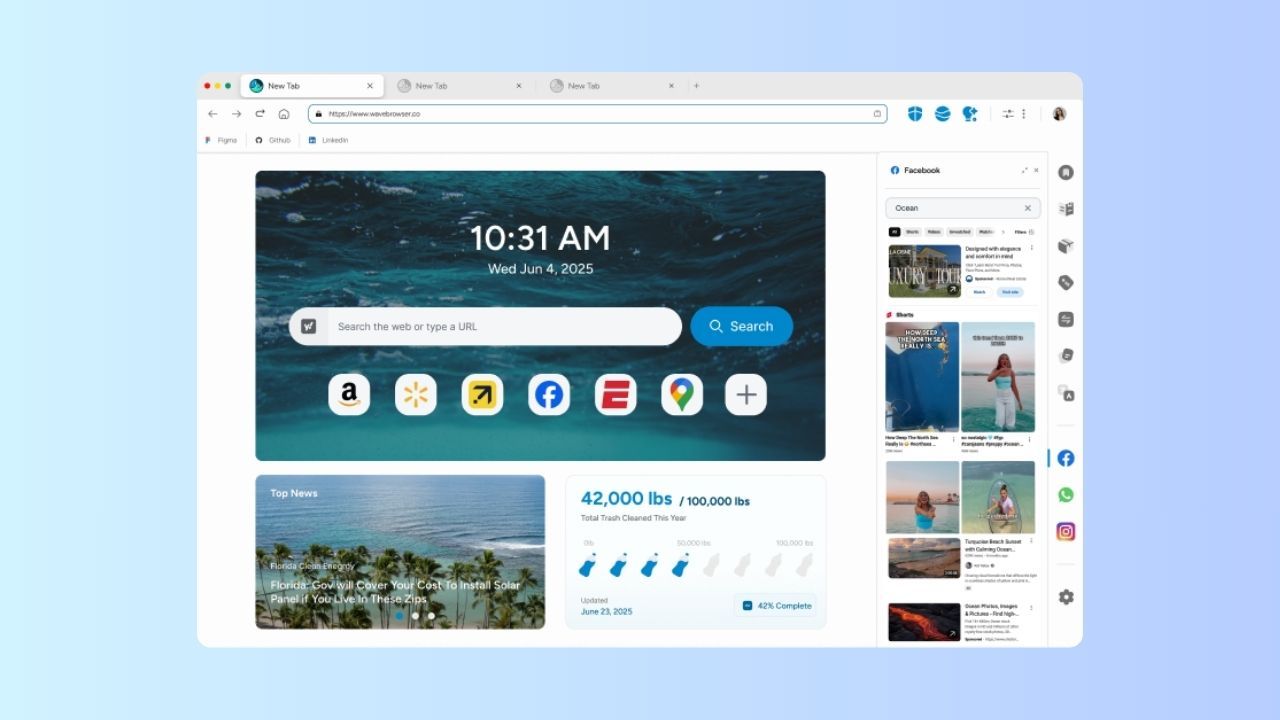
Viewing two screens side by side is a simple way to improve multitasking and reduce distractions while working online.
Wave Browser supports this approach through its desktop Side Bar, which lets you open a website or tool beside your current page. Instead of constantly moving between apps, tabs, and windows, you can keep many of the resources you use throughout the day within the same browsing workspace.
Some of the Side Bar tools that can help streamline your workflow include:
- AI Assistant for research, brainstorming, writing, and quick answers.
- Messaging and social media apps that let you stay connected without leaving your current tab.
- Notes & Reminders for capturing ideas, creating to-do lists, and keeping important tasks visible.
- Translate for understanding websites and content in other languages without opening a separate translation service.
- Content Notifier for tracking updates from your favorite websites and staying informed when new content is published.
- Package Tracking for checking delivery status without searching through emails or carrier websites.
- Stock Tracker, powered by Yahoo, for monitoring market activity and following stocks directly from your browser.
- Converter Tool for quick unit, measurement, and currency conversions while researching, studying, or working online.
Combined with bookmarks, reading lists, and tab organization, these tools help keep useful information within reach. The result is a browsing experience that reduces interruptions, supports focus, and makes it easier to move through your day without constantly changing tabs or applications.