Sharing project plans, meeting notes, and a budget as individual attachments can make it harder for your team to find everything they need. A merge PDF tool brings those related files together, making them easier to read and share.
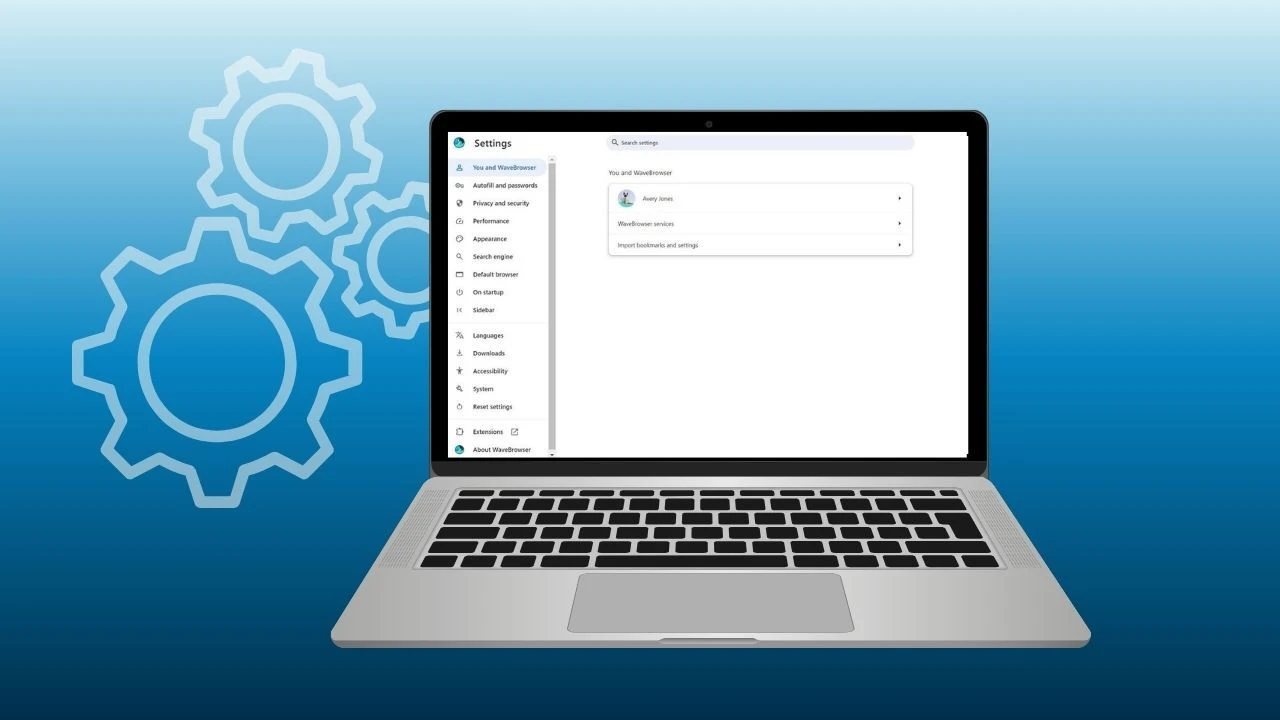
Once everything is combined, Wave Browser’s PDF Annotator helps with the next step: reviewing your document. On Windows and macOS, you can highlight passages, add notes, and draw markups directly in the browser. It supports annotation; combining documents requires a separate merger.
What Does Merging PDF Files Mean?

PDF merging joins two or more PDF files into a single PDF. Instead of opening separate files, your reader moves through one single document with the pages arranged in sequence. For example, you could place an introduction first, a proposal second, and supporting information afterward.
The merged PDF becomes a single file containing the material you selected. But, it's important to say that a PDF merger does not automatically rewrite your text or redesign every page. Different page sizes, existing page numbers, and orientations may remain. Think of it as putting documents into one folder that opens as a continuous document.
A PDF combiner performs the opposite task from tools that split PDF files. Splitting separates content; combining brings it together.
When Would You Need to Combine Documents?

Sending a Job Portfolio
A job portfolio might include your resume, project examples, and references. Combining them gives a recruiter one document to open, with your introduction leading into the work you want them to see.
You can choose the most relevant examples to merge, making it easier to navigate than every project you have completed.
Sharing Project Plans With a Team
Working on a project usually means juggling plans, schedules, budgets, and meeting notes. Bringing the latest versions together gives your team one place to find what they need.
Start with the main document, then add the supporting material in the desired order. Your colleagues can find specific information without digging through an email thread or opening several attachments.
Keeping Receipts and Supporting Records Together
If you are a corporate employee submitting expenses, a combined PDF can keep a summary and its receipts together. Place each receipt near the explanation it supports.
The same approach helps with operations work: delivery records, checklists, and handover notes can become one organized package.
Submitting Applications With Several Attachments
Does the application only provide one upload field? Putting the requested materials into one PDF document can make submission easier. Just check the instructions first: if you’re asked to upload each document separately, keep them as separate files.
How to Merge PDF Online

Most browser converter tools follow similar simple steps, although their controls and limits vary.
1. Choose Between Free and Paid Options
For a few documents now and then, a free tool may be all you need. If you regularly combine larger files or need more controls, a paid option may be worth considering. Check what each service includes before uploading your documents.
| What to Compare | Free Options | Paid Options |
| File and page limits | May limit file size, page count, or daily tasks | May allow larger files and higher usage |
| Batch processing | May restrict how many files you can process at once | May support larger batches |
| Document controls | Often focus on basic merging and page ordering | May include additional editing and organization tools |
| Downloads | Check for watermarks or export restrictions | Check which export options the plan includes |
| Trial terms | Confirm that downloading is included for free | Check the free trial’s duration and whether it renews automatically |
Next, consider where you want to work. An online PDF merger runs through your web browser, usually without separate software installation. An app or another desktop application may be more convenient if you work with documents regularly and need offline processing.
2. Gather and Upload Your Files
- Save the versions you actually want to combine in one place
- Remove outdated drafts and give confusing filenames clearer names before uploading
- Open your chosen online tool and use its upload control to select the documents
Some services also connect to cloud storage, so check the permissions requested before using that option. If your source material includes image files, confirm whether the service accepts them or requires conversion to the PDF file format first.
3. Arrange Documents and Pages in the Right Order
Before you merge PDF files, take a moment to arrange them in a way that makes sense to the reader:
- Start with the introduction or summary: Follow it with supporting sections in the order someone should read them.
- Check individual pages: Some tools let you rearrange pages, while others only move whole documents. Use the preview to check the sequence and remove blank or duplicate pages if supported.
- Review page numbers: Numbering may restart in each section. If you need continuous numbering, choose a tool that can apply it to the final document.
- Keep only what’s needed: Remove unnecessary material before pressing the merge button. For longer documents, a short contents page can help readers find each section.
When you merge files for someone else, aim for a document they can follow easily from beginning to end.
4. Combine and Download the Result
- Combine your files: Once the order looks right, select the merge PDF button, which may be labeled “Combine.”
- Download it: Wait for processing, then look for the download control. Depending on the service, it may appear in the top right corner or beside the preview.
- Check the downloaded file: Open it and review the first and last pages, section transitions, and image quality. Make sure every attachment is included.
- Give it a clear name: Save the merged PDF file with a recognizable name, such as “Project Plan and Supporting Documents.”
- Keep your originals: Hold on to the separate files until you’ve checked the finished result and confirmed everything is there.
How Can Wave Browser Help After Combining Files?
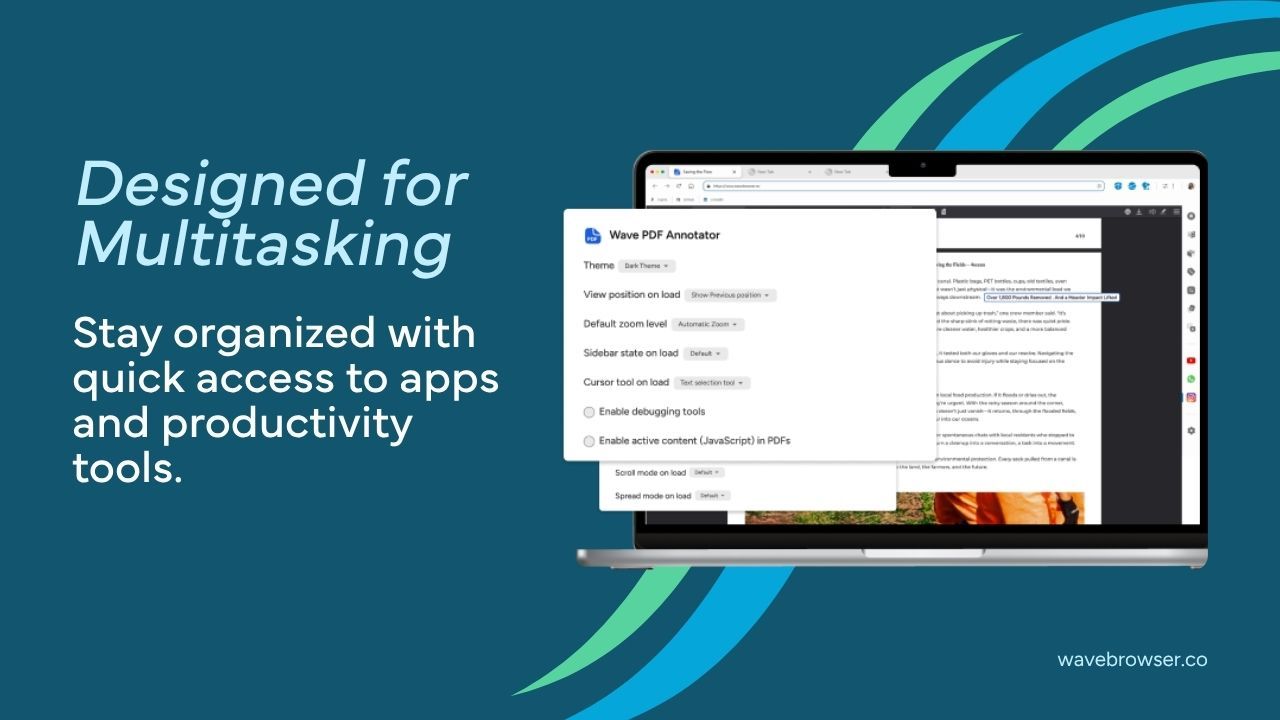
Once your files are combined, open the finished document in Wave Browser and give it a final read. Its PDF Annotator lets you highlight deadlines, add notes or questions, and mark sections that need another look—all from your desktop browser.
Need a different file format? Wave’s converter gives you access to supported conversion options.
If you need a paper copy, you can print with Wave and adjust the page range, paper size, and scale before printing. Save your annotated copy, check that your markups are there, and share a document that’s ready for the next person.