Slack has become a central communication hub for businesses of all sizes, making it easier for different teams to stay connected, organize conversations, and manage projects from almost anywhere.
While many people install the desktop app, the browser version offers a convenient alternative that works across different devices without requiring additional software.
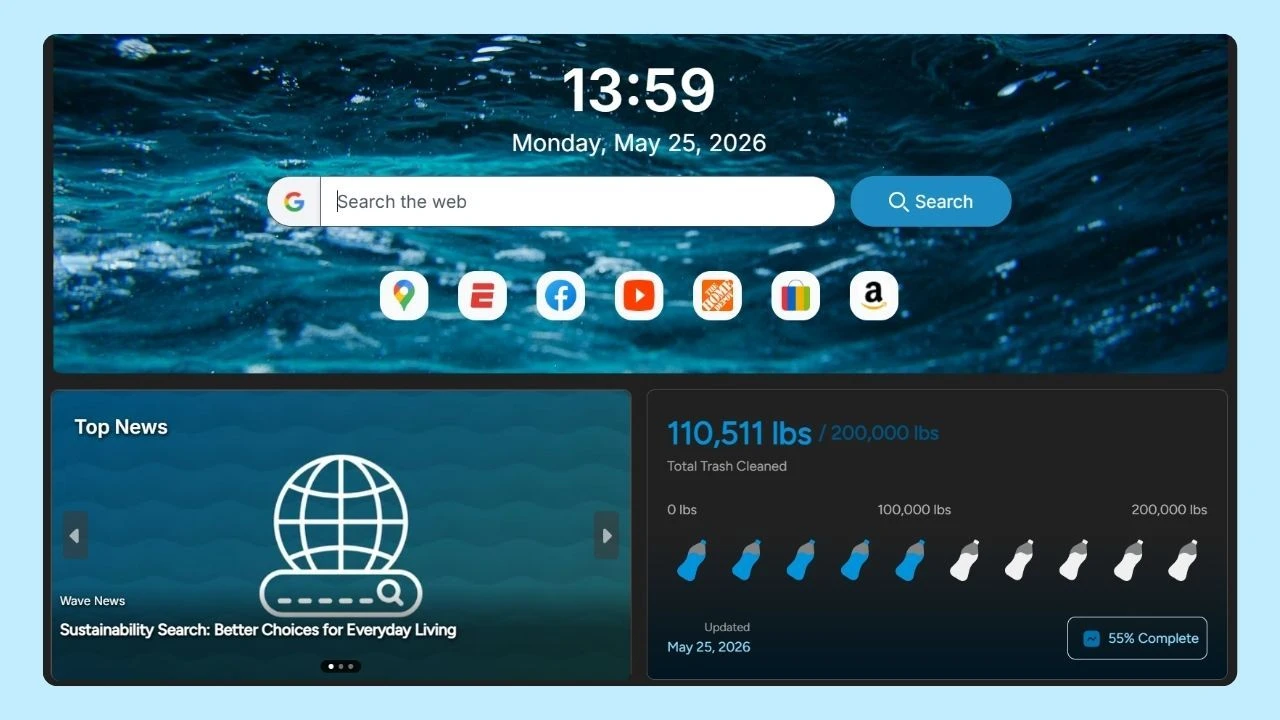
If you use a browser that supports multitasking features, such as Wave Browser's Split Screen, you can keep Slack open alongside documents, email, or project management tools without constantly switching between browser tabs. This makes it easier to stay productive throughout the day.
In this guide, you'll learn how to use Slack in a Web Browser, its biggest advantages, common troubleshooting tips, and when it may be a better choice than the desktop application.
What Is Slack?
Slack is a workplace messaging platform designed to help teams collaborate more efficiently. Instead of relying solely on email, it provides a shared collaboration space where conversations, files, and projects stay organized.
Within a workspace, you can:
- Send a direct message to a coworker
- Create channels for different projects
- Share files and documents
- Connect with external stakeholders
- Integrate with hundreds of external applications
- Manage notifications across multiple projects
For many organizations, it has become a primary hub for effective communication and teamwork.
Slack Apps and Integrations
One of its biggest strengths is its extensive ecosystem of apps and integrations, allowing you to build a custom workspace.
Through the Slack Apps Directory, you can connect thousands of third-party tools, each with its own app icon, to bring notifications, files, and workflows into one place.
Some of the most popular integrations include:
- Project management software: Trello, Asana, Jira, Monday.com, ClickUp, and Notion for tracking tasks, assigning work, and sharing project updates.
- Cloud storage platforms: Google Drive, Dropbox, OneDrive, and Box for sharing files, collaborating on documents, and accessing important resources directly from the sidebar.
- Video conferencing tools: Zoom, Google Meet, and Microsoft Teams for launching meetings and joining calls without leaving your conversations.
- Customer support platforms: Zendesk, Salesforce Service Cloud, and Intercom for receiving support tickets, customer inquiries, and service updates in dedicated channels.
- Calendars and scheduling tools: Google Calendar and Microsoft Outlook Calendar to receive meeting reminders, event notifications, and schedule updates.
- Development and DevOps tools: GitHub, GitLab, Bitbucket, Jenkins, and PagerDuty for tracking code changes, monitoring deployments, and receiving alerts about incidents.
By bringing these tools together in a single workspace, Slack helps teams centralize communication and automate routine tasks. Instead of checking multiple platforms throughout the day, users can receive updates where conversations are already happening, making collaboration faster and helping everyone stay aligned.
Customize Your Slack Experience
The solution offers several ways to personalize your workspace and make daily collaboration more efficient. From your account settings, you can customize your experience to match the way you work.
Within your settings, you can:
- Change notification preferences
- Update your profile
- Modify your display preferences
- Manage connected devices
- Configure accessibility settings
You can also customize your workspace by organizing channels, pinning conversations, creating app shortcuts for frequently used actions, and arranging the sidebar for quick access to your most important conversations.
Workspace owners or admins can update the workspace icon, while members on eligible paid plans can organize conversations into custom sidebar sections.
How to Access Slack in a Web Browser
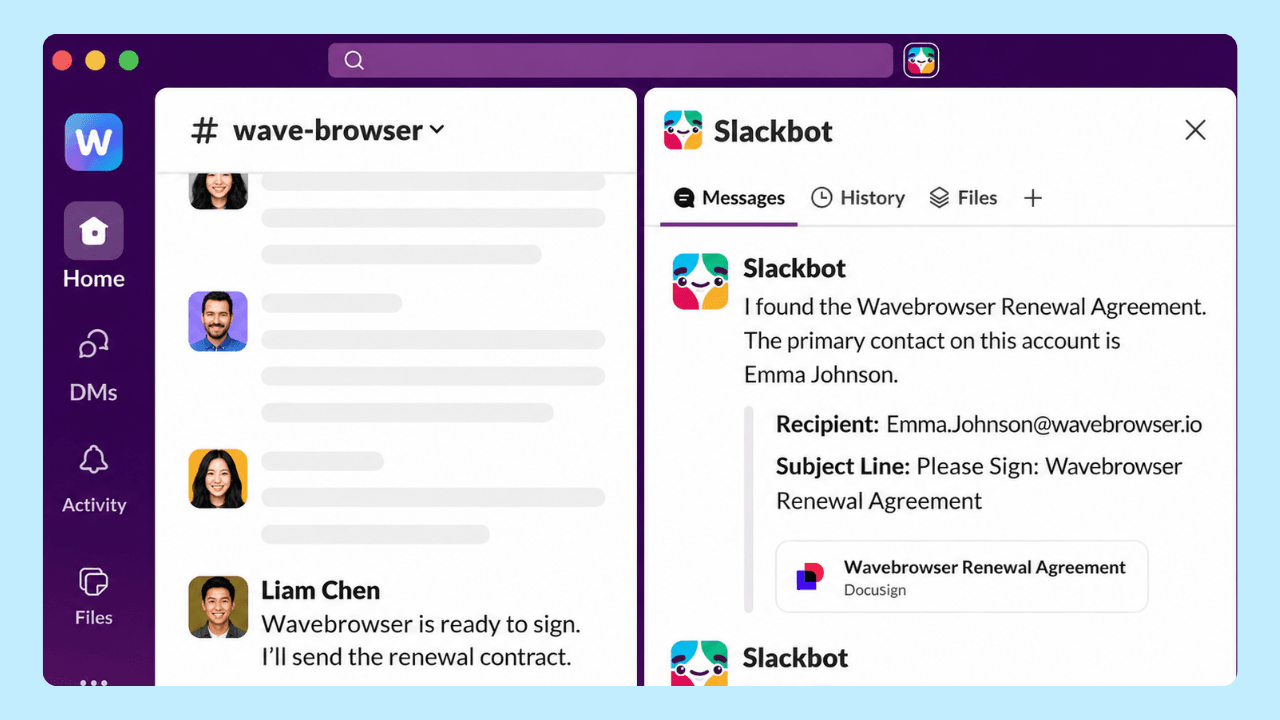
Getting started with Slack in a Web Browser is simple.
- Open your preferred web browser.
- Type slack.com into the address bar.
- Enter the correct email associated with your workspace.
- Sign in using your password or your preferred authentication method, such as a Google Account or Apple ID.
- Select your workspace if you belong to more than one.
If you're creating a new account, you will be guided through the setup process before you join your workspace.
Web Browser vs. Slack Desktop App
Both options provide access to the platform, but each has its own strengths.
| Slack in a Web Browser | Slack Desktop App |
| No installation required | Requires installation |
| Works in supported browsers | Dedicated application |
| Easy to use on shared computers | Better integration with your operating system |
| Accessible from different devices | Supports desktop-specific notifications |
| Updates automatically | May require occasional updates |
| Opens alongside other browser tabs | Separate application window |
For many people, the best part of the web version is its flexibility. You can log in almost anywhere without installing software.
Can You Use Slack on Mobile?
Yes. There are mobile apps for both Android and iPhone, allowing you to continue conversations while away from your computer.
Your messages stay synchronized across your desktop, browser, and mobile devices, making it easy to move between different devices throughout the day.
How Do I Search On Slack?
To search on Slack, simply use the search bar located at the top of the application. You can type keywords, phrases, or even specific channel names to find messages and files. Additionally, using filters helps refine your results for more efficient navigation through conversations and shared content.
Biggest Benefits of the Slack in a Web Browser

The biggest benefits of the Slack in a Web Browser are its flexibility, accessibility, and ease of use. Since it runs directly in your browser, you can access your workspace from almost anywhere without installing additional software.
No Installation Required
To use the program, simply open your preferred browser, sign in to your business account, and start collaborating. This is especially useful if you're using a shared computer, a temporary workstation, or a device where you can't install the desktop app.
Access Slack from Different Devices
The browser version lets you sign in from different devices while keeping your conversations, channels, and notifications synchronized. If you're working from your office computer, a laptop at home, or another workstation while traveling, your workspace remains available wherever you sign in.
Automatic Updates
Unlike desktop applications, the browser version is always up to date. You don't have to worry about downloading new releases or installing updates manually.
As long as you're using a supported browser version, you'll automatically have access to Slack's latest improvements and security updates.
Works Across Most Operating Systems
Slack’s web app works through supported browsers on compatible operating systems, including Windows, macOS, Linux, and ChromeOS. Because Slack runs on the web, you can enjoy a consistent workflow without worrying about operating system compatibility.
Perfect for Hybrid and Remote Work
If you regularly switch between your work and personal computers, browser access offers additional flexibility.
Simply sign in with your correct email and continue where you left off without transferring files or installing software. For many teams, this makes the browser version an especially good choice for hybrid work, remote work, or frequent travel.
Easy Access Alongside Your Favorite Tools
Since Slack runs in your browser, it's easy to keep it open alongside email, calendars, project management platforms, cloud storage, and documentation.
This makes it simple to switch between tasks, respond quickly to teammates, and maintain efficient workflows throughout the day without constantly opening and closing applications.
Troubleshooting Browser Problems
If Slack isn't working as expected, most problems can be resolved with a few simple troubleshooting steps. Whether you're using the web version or one of the desktop versions, keeping it running smoothly helps maintain seamless collaboration with your team.
Try the following:
- Refresh the page.
- Clear your cache and cookies.
- Disable conflicting extensions.
- Try a different web browser.
- Update to the latest version.
- Restart the application or your device.
- Check your internet connection.
If the problem persists, contact your organization's IT team or Slack Support for additional assistance.
Common Slack Login Issues
The most common issues with Slack login are usually quick to fix and often relate to account or workspace settings.
Some of the most frequent problems include:
- Using the wrong email address.
- Entering an incorrect password.
- Selecting the wrong workspace.
- An expired login session.
- Cached data preventing a successful sign-in.
If needed, use the password reset option to create a new password. If you belong to multiple workspaces or manage several email accounts, double-check that you're signing in with the account associated with the correct workspace. This simple step can help you get back to collaborating quickly.
Improve Productivity with Split Screen
If you regularly switch between Slack and other tools, using a browser with multitasking features can help you stay focused and reduce interruptions throughout the day.
Wave Browser's Split Screen helps turn your browser into a dedicated workspace instead of a collection of scattered tabs.
You can keep Slack open while working in other web apps, making it easier to follow conversations, reference important information, and respond without disrupting your workflow. With everything in view, direct communication feels more natural, helping you stay engaged in discussions while keeping projects moving forward.
Get More Done with Slack in Your Browser
Slack is one of the most effective platforms for workplace collaboration. It brings conversations, file sharing, and direct communication together in a single collaboration space, making it easier for teams to stay connected. If you spend most of your day in a browser, choosing one built for productivity can make an even bigger difference.
Wave Browser combines customizable browsing tools, Split Screen, and additional features that help you organize your workspace and reduce unnecessary tab switching.
From creating a dedicated space for Slack and your favorite work tools to improving multitasking through the grouping of apps, Wave Browser helps you stay organized so you can focus on your greatest work.