Bookmarks make it easy to return to a useful page without retyping its URL in the address bar. Over time, however, saved links can become outdated, duplicated, or difficult to navigate.
Wave Browser gives you familiar controls for reviewing bookmarked sites, organizing folders, and removing links you no longer need. A well-organized bookmark collection can improve productivity by keeping frequently used pages easy to find, reducing time spent searching, and helping you move between tasks more efficiently.
This guide explains how to delete bookmarks on desktop and mobile devices, what the deletion of a bookmark actually changes, and why a regular cleanup can make everyday browsing more organized.
What Happens When You Delete a Bookmark?
A bookmark is a saved shortcut to a webpage. Deleting it removes that shortcut from the bookmarks bar, a folder, or the bookmark manager. It does not delete the website, close an online account, delete your saved email addresses, erase browsing history, change cookie settings, or remove personal information stored by the site.
If bookmarks are synced using your account login information, changes made on one device may also appear on other devices signed in to the same account.
Review the selected item before confirming, especially if you use older versions of the browser or are unsure whether synchronization is active. If the saved link may be difficult to replace, export or record it before deletion.
Why It Is Important to Review and Clean Up Bookmarks
Bookmarks are most useful when they point to pages you still trust and use. A shorter, clearly labeled collection helps you find the right page faster and reduces the likelihood of opening a stale login or payment link.
- Improve navigation: A focused bookmarks bar keeps high-value pages visible and reduces time spent searching through folders.
- Remove outdated destinations: A saved URL may lead to a reorganized website, an expired campaign, or a page whose purpose has changed. Reviewing the destination helps you identify the correct page and take the appropriate action.
- Reduce confusion: Clear labels help distinguish an official account details page from a similarly named informational page.
- Protect shared screens: Removing unnecessary links can prevent descriptive bookmark names from exposing personal or confidential information to someone using the same device.
- Keep workspaces relevant: Archive completed projects and remove shortcuts that no longer support your current routine.
Knowing how to delete bookmarks can help you organize your browser, but bookmark cleanup does not materially change data rates and should not be presented as a way to increase connection speed. Its value is organizational: fewer irrelevant shortcuts, clearer folders, and more deliberate navigation.
How to Delete Bookmarks
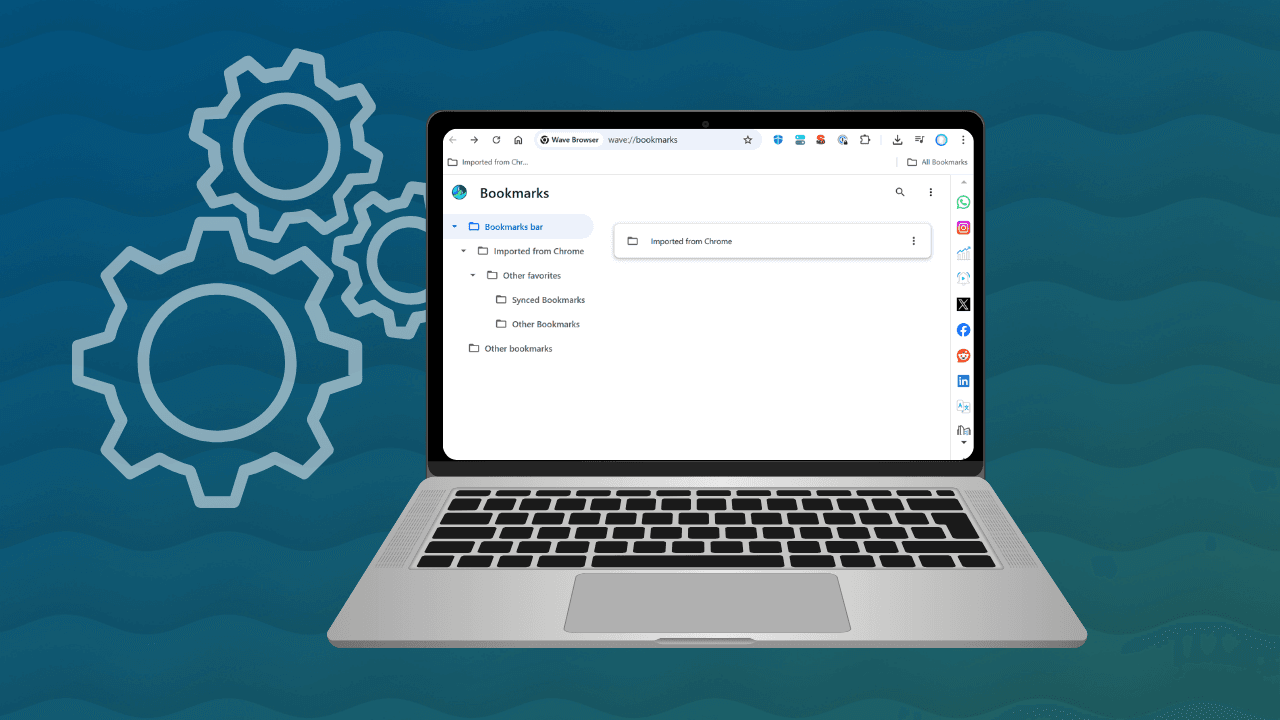
The labels can vary slightly by device and browser version. You may see Bookmarks, or My Favorites. The basic process for how to delete bookmarks is similar across most devices: open your saved links, identify the correct item, and choose Delete or Remove.
On Mac
- Open Wave Browser and select Bookmarks from the sidebar
- Open Bookmark Manager and choose the folder containing the bookmark
- Find the bookmark, open its options, and select Delete
Before deleting a large folder, consider creating a backup. A file previously created by export Google Chrome bookmarks can also be imported into Wave.
On Windows
- Open Wave Browser and select Bookmarks from the sidebar
- Open Bookmark Manager and choose the folder containing the bookmark
- Find the bookmark, open its options, and select Delete
You can also follow these step-by-step instructions for Chromium-based browsers such as Microsoft Edge.
For a page already open in a tab, select the active bookmark icon near the address bar and remove the saved link. If an add button is visible instead, the page is not currently bookmarked. Deleting folders in bulk can remove every link inside them, so confirm the folder contents first.
On iPhone
- Open the Wave Browser app and open the menu
- Select Bookmarks to view saved pages
- Locate the item, select Edit, and choose Delete
If you're using Safari and your bookmarks are synced through iCloud, deletions may also appear on your other Apple devices. Because bulk-selection options are more limited on iPhone and iPad, the fastest way to delete multiple bookmarks at once is generally easier on a Mac.
On Android
- Open Wave Browser and select the menu button
- Choose Bookmarks, then open the appropriate folder
- Locate the item, select Edit, and choose Delete
The exact menu design can vary across app releases and according to the capability of your device.
How to Remove Several Bookmarks Safely
Knowing how to delete bookmarks in bulk makes cleanup faster on the desktop, where your computer’s larger screen and controls make it easier to search, select, and review folders.
Use this sequence:
- Export a backup if the collection includes difficult-to-replace research or work links
- Review one folder at a time instead of selecting the entire library immediately
- Remove obvious duplicates, broken pages, temporary links, and completed projects first
- Rename or move uncertain bookmarks into a Review Later folder
- Check synced devices before making another large deletion
This approach reduces the chance of manual input errors and makes it easier to reverse course using a backup. It can also help when a list has been carried forward from older versions of a web browser.
Frequently Asked Questions
Can I recover a deleted bookmark?
Recovery options depend on the browser and whether you have a backup or synchronization enabled. Some browsers may not provide a straightforward way to restore deleted bookmarks.
Safari users with iCloud may be able to restore recently deleted bookmarks through iCloud.com. For important collections, exporting a backup before a large cleanup is a good precaution.
Does deleting a bookmark delete the website account?
No. Deleting a bookmark removes only the shortcut saved in your web browser. It does not close your account or delete your login information, cookies, subscriptions, documents, transactions, or other records stored by the website.
For example, deleting a bookmark for your bank’s website does not affect your bank account or any information stored by the bank. It only removes the saved shortcut from your browser.
How Can I Clear All Bookmarks at Once?
Open the Bookmark Manager and press Ctrl+A on Windows or Command+A on Mac to select all bookmarks in the current folder. Then click Delete.
If synchronization is enabled, the deleted bookmarks may also disappear from other devices signed in to the same account. Consider exporting a backup before deleting everything.
You can also use bookmark-management extensions to help you find duplicate or broken links, organize the links into folders, rename saved pages, and delete multiple URLs at once. Wave Browser supports extensions available through the Chrome Web Store.
A Cleaner Bookmark Collection in Wave Browser
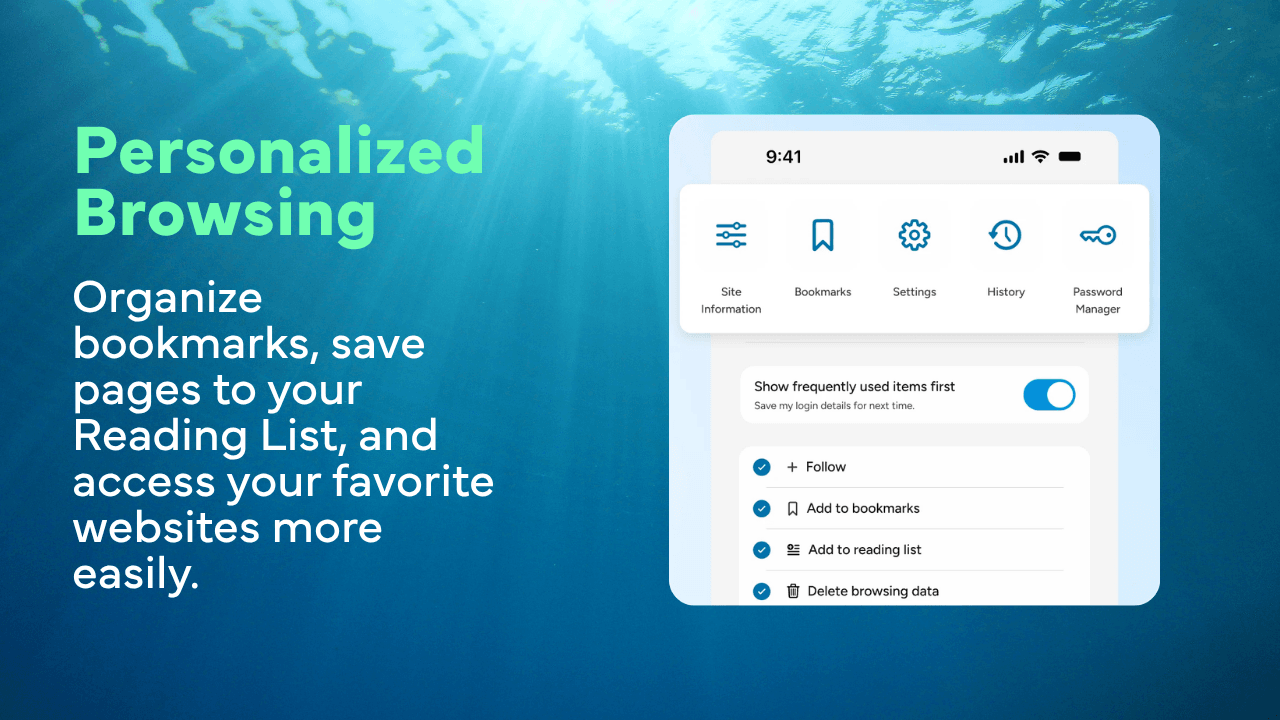
Knowing how to delete bookmarks helps keep your saved pages relevant across Mac, Windows, iPhone, and Android. Start with obvious duplicates and outdated links, review sensitive account information carefully, and create a backup before removing large folders. The goal is not to delete everything, but to make every remaining URL easier to recognize and use.
Wave Browser makes it straightforward to organize saved pages through the sidebar, sidebar, and bookmark manager. A regular review keeps your browsing setup aligned with the sites and tools you use today, so you can spend less time sorting through old shortcuts and more time getting where you need to go.