Setting up a new device should feel like a fresh start. Instead, a new PC, phone, or tablet may arrive with trialware, promotional shortcuts, utilities, games, and other apps you never planned to use.
This unwanted software is often called bloatware. It can take up storage, add notifications, run background processes, or make menus feel cluttered. Removing what you do not need can create a more organized setup, but it is important to distinguish optional software from essential system components before deleting anything.
This guide explains how to remove bloatware from a PC, Mac, iPhone, or Android device using built-in controls. It also covers bloatware removal tools, junk files, security concerns, and ways to keep your browsing setup organized.
What is Bloatware?

Bloatware is software that comes installed on a device or is added alongside another program but provides little or no value to the person using it.
Common examples include:
- Unwanted free trials that expire after a short period
- Promotional games or shopping apps you did not request
- Manufacturer utilities that duplicate existing functions
- Trialware that repeatedly asks you to subscribe
- Promotional shortcuts to services you do not use
- Preinstalled media or communication apps you do not need
- Browser extensions bundled with another installation
- Unnecessary software configured to launch automatically
Bloatware is also sometimes called crapware, although that informal term is less suitable for technical or professional writing.
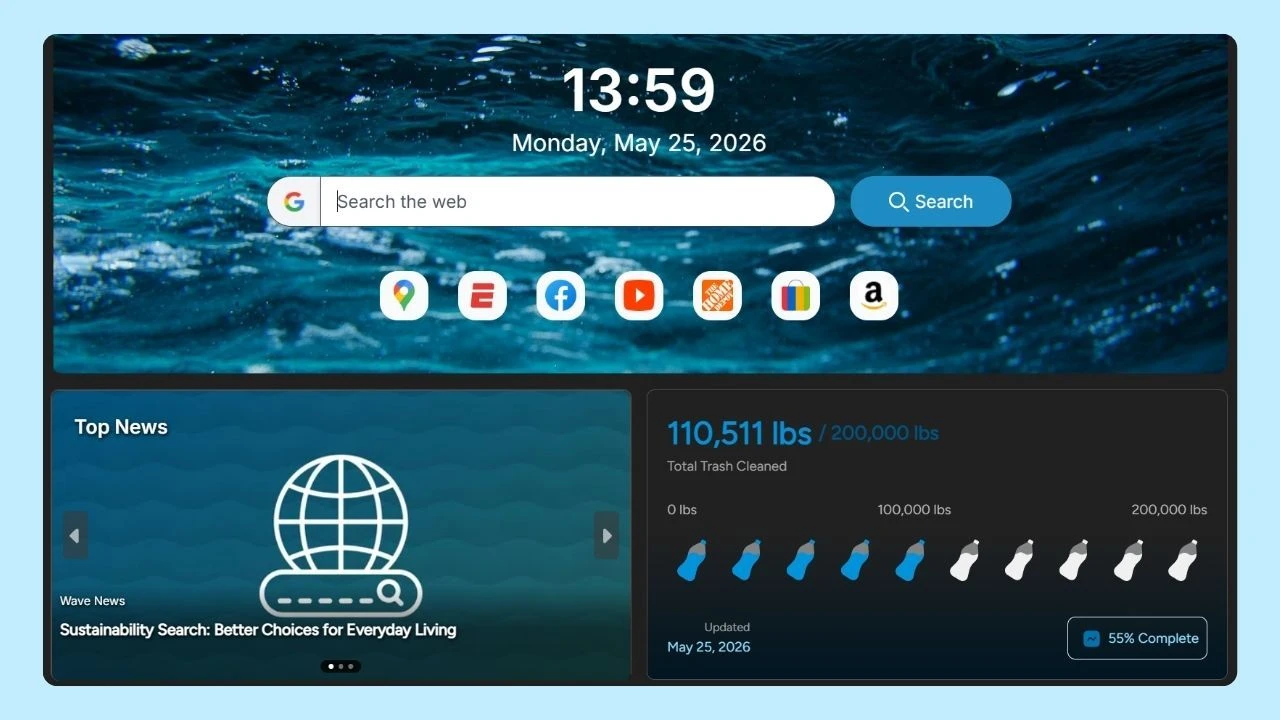
Wave Browser is free to download and use and does not install additional programs or hide additional software during installation. Users can choose to download it directly from the official website or supported app stores and can remove it through their device’s standard uninstall process.
Is Bloatware the Same as Malware?

Bloatware is not automatically malware. Most bloatware apps are legitimate programs installed by a device manufacturer, mobile carrier, software vendor, or retailer. The main concern is usually that the software is unwanted, unnecessary, or resource intensive.
However, several related terms are easy to confuse:
| Term | What it generally means |
| Bloatware | Preinstalled or bundled software that the user may not need |
| Trialware | A free trial or limited version that asks for payment after a set period |
| Adware | Software that displays advertising, sometimes in intrusive ways |
| PUPs | Potentially unwanted programs that may arrive through bundles or unclear installation choices |
| Malware | Software intentionally designed to damage devices, steal information, or perform unauthorized actions |
| Junk files | Temporary, cached, duplicated, or leftover files that are not applications |
The categories can occasionally overlap. A program may be legitimate but use aggressive advertising, unclear settings, or unwanted background activity. PUPs can also change browser preferences, add extensions, or display unexpected ads.
Wave Browser does not make forced system changes or modify settings without user awareness. The tools available through the desktop Side Bar are built into Wave Browser rather than installed as separate extensions.
Do not assume every unfamiliar app is dangerous. Search for the exact program name, confirm its publisher, and check whether your device needs it before removing it.
Why Remove Unused Software?
Bloatware removal can improve organization and recover storage space, particularly on a device with limited capacity.
Potential benefits include:
- More free space on the hard drive or other storage
- Fewer programs in the Start menu or app library
- Less background activity
- Fewer unnecessary notifications
- A shorter list of programs to update
- Fewer free trial reminders and promotional messages
- A clearer view of the apps you actually use
There can also be a security benefit to reducing unused software. Every installed program must be maintained, and outdated applications may contain vulnerabilities. Hackers sometimes target known weaknesses in software that has not been updated.
Removing unused programs does not replace security updates, safe browsing habits, or reputable security protection. It simply reduces the number of applications that require attention.
What to Check Before Removing Bloatware
Avoid deleting several unfamiliar programs at once. A cautious review can prevent problems with hardware, updates, backups, or important files.
Before uninstalling an app:
- Confirm what it does. Search for its exact name and publisher.
- Check when you last used it. Recent use may indicate that another service depends on it.
- Look for related hardware. Drivers and utilities may support audio, graphics, touchpads, cameras, printers, or other components.
- Review your files. Some apps create files that require the original program to open.
- Check subscriptions. Removing an app may not cancel its free trial or paid subscription.
- Back up important information. A current backup provides another layer of protection if you remove something by mistake.
- Create a restore option when available. This can make recovery easier if a system change causes a problem.
If you cannot identify a program confidently, leave it installed until you have more information.
How to Remove Bloatware

When learning how to remove bloatware, start with the standard removal controls provided by your operating system.
How to Remove Bloatware From a Windows PC
On Windows, there are two common removal methods:
Uninstall from the Start menu
- Open the Start menu
- Select All apps
- Find the app you want to remove
- Right click the app
- Select Uninstall
- Follow any additional instructions
Uninstall through Settings
- Open Start
- Select Settings
- Open Apps
- Select Installed apps
- Find the program you want to remove
- Open its menu and select Uninstall
Some system apps cannot be removed through Settings because Windows or another function may depend on them. Microsoft documents both methods in its official Windows uninstall guide.
After uninstalling the software, restart your PC if requested. You can then check whether any related items remain in the startup settings, notifications, or browser extensions.
How to Remove Bloatware From a Mac
On a Mac, removal depends on how the app was installed. Some programs include their own uninstaller, while others can be deleted through the Applications folder.
- Close the app
- Open Finder
- Select Applications
- Look for an uninstaller inside the app’s folder
- If there is no uninstaller, move the app to the Trash
- Empty the Trash when you are confident that you no longer need it
Apple notes that uninstalling an app does not necessarily remove documents created with it or cancel an associated subscription. Avoid searching through system folders and deleting files based only on similar names. This can remove shared components or settings used by other software.
How to Remove Unwanted Apps from an iPhone
On an iPhone, you can remove many downloaded apps directly from the Home Screen or App Library.
- Touch and hold the app
- Select Remove App
- Tap Delete App
- Confirm the deletion
Some built-in apps can be deleted, while others remain part of the operating system. Availability can also vary by region and iOS version.
Deleting an iPhone app does not automatically cancel an active subscription. Review your subscriptions separately before removing trialware or a paid service. If you want to keep an app’s documents and data while recovering storage, check whether the device offers an option to offload the app instead of deleting it completely.
How to Remove or Disable Bloatware on Android
Removal options on Android vary by phone manufacturer, carrier, and operating system version. For an app that can be uninstalled:
- Open the Play Store
- Tap your profile icon
- Select Manage apps and device
- Open Manage
- Choose the app
- Tap Uninstall
You can also open the device’s Settings, select Apps, choose the relevant application, and look for an uninstall option.
Some system or manufacturer apps cannot be deleted. On supported devices, you may be able to disable them instead. Disabling an app can prevent it from appearing in the main app list or running normally, but the underlying software may remain on the phone.
Android can also manage unused apps by removing temporary files, revoking permissions, limiting background activity, and stopping notifications.
A Cleaner Device Starts with Careful Choices
Learning how to remove bloatware can help recover storage, simplify menus, reduce background activity, and make a device easier to manage. The most reliable approach is usually to review each app individually and use the removal options provided by Windows, macOS, iPhone, or Android.
Remember that bloatware is not automatically malware, and an unfamiliar program is not necessarily unsafe. Confirm what an app does before deleting it, avoid untrusted bulk removal tools, and keep important software updated.
The same approach can be applied to your online setup. Review the apps, extensions, saved information, and browser tools you use regularly.
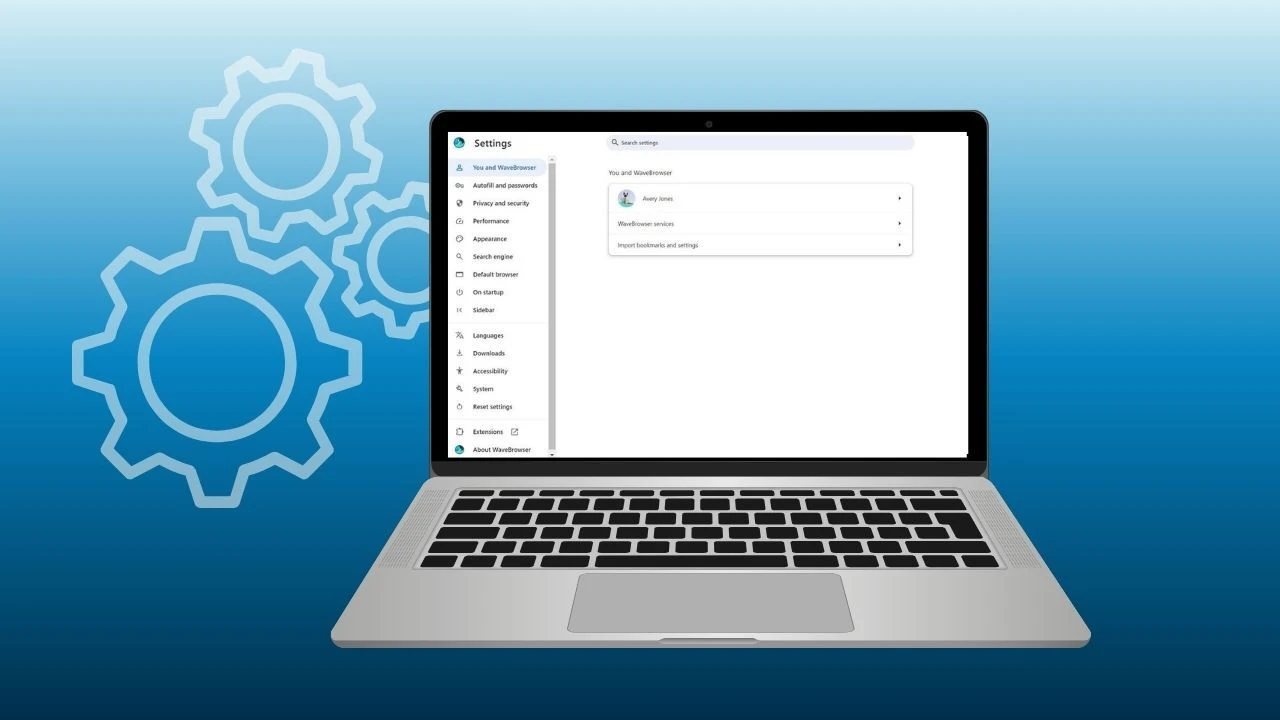
Wave Browser users can manage extensions and browsing preferences through the available settings, while device level applications should be removed through the operating system. A more organized device does not require deleting everything unfamiliar. It begins with understanding what is installed, keeping what serves a purpose, and removing what no longer fits your needs.