Switching between open tabs is one of the most common tasks in everyday browsing. Whether you’re juggling emails, researching multiple web pages, or moving between work and personal open apps, knowing the right keyboard shortcuts is a great way to save time and stay focused.
In Wave Browser, these shortcuts work just like you’d expect, making it easy to move between tabs without breaking your flow. Instead of reaching for the mouse or scanning the tab bar, you can switch to the next tab, jump to a specific tab, or even reopen a closed tab—all without leaving the keyboard.
This guide walks through how to switch tabs using keyboard shortcuts across Wave Browser and other popular web browsers across Google Chrome and Safari, on Windows, macOS, and Linux.
Why Keyboard Shortcuts Matter for Browsing
Using a keyboard shortcut reduces friction. It keeps your hands on the keyboard, minimizes interruptions, and helps you move through your browsing sessions with intention.
If you already use shortcuts to control video playback (like in our guide to YouTube keyboard shortcuts), switch views quickly with a full screen shortcut, or undo mistakes using common commands (see our undo and redo shortcut guide), applying the same approach to tab management is a natural next step.
Whether you’re on a laptop or desktop, shortcuts make it easier to:
- Move between open tabs
- Open new tabs or a new window
- Toggle between a current tab and the last tab
- Navigate faster without using the taskbar or mouse
How to Switch Tabs Using Keyboard Shortcuts
Switch Between Tabs on Windows & Linux
Most modern web browsers—including Wave Browser, Chrome, and other Chromium-based browsers—share the same shortcuts on Windows and Linux.
Below, you’ll learn how to switch tabs using keyboard shortcuts:
Go to the Next or Previous Tab
- Ctrl + Tab → Move to the next tab
- Ctrl + Shift + Tab → Move to the previous tab
This is the fastest alternative way to move through tabs in order.
Jump to a Specific Tab
- Ctrl + Number Key (1–8) → Jump to a specific tab based on its position
- Ctrl + 9 → Jump to the last tab
If you keep important web pages pinned or organized in a tab group, this shortcut is especially useful.
Open and Close Tabs
- Ctrl + T → Open new tabs
- Ctrl + W → Close the current tab
- Ctrl + Shift + T → Reopen the most recently closed tab
This works whether you’re browsing your home page, checking email, or opening a new web address from the address bar.
Tab Switching on Mac (Safari, Google Chrome & More)
On macOS, shortcuts rely on the Cmd key instead of the Ctrl key.
Move Between Tabs
- Cmd + Option + Right Arrow → Next tab
- Cmd + Option + Left Arrow → Previous tab
In Safari, you can also use:
- Cmd + Shift + \ → Show all open tabs in a grid view
Jump to a Specific Tab
- Cmd + Number Key (1–8) → Go to a specific tab
- Cmd + 9 → Jump to the last tab
These shortcuts work across most browsers on macOS, including Chrome, Safari, and Wave Browser.
Open Tabs, Windows & Apps Faster
Keyboard shortcuts don’t stop at tabs—they also help you move between open apps and browser windows.
New Windows and Pages
- Ctrl + N / Cmd + N → Open a new window
- Ctrl + L / Cmd + L → Jump to the address bar
- Type a web address and press Enter to load a new webpage
Switch Between Apps
- Alt + Tab (Windows) → Toggle between open apps
- Cmd + Tab (macOS) → Switch apps quickly without using the windows taskbar
Are There Keyboard Shortcuts For Switching Tabs in Mobile Browsers?
Yes, mobile browsers typically don't offer keyboard shortcuts like desktop versions. However, users can often switch tabs by tapping the tab icon at the bottom or top of the screen. Some browsers may support external keyboard shortcuts if connected, but functionality varies by device and app.
A Smarter Way to Browse
Mastering keyboard shortcuts is a simple but powerful way to stay focused while browsing. Instead of breaking your flow to hunt through the tab bar or reach for the mouse, you can move confidently between tabs, pages, and apps using familiar key combinations.
Over time, these small efficiency gains add up—helping you reduce digital friction, stay organized, and navigate the web with more intention. This kind of mindful browsing doesn’t just improve productivity; it can also support more sustainable digital habits.
As explored in this Softonic article on making your internet browsing more sustainable, being intentional about how you browse—fewer unnecessary actions, clearer workflows, and smarter tools—can lead to a calmer and more eco-conscious online experience.
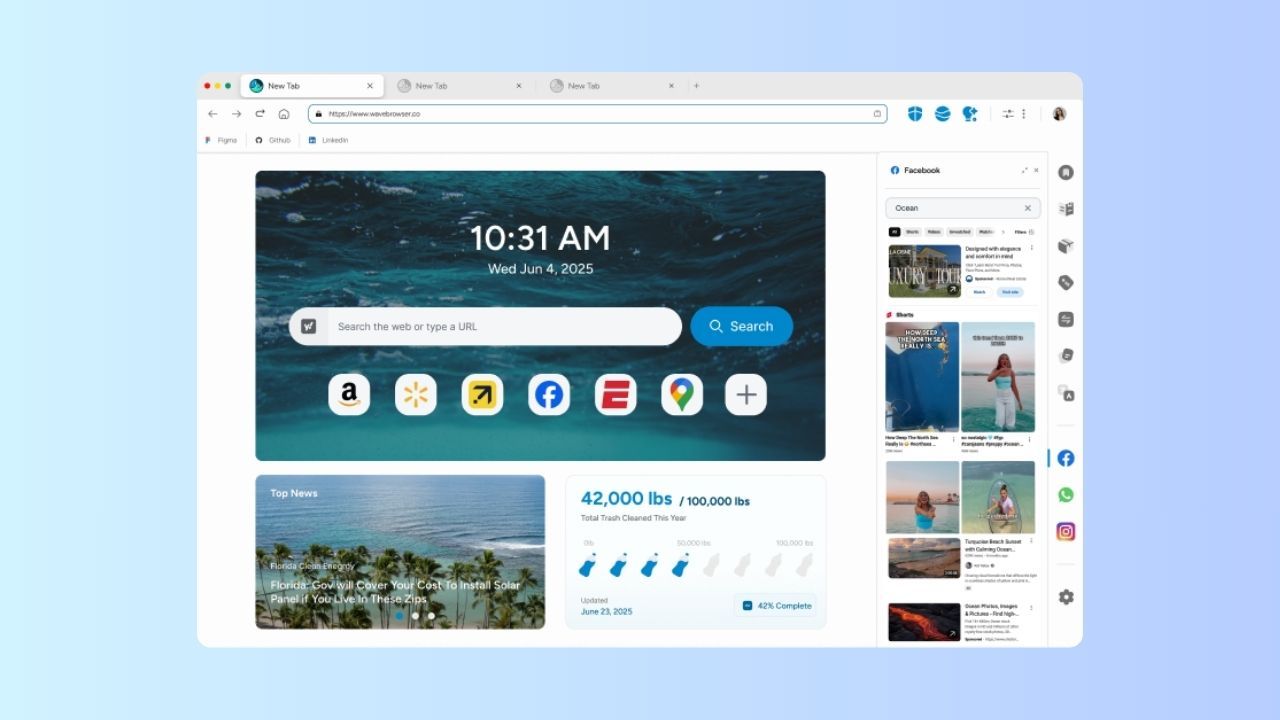
Wave Browser is designed to support this approach to intentional browsing. With familiar keyboard shortcuts, flexible tab tools, and a clean, intuitive interface, Wave helps you stay in control of how you move through the web, so you can focus on what matters without unnecessary distractions.