When you're working online, it's easy to accidentally delete text, make unwanted edits, or change the wrong setting. The undo and redo operations help you recover from these mistakes in seconds without starting over.
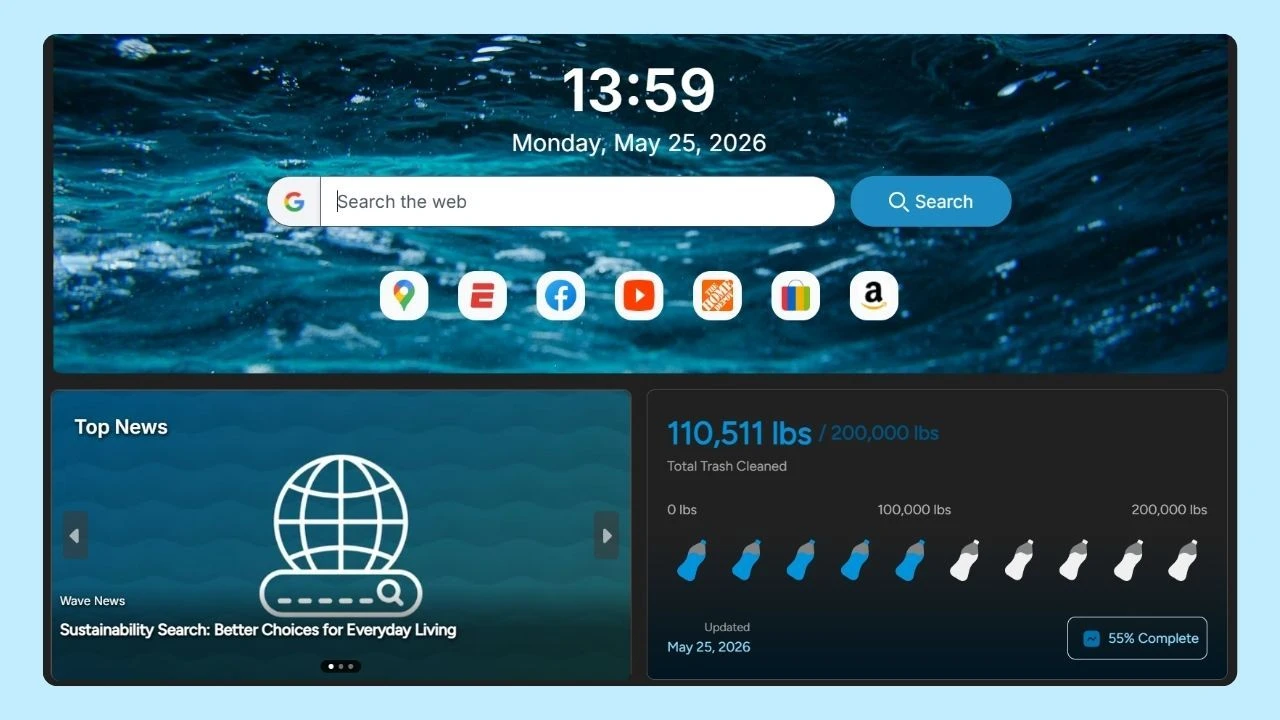
If you use Wave Browser, learning these and other productivity tips, such as the full screen shortcut and YouTube keyboard shortcuts, can help you work more efficiently, complete tasks faster, and stay focused on what matters most.
In this guide, you'll learn how the undo and redo shortcuts work, the correct function keys for Windows and Mac, and other useful system settings that can improve your workflow.
What Is the Undo Command?

The undo command reverses your last action, allowing you to correct mistakes without manually fixing them. It's available in most software applications, including text editors like Microsoft Word and Google Docs, web browsers, spreadsheets, and design programs.
For example, you can use the undo function to:
- Restore deleted sentences or text
- Reverse formatting changes
- Retrieve accidental edits
- Remove the last object you inserted
- Cancel one or more previous actions
Most applications let you roll back a series of actions, one step at a time, making it easy to go back until you reach the version you need.
What Is the Redo Command?

The redo command reapplies an action that was previously undone. If you accidentally erased something you wanted to keep, you can bring it back without repeating the work manually.
Like the undo option, the standard redo function is supported by many software applications and is especially useful when reviewing edits, testing different changes, or working through complex actions in a document, design, or project.
Undo and Redo Keyboard Shortcuts
Although the commands work the same way, the keyboard shortcuts vary slightly between Windows and Mac.
Windows
On Windows, use these commonly used shortcuts:
- Ctrl + Z: Revert the last action.
- Ctrl + Y: Restore the last undone action.
Many applications also support Ctrl + Shift + Y as an alternate redo shortcut, although Ctrl + Y remains the standard redo shortcut in most Windows programs.
These shortcuts work in many text editors, Microsoft Office applications, browsers, and other productivity tools.
Mac
If you're using a Mac, press:
- Command (⌘) + Z: Revert the last action.
- Shift + Command (⌘) + Z: Restore the last undone action.
Mac users can use these shortcuts in most native apps and many third-party applications. If your Mac includes a Touch Bar, some apps also display Undo and Redo controls for quick access.
Mobile Apps
Mobile apps don't have physical keyboards, so these functions work differently than they do on Windows or Mac. Instead of using keyboard shortcuts, most apps rely on on-screen buttons or gestures. Some apps display icons in the editing toolbar, while others place these options in the app's menu.
Their location and availability vary depending on the application.
Can You Undo or Redo Several Steps at Once?

Most applications allow users to undo or redo multiple steps, but this varies by software. Typically, pressing the Undo shortcut (Ctrl+Z) repeatedly will reverse several actions. Similarly, using the Redo shortcut (Ctrl+Y or Ctrl+Shift+Z) can restore those actions sequentially, enhancing workflow efficiency.
Using the Edit Menu
If you don't want to use a keyboard shortcut, many desktop applications let you reverse and restore using the options from the Edit menu at the top of the window.
For example, in graphic design software, word processors and text editors, click Edit > Undo or Edit > Redo to reverse or restore your last action.
Where Can You Use Undo and Redo?
The undo and redo shortcuts are available in a wide range of software applications.
You can use them in word processors like Microsoft Word, text editors, design tools such as Adobe Photoshop and Adobe Illustrator, spreadsheet programs, presentation software, code editors, and many web-based applications.
As we said, most programs let you use a shortcut key, such as Ctrl + Z and Ctrl + Y on Windows or press Command (⌘) + Z and Shift + Command (⌘) + Z on Mac. If you prefer using your mouse, you can usually access these commands from the menu bar under Edit, where you'll often see the last command listed.
While these shortcuts work similarly across many applications, some specific applications may use different key combinations or support more advanced recover and reset features. For precise information, consult the application's documentation or dedicated support site.
Undo and Redo Shortcuts Help You Work Faster
The undo and redo shortcuts are simple tools that can save time and reduce frustration when working online. From restoring deleted text to reversing unwanted edits, these commands help you recover quickly and keep your workflow moving without unnecessary interruptions.
In Wave Browser, these shortcuts work just as they do in many other browsers, making it easy to edit online forms, documents, emails, and other web content with confidence.
Combined with a clean browsing experience and Wave Browser's partnership with 4ocean to support ocean cleanup, you can stay productive while supporting a positive environmental impact.