Sending photos of receipts, handwritten notes, or project sketches as separate attachments can leave the recipient opening files one by one and guessing the order. An image to PDF converter brings those pictures into a single document, so everything is easier to follow and share.
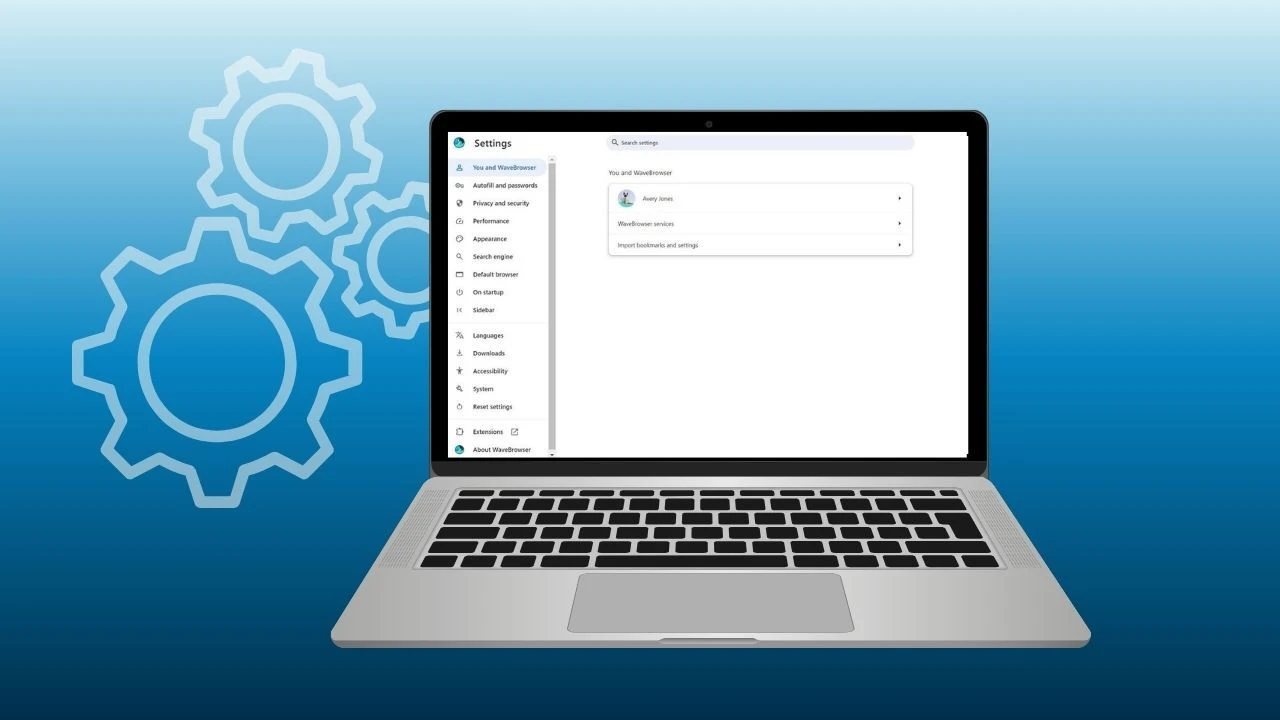
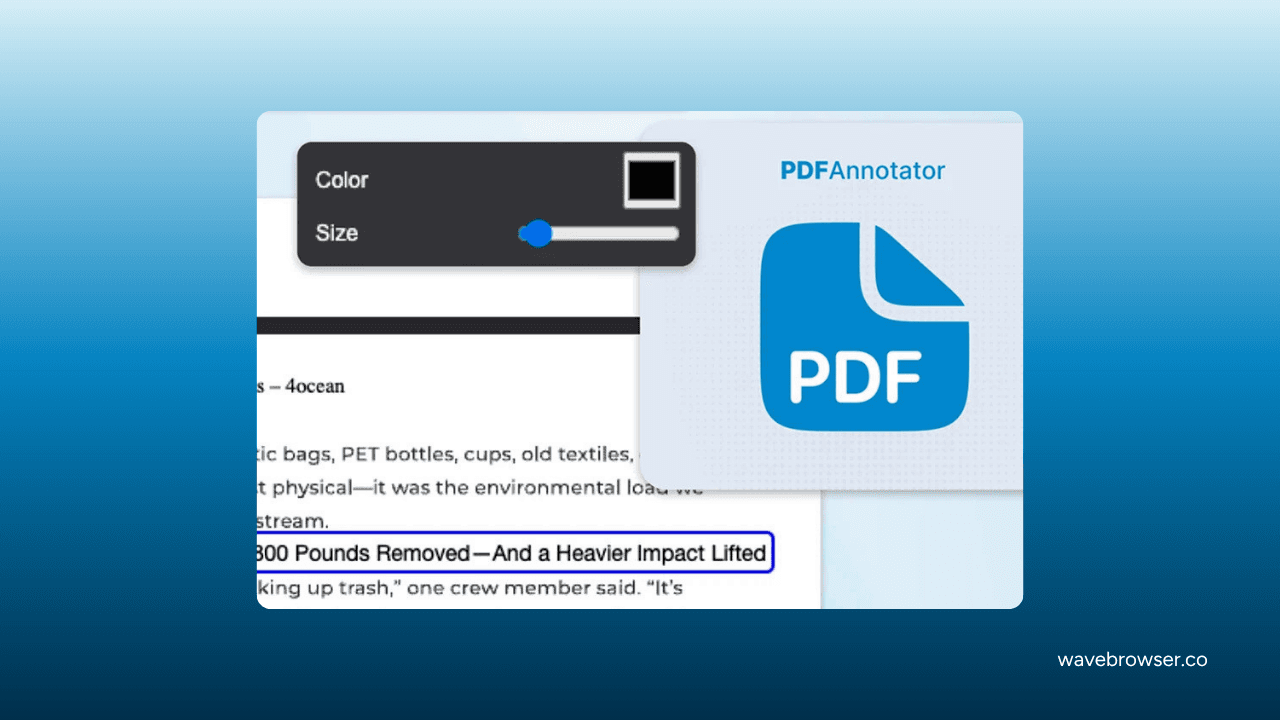
Once your images are together, you may want to explain a detail, flag a question, or point out something that needs changing. That’s where Wave Browser’s PDF Annotator can help. On Windows and macOS, you can open the converted file in your browser, add notes, and draw markups directly over the pages. If the document contains selectable text, you can highlight passages too.
For example, you could circle a measurement on a project sketch or add a question beside a scanned note. Your recipient gets both the images and the context they need in one place.
What Does Image to PDF Conversion Mean?
PDF conversion places image files inside a PDF document. You can turn one JPG file into a page or combine several JPG images into a single PDF.
Conversion and merging serve different purposes:
- Conversion changes the file format, such as turning a photo into a document.
- Merging combines separate files into a single document.
With images, some tools handle both together, placing each picture on its own page. Converting a photograph does not automatically make words within it editable. A PDF editor needs text recognition to work with photographed wording.
A free PDF editing tool may help you add feedback, but check whether its edit options change existing content or simply place notes over the original pages.
When Would You Combine Images Into One Document?

Sending Receipts or Application Documents
Photographed receipts, certificates, and supporting documents are easier to follow when they arrive together. A single PDF document gives the recipient one attachment to open.
Sharing a Design Project
A design project might include sketches, mood boards, and photographs. Browser photo editor tools can help you crop or adjust those images before bringing them together in a document to share with a client or teammate.
Start with an overview, then follow with detailed examples. A clear page sequence makes different possibilities easier to compare and discuss.
Creating a Photo Album or Planning Photo Books
A PDF photo album can collect holiday photos into a single document for digital viewing or sharing. Choose a consistent page size so the collection feels intentional. On the other hand, printed photo books need more preparation. Ask the printer about resolution, margins, and crop marks before exporting.
Saving Screenshots and Scanned Notes
Screenshots of instructions or chat logs can make a handy reference when you need to revisit a process or conversation. Keep them in order and include enough context for someone else to follow along. You can also add scanned notes or photographed pages. Check the file format and make sure the text is readable before combining everything into one document.
How to Convert an Image to PDF Online

Convenient online tools can handle this task without installing a separate application. A little preparation helps you get a polished final result.
Choose Free or Paid Tools
Choosing how to convert images to PDF depends on how many photos you need to process and how often you’ll use the tool.
Here’s what to check:
- Free options: A free JPG converter may be enough for a few photos now and then. Check supported image formats, upload limits, and whether the downloaded file includes a watermark.
- Paid options: If you regularly convert larger batches, a paid service may offer higher limits or unlimited conversions under its plan terms. Before starting a free trial, check when it ends and whether it renews automatically.
Upload and Arrange Your Pages
- Open the JPG converter
- Select your pictures
- Arrange them in reading order
- Confirm whether you want one combined document or individual downloads
You’ll often find several options in browser converter tools, from PDF to Word to conversions involving PowerPoint presentations. For your photos, choose the option that turns images into a PDF.
Adjust Layout, Image Quality and Review the Finished File
Start with the way your photos fit on the page. Portrait usually works well for photographed documents, while landscape orientation gives wide sketches and group pictures more room. Try both in the preview if you’re unsure.
Check the margins, too. Filling the page may cut off the edges of a photo, while showing the whole image can leave some white space. If you plan to print with Wave, use the print preview to check the paper size and scale before printing.
The finished document also depends on your original image quality: a blurry photo won’t become sharper just because it’s in a PDF. Higher resolution can preserve more detail, but it can also create large file sizes. Aim for clear, readable images and check that the file meets any upload limit.
What Can You Do With Your Document in Wave Browser?
Turning an image into a PDF is just the first step when you’re preparing something for review.
Open the finished file in Wave Browser and use its PDF Annotator to add a note beside a sketch, circle a detail, or flag a question. Those small additions help your reader understand what needs their attention.
If you need the material in another format later, check Wave’s conversion tools for the available options.