Gaming online rarely means keeping only one page open. You may have the game in one tab, a guide in another, a stream playing nearby, and Discord ready for your group. Add a few older tabs running in the background, and your browser can become crowded before the next match even starts.
When you play games with Wave Browser, you can enjoy gaming and everyday browsing together. Built on Chromium, Wave offers a familiar experience with tools that help you organize tabs, keep favorite platforms close, and manage browser resources during longer sessions.
The result is a browser setup that works for more than launching an online game. It supports the research, communication, streaming, and multitasking that often happen around it.
Start With the Memory Saver Feature
Every open tab uses some amount of memory. The exact amount depends on the page, but video platforms, interactive websites, and web apps can be more demanding than a simple article. Keeping many of them active while gaming may leave fewer system resources available for the task in front of you.
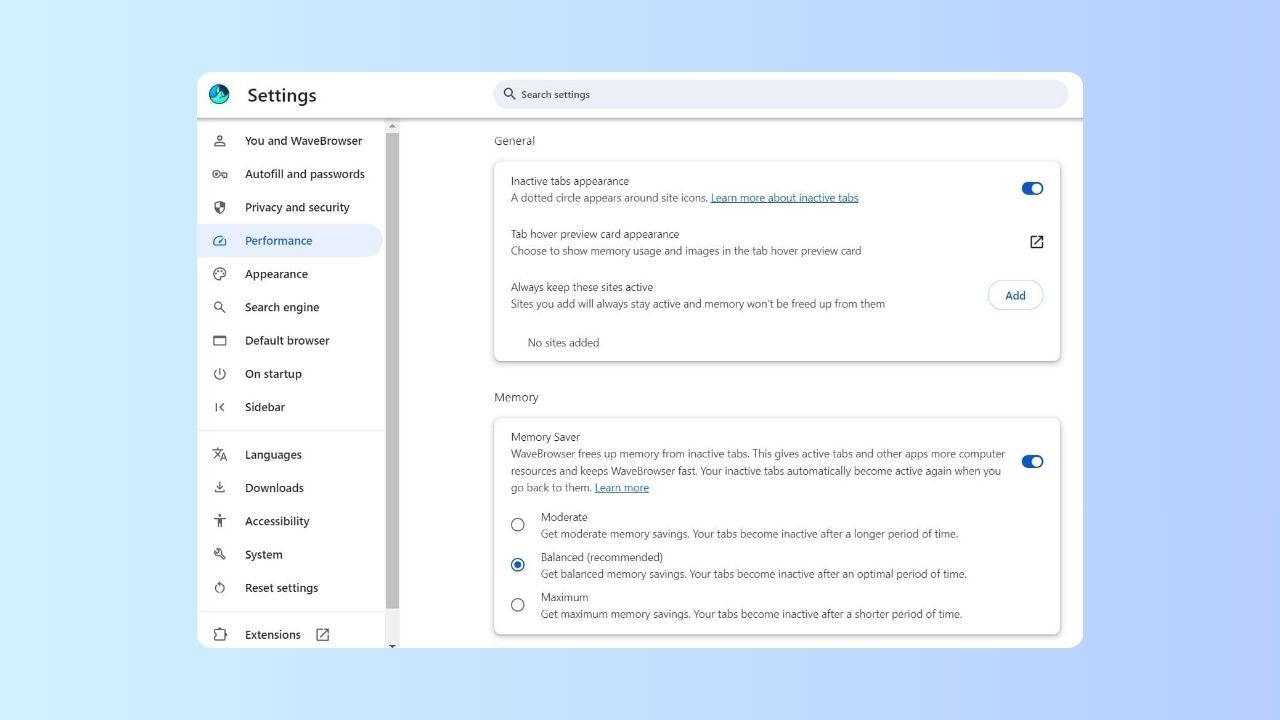
Wave's Memory Saver feature helps by pausing inactive tabs. This frees memory from tabs you are not currently using while keeping them available in your tab bar. When you return to one, the page reloads so you can continue browsing.
This is useful when you want to keep a walkthrough, forum discussion, store page, or video nearby without leaving every page active throughout the session.
To turn it on in Wave Browser:
- Open the Wave menu.
- Select Settings.
- Go to Performance.
- Find Memory Saver and turn it on.
You can also review the available options in Performance settings to choose how aggressively inactive tabs are managed. If there are pages you always want to keep active, add them to the exception list when that option is available.
Memory Saver does not increase your computer's installed RAM or guarantee a specific frame rate. It simply helps Wave use browser memory more efficiently by reducing the resources assigned to inactive tabs.
Browser Settings for Gaming That Are Worth Checking
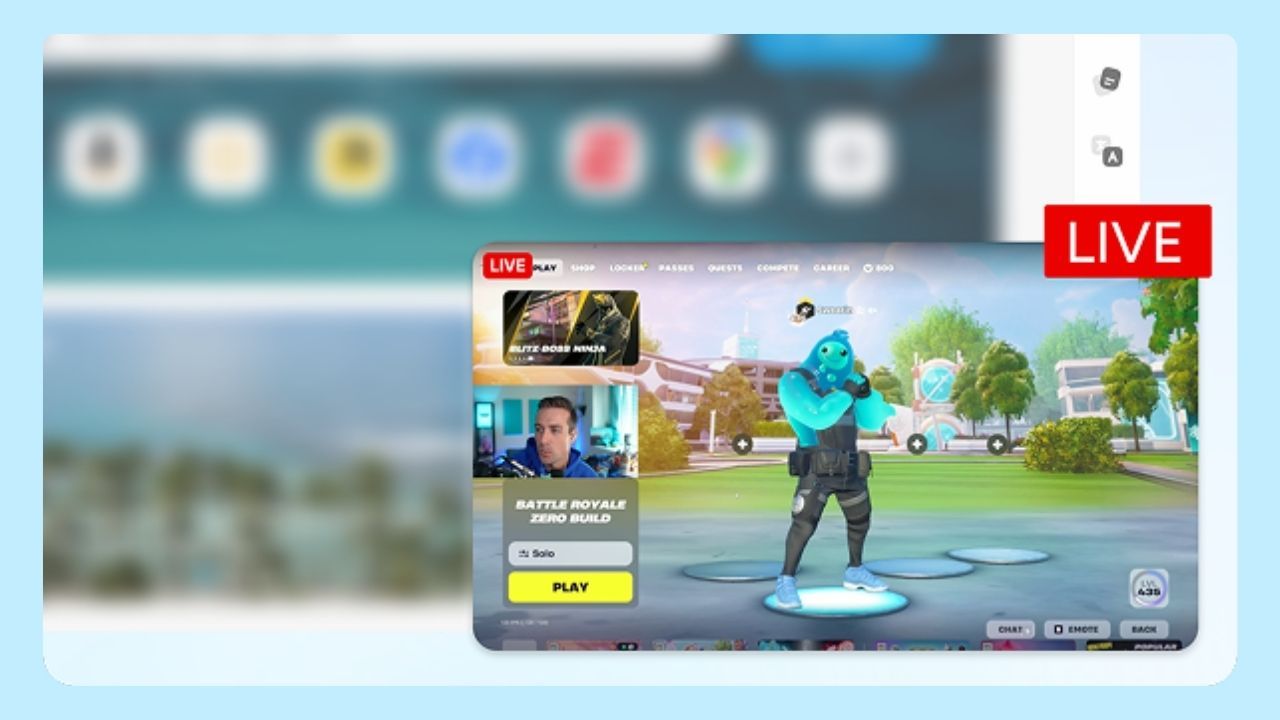
The best browser settings for gaming depend on how you play, but a few adjustments can make a busy session easier to manage.
Review open tabs before playing
Close pages you no longer need and bookmark anything you want to revisit. Fewer active tabs mean fewer pages competing for browser memory and attention.
If you prefer to leave research or guides open, turn on Memory Saver so Wave can pause inactive tabs until you need them again.
Remove extensions you no longer use
Extensions can continue running processes in the browser, even when you are not actively interacting with them. Open the extensions page and remove or disable tools you no longer need.
Keep only the extensions that serve a clear purpose. This also makes it easier to identify the source if a page stops working as expected.
Keep Wave Browser updated
Updates can include compatibility, stability, and security improvements. Using the latest official version gives you the most current browser experience available for your device.
Download Wave Browser only through its official channels. Desktop users can access the official versions for Windows and macOS through the Wave Browser website.
Check site permissions
Some gaming, streaming, and voice platforms need access to notifications, sound, the microphone, or the camera. Review permissions for the sites you use and allow only what each platform needs.
If voice chat or audio is not working, check the site's permission settings before changing broader system controls.
Clear browsing data when troubleshooting
Stored site data can sometimes cause login, loading, or display problems. If a gaming site is not behaving normally, clearing its cached data may help. Start with the affected site rather than clearing everything, especially if you want to remain signed in elsewhere.
Practical Steps for Improving Browser Session Speed

For anyone focused on improving browser sessions speed, the most useful approach is to reduce unnecessary work inside the browser.
No single setting can control every factor, but these steps can help keep Wave focused on the pages you are actively using:
- Turn on Memory Saver to pause inactive tabs
- Close duplicate tabs and pages you have finished using
- Disable extensions that are not needed for the session
- Pause downloads or uploads that can wait
- Avoid running several video streams at the same time
- Restart the browser if it has been open with many tabs for an extended period
- Check your internet connection when delays affect online content rather than the browser interface
It helps to separate browser responsiveness from game performance. Memory Saver may reduce browser memory use, but factors such as graphics settings, network latency, server conditions, and device specifications remain outside the browser's control.
Keep Gaming Platforms Within Reach
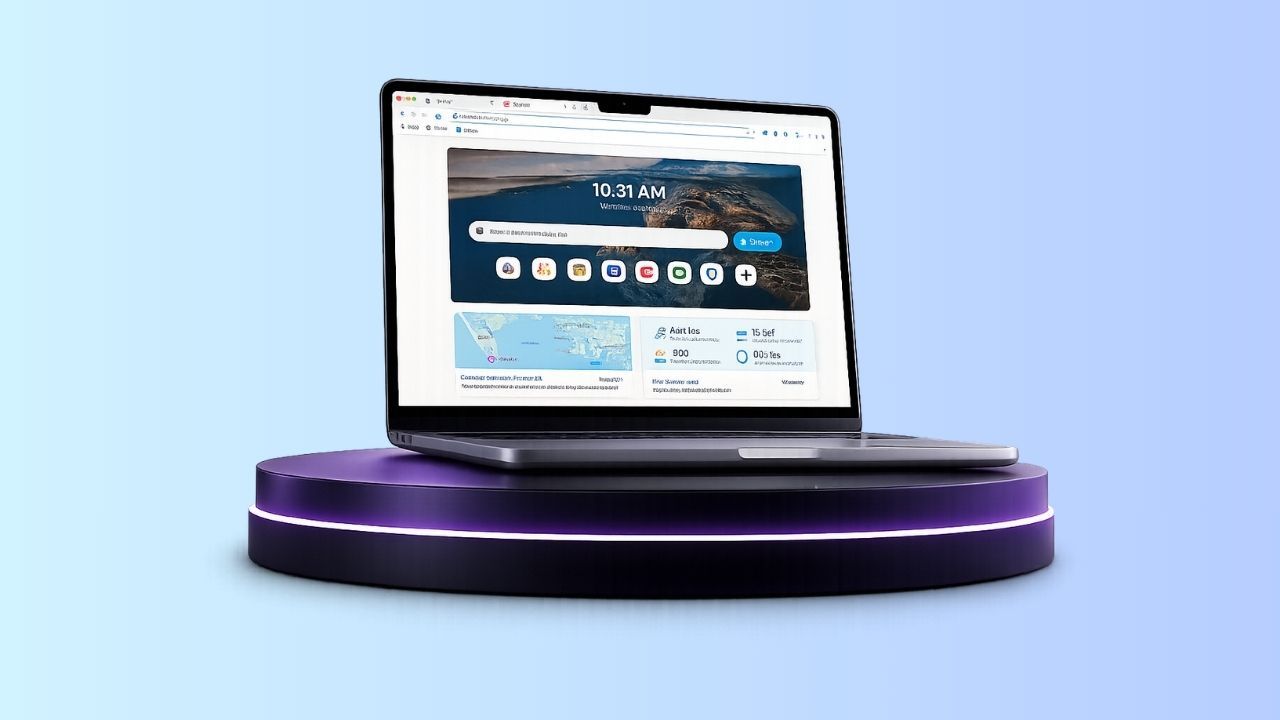
Gaming often continues beyond the game itself. Players move between community chats, videos, streams, news, and guides throughout a session.
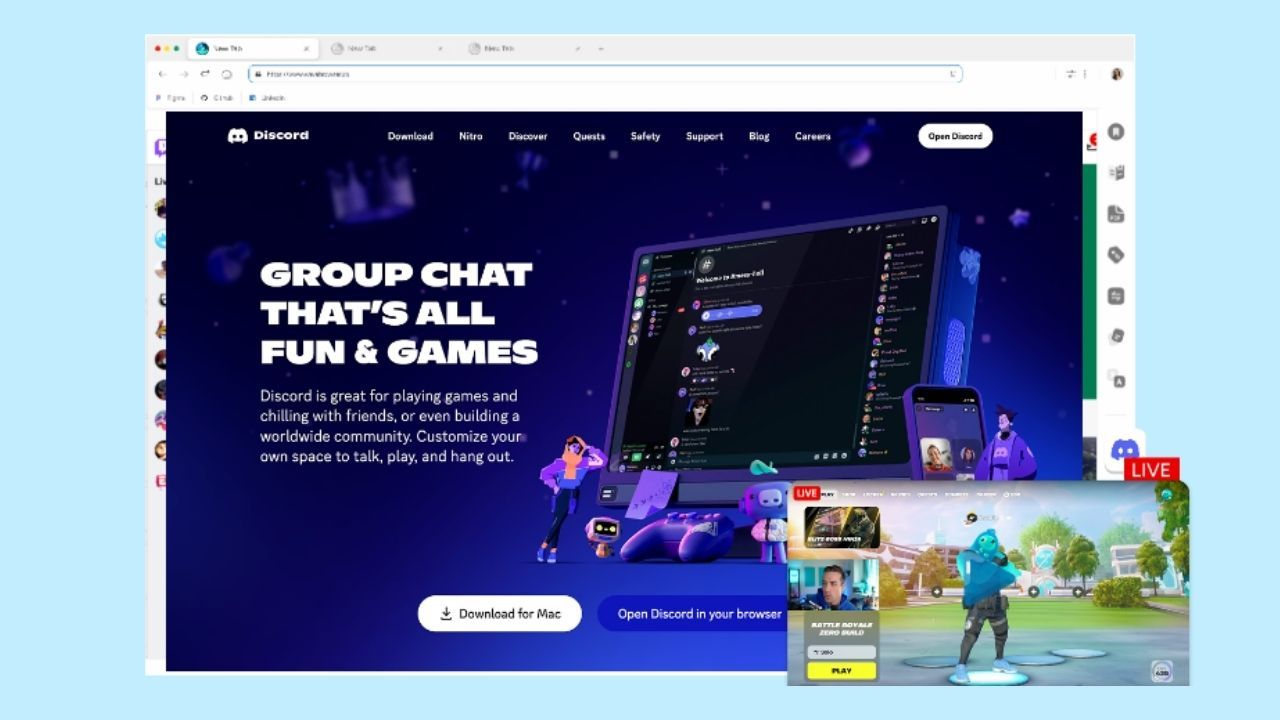
Wave's desktop sidebar keeps platforms such as Discord, Twitch, and YouTube close to the page you are using. This can reduce the need to search through tabs each time you want to check a message, open a stream, or watch a tutorial.
Viewing two pages side by side adds another option for multitasking. It allows you to keep a walkthrough, live event, or stream visible on one side while browsing or completing another task on the other.
Bookmarks and reading lists can also keep game guides, update notes, and community pages organized between sessions. Instead of leaving every reference open, save it and return when you need it.
Play, Browse, and Stay Organized With Wave
Playing browser games with Wave is about creating room for the full gaming routine, from opening a game and checking a guide to catching up with a community or watching a stream.
Wave Browser brings resource controls and practical tools into one familiar Chromium-based experience. The Memory Saver feature manages inactive tabs, the sidebar keeps favorite platforms nearby, and simple browser settings help you shape each session around the way you play.
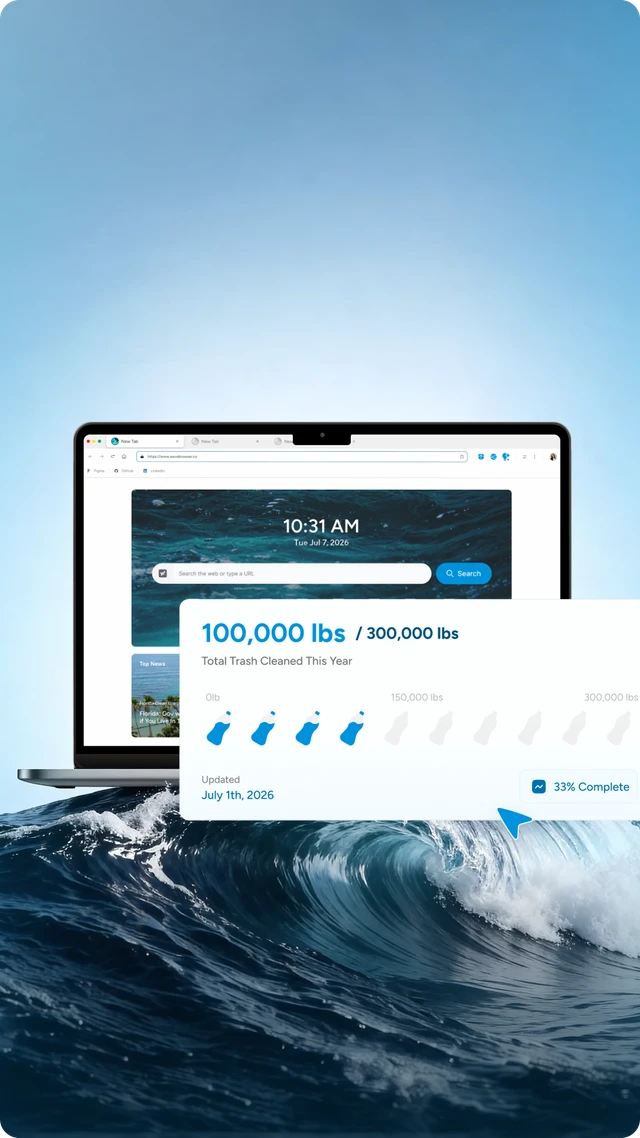
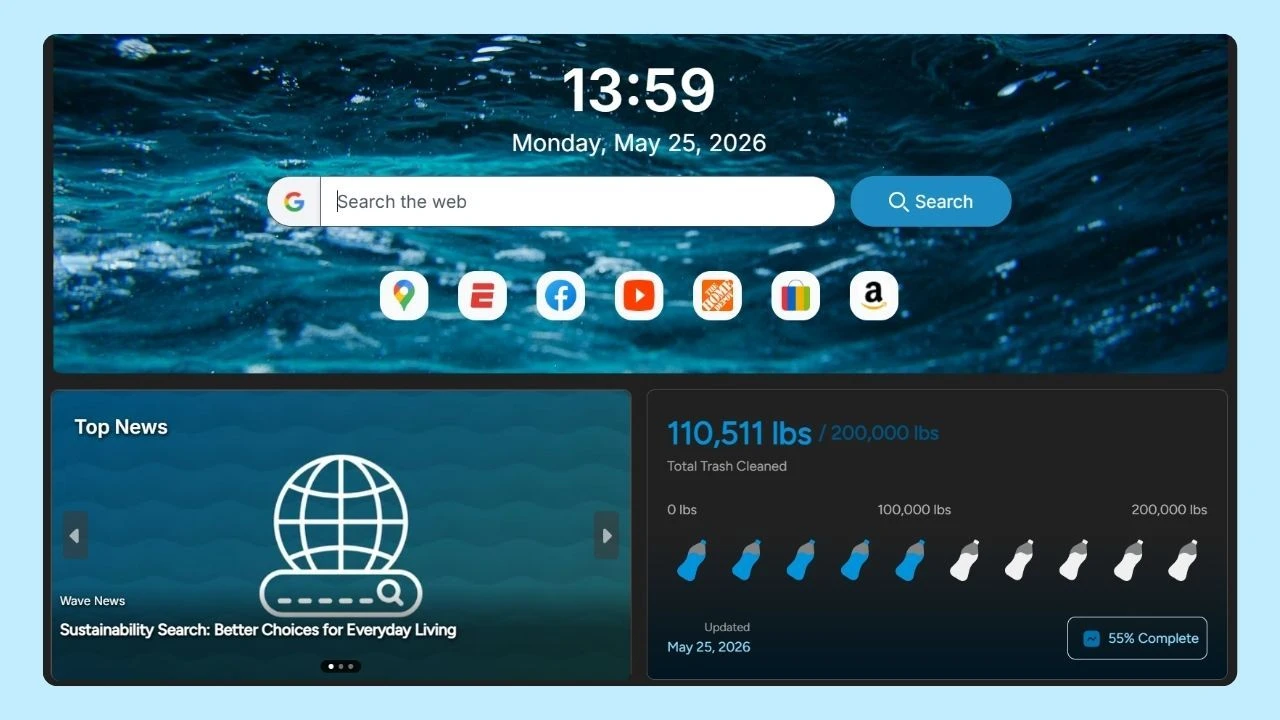
Wave also connects everyday browsing with verified environmental impact. Through its partnership with 4ocean, Wave helps fund the removal of plastic and trash from our ocean, rivers, and coastlines worldwide.
Visit our features page to discover how Wave Browser supports your gaming experience!