Browsing faster is not always about finding one setting or chasing the fastest browser label. Page loading depends on the web browser, the device, the website, and the internet connection working together. When any one of them struggles, routine tasks such as web searches, streaming, online shopping, or opening a smart home dashboard can feel less responsive.
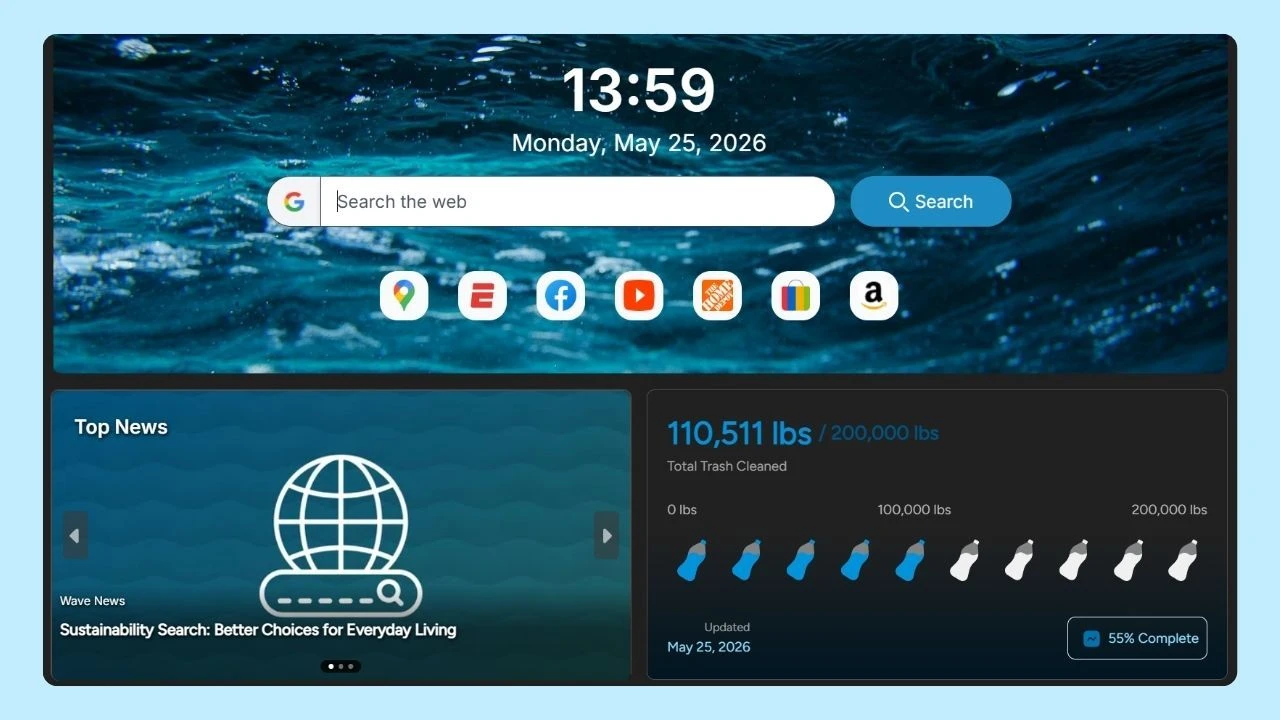
Wave Browser is built on Chromium and includes practical features that can support a smooth, organized browsing experience. Memory Saver pauses inactive tabs, while the ad blocker available on supported platforms can reduce unwanted page activity.
A good password manager and handy everyday tools can save you a lot of time. If you're interested in browsing faster, these simple tips will help you speed up your web experience and fix what’s slowing you down.
What Affects Browsing Speed?
Before changing settings, it helps to identify where the delay begins. A slow browser may be using too many system resources, but long load times can also come from a slow internet connection or from the website itself. The first step is to notice the pattern.
- If every website feels slow, check the connection, device load, and background processes.
- If only one website is affected, the website’s speed or design may be the main issue.
- If performance drops after many tabs are opened, memory use and inactive tabs may be contributing.
- If delays appear while other devices are streaming or downloading, internet speed and network congestion deserve attention.
A page also has work to do before it becomes usable. The server must respond with the first byte, and then the page may request images, fonts, stylesheets, video, and JavaScript code. More HTTP requests and a larger amount of data can increase load times, especially on slow internet speeds.
Browser caching, image optimization, and a content delivery network can help site owners improve web performance, but those elements are controlled by the website rather than by the visitor.
Tips for Browsing Faster
1. Check Your Internet Connection
Use a reliable internet speed test before changing multiple settings. Run the test near the device you normally use, then repeat it at another time of day. Compare download speed, upload speed, and latency rather than looking only at the largest number.
Even an ultrafast internet connection can feel slow when several devices compete for bandwidth or when latency rises under load. Pause large downloads, cloud backups, and high resolution streaming, then test again. If the result improves, the number of active devices or the router may be affecting the experience. Restarting the router and moving closer to it can also help with a weak wireless signal.
Remember that an internet test measures the connection, not site speed or the responsiveness of the software. A strong result does not rule out performance issues elsewhere.
2. Update Your Browser and Device
Keeping software on the latest version can provide performance fixes, compatibility improvements, and security protection. Check the main menu for available updates. Depending on the device and interface, an update icon may appear in the upper corners of your browser or near the top corners of your browsing window. Restart after updating so the change is fully applied.
Operating system updates can matter too because graphics, networking, memory management, and battery optimization all affect how smoothly pages run. Apply trusted updates when convenient and restart the device if required.
3. Close Work You No Longer Need
Every active page can use memory, processing power, or network capacity. A dashboard left open from a previous job, a paused video, a smart home control panel, or several product pages from online shopping may continue using resources in the background.
Close tabs and windows that are no longer useful. Memory saving features can pause inactive tabs so they use fewer resources until you return. Tab manager tools can also help people who regularly keep large sessions open. The goal is not to close everything, but to keep the current task from competing with forgotten pages.
4. Review Extensions and Background Processes
Extensions can be valuable, but each one may add background processes or run on pages you visit. Review installed extensions and remove or disable the ones you no longer use. If a slowdown began after adding a new tool, temporarily turning it off is a useful check.
Also review other applications running on the device. Sync services, video calls, downloads, and system scans can consume system resources. Closing unnecessary programs can reduce browser slowdowns without changing the pages you need.
5. Use the Ad Blocker Thoughtfully
Pages filled with unwanted ads can require additional scripts, media, and network requests. If your browser includes an ad blocker, enabling it can reduce some of that activity. Fewer page elements may mean less work during loading and a cleaner user experience.
Some websites offer features or content only when ads are allowed, so use site controls when necessary. An ad blocker cannot fix a slow server, weak connection, or poorly optimized page, but it can reduce avoidable page activity in some situations.
6. Clear Site Data Only When There is a Reason
The browser cache stores copies of certain files so a returning page may not need to download everything again. This browser caching can improve repeat visits and reduce the amount of data transferred. Clearing the entire cache as a daily habit may therefore make the next visit slower.
Clear data selectively when a specific page displays old information, fails to load correctly, or appears broken after an update. Start with that site rather than deleting every saved file and login session. This keeps useful cached content while targeting the problem.
7. Keep Passwords Organized Without Slowing Your Routine
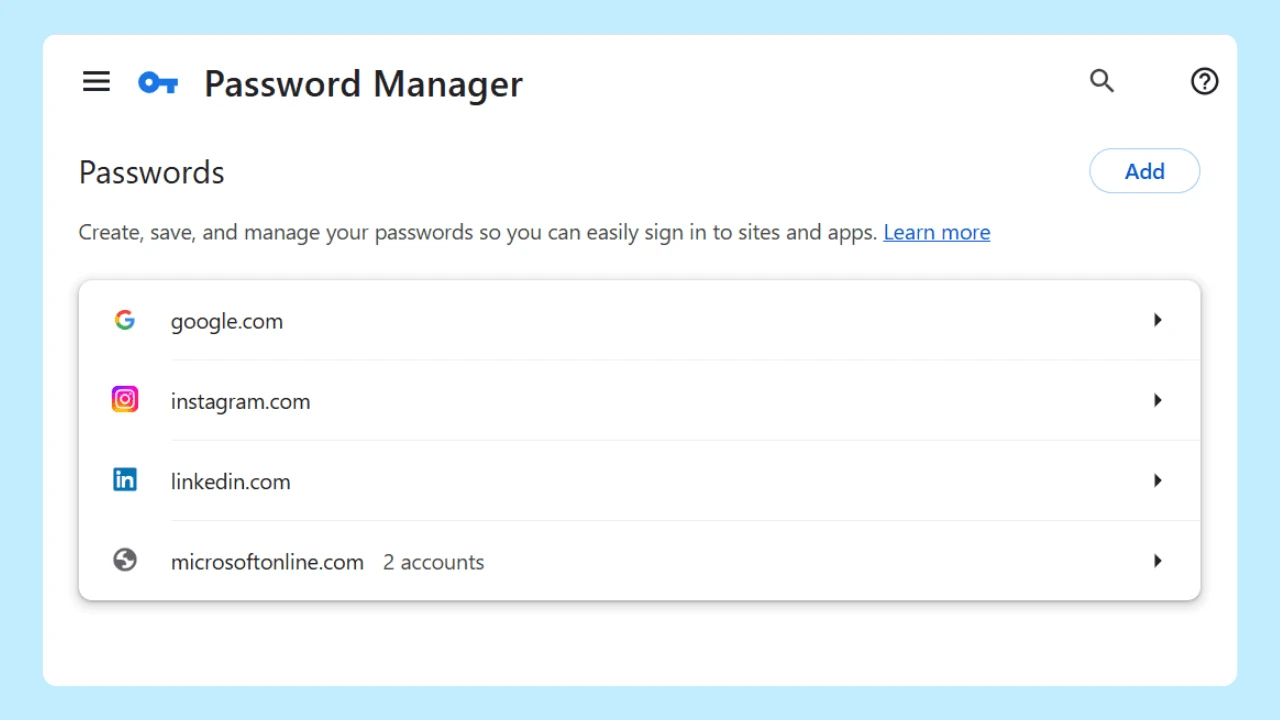
A password manager is mainly a security and convenience feature, but it can also make sign ins smoother by storing login information and filling it when needed. It reduces the time spent searching for credentials or resetting forgotten passwords.
Review security alerts as well. If an account appears to be part of a password breach, update the password directly through the service and avoid reusing it elsewhere. Better account habits will not increase internet speed, but they can remove friction from everyday browsing and keep more control in your own hands.
8. Make Searches and Navigation More Direct
- Use the address bar for direct URLs and web searches instead of opening several pages to reach the same destination.
- Review the default search engine and remove unfamiliar search settings or extensions that redirect requests.
- Bookmarks and the reading list can also shorten the path to pages you use frequently.
Whether you are the type of person who keeps a few focused tabs or dozens of research pages, organize the window around your specific browsing needs. Desktop productivity tool options and tab manager tools can help keep common activities accessible without turning every task into another open tab.
9. Recognize When the Website is Responsible
Users can improve their setup, but they cannot control every page. Browsing faster depends on hosting, code, media, and how quickly its server responds to user requests. Heavy JavaScript code, oversized images, too many HTTP requests, or a slow first byte can delay the page even when the device and connection are working well.
For site owners, image optimization reduces unnecessary file size, while browser caching can reuse resources on later visits. A content delivery network may serve files from a location closer to the visitor. These changes can improve site speed, user experience, and, for commercial pages, potentially support higher conversion rates. They are website development decisions, not settings an everyday visitor can repair.
If one page is consistently slow while other sites work normally, try it later or contact the site owner. Repeated reloads may create more traffic without resolving the underlying issue.
10. Change One Setting at a Time
When several changes are made at once, it becomes difficult to know what helped. Begin with the most likely cause, repeat the same activity, and note whether the result changes. This makes improving browsing speed a practical process rather than guesswork.
- Test the internet connection under the same conditions.
- Close unused tabs and background applications.
- Update the software and restart the device.
- Review extensions and disable one at a time.
- Check whether the problem affects one site or the entire session.
If none of these tips makes you browse faster and improves the experience, broader troubleshooting may be needed. This guide to understanding why your browser is so slow can help you examine common causes of sluggish browser speeds and persistent slow browser speeds.
Build a Faster Everyday Browsing Routine

Browsing faster usually comes from a combination of small improvements: a stable connection, current software, fewer unnecessary tabs, selective extensions, and realistic expectations about what the website controls. These habits can reduce slowdowns while keeping the tools you actually use within reach.
Wave Browser brings Chromium-based compatibility together with Memory Saver, ad blocking on supported platforms, password management, and desktop organization features designed to support a smooth, organized browsing experience.
Browsing faster is not about finding one browser that works best in every situation. It is about making simple adjustments that suit your device, internet connection, and everyday routine. These small changes can help create a smoother and more reliable browsing experience over time.