The web doesn’t speak just one language, and unfamiliar words shouldn’t slow you down. A browser translator helps make content from around the world easier to understand, whether you’re reading international news, reviewing work emails, comparing products, studying a foreign language, or exploring a web page from your search results.
On Mac and Windows, Wave Browser includes a built-in Translator tool accessible through the sidebar. Translate an entire page or focus on selected text while keeping your current tab and workflow within reach. There’s no need to install a separate extension or constantly switch between different websites and apps.
In this guide, you’ll learn how browser translation works, how machine translation and language detection help process web content, and when to translate a full page or a specific section.
What is a Browser Translator?

A browser translator is a feature or translation service that converts web content from one language into another while you browse. Instead of copying each paragraph into a separate tool, you can translate website content closer to the page you are viewing.
Depending on the available functionality, the browser may translate the entire page, translate selected text, or offer translation suggestions when it detects a foreign language.
The goal is not to change the original webpage.
Translation creates a readable version for the user while the source page remains available in its original form. This makes webpage translation useful for beginners as well as experienced users who regularly work across multiple languages.
Browser Translator vs. Translate Extension
| Feature | Built-In Browser Translator | Translate Extension |
| Setup | Already integrated into the browser | Must be downloaded and installed |
| Maintenance | No separate extension to configure or update | Adds another component to manage |
| Access | Available directly from the browser interface | Usually accessed through the extensions menu or toolbar |
| Functionality | Designed for routine webpage and selected-text translation | May provide specialized translation features |
| Workflow | Helps reduce switching between tools or websites | May require additional setup or permissions |
How Browser Translation Works

Most translation tools use machine translation. The system analyzes words, grammar, sentence structure, and context before producing an equivalent version in the selected target language. Automatic detection can usually recognize the original text, while your preferred settings determine which translation should be prioritized.
This functionality can also serve as a helpful language learning tool, allowing users to compare vocabulary, expressions, and sentence structures across different languages.
A typical workflow begins when you open a webpage from the address bar, a link, or a search engine. If the content is not written in one of your preferred languages, the browser or translation service may display a translation bar, sidebar option, or another prompt. You can then translate the page, keep the original version, or choose a different option from the available list.
Automatic translation can be convenient, but it is not perfect. Meaning can depend on tone, industry terminology, cultural references, or the relationship between sentences. For important legal, medical, financial, or contractual material, treat machine translation as a starting point and seek qualified human review when accuracy is critical.
When a Browser Translator Is Most Useful
- Research and search results: Open sources from different regions and translate website pages that add useful context to your topic.
- Work and communication: Read foreign-language emails, messages, documentation, and shared web content while keeping your main workflow open.
- Shopping and travel: Understand product details, policies, menus, schedules, and local information before making a decision.
- Study and language learning: Compare an English translation with the original paragraph and build familiarity with vocabulary and sentence structure.
- Accessibility: Make unfamiliar text easier to understand and reduce the effort required to move between a webpage and a separate translation service.
- Time-sensitive content: Quickly review an announcement, update, or report - for example, a page published in July - even when it is not available in your preferred language.
Translate an Entire Page or Only Selected Text?
Translate the Entire Webpage
Use entire-page translation when you need the overall meaning of an article, product page, help center, travel website, or long-form resource. A translate page option can keep headings, paragraphs, menus, and other visible web content together, which helps preserve the flow of the webpage.
This is often the most practical choice when most of the website content appears in a foreign language.
Translate a Selection
Use translate selection when only a sentence, paragraph, label, or section of a page needs clarification.
Highlighted text can be easier to review because it narrows the translation request and keeps attention on the relevant passage. Some tools surface this option through a context menu after you select the text; others place the function in a sidebar or toolbar.
Selection translation is especially helpful for multilingual emails, technical instructions, customer comments, captions, or a short passage inside an otherwise familiar web page. It also supports language learning because you can compare a smaller section with the original instead of replacing the entire page at once.
Why Use Wave Browser's Built-In Translator?
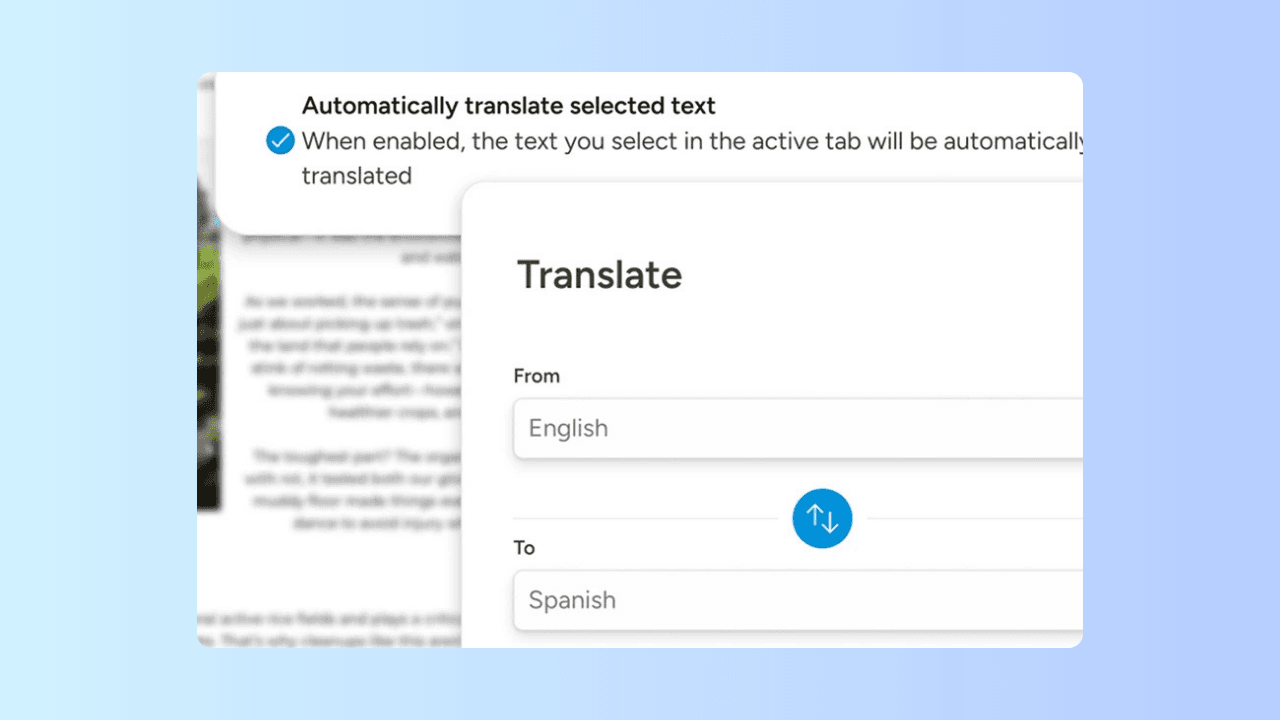
Wave Browser brings its translation functionality into the browser rather than requiring users to find and manage a separate extension. On supported Mac and Windows versions, the Wave Browser's Translate Tool is accessible through the productivity sidebar, keeping translation within easy reach while you browse.
Here's how to use the Wave Browser translator:
- Open Wave Browser on a supported Windows computer or Mac.
- Navigate to the webpage you want to understand. You can enter the URL in the address bar or open a result from your preferred search engines.
- Open the productivity sidebar and select the Translate tool.
- Choose the relevant source and target options from the available language list.
- You can automatically translate selected text. When this option is enabled, the text you select in the active tab will be automatically translated.
- Choose whether you want to translate the entire page or work with highlighted text from a specific section.
- Review the translated version alongside the original, especially when the content includes technical terms, names, numbers, or instructions.
This setup can reduce unnecessary switching between websites and apps.
You can continue browsing while translating web content, review a foreign-language paragraph during research, or keep a translation available while working on another page. The result is a more connected user experience for reading, research, communication, and everyday productivity.
Wave's translation tool is designed to support both full webpage translation and selected text. The feature page also describes PDF translation, helping users understand documents in different languages without leaving the browser. No extra extension is required.
Frequently Asked Questions
Can a browser translator translate every webpage?
Not always. Some webpage elements may be generated dynamically, embedded in images, protected, or structured in a way that limits translation. The available translation capabilities also depend on the browser, page, and device.
Can I translate only one paragraph?
Yes, when selected-text translation is available. Highlight the text you need and use the relevant sidebar, toolbar, or context menu option. This is useful when most of the page already uses your preferred language.
Does machine translation preserve the exact meaning?
Machine translation can communicate the general meaning effectively, but it may miss tone, wordplay, specialized terminology, or cultural context. Review important content carefully.
Do Windows language settings translate websites?
Windows language settings manage operating-system display and input preferences. Website translation is handled through the web browser or another translation service, so a Windows computer may still need a browser translation feature for foreign-language pages.
How do I translate a website without an extension?
Use a browser with built-in translation functionality. In Wave Browser on Mac and Windows, the built-in Translator is available through the sidebar, so you can translate website content without adding a separate translate extension.
Make Multilingual Browsing Part of Your Workflow
A browser translator can make website translation feel like a normal part of browsing rather than a separate task. It can help you read an entire page, understand highlighted text, work through PDFs, review emails, and explore search results from different languages. Used thoughtfully, automatic translation and selection-based tools can improve accessibility while keeping the original web content close at hand.
On both Mac and Windows, Wave Browser's built-in Translator tool is accessible through the productivity sidebar. This makes it easier to translate a page or a section of a page within your existing workflow, with no extra browser extension required. For users who regularly move between languages, that direct access can support a more organized and convenient browsing experience.