You’ve finished your application, attached your documents, and clicked upload. Then a message appears: the file is too large.
If you need to compress PDF files, the goal is simple: make them smaller while keeping everything readable.
Once you have a lighter file, Wave Browser’s PDF Annotator helps you review it. On Windows and macOS, you can highlight passages, add notes, and draw markups directly in your browser.
In this article, we’ll walk you through how compression works, when it’s useful, and how to choose between free and paid tools. You’ll also learn how to reduce file size and check that your text and images still look clear before sharing.
What Does It Mean to Compress PDF Documents?

Think of compression as making your document lighter without removing what someone needs to read. It can reduce file size by storing information more efficiently, removing redundant data, or reducing image detail. How the compression process works depends on the tool and your document.
A PDF that’s mostly text may already be small. Heavy PDFs with large images or scanned pages often have more room for reduction.
The compression level lets you choose how much to shrink the file. A lower setting usually preserves more detail, while high compression can create smaller files with some loss of quality.
There’s no perfect balance for every document. A resume needs clear, readable text, while a photograph or detailed diagram may need more image detail. Start with a moderate setting and check the result to find the optimal balance for your file.
When Might You Need a Smaller PDF?

Uploading a Resume or Job Application
Job application portals often set size limits for application documents. If your PDF resume exceeds the limit, reducing it can help you finish the submission:
- Check the file first
- Remove unnecessary images
- Choose the correct paper size before exporting
The size of your resume matters less than its readability once it meets the requirement. Keep contact details, headings, and essential content clear.
Emailing Reports and Project Documents
A large PDF file can make sending attachments awkward, particularly when several documents accompany it. Compression supports easy sharing by reducing the amount of data being transferred.
For example, a project report containing photographs may need a smaller copy for email. Keep the detailed original for anyone who needs higher resolution.
Sharing Files From a Phone
Uploading from a mobile device can take longer with a slow internet connection. A smaller document reduces how much data needs to move. Mobile apps and browser converter tools can help, but check compatibility with major platforms and whether you can inspect the result on your screen.
Managing Scanned Documents and Local Storage
Scanned PDF file size can grow quickly when every page contains a detailed image. A stack of receipts or handwritten notes may become surprisingly large. Reducing unnecessary image detail can help with local storage, but small lettering still needs to remain readable. Keep an original copy for peace of mind.
How to Compress PDF Online
Compare Free and Paid Options
Free tools can help you compress or convert PDF files for free when you only need them occasionally. Just check upload sizes, daily usage limits, and export restrictions before starting. Paid subscriptions may offer larger uploads or batch processing. If a provider advertises unlimited PDF compression, check what that means for file sizes and fair usage.
Upload Your Document
Before uploading your document, take a moment to check these details:
- Select your file: Open your chosen online PDF compressor and upload the document. The service’s compress PDF tool may also support drag and drop.
- Check how your data is handled: Before uploading personal data, find out whether processing happens in your browser or on the provider’s servers, and how long uploaded files are kept. For confidential work, use a service approved by your organization.
- Review password requirements: If you’re asked to remove password protection, only proceed if you have permission and understand why access is needed.
Choose a Suitable Compression Level
Start with a moderate setting. Strong PDF compression or a high level of compression may reduce image clarity more than you need.
- For a report with diagrams, preserve labels and fine lines.
- For a text document, prioritize text quality and the PDF’s professional appearance.
For example, if an application accepts two megabytes and your file is six, you need enough reduction to meet that limit. You do not need the smallest output possible.
Download and Check the Compressed PDF
Once processing finishes, download the result and compare its PDF file size with the original.
Open every section and look for:
- Readable text: Check small print, numbers, and contact details.
- Clear images: Inspect photographs, diagrams, and charts.
- Consistent formatting: Review text styles, spacing, and page layout.
- Complete content: Confirm that all pages remain present.
If your file already meets the limit without noticeable quality loss, stop there. Further reduction may offer little practical benefit.
If you notice quality loss, return to the original and try a gentler setting. Repeated PDF compressions can compound image degradation when lossy settings are used.
What If the File Is Still Too Large?
Consider whether large images are essential at their current resolution. If you have the source document, resizing them before export may help. Different image formats store information differently, so avoid changing file formats simply because another extension sounds smaller. The resulting size depends on content and settings.
Tools labeled “merge PDF” or “edit PDF” perform different jobs. Combining documents does not automatically reduce their size, and adding annotations is not compression.
A PDF compressor should help reduce the size of your large files without sacrificing the integrity of your documents. Seamless online compression is useful only when the finished file remains readable and complete.
How Can Wave Browser Help With the Finished Document?
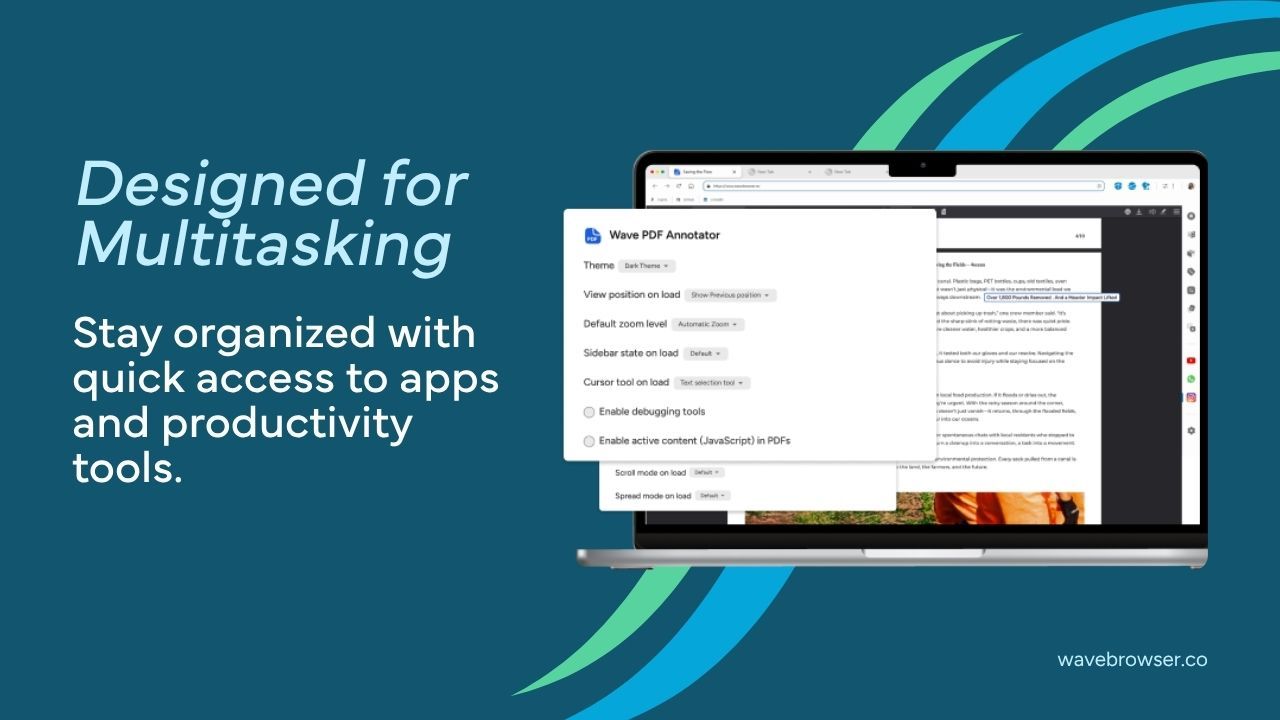
Once your file is smaller, open it in Wave Browser and give it a final look. Its PDF Annotator lets you highlight important details, add notes or questions, and mark sections that need another review—all from your desktop browser.
Need a different format? Explore the supported options in Wave’s converter. If you need a paper copy, you can print with Wave and adjust the paper size, page range, and scale before printing.
Save your annotated copy and check its file size once more before sharing, since adding markups can make it larger. Then you’re ready to send a document that’s easy to share and clear to read.