A boss fight, hidden item, connection error, or unfamiliar game can send you searching mid-session. Results often mix old walkthroughs, unrelated clips, unofficial downloads, and advice for a different device.
A gaming search engine works better when you use a clear query and check the source. In Wave Browser, you can search from the address bar, open a guide in a new tab, and keep supported services such as Discord, Twitch, or YouTube accessible from the desktop Side Bar.
This guide explains how to find useful games, guides, streams, communities, and troubleshooting answers without creating a pile of tabs.
What Is a Gaming Search Engine?

A gaming search engine is a search tool or method focused on video game information. It can help gamers discover titles, compare platforms, find walkthroughs, watch gameplay, locate official downloads, check system requirements, or solve a technical problem.
The term can describe several types of search:
- A general search engine used with specific gaming keywords
- A game store or database filtered by genre, platform, price, or player mode
- A search inside a forum, wiki, video platform, or Discord server
A broad query such as “space game” could return thousands of results. “Cooperative space survival game for PC with controller support” tells the search engine more about the experience, platform, and feature you want.
Regardless of which search engine you use, it reads your query and returns web pages that appear relevant. Adding the title, mission, platform, version, error message, or game mode provides more useful context.
Gaming Search Engine vs. Gaming Browser
Although they work together, a search engine and a browser have different jobs. The engine helps you locate information. The browser is the app that opens and displays it. You may search for a guide and then use your browser to read the web page, watch a stream, join a community, download a game, or play online.
| Feature | Gaming search engine | Gaming browser |
| Main purpose | Helps users find gaming information online | Opens and organizes games, guides, streams, and other web content |
| Common uses | Finding games, walkthroughs, system requirements, communities, streams, and troubleshooting answers | Playing browser games, watching videos, managing tabs, and accessing gaming services |
| How it works | Uses the keywords in a search query to return relevant web pages | Displays the selected pages and lets users interact with their content |
| Role during gameplay | Helps locate information such as maps, builds, patch notes, or server updates | Keeps guides, videos, chats, and other resources accessible during a session |
| Effect on performance | Does not control game performance, internet speed, or network bandwidth | May offer resource management tools, but cannot fix game servers or connection problems |
| Where Wave Browser fits | Wave Browser is not a gaming search engine | Wave Browser is a web browser with desktop tools that support gaming research and multitasking |
A gaming browser is still a browser, but its interface may include tab management, quick access to communication services, video pop out, ad and tracker controls, or settings for inactive tabs. This guide to what to look for in a gaming browser explains the category further.
How to Build a Better Gaming Search Query
The best queries describe the result you want. Start with the game title, then add the task, platform, and any detail that changes the answer.
| Search goal | Query structure | Example |
| Discover a game | Genre + mode + platform + feature | cooperative building game PC controller support |
| Find a walkthrough | Title + mission or location + objective | game title ancient temple key location |
| Watch gameplay | Title + level or mode + format | game title final boss gameplay no commentary |
| Fix an error | Title + exact error + operating system | game title error 104 macOS |
| Check compatibility | Title + device + requirement | game title Android controller support |
| Find a community | Title + community type | game title official Discord server |
| Follow an event | Title + event + date or region | game title tournament stream November 2026 |
Use the Exact Title and Task
Games can share names or have sequels and remastered editions. Include the full title and edition, then add the result type: “walkthrough,” “build,” “map,” “patch notes,” “server status,” or “system requirements.”
For a sound problem, search the title plus “sound effects not working” and the operating system. For a multiplayer issue, include the error text and whether it affects matchmaking, voice chat, or synchronization.
Include the Platform
Instructions change across a PC, Mac, Android device, and consoles. A desktop keyboard shortcut may not apply to a controller, while an app setting may appear elsewhere on mobile. For a macOS issue, use that term rather than only “Mac.” If you play on several devices, check whether progress synchronization works across them.
Add the Version or Date
Live service games change through patches and seasons. Add the current version or year when searching for builds, events, tier lists, or fixes, and check the page’s update date.
Search for the Right Type of Gaming Content
The same title can produce very different results. Decide whether you need an official fact, community explanation, video demonstration, or personal opinion.
Games and Browser Based Play
To find something playable without a large installation, combine a genre with “browser game,” “play online,” or “no download.” Add “multiplayer” or “single player” to narrow the format. See these multiplayer browser games to play with friends for examples.
Walkthroughs, Streams, and Communities
For a walkthrough, include the boss, puzzle, item, mission, or location in your query. Add terms such as “spoiler free,” “beginner,” “solo,” or “hard mode” when they match what you need. YouTube can be helpful when a puzzle, route, or combat strategy is easier to understand through a visual demonstration.
Social platforms serve different roles within gaming communities, from finding teammates to following live events.
Facebook groups give gamers a place to discuss specific titles, ask questions, share strategies, and follow community events. Some groups focus on particular regions, consoles, game modes, or skill levels, making them useful for finding players with similar interests.
Official developer and publisher pages may also share release announcements, updates, trailers, and event information. Check whether a page or group is officially connected to the game before relying on its information.
Instagram is commonly used by developers, esports organizations, streamers, and gaming creators to share updates. Players can find short gameplay clips, screenshots, artwork, event highlights, announcements, and previews of upcoming content.
The platform is useful for discovering creators and following the visual side of gaming culture, but short posts may not provide enough detail for technical help. Use the profile’s official links when you need complete patch notes, support information, or download pages.
Discord
Discord supports real time communication through text channels, voice chat, and community servers. Official game servers may provide announcements, patch information, technical support, feedback channels, and spaces where players can discuss strategies.
Many servers also include channels for finding teammates, organizing multiplayer sessions, sharing custom content, or discussing particular game modes. Use an invitation shared through the game’s official website or verified social account whenever possible.
Twitch
Twitch helps gamers follow live gameplay, esports tournaments, developer broadcasts, and community events. Watching a stream can show how a game plays before you buy or download it, while experienced players may demonstrate character builds, routes, tactics, and advanced techniques.
Live chat also gives viewers a way to ask questions and interact with streamers and other players. Recorded broadcasts and clips can remain useful after the stream ends, especially when searching for a particular match, update, or gameplay moment.
Telegram
Telegram channels and groups can help gamers follow announcements, community updates, event schedules, and creator news. Some communities also use group chats to organize multiplayer sessions, exchange strategies, and share guides.
Because public channels may be unofficial, confirm the link through the game’s website or verified social account before joining or downloading shared files.
Turn Search Results Into a Practical Gaming Setup
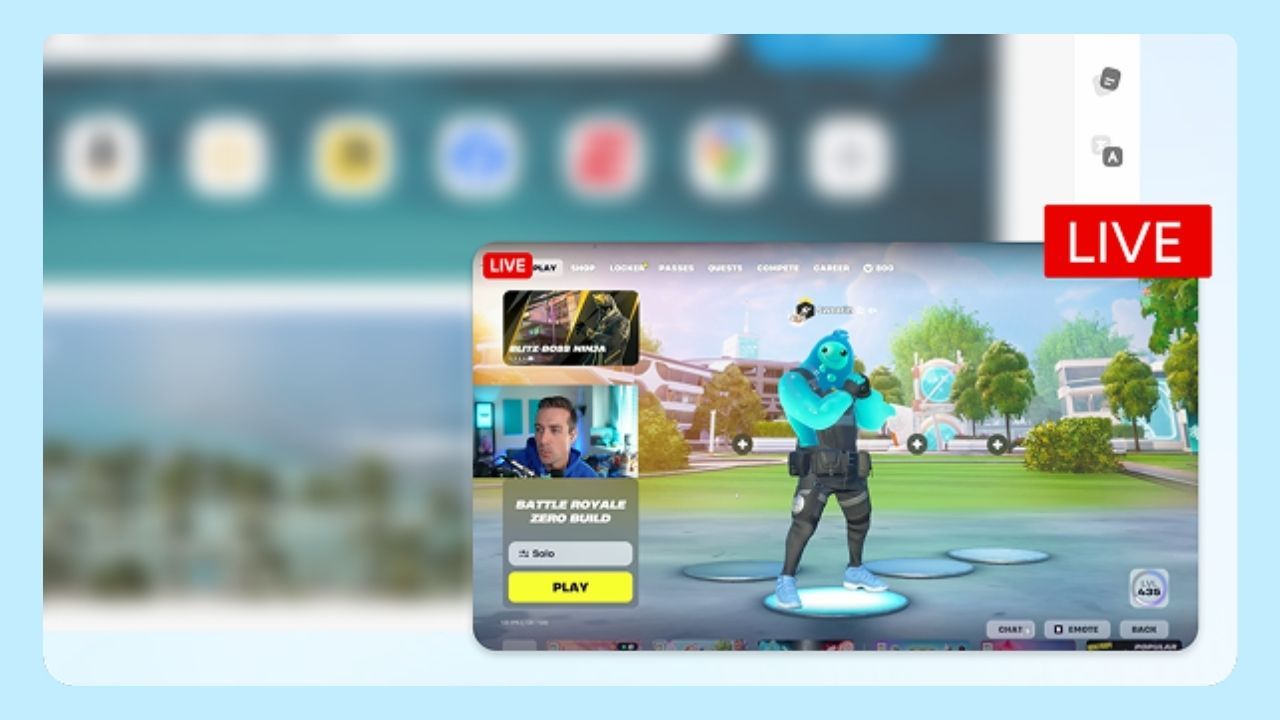
A gaming search engine is most useful when the answer stays easy to reach during gameplay. A few habits can keep research from becoming a desktop full of duplicate windows:
- Keep the most useful guide in one tab and close repeated results
- Bookmark a reliable wiki, map, or support page
- Use a new tab for follow up queries
- Pause downloads or streams when the connection is busy
Wave Browser brings several of these activities into one setup. On supported desktop versions, the Side Bar can keep services such as Discord, Twitch, YouTube, Facebook Messenger, Instagram, or Telegram within reach while the main window remains available for a guide or search result. Availability may vary by service and platform.
Why RAM and CPU Use Matters to Gamers
Memory Saver can pause inactive tabs until you return, which may reduce the RAM and CPU resources those pages use. It does not control game servers, graphics performance, or connection quality. Find more ideas in Wave’s browser gaming setup tips and guide to playing games with Wave.
A GamesRadar overview of Wave Browser discusses the Side Bar, video pop out, and Memory Saver for tasks such as checking a guide, watching a tutorial, or keeping a community service nearby.
Setting Up Each Tab and App After Switching Browsers
If you are moving from an old browser, import bookmarks from a profile you recognize, review the imported folders and extensions, and remove outdated shortcuts. After you download a new browser, update it before signing in.
Is It Necessary to Download a VPN for Gaming?
A VPN encrypts the connection between your device and the VPN server while hiding your IP address from the websites and services you access. This can provide additional privacy when gaming on public or shared networks.
It can also change the route your connection takes to reach a game server. This may help when the usual route is unstable, but it does not guarantee lower ping or smoother gameplay. The additional connection step can sometimes increase latency or reduce download speeds.
Check the game’s rules, choose a nearby server, and compare performance with and without the VPN. Always download the VPN from its official website or verified app store listing.
The guide to browser settings for online gaming explores these checks in more detail.
Make Every Gaming Search More Useful With Wave Browser

A useful gaming search engine experience starts with a clear question. Include the exact title, task, platform, version, and date when they affect the answer. Then verify the source before you download a file, follow a technical command, or enter account details.
Wave Browser can support that routine without suggesting that search alone improves gameplay. Use the address bar for a focused query, open the most useful web page in a tab, and keep supported community or video services available from the desktop Side Bar. Memory Saver can reduce activity from inactive tabs while you focus on the current page or game.
Whether you are discovering a browser game, checking a walkthrough, watching a Twitch stream, joining a Discord community, or troubleshooting a PC title, the same principle applies: search with purpose, verify the result, and keep only the information that helps your session. Explore more guidance in Wave’s articles about gaming in the browser and gaming essentials.