A web browser may look simple from the outside, but it handles many tasks every time you open a page, complete a search, sign in to an account, or use an online tool. Behind the browser window, different systems work together to retrieve information, display web content, run interactive elements, and help you manage your activity.
Understanding browser features makes it easier to choose tools that match your specific needs.
Some people want better organization for research and work. Others prioritize password management, user privacy, accessibility features, or support for web apps.
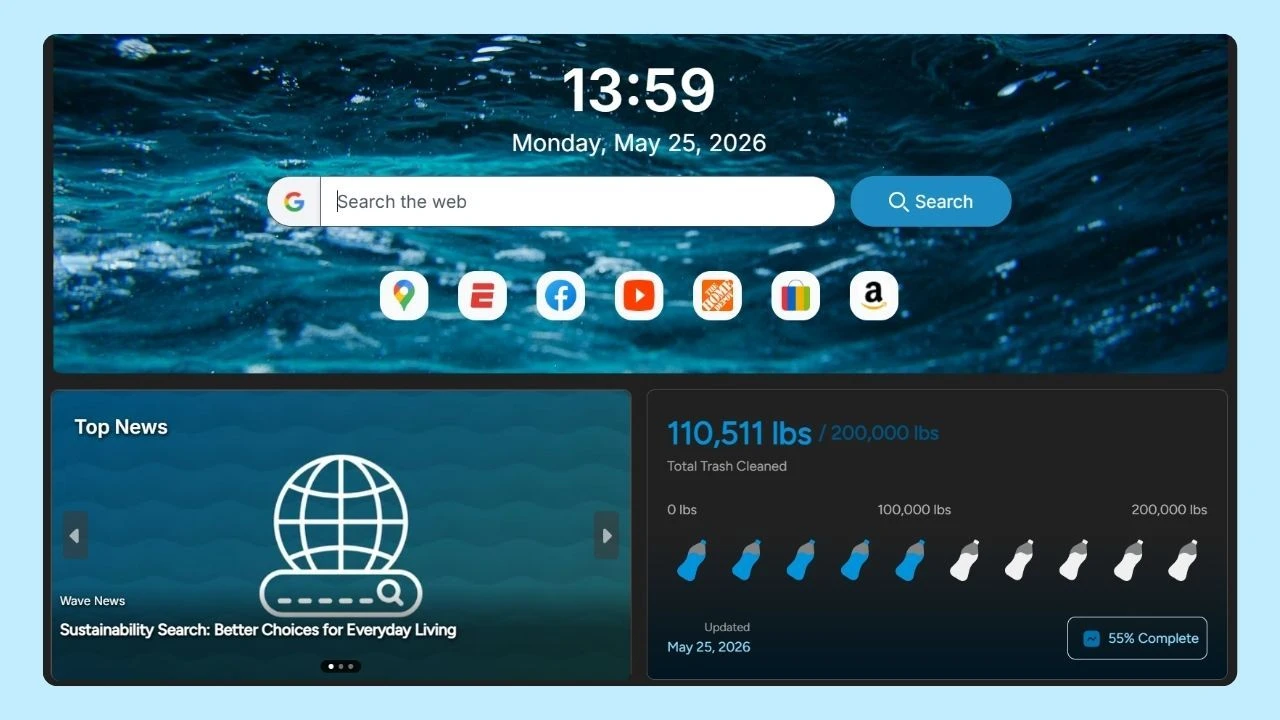
Wave Browser brings these functions together with important features for everyday organization, productivity, privacy, and browsing across Windows, Mac, Android, and iOS. Feature availability differs by platform, so looking beyond the basic user interface can help you understand how Wave Browser fits your everyday tasks.
What is a Browser Feature?
A browser feature is any tool or function that helps you navigate and interact with the web. Some features are easy to see, such as the address bar, tabs, bookmarks, and browsing history. Others work in the background to load websites and make their content interactive.
When you enter a website address, also called a uniform resource locator (URL), the browser finds the requested page and displays it on your screen. Behind the scenes, it organizes the text, images, videos, buttons, and menus so you can easily view and use them.
These different features work together to create a smooth browsing experience, whether you are reading an article, watching a video, completing a form, shopping online, or using a web app.
The first web browser was mainly used to find information and move between connected pages. Today, modern options can do much more, allowing people to watch videos, shop online, communicate, play games, and use tools for work or study.
The Benefits of Browser Features

See the main benefits of browser features below. The most useful ones are those that fit naturally into your daily routine.
1. A More Convenient Browsing Experience
The right features can reduce unnecessary steps during browsing sessions.
- A built in password manager can help retrieve saved login information.
- A reading list can keep useful pages available for later
- Bookmarks make frequently visited websites easier to reach
Productivity tools can also keep related activities together.
The desktop Wave Browser side bar provides access to supported tools and services beside the page being viewed. This can be useful when checking messages, translating information, taking notes, tracking a package, or converting a file during another task.
2. More Control Over Browsing Data
Modern web browsers provide settings for managing cookies, permissions, browsing data, and local history. These privacy settings allow users to make choices about what the browser saves on their device and how particular website permissions are handled.
Incognito Mode adds another option for browsing sessions where you do not want to retain local history after every Incognito window is closed. It does not make someone anonymous to websites, internet providers, employers, schools, or account services.
The guide explaining how Incognito Mode works in Wave Browser provides more detail about what the feature manages and what remains visible elsewhere.
3. Support For Safer Browsing Habits
Security features can help users recognize risks, control permissions, install updates, and manage personal data more carefully. Safe browsing also depends on individual habits, including reviewing website addresses, using strong passwords, avoiding suspicious downloads, and keeping the browser on the latest available version.
No single feature guarantees protection from every online threat. Instead, security depends on several layers working together, along with informed decisions from the user.
4. A More Personalized User Experience
Browser features can help people adapt their setup to different use cases. Accessibility features may support zoom controls, readable text, keyboard navigation, captions, and compatibility with assistive technologies. The home page, preferred search engine, appearance settings, and permissions can also be adjusted to suit different routines.
This matters because the browser with the largest market share is not automatically the right choice for every person. Browser market statistics show which products are widely used, but they do not account for individual workflows, devices, or priorities.
Top Web Browser Features and Functions
The following browser features affect many common online activities, from opening a page to managing accounts and completing everyday tasks.
1. Address Bar and Search Tools
The address bar is where users enter a website address or begin a search. In many modern browsers, it works with the selected search engine to provide suggestions, complete web searches, and identify matching pages from browsing history.
Although this feature appears straightforward, it acts as one of the main gateways to the web. It allows users to move directly to a particular website or search for information without first opening a separate search page.
2. Displaying and Interacting With Web Content
Browsers use background technology to turn website files into the pages you see and use. One system organizes the text, images, and design, while another makes interactive elements such as menus, forms, videos, and games work.
Because Wave Browser is built on Chromium, it uses Chromium’s underlying technology to display web pages and support interactive content.
A ThinkComputers overview explores how this foundation supports practical, everyday activities in Wave Browser. It highlights key features for browser based gaming, video playback, and multitasking that help users move between entertainment, communication, and other online tasks within the same browsing experience.
3. Tabs, Bookmarks, and Reading Lists
Tabs allow users to keep multiple pages open within one window. Bookmarks save useful websites, while reading lists help organize content that someone wants to return to later.
These features are useful for research, online shopping, travel planning, studying, and daily work. However, keeping too many inactive tabs open may use additional system resources. Tab management tools can help create a more organized browsing experience.
Wave includes bookmarks and reading lists across its supported desktop and mobile platforms. Learn how to organize your reading queue with Wave Browser and keep articles and other useful pages easy to find.
4. Browsing History
Browsing history provides a record of pages visited through regular browsing sessions. It can help users return to an article, product, form, or resource when they no longer remember the exact URL.
Users can review or remove saved history through their browser settings. Browsing history stored on a device is different from information that websites, account providers, or network administrators may retain.
5. Incognito Mode
Incognito Mode opens a separate session designed not to retain local browsing history, cookies, site data, or information entered into forms after all Incognito windows are closed. Downloads and bookmarks created during the session remain on the device.
This feature is useful when using a shared computer, researching a topic without adding it to local history, or signing into an account for a short session. It should not be treated as complete anonymity or as a replacement for broader privacy and security practices.
6. Ad and Tracker Blocking
With so much advertising and tracking content across the internet today, ad and tracker blocking can help reduce supported content that loads on web pages. This may create a less cluttered experience on supported sites, although results depend on what the feature recognizes and what each page loads.
Ad and Tracker Blocking in Wave Browser is available on Windows, macOS, and Android. It works separately from cookie controls and Incognito Mode because each feature addresses a different part of the browsing experience.
7. Password Management
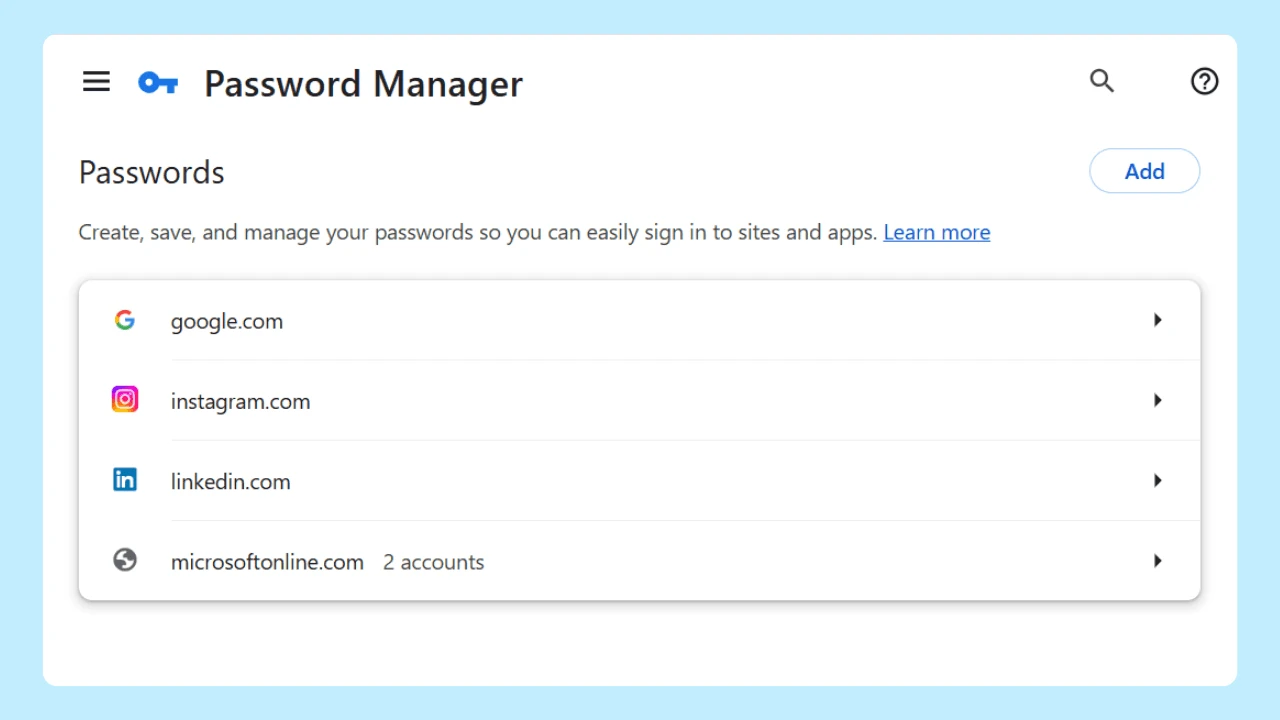
A password manager stores supported login credentials so users can retrieve them when returning to an account. It can reduce the need to remember every password or repeatedly enter the same information.
Wave Browser’s Password Manager allows users to review saved passwords and account details in one place. Password management is available across Windows, macOS, Android, and iOS.
Users should still create strong, unique passwords, review saved information regularly, and update credentials that may have been exposed in a breach.
8. Privacy and Site Controls
Privacy controls help users manage cookies, site permissions, saved browsing data, and related settings. Depending on the platform and browser version, users may be able to control access to the camera, microphone, location, notifications, and other device functions.
These controls give users more visibility into how websites interact with their devices and personal data. They are most effective when reviewed regularly rather than left unchanged indefinitely.
9. Browser Sidebar Tools
A sidebar places selected tools beside the current page. Instead of replacing the web page, the panel keeps another function within reach.
On Windows and macOS, the Wave Browser side bar supports desktop productivity tools and integrations for messaging, notes and reminders, file conversion, translation, package tracking, price tracking, and other tasks. It can help users move between web content and supporting tools without rebuilding their workspace across multiple windows.
The Side Bar is a desktop feature and is not available on mobile devices.
10. Web Apps and Integrated Tools
Web apps allow people to complete tasks through the browser rather than relying entirely on installed desktop software. Email platforms, collaborative documents, project tools, streaming services, and publishing systems are common examples.
Some browsers also offer integrated tools for specific needs.
Wave Browser features include a Converter Tool, PDF Annotator, messaging integrations, notes and reminders, and tools for viewing two screens side by side on supported desktop platforms.
These unique features do not replace the core purpose of the web browser; they extend it by keeping common supporting tasks close to the information already being viewed.
11. Features for Mobile Devices
Mobile browsers are designed for smaller screens, touch controls, and changing network conditions. Their features may differ from those offered by desktop browsers.
Wave Browser is available on Android and Apple devices. Its mobile features include Incognito Mode, customizable cookie and privacy controls, password management, reading lists, and bookmarks. Ad and tracker blocking is also available on Android, while Content Notifier is available on iOS.
Reviewing platform availability is important when choosing a new browser because a feature offered on Windows or macOS may not appear on a phone or tablet.
12. Accessibility and Interface Settings
A clear graphical user interface helps users find controls without interrupting their activity. Common interface options include zoom, full screen mode, appearance settings, keyboard shortcuts, and tools for adjusting how content is displayed.
Accessibility features can make online information easier to use for people with visual, hearing, motor, or cognitive needs. Their availability varies among mainstream browsers, operating systems, and individual websites.
13. Developer Tools
Developer tools are built primarily for web development and troubleshooting. They allow developers to inspect page structure, review network requests, identify errors, test layouts, and understand how a website behaves on different screen sizes.
These tools also reveal some of the work a browser performs behind the user interface. They can show how the browser contacts a web server, downloads page resources, runs JavaScript, and turns those resources into a visible page.
14. Browser Updates
Browser updates can introduce new features, improve compatibility, correct performance issues, and address known security problems. Using the latest supported version helps the browser work with current web standards and modern web applications.
Updates are especially important because the internet changes continuously. Websites adopt new technologies, developers revise web apps, and security researchers identify issues that may require browser changes.
How to Choose the Browser Features That Matter to You
A useful feature should solve a real problem in your routine. Before choosing a browser, consider what you do most often online.
Ask yourself:
- Do I frequently switch between research, communication, and other tools?
- Do I need bookmarks and reading lists across desktop and mobile devices?
- Do I want controls for cookies, trackers, and local browsing data?
- Would a built in password manager help me manage login credentials?
- Do I work with PDFs, documents, or file conversions?
- Do I use web applications for work or study?
- Which features are available on my operating system?
- Do I understand what the privacy and security tools cover?
The features you need may also depend on whether you use the internet mainly for personal activities, study, or work. Consumer tools often focus on convenience and individual preferences, while enterprise tools may include additional controls that help organizations manage access, security, and devices across a team.
| Area | Consumer features | Enterprise features |
| Main purpose | Support personal browsing, entertainment, shopping, and study | Support workplace access, security, and administration |
| Settings | Controlled by the individual user | May be managed centrally by an IT team |
| Passwords and accounts | Provide controls for cookies, permissions, browsing data, and trackers | May include company policies, access restrictions, and reporting |
| Updates | Managed by the user or installed automatically | May be scheduled or controlled across company devices |
| Extensions and web apps | Selected according to personal preferences | May be approved, installed, or restricted by an administrator |
| Support | General help resources and customer support | May include dedicated technical support and deployment assistance |
Browser Features Should Support the Way You Use The Web

What began as a simple way to open connected documents has become an everyday space for communication, research, entertainment, shopping, and work. The most valuable tools are those that make these activities easier while giving you practical control over your information and settings.
Wave Browser features include tools for organization, privacy, password management, productivity, and multitasking. Availability varies across Windows, Mac, Android, and iOS, so consider your device and the activities you complete most often online.
These features can support productivity by reducing unnecessary steps and keeping useful tools close to the task at hand. From quick searches and Incognito Mode to saved login credentials and desktop Side Bar tools, the available options can help you stay organized, move between activities more easily, and create an online experience that fits your daily routine.